
Your Public Unit Website (Site Builder)
Every unit on MySummitKeep can have a public website — a page prospective families can visit without logging in to learn who you are, when and where you meet, and how to join. You build it with the Site Builder, a drag-and-drop editor called the Section Library, and it publishes to a friendly address like mysummitkeep.org/troop68.
Who can do this: Unit leaders and admins with the Settings permission (Scoutmaster, Committee Chair, Cubmaster, and equivalents).
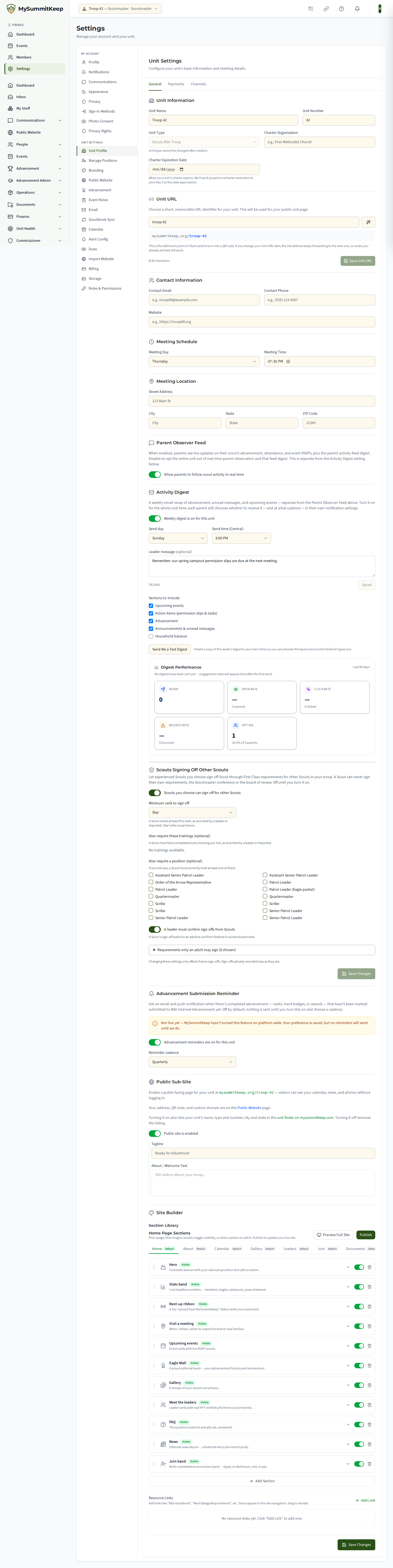
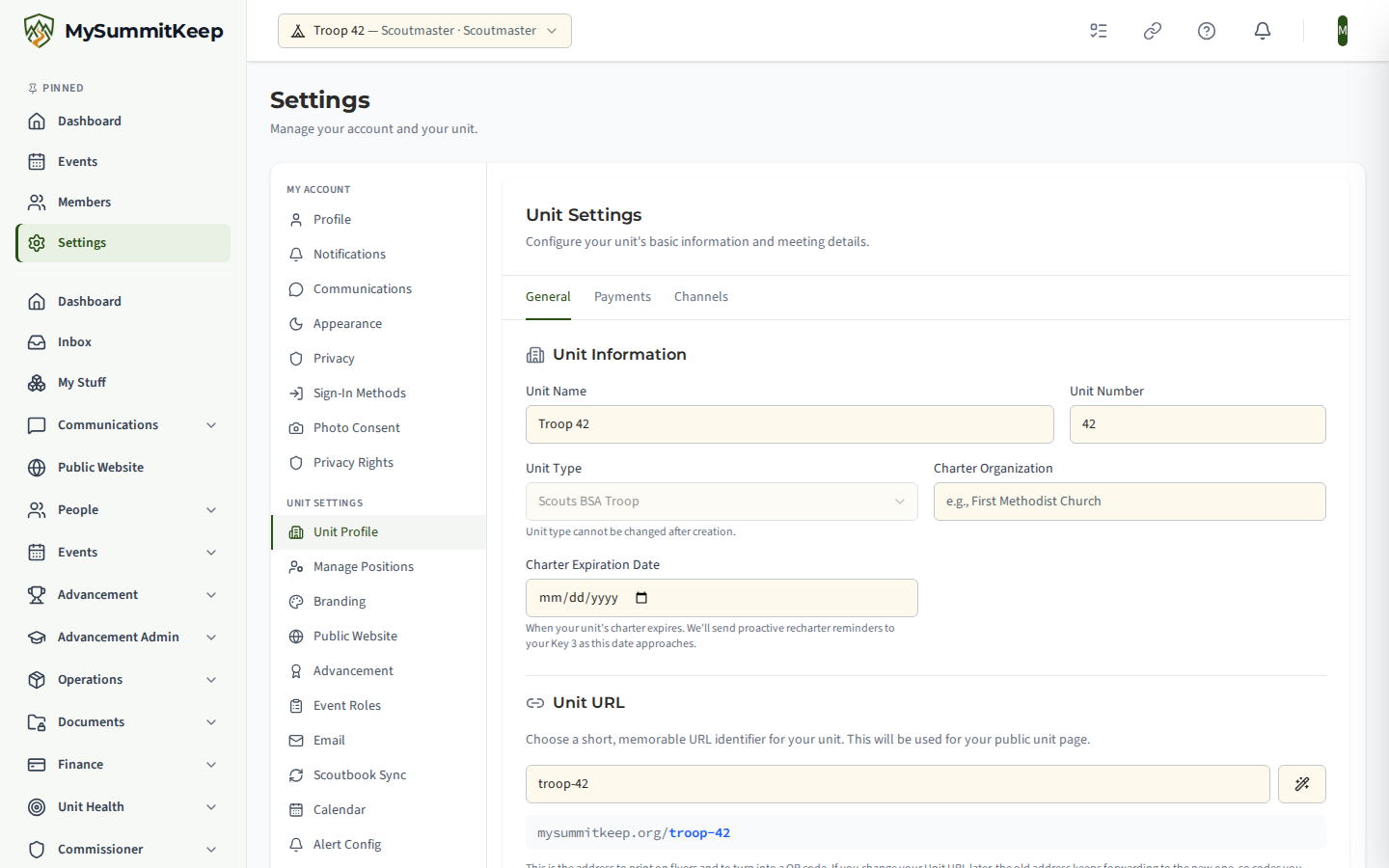
Where to find it: Settings → Unit Profile → General tab. Turn on Public Sub-Site, and the Site Builder appears below your unit details. Your address, QR code and custom domain are on the Public Website page in the left menu.
Turning on your public site
Section titled “Turning on your public site”- Go to Settings → Unit Profile and stay on the General tab.
- Find Public Sub-Site and switch it on. A tagline, welcome text, and the Site Builder appear.
- Set your Unit URL (your public web address slug, for example
troop68) higher up on the same tab, or on the Public Website page. Your site is served atmysummitkeep.org/yourslug. - Build your page with the Section Library (below), then click Publish.
The Section Library composer
Section titled “The Section Library composer”The Site Builder shows a Section Library composer: a live, editable model of your public site. You arrange your page out of ready-made sections, and a preview shows exactly what visitors will see.
Pick a page
Section titled “Pick a page”Your public site is more than one page. The tabs at the top of the composer switch between them:
- Home, About, Calendar, Gallery, Leaders, Join, Documents, and Donate.
Each page has its own set of sections. Editing the About tab never changes your Home page. Any page you leave empty falls back to a sensible built-in layout, so you can customize just your Home page and leave the rest on their defaults.
Add, reorder, and hide sections
Section titled “Add, reorder, and hide sections”The rail on the left lists the sections on the page you are editing. For each one you can:
- Drag it (using the grip handle) to reorder — the preview updates as you go.
- Edit it (the gear icon) to open its content editor — see Editing a section’s content.
- Show or hide it (the eye icon) — a hidden section stays in your layout but is not published to visitors.
- Remove it (the trash icon) to take it off the page entirely.
Click Add a Section to open the picker. It shows every section you can still add, each with a small thumbnail preview and description. Sections you have already placed are excluded — each section can appear once per page.
Editing a section’s content
Section titled “Editing a section’s content”Click the gear icon on any section to open its editor. What you can change depends on the section — for example:
- Hero — your headline and welcome line.
- Meeting info — where and when you meet, plus a “first visit” note and a directions link.
- Join band — the recruiting call-to-action, supporting bullets, and the “Be A Scout” link.
- FAQ — the questions and answers prospective families ask most.
- Cost & aid, Testimonials, First meeting — the content the Fable review added for recruiting.
Some sections pull their content live from your unit data instead of being typed in, so they stay current on their own:
- Events / Calendar shows your upcoming public events (with RSVP counts if you have opted in).
- Eagle Wall / Advancement celebrates your Eagle Scouts and advancement milestones.
- Leaders lists your unit’s leaders.
Saving and publishing
Section titled “Saving and publishing”Your edits autosave as a draft in your browser as you work — if you close the tab and come back, the composer restores your unsaved draft. A Discard Draft control reverts to whatever is currently published.
Nothing is public until you click Publish. Publishing writes your layout to your unit’s site and it goes live at mysummitkeep.org/yourslug right away. Only pages you have actually built are published; empty pages keep their built-in fallback layout.
Importing from an existing website
Section titled “Importing from an existing website”If your unit already has a website, you do not have to rebuild it by hand. The Import Website tool reads your existing site and turns its content into Section Library sections you can then refine.
Where to find it: Settings → Import Website (/settings/import-website).
- Enter your website URL and click Scan. MySummitKeep reads the page and pulls out headings, text, contact and meeting details, and photos. (An optional AI-assisted pass can tidy up the extracted copy.)
- Review what it found.
- Import to create the matching sections — including a photo gallery if your old site had images.
If Fundraising is switched off for your unit when you import, the import keeps your stored Donate page and donation sections, the same as a normal save, so switching Fundraising back on brings them back. After importing, open the Site Builder and fine-tune the result: reorder sections, edit the copy, hide anything you do not want, and Publish.
Blog and news posts
Section titled “Blog and news posts”Leaders publish news to the public site from Communications → Blog / News in the left menu (/blog). The page is headed Blog / News Posts and has a View Public Site link that opens your public blog, plus a New Post button.
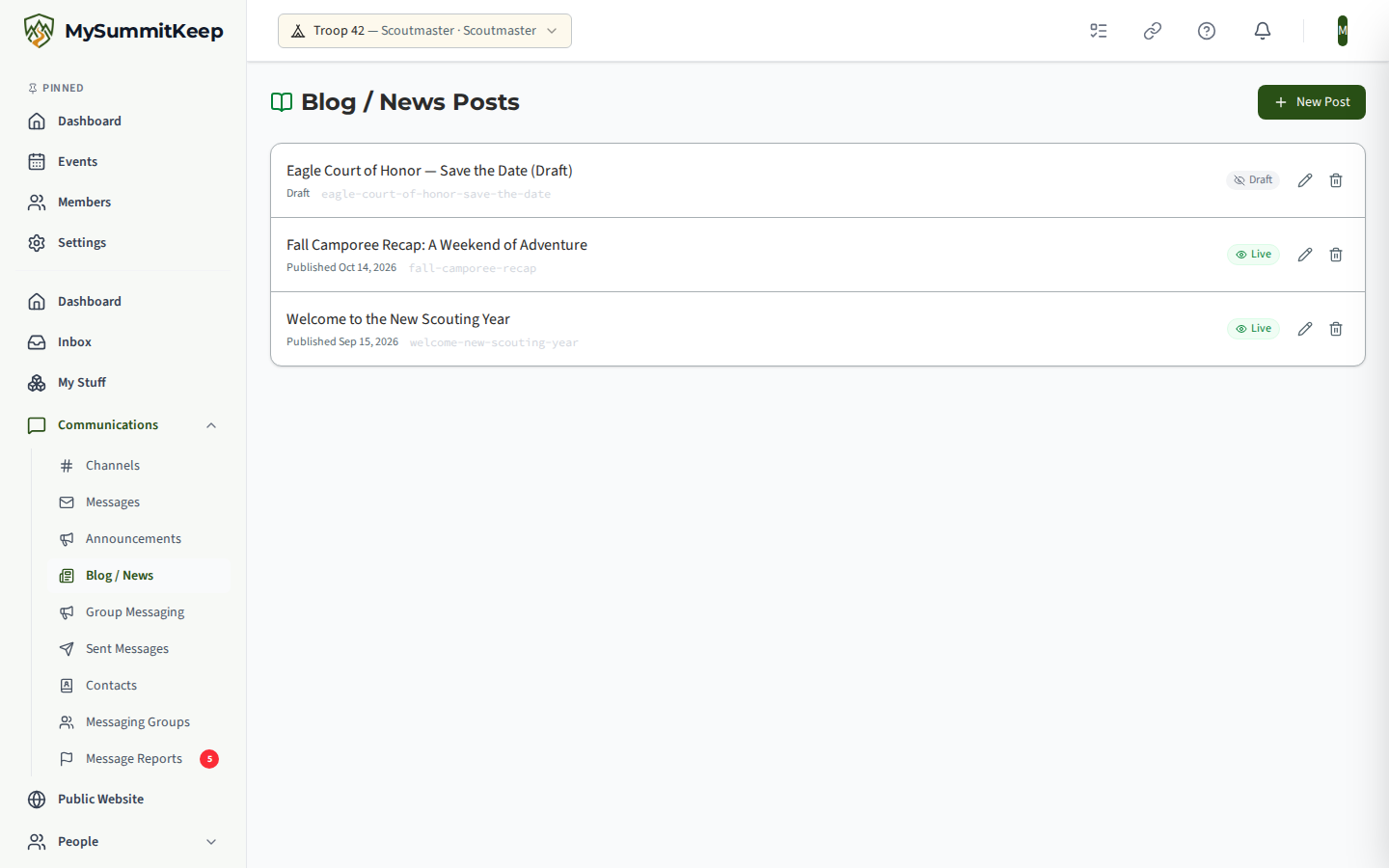
Each post in the list shows Published with its date, or Draft. Click a post to edit it, or choose New Post. The editor has:
- Title and Post URL (URL-friendly; it fills in from the title for a new post)
- Excerpt, a short summary shown in listings
- Content, written in Markdown
- Cover Image URL
- Tags, comma-separated
- A publish switch that reads Draft (not public) or Published (visible on public site)
When you switch a draft to published, a Send to unit members by email checkbox lets you also email the post to your members. Click Save Post to keep your changes. Deleting a post asks Delete Post? first. Drafts are never shown to visitors.
What visitors see
Section titled “What visitors see”Your published site renders at mysummitkeep.org/yourslug for anyone — no login required.
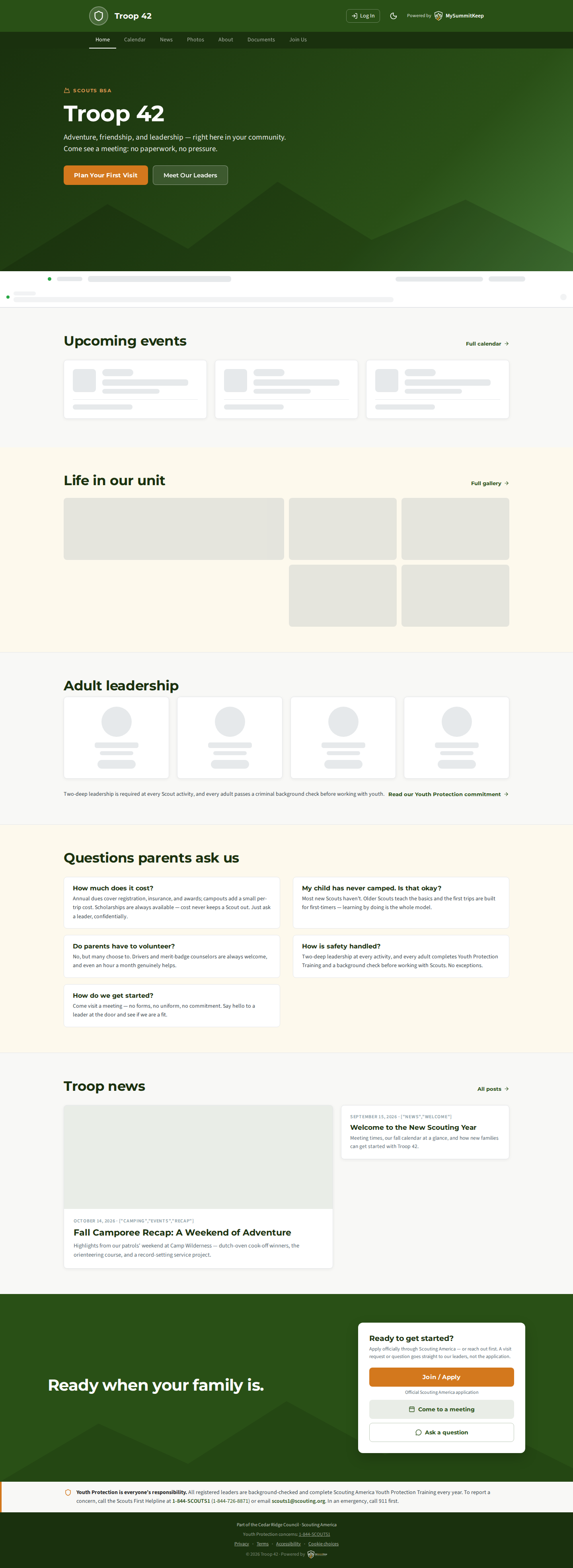
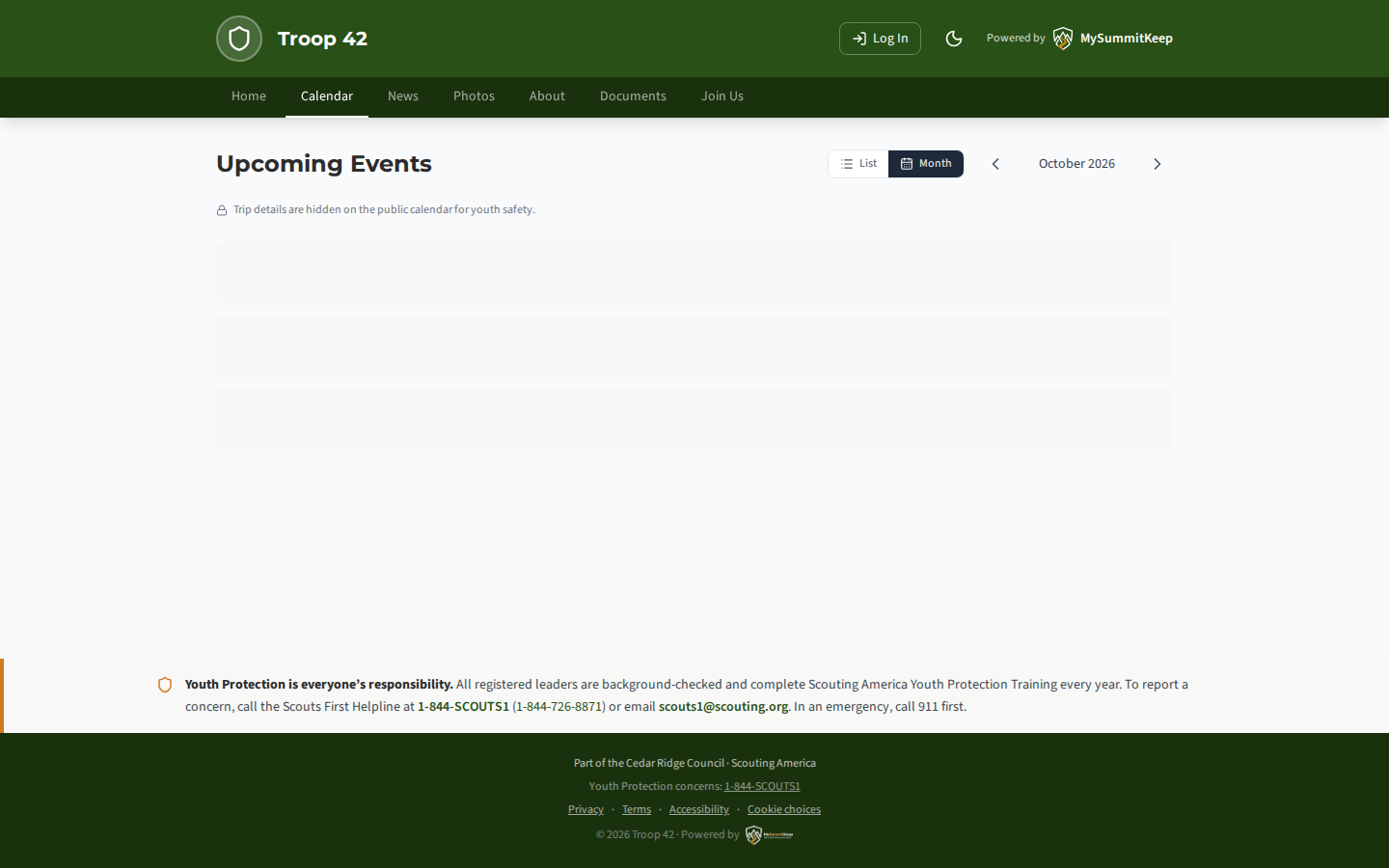
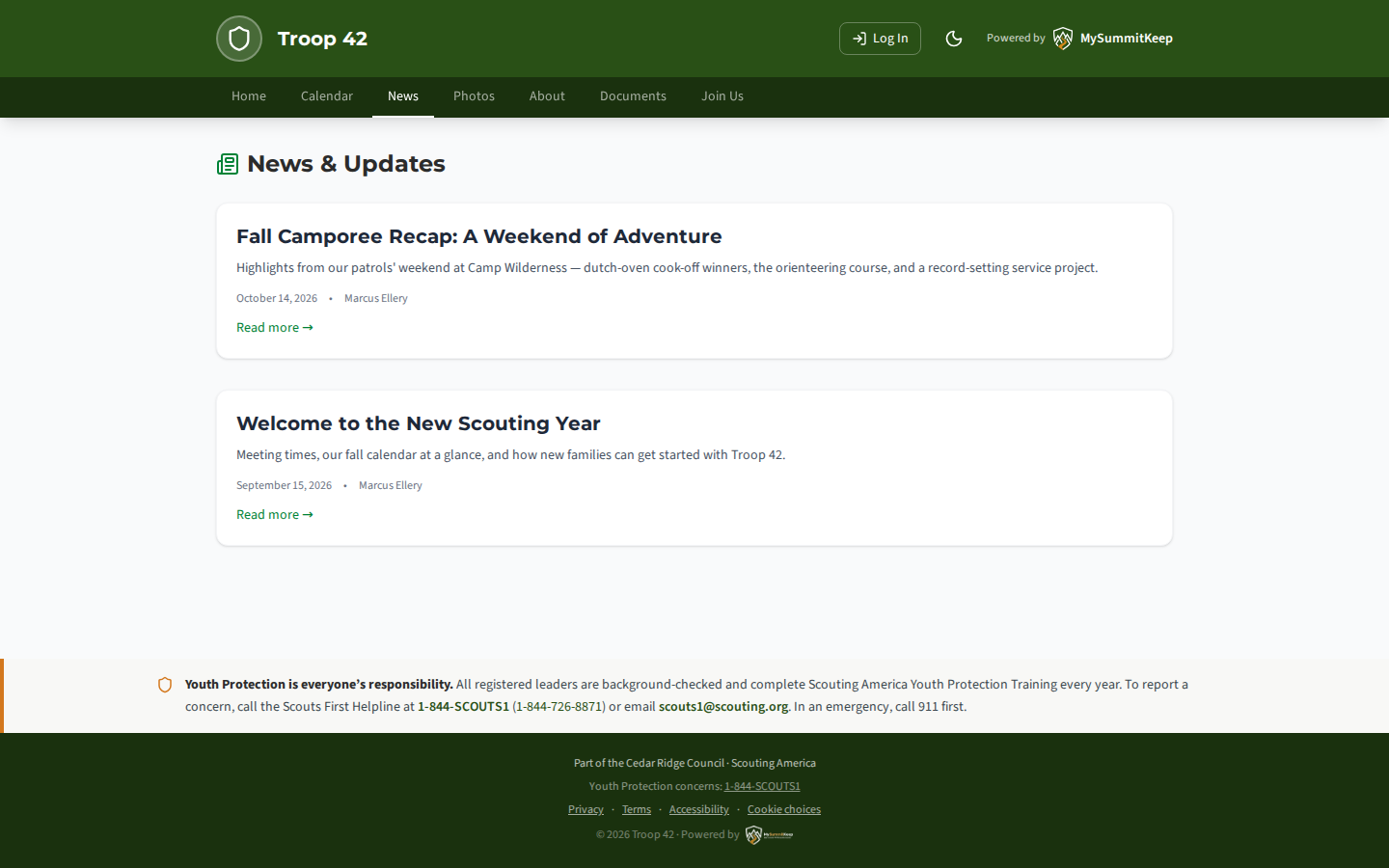
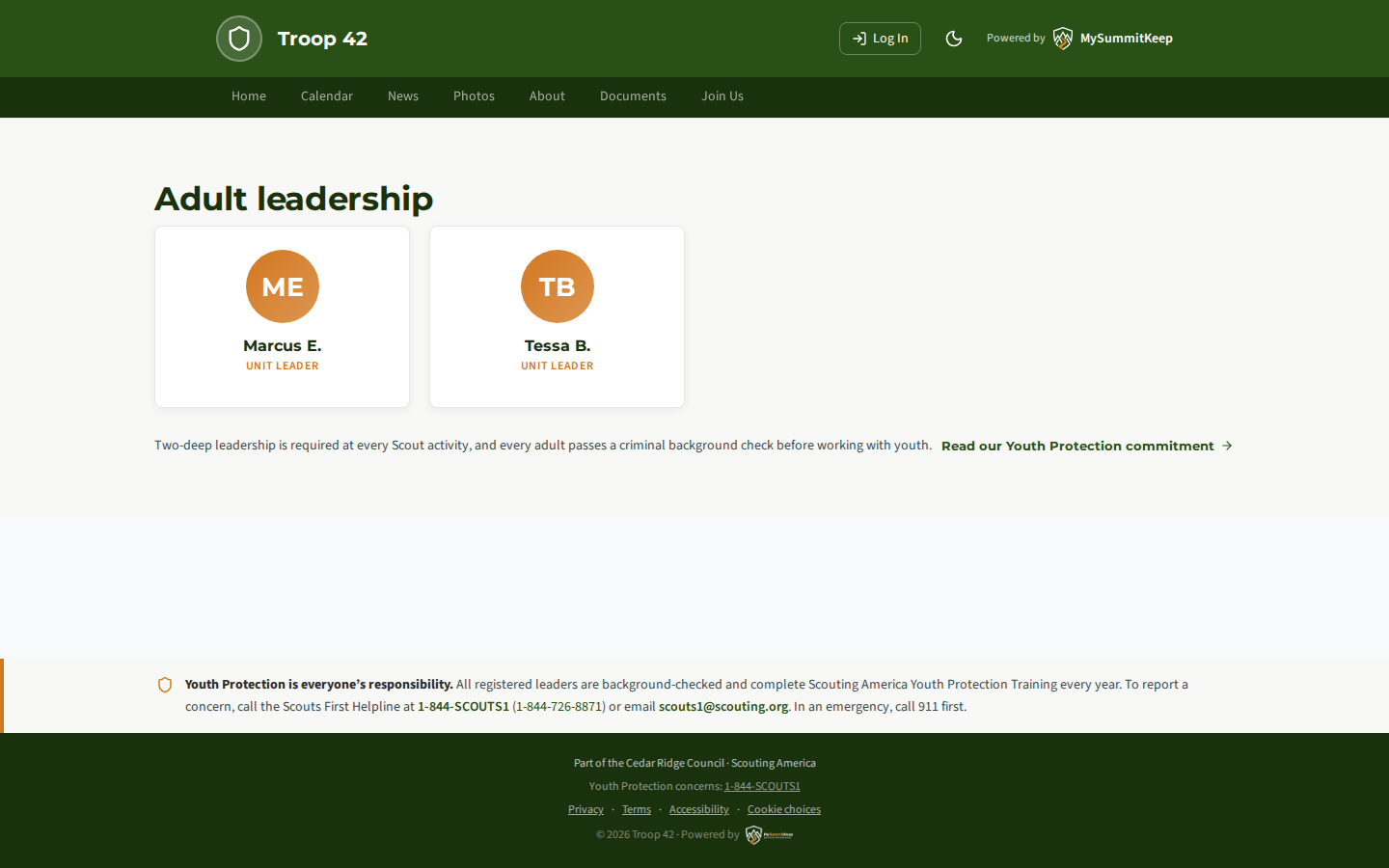
- It uses your unit branding — the theme colors and logo you set on the Branding page carry straight through to the public site header, navigation, and buttons.
- A youth-protection banner and a compliance footer — crediting your council and Scouting America — appear on every page automatically.
- Visitors can browse your pages, see your public calendar, and use your Join call-to-action to start a request.
- Families can also find your unit in the unit finder on mysummitkeep.com. It lists only units whose public site is switched on, and shows only your unit’s name, type and number, city and state, with a link to your site. Switch the public site off and your unit drops out of the finder within a minute.
- Older links keep working:
app.mysummitkeep.com/units/yourslugand/u/yourslugaddresses forward tomysummitkeep.org/yourslugautomatically, including any page,?tracking codes and#anchors after the slug.
Visitor analytics and cookie choices
Section titled “Visitor analytics and cookie choices”Your unit page on mysummitkeep.org asks each visitor, once, whether they allow Google Analytics. Nothing is measured until a visitor chooses Allow analytics. No thanks is remembered on that browser, and visitors can change their mind at any time with Cookie choices in the page footer. Browsers that send a Global Privacy Control signal are treated as a “no” and never see the question.
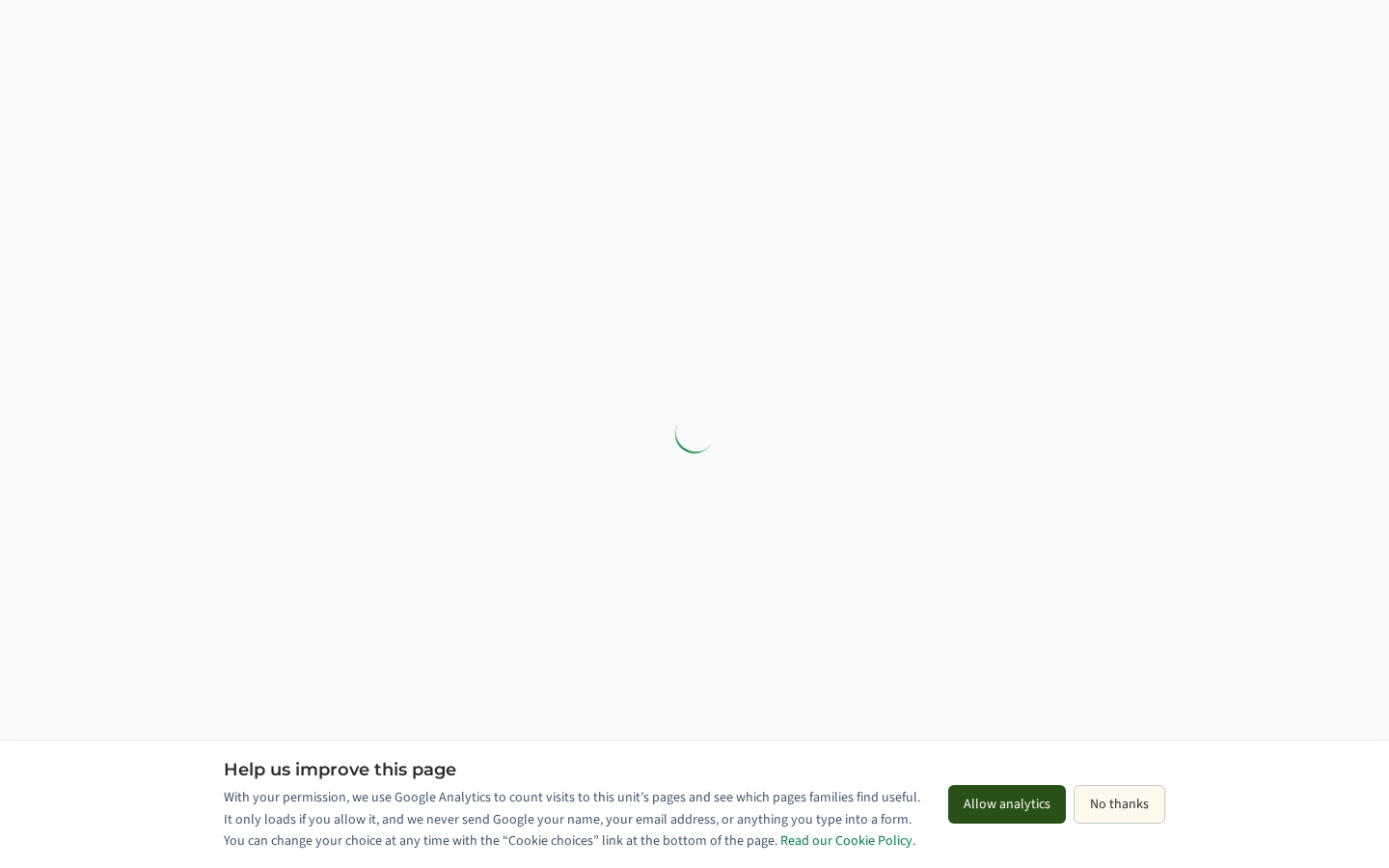
Analytics never receives a visitor’s name, email address, or anything typed into a form. It counts page visits, labeled with your unit’s web address, so MySummitKeep can see which pages families find useful. The per-unit visit counts leaders already see keep working whether or not a visitor allows analytics.
The Our History section
Section titled “The Our History section”The Our History section tells your unit’s story: the founding year and years chartered, a Hall of Fame, leadership through the years and milestones. Add it from Add a Section; it is never added to an existing site for you, and it hides itself while it has nothing to show. You manage its content on the Unit History page, which also explains exactly who can be named. The stats band shows Founded and Years Chartered tiles once you set a founding year.
Youth privacy and consent
Section titled “Youth privacy and consent”Protecting youth is built in, not something you have to remember:
- No youth names or photos are shown publicly without the appropriate consent. Sections that could surface a member’s identity are gated, and the public gallery honors photo-consent rules.
- Leader names appear on the public Leaders section only when consent allows, and Safeguarding Youth Training status is reflected where relevant.
- The youth-protection banner links families to reporting resources on every page.
Your page’s address
Section titled “Your page’s address”Your unit’s public website lives on its own domain, mysummitkeep.org, separate from the members’ app:
| Page | Address |
|---|---|
| Home | mysummitkeep.org/yourslug |
| Calendar | mysummitkeep.org/yourslug/calendar |
| News | mysummitkeep.org/yourslug/blog |
| Photos | mysummitkeep.org/yourslug/photos |
| About | mysummitkeep.org/yourslug/about |
| Documents | mysummitkeep.org/yourslug/documents |
| Join Us | mysummitkeep.org/yourslug/contact |
| Leaders | mysummitkeep.org/yourslug/leaders |
yourslug is your Unit URL. You can see and copy the full address under Settings → Unit Profile → General → Public Sub-Site. The quickest place is the Public Website page in the left menu, which also has a copy button and a QR code.
Guest RSVP and guest payment links that you send to non-members still open on app.mysummitkeep.com. That is expected.
Sharing your page with a QR code
Section titled “Sharing your page with a QR code”- Put the home address (
mysummitkeep.org/yourslug) in your QR code. It is the shortest address, and it never changes when you rearrange pages. - Test the printed code with a phone camera before you make copies.
- If you change your Unit URL later, the old address keeps forwarding to the new one, so flyers and banners you already printed keep working. Still, pick a Unit URL you expect to keep.
- Codes you printed with an older
app.mysummitkeep.com/units/…address, or an older mysummitkeep.com unit link, also keep working. They forward to your new page.
A custom web address
Section titled “A custom web address”Your free mysummitkeep.org/yourslug address works out of the box. If you would rather serve your unit page from a domain you already own (for example scouts.yourdomain.com), you can connect a custom domain with verified DNS. See Your Public Website for the full setup.
When to revisit your site
Section titled “When to revisit your site”- Before recruitment season — refresh your Home hero, meeting info, and Join call-to-action, and make sure your calendar shows upcoming public events.
- After leadership changes — the Leaders section updates from your positions, but review your About and contact copy.
- When you rebrand — theme and logo changes on the Branding page flow through automatically; re-check the preview.
- After an import — tidy up the extracted copy and remove anything outdated.
Related: Your Public Website · Unit Settings · Branding and Appearance
Need help? Contact support — we usually respond within one business day.
MySummitKeep is an independent product and is not affiliated with, endorsed by, or sponsored by Scouting America (formerly the Boy Scouts of America). Scouting America, Scouts BSA, Cub Scouts, Venturing, Sea Scouts, and the Order of the Arrow are trademarks of Scouting America. Official program content shown in screenshots and examples is © Scouting America; always confirm current requirements atscouting.org. SeeTerms § 7.3.