
Commissioner Newsletter
The commissioner newsletter is a simple way to email every unit leader in the units you serve — roundtable recaps, training reminders, recharter deadlines, or any district or council news. It is one compose form, four audience choices, and a running history of what you have sent. There are no templates to set up and no list to maintain: recipients are pulled live from the registered roster every time you send.
Compose a newsletter
Section titled “Compose a newsletter”From your Commissioner Dashboard, click Compose Newsletter (the page lives at /commissioner/newsletter/compose). You will see one form: pick your audience, type a subject, and write the body in the rich-text editor.
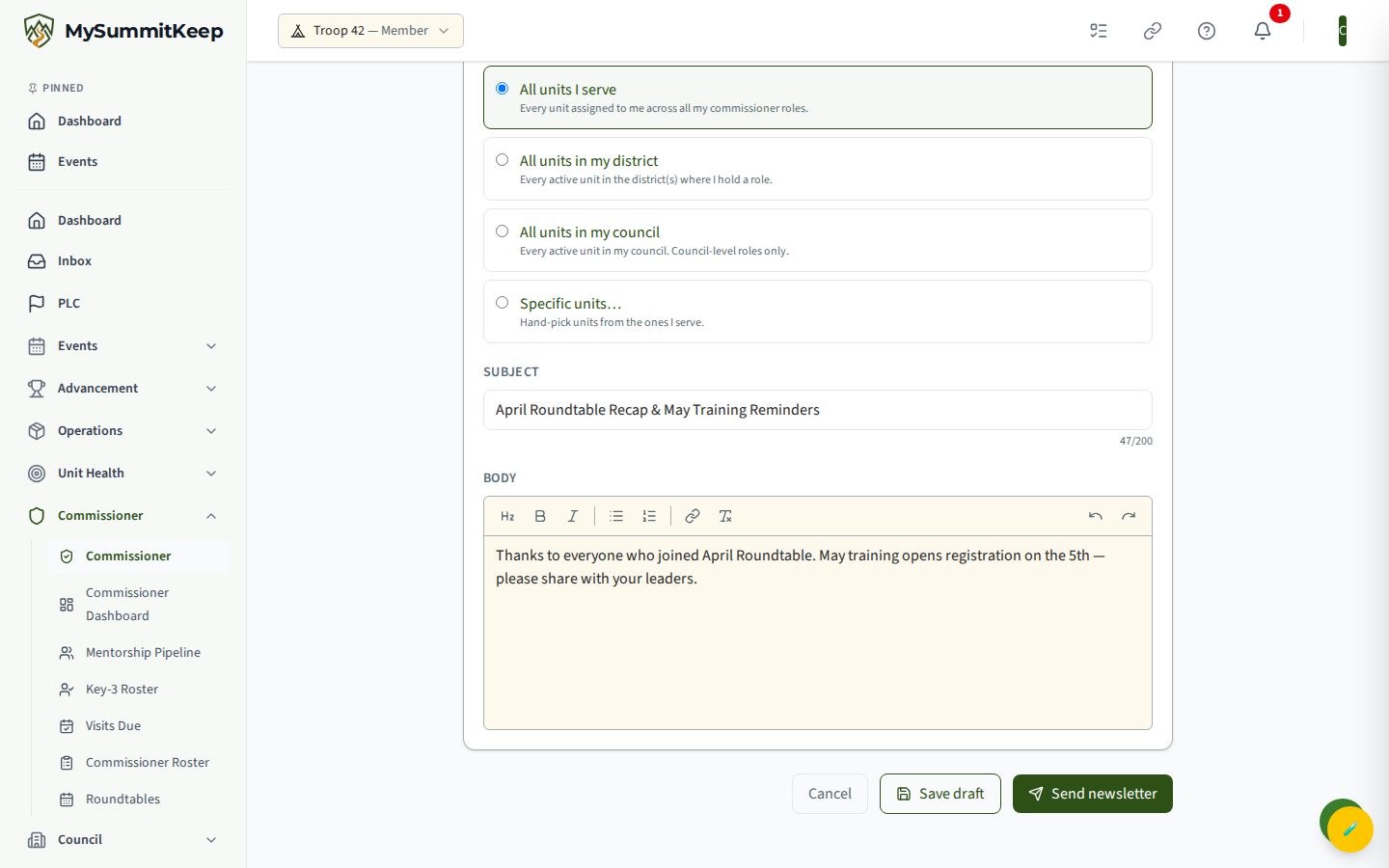
The form has three parts:
- Audience — a set of radio choices (see below). The selected option is highlighted.
- Subject — a single line, up to 200 characters. The counter on the right shows how much you have used.
- Body — a rich-text editor with the usual formatting (bold, lists, links). What you write here is exactly what leaders receive.
When you are ready, use Send Newsletter. A confirmation dialog shows the subject and audience and reminds you that a send cannot be undone — confirm there to actually email everyone. The Send button stays disabled until you have a subject, a non-empty body, and (for the specific-units audience) at least one unit picked.
Choosing who receives it
Section titled “Choosing who receives it”Four audiences are available. The options you can actually pick depend on the commissioner roles on your account; anything you are not authorized for is shown greyed out with the reason why.
- All units I serve — the default. Every unit assigned to you across all of your commissioner roles.
- All units in my district — every active unit in the district(s) where you hold a role. Available if you have any district-scoped role.
- All units in my council — every active unit in your council. Council-level commissioners only (Council Commissioner and Scout Executive). Other roles see this option disabled.
- Specific units… — hand-pick from the units you serve. Choosing this reveals a checklist of your units; the heading shows how many you have selected.
The audience rule is enforced again on the server when you send, so the highest-reach options stay limited to the right people even if the page is tampered with. If you pick specific units and one of them is outside your scope, the whole send is refused rather than going out partially.
Who actually gets the email
Section titled “Who actually gets the email”Recipients are the active unit leaders and admins with an email on file in the target units. A few automatic rules keep the send clean and lawful:
- A leader who serves in two of your target units gets one copy, not two.
- You are filtered out of your own broadcast, so you will not receive a copy of what you just sent.
- Anyone who has unsubscribed from marketing email is skipped, and every newsletter includes a required unsubscribe link.
- A member who has not yet finished signing in (no account identity on file) is skipped for now and becomes reachable once they complete sign-in.
After the send completes you land on the history page so you can see what just went out, including the recipient count.
Save a draft and come back later
Section titled “Save a draft and come back later”Not ready to send? Use Save Draft (it reads Update Draft once a draft exists). The draft keeps your subject, body, and audience exactly as you left them, and you can step away and resume it later.
Resume a draft from the newsletter history page — Resume reopens it in the compose form with everything pre-filled. When you finally send a resumed draft, it becomes the sent record; you do not end up with a leftover draft sitting beside it.
Newsletter history
Section titled “Newsletter history”From the Commissioner Dashboard, click History (at /commissioner/newsletter/history) to see everything you have worked on: unsent drafts at the top and a table of newsletters you have sent below.
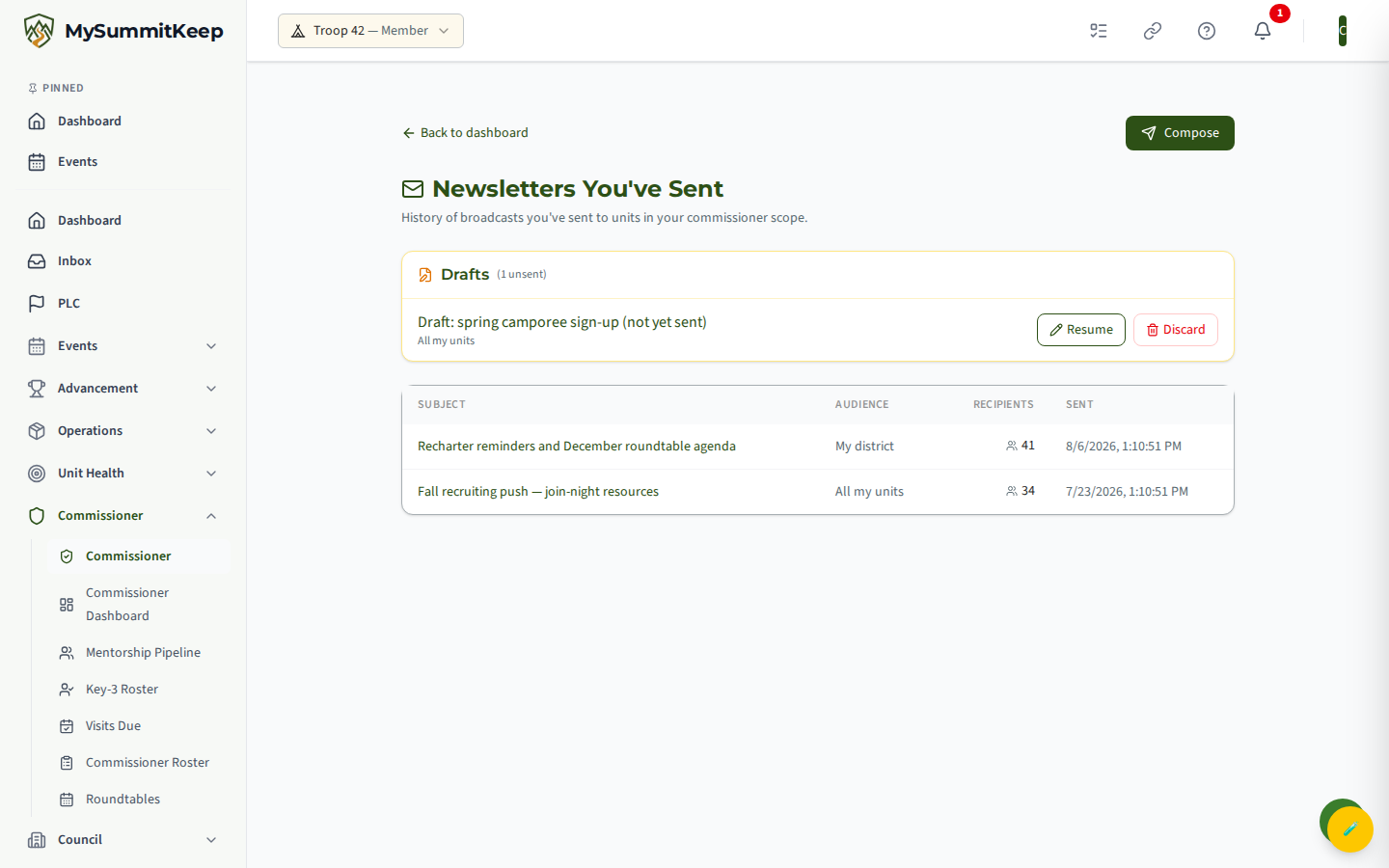
Drafts appear in their own panel with two actions each:
- Resume — reopen the draft in the compose form to keep editing or to send it.
- Discard — permanently remove an unsent draft. You will be asked to confirm.
Sent newsletters show in a paginated table with the subject, the audience, the number of recipients it reached, and the date and time it was sent. Use Previous and Next to page through older issues.
Tips for a newsletter people read
Section titled “Tips for a newsletter people read”- Keep the subject specific. “April Roundtable Recap & May Training” beats “District Newsletter” — leaders skim their inbox.
- Send to the narrowest audience that fits. Roundtable news rarely needs to go council-wide; a tighter audience respects leaders’ time.
- Draft first when it matters. For anything going to a whole district or council, save a draft, re-read it, then send.
Need help? Contact support — we usually respond within 1 business day. You may also want Commissioner Visits and Coverage Gaps for the rest of your commissioner toolkit.
MySummitKeep is an independent product and is not affiliated with, endorsed by, or sponsored by Scouting America (formerly the Boy Scouts of America). Scouting America, Scouts BSA, Cub Scouts, Venturing, Sea Scouts, and the Order of the Arrow are trademarks of Scouting America. Official program content shown in screenshots and examples is © Scouting America; always confirm current requirements atscouting.org. SeeTerms § 7.3.