
Mobile App Tips
There is no separate MySummitKeep app to download yet. The good news: you do not need one. Everything you do as a parent — link your scouts, check progress, RSVP, sign permission slips, pay invoices, and read messages from leaders — works right now in your phone’s web browser. This page shows you how to set that up so it feels like a native app, and what a dedicated app will add when it ships.
Use it today on the mobile web
Section titled “Use it today on the mobile web”Open MySummitKeep in Safari (iPhone/iPad) or Chrome (Android) and sign in with the same account you use on a computer. The whole platform is responsive, so pages reflow into a single, scrollable column that is easy to use one-handed.
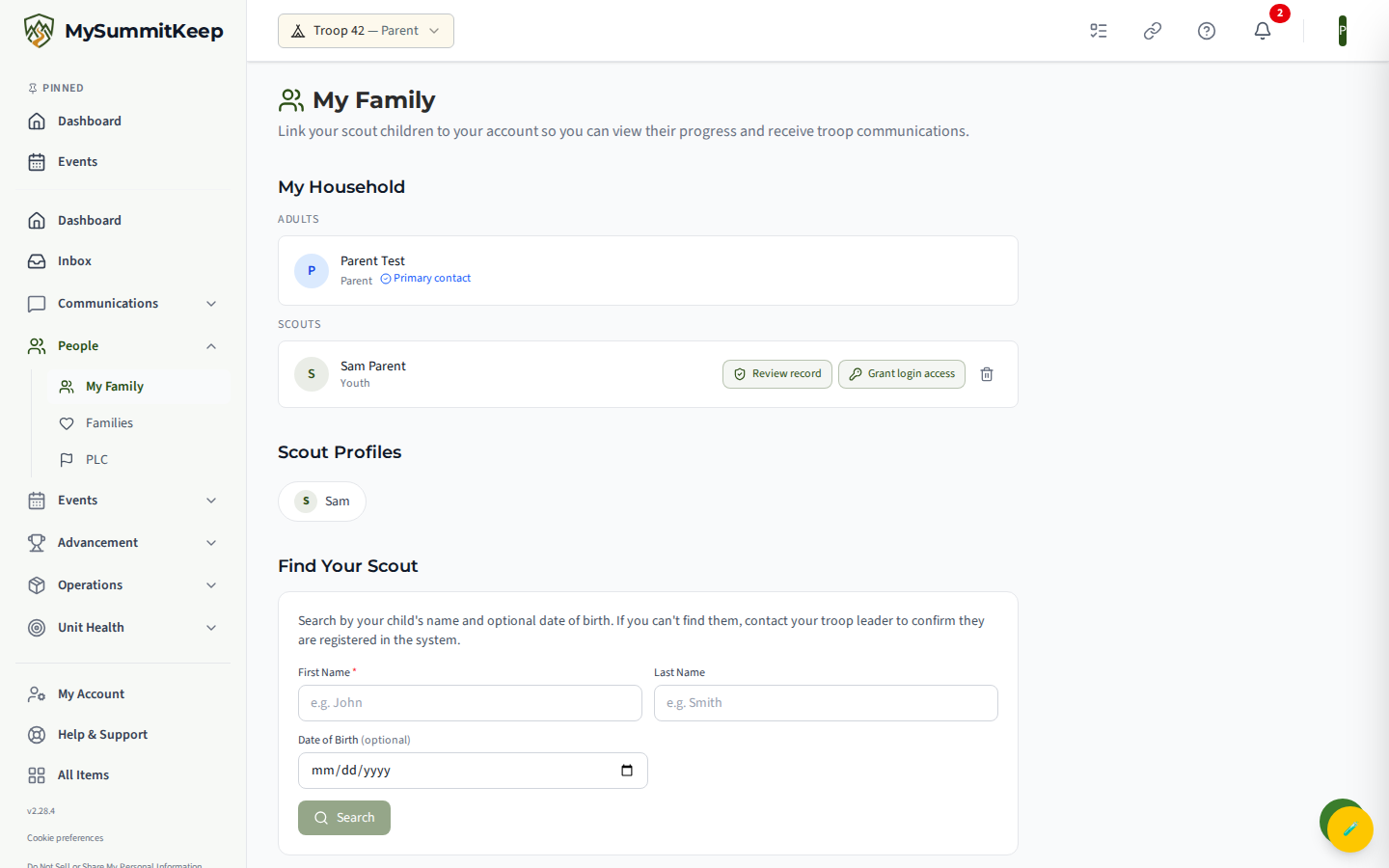
The screenshot below is the My Family page (/family) at phone width — this is the actual mobile experience, not a mockup. It is where you answer invitations to be linked to your scout children, search for them by first and last name to ask to be linked, and see their profiles.
Add it to your home screen
Section titled “Add it to your home screen”This is the single best thing you can do to make the mobile web feel like an app. It puts a tap-to-launch icon on your phone, hides the browser address bar, and remembers your sign-in. These steps work today.
- Open MySummitKeep in Safari and sign in.
- Tap the Share icon (the square with an upward arrow).
- Scroll down and tap Add to Home Screen.
- Tap Add in the top-right corner.
- Open MySummitKeep in Chrome and sign in.
- Tap the ⋮ menu (top-right).
- Tap Add to Home screen (or Install app).
- Confirm by tapping Add / Install.
After this, launch MySummitKeep from the new icon. It opens full-screen and keeps you signed in, just like a native app.
Signing in on your phone
Section titled “Signing in on your phone”Sign-in uses the same secure Microsoft sign-in as the desktop site, so your username and password are identical. If you signed up but have not finished setting up your account, see Claiming Your Account. Once you are in, open the My Family page: accept any invitation waiting for you, or search for each child by first and last name (both required) and ask to be linked. The Scout’s parent, or a unit leader, confirms your request. See Family Page Tour and Household Linking for the full walkthrough.
What a dedicated app will add (planned)
Section titled “What a dedicated app will add (planned)”A native app is on the roadmap. None of this exists yet — it is what we are aiming for so you know what is coming:
- App Store and Google Play install — a one-tap download instead of the home-screen trick above.
- Push notifications — alerts for event reminders, new messages, and pending permission slips, without leaving a browser tab open.
- Offline reading — viewing recently loaded scout progress, events, and messages with no connection, and queuing RSVP changes to send when you reconnect. For security, payments and signing permission slips would always require a live connection.
- Home-screen widgets and quick shortcuts — a glanceable “next event” and fast jumps to common actions.
Everything in this list is aspirational. When the app does ship, your existing browser sign-ins will keep working, so you can install it and pick up right where you left off.
Reporting a mobile problem
Section titled “Reporting a mobile problem”If something looks broken on your phone — text overflowing, a button that does not respond, or a layout that does not fit:
- Take a screenshot.
- Note the page URL (for example, the My Family page) and your phone model.
- Send it to support with a short description.
Mobile issues are tracked as a first-class concern, not an afterthought.
Need help? Contact support — we usually respond within 1 business day.
MySummitKeep is an independent product and is not affiliated with, endorsed by, or sponsored by Scouting America (formerly the Boy Scouts of America). Scouting America, Scouts BSA, Cub Scouts, Venturing, Sea Scouts, and the Order of the Arrow are trademarks of Scouting America. Official program content shown in screenshots and examples is © Scouting America; always confirm current requirements atscouting.org. SeeTerms § 7.3.