
Scout Accounts (Individual Scout Accounts / ISA)
Individual Scout Accounts (ISA) let your unit track money earned and spent on behalf of each Scout. When a Scout sells popcorn or works a fundraiser, their share is credited to their account; when they sign up for summer camp or a campout, the fee is debited. Open the page from the Finance group in the left menu, then Scout Accounts.
Find it in the left menu: Finance → Scout Accounts.
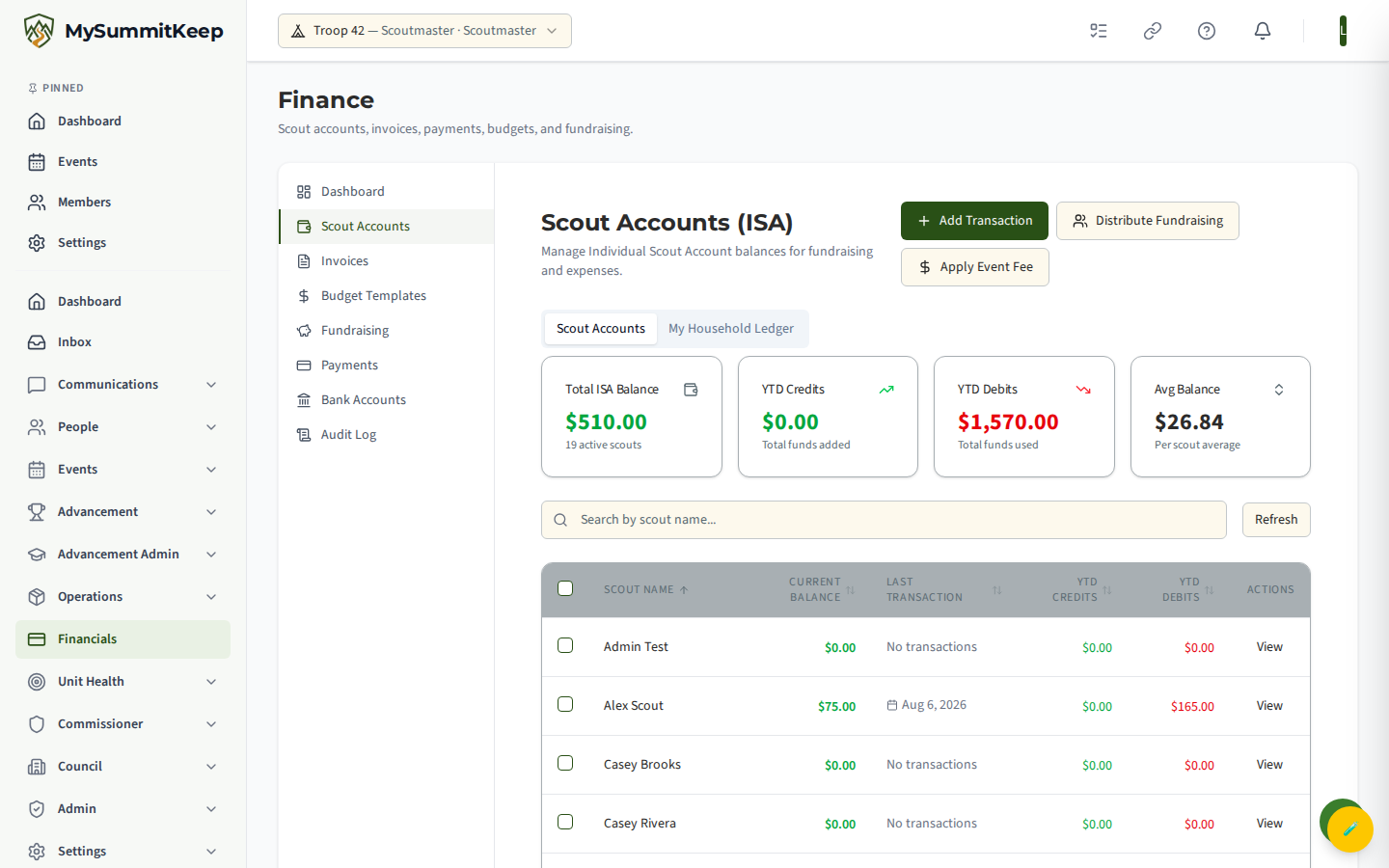
The top of the page shows four KPI cards — Total ISA Balance, YTD Credits, YTD Debits, and Avg Balance — followed by a searchable, sortable table of every active Scout with their current balance, last transaction date, and year-to-date credits and debits. Click any column header to sort; click a row to open that Scout’s detail panel below.
What an ISA is, and the BSA balance-ownership policy
Section titled “What an ISA is, and the BSA balance-ownership policy”An ISA is a bookkeeping record, not a separate bank account. The money lives in your unit’s single account; the ISA simply tracks how much of that pool is associated with each Scout.
Recording a single or bulk transaction
Section titled “Recording a single or bulk transaction”Click Add Transaction to open the dialog. You can record a credit or a debit against one Scout or many at once:
- Select Scout(s) — search and check one or more names. Use Select All or Clear to adjust quickly.
- Type — choose Credit (+) to add funds or Debit (-) to deduct them.
- Amount — the dollar figure applied to each selected Scout.
- Category — credit categories include Fundraising Proceeds, Popcorn Sales, Camp Card Sales, Manual Credit, and others; debit categories include Event Fee, Camping Fee, Summer Camp, Equipment Purchase, and more.
- Description and Date — a short note (for example, “Popcorn Sale Proceeds - Fall 2026”) and the posting date.
A preview shows the per-Scout amount and, when more than one Scout is selected, the combined total. Click Record Transaction to post.
Distribute Fundraising (even split vs. by percentage)
Section titled “Distribute Fundraising (even split vs. by percentage)”Use Distribute Fundraising when a single fundraiser earned a pool of money you need to spread across the Scouts who participated.
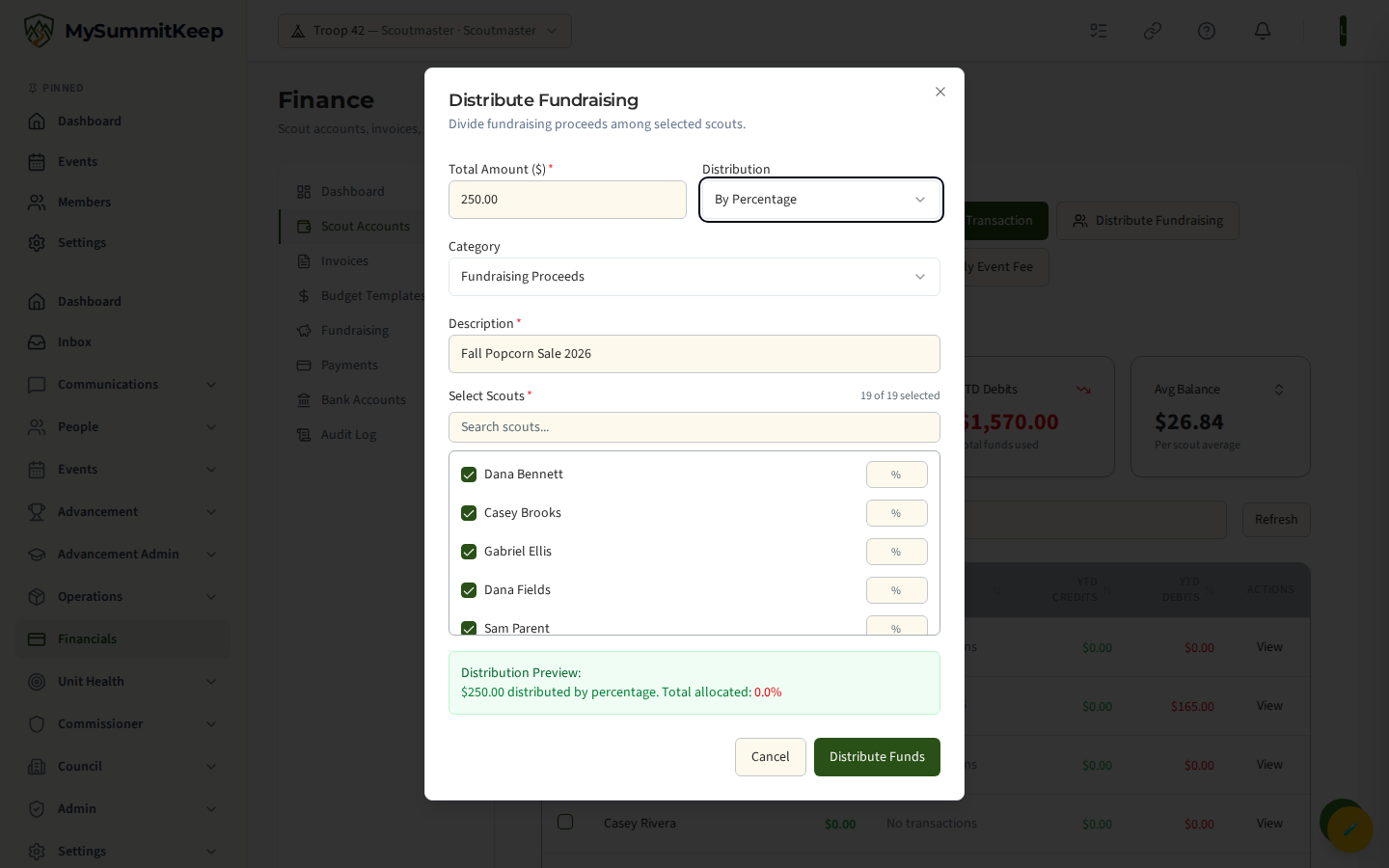
Enter the Total Amount, a category (defaults to Fundraising Proceeds), and a description, then pick a Distribution method:
- Even Split — the total is divided equally among the selected Scouts. The preview shows the per-Scout amount, and each name displays its credit.
- By Percentage — a percentage field appears next to each selected Scout. Enter each share; the percentages must sum to 100% before the form will submit. This is the method to use when Scouts sold different amounts.
Every Scout starts selected; uncheck anyone who should not receive a share. Click Distribute Funds to post a credit to each account.
Apply Event Fee to multiple scouts
Section titled “Apply Event Fee to multiple scouts”Apply Event Fee debits the same fixed amount from a group of Scouts at once — ideal for a flat campout, registration, or summer-camp fee.
Enter the Fee Amount per Scout, a category (defaults to Event Fee), and a description (for example, “Summer Camp 2026 Registration”), then choose which Scouts to charge. The preview shows the per-Scout debit and the total across the group. Click Apply Fee to post.
This splits the fee into an equal debit on each selected Scout’s ledger — every chosen Scout gets the per-Scout amount posted as a debit entry. For broader budgeting, see Event Budget and Finance and Payments.
Reading the per-scout detail panel and running-balance chart
Section titled “Reading the per-scout detail panel and running-balance chart”Clicking a Scout row (or the View button) opens a detail panel beneath the table.
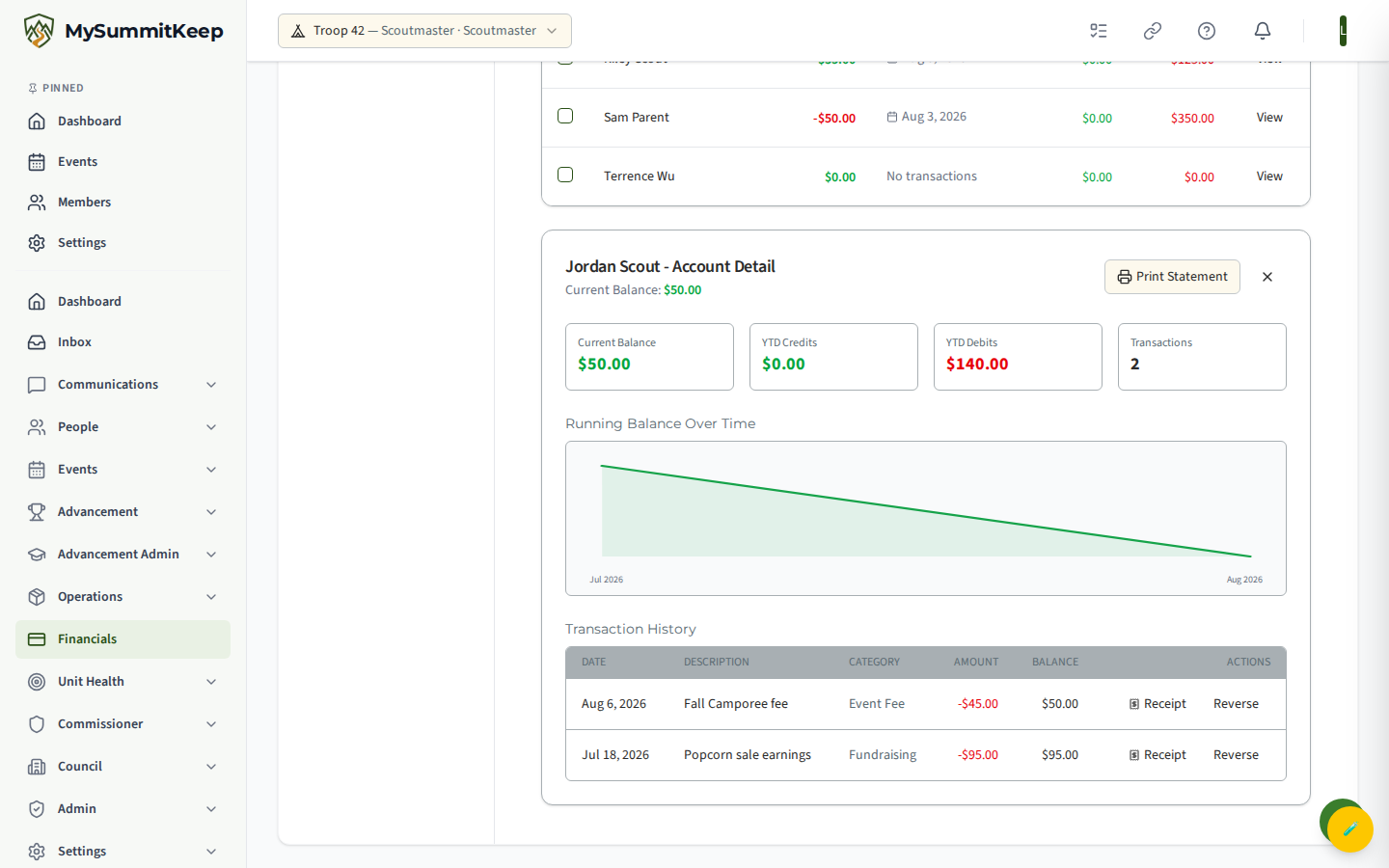
The panel shows the Scout’s current balance, YTD credits, YTD debits, and transaction count, a Running Balance Over Time sparkline (a chart needs at least two transactions to render), and a full Transaction History table. Each row lists the date, description, category, signed amount, and the running balance after that entry. Credits show in green; a negative running balance shows in red.
Reversing a transaction (append-only ledger)
Section titled “Reversing a transaction (append-only ledger)”The ISA ledger is append-only — original entries are never edited or deleted. To correct a mistake, click Reverse on the offending row. You’ll be prompted for an optional reason (for example, “duplicate entry” or “wrong scout”), and the system posts a compensating entry of the opposite type that nets the original to zero.
Printing a scout account statement
Section titled “Printing a scout account statement”Click Print Statement in the detail panel header to open a print-ready statement in a new tab. It includes the Scout’s name, current balance, statement date, and the full dated transaction history with running balances — handy for sharing with a family or attaching to year-end records.
Permissions
Section titled “Permissions”- Viewing balances and history requires leadership-tier financial access (treasurer/admin via
Financials.Manage), and parents can view their own child’s account. - The Add Transaction, Distribute Fundraising, and Apply Event Fee buttons appear only for users with
Financials.Manage. - Recording and reversing ledger entries require
Financials.Manageon the server (the same finance-control gate used for recording payments and unit expenses). In the UI, the per-row Reverse button (and the Actions column) shows only for users who holdPayment.Update. Parents may view a child’s balance but cannot post or reverse entries.
To grant these capabilities, see Unit Settings for roles and the Member Directory for assigning them.
MySummitKeep is an independent product and is not affiliated with, endorsed by, or sponsored by Scouting America (formerly the Boy Scouts of America). Scouting America, Scouts BSA, Cub Scouts, Venturing, Sea Scouts, and the Order of the Arrow are trademarks of Scouting America. Official program content shown in screenshots and examples is © Scouting America; always confirm current requirements atscouting.org. SeeTerms § 7.3.