
Households & Family Links
A household ties the people in one family together inside MySummitKeep: the scouts, their parents and guardians, siblings, and the shared address, phone, and emergency contact. Once members are grouped into a household, leaders get a single view of a family’s advancement and balances, and parents can see their own children from the My Family page.
This guide covers how leaders build and maintain households, how parents and guardians are linked to Scouts, and how parents take part from My Family.
Why households matter
Section titled “Why households matter”Scouts rarely come to your unit alone. A household captures the real-world family unit so you can:
- See every linked scout’s advancement progress and outstanding balance in one place.
- Keep one shared address, primary phone, and emergency contact instead of duplicating it on each member.
- Know who the primary contact is when you need to reach a family.
- Let parents accept an invitation, or ask from their own account, instead of you entering everything by hand.
Creating a household
Section titled “Creating a household”Open People → Families in the left menu. You’ll see a searchable list of every household in your unit and a New Household button.
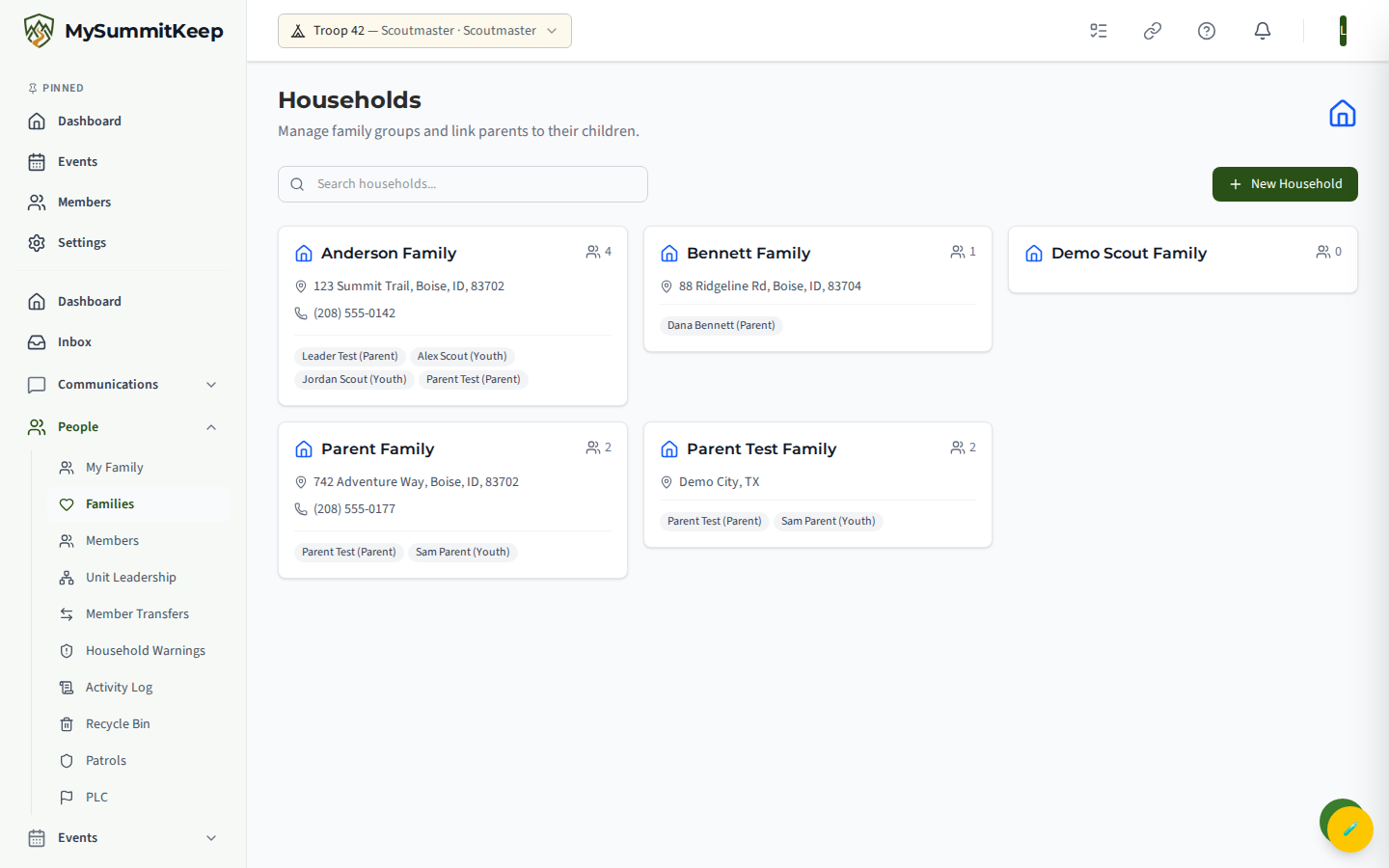
Click New Household to open the create form. Only the Household Name is required (for example, “Smith Family”); everything else is optional and can be filled in later:
- Address, City, State, ZIP Code — the family’s mailing address.
- Primary Phone — the household’s main phone number.
- Emergency Contact — Name, Phone, and Relation (such as Grandparent) for someone to reach in an emergency.
Click Save Household and the new household appears in the list. Use the search box at the top to filter the list by name as it grows. If you name parents or guardians while creating a household, the same rule applies as when you add them later: the Scouts are added right away, and each parent or guardian is sent an invitation.
The household detail page
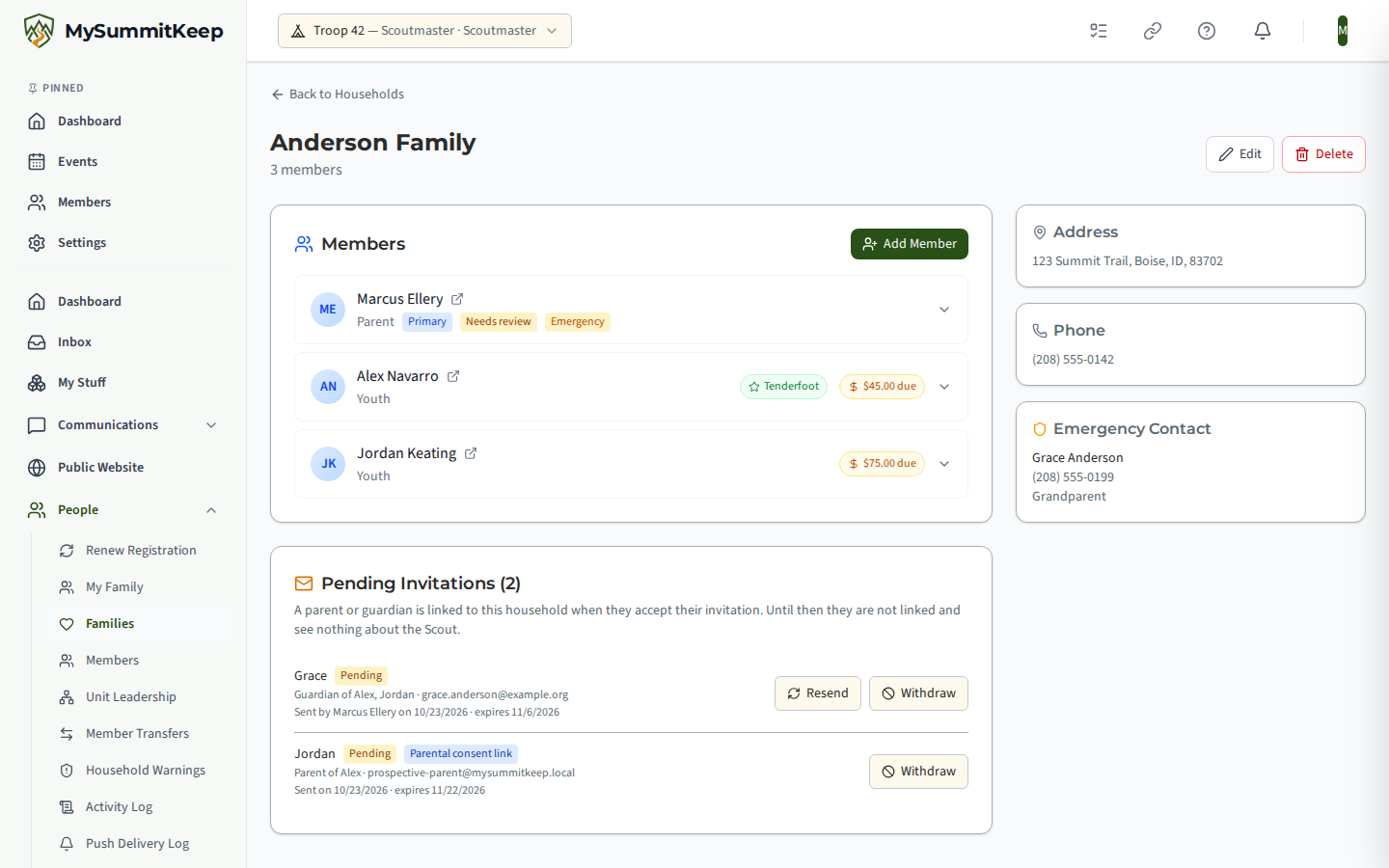
Section titled “The household detail page”Click any household to open its detail page. The page is split between the Members panel and a column of contact cards.
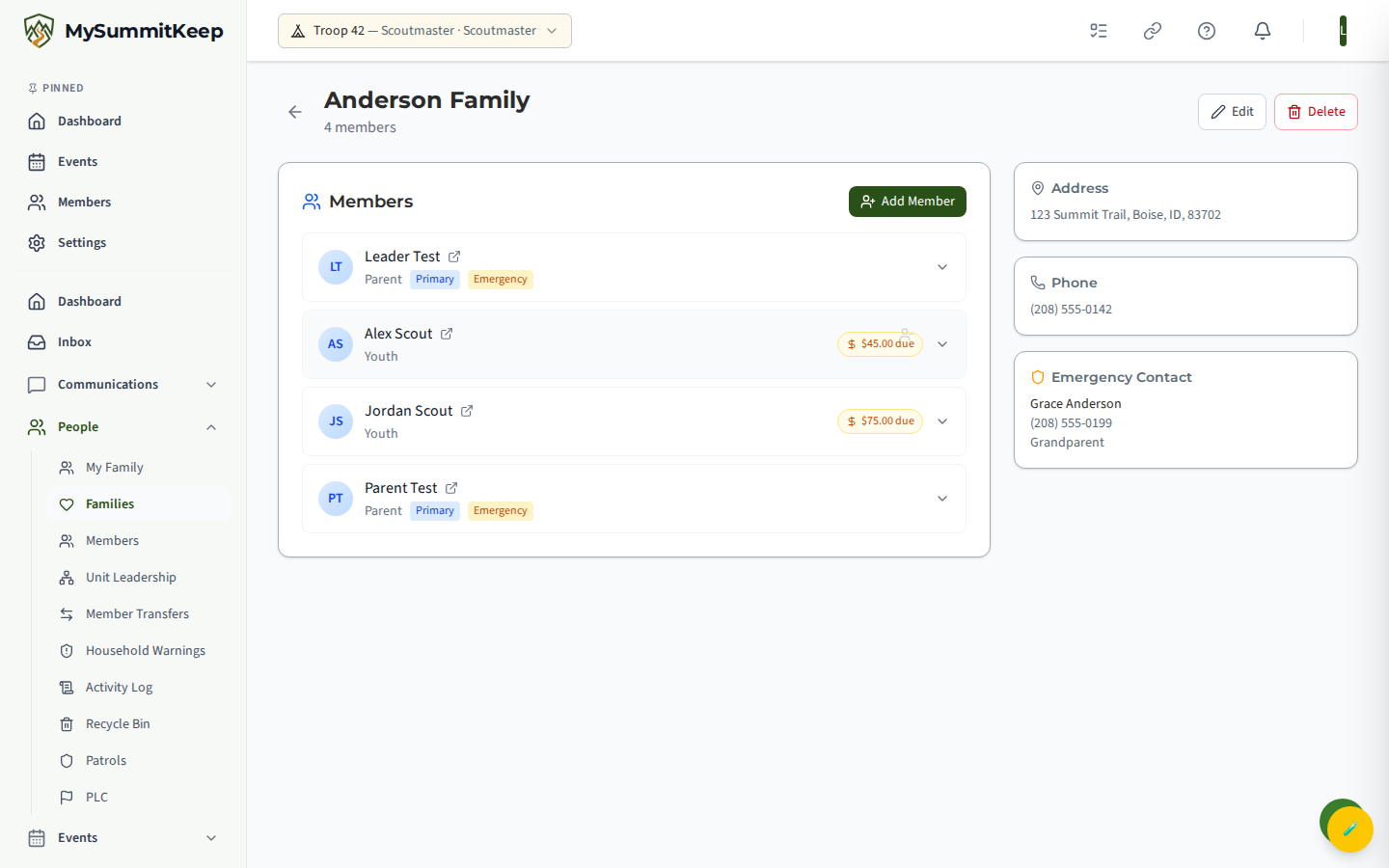
- Members lists everyone in the household. Each row shows the person’s household role plus blue Primary and amber Emergency badges when those flags are set. Click a row to expand a financial summary; youth rows additionally expand to show advancement progress. Click the member’s name (or the View Full Profile link) to open their full profile.
- A parent or guardian link that another leader should look at carries a Needs Review badge, and one that has been looked at shows who confirmed it and when (see Leader-parent links to review).
- Pending Invitations lists the parents and guardians who have been invited but haven’t answered yet (see Pending invitations).
- Address, Phone, and Emergency Contact cards display the details you entered. They only appear when there’s something to show.
Use Edit in the top-right to change the name or any contact details, or Delete to remove the household entirely (deleting a household does not delete the members themselves).
Adding and removing household members
Section titled “Adding and removing household members”From the detail page, click Add Member in the Members panel.
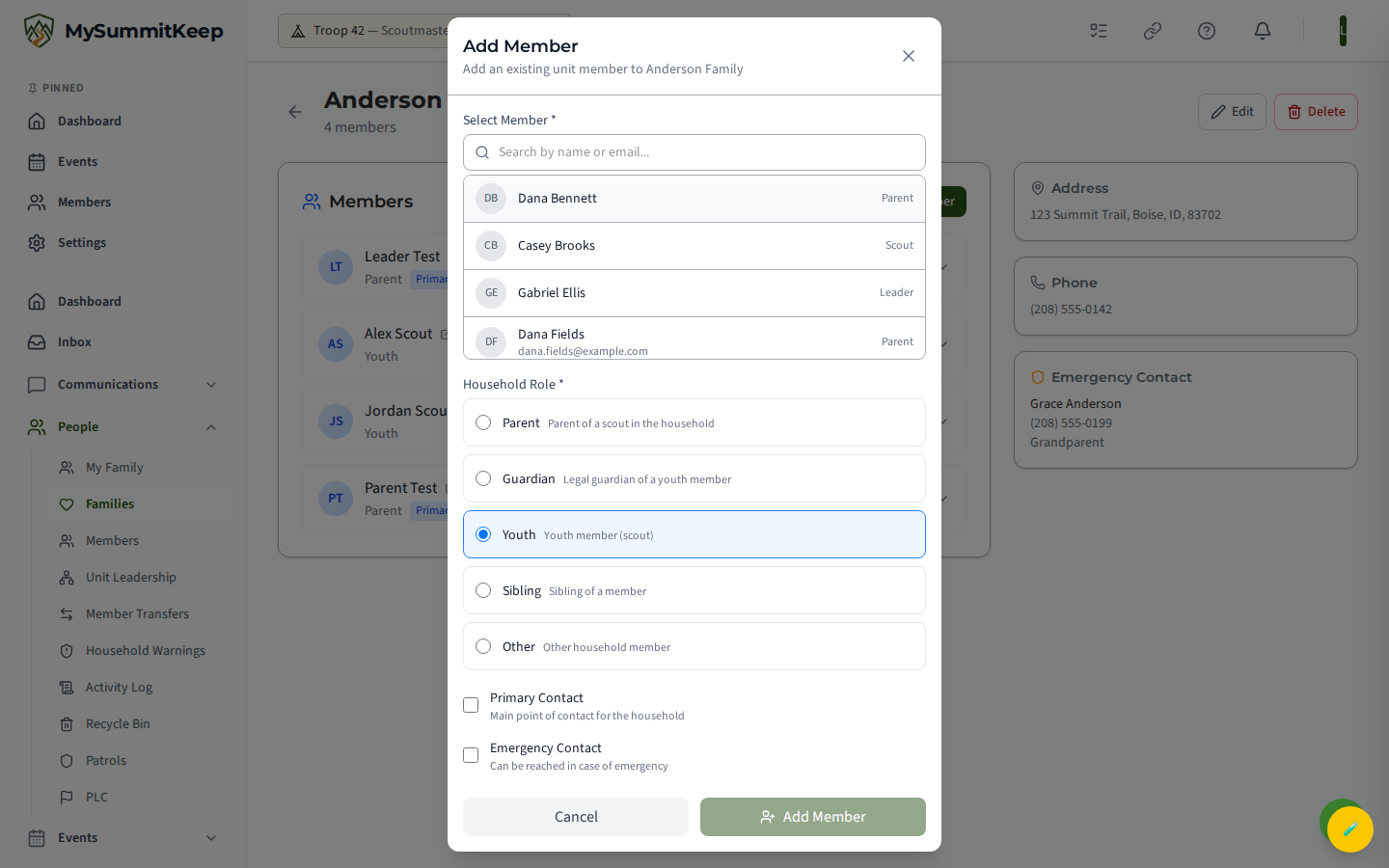
In the modal:
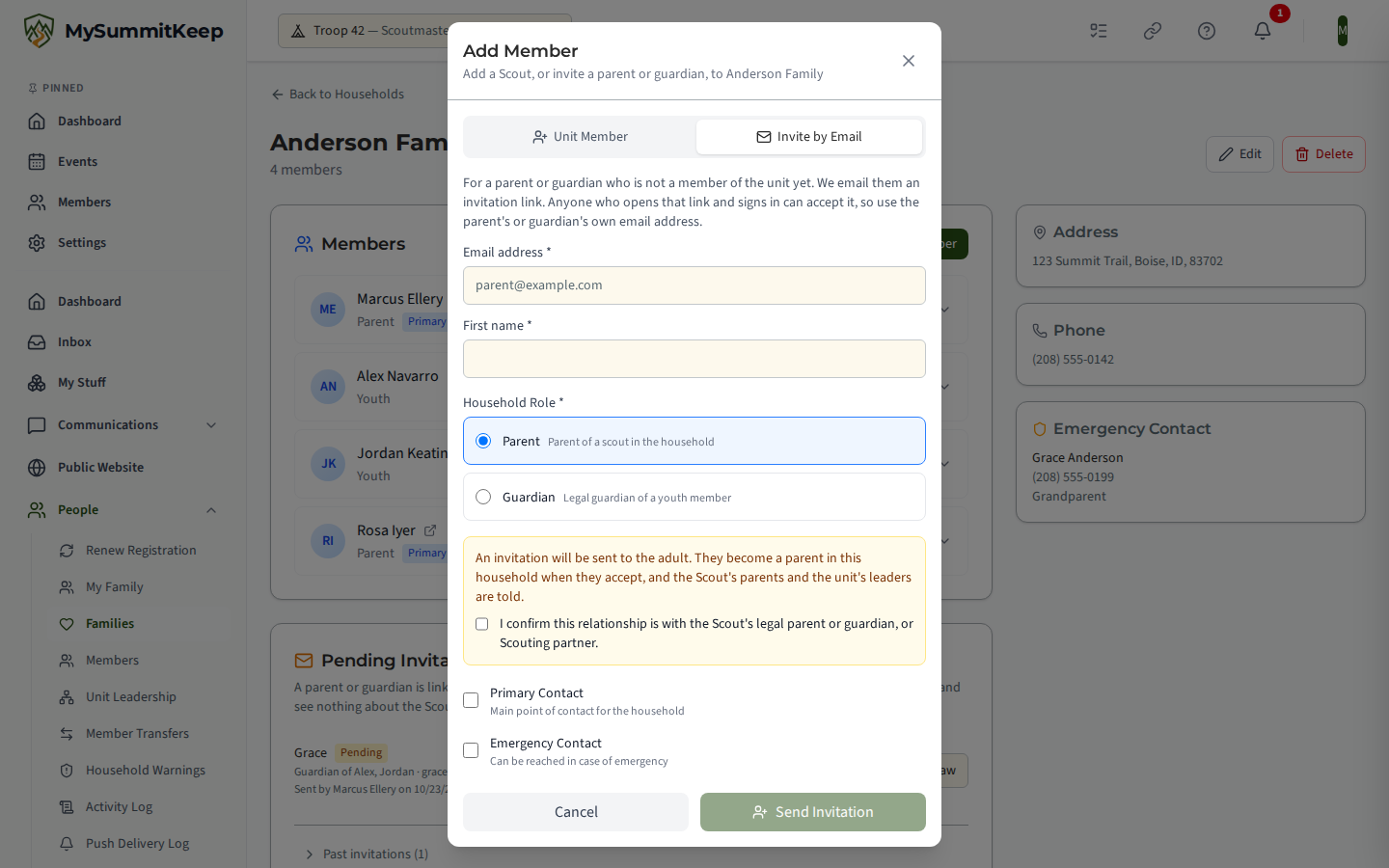
- Search for an existing unit member by name or email and select them. Members already in this household are filtered out automatically.
- Choose a Household Role — Parent, Guardian, Youth, Sibling, or Other.
- Optionally tick Primary Contact and/or Emergency Contact.
- For a Parent or Guardian, tick the box confirming that this relationship is with the Scout’s legal parent or guardian, or Scouting partner.
- Click Add Member for a Scout, sibling, or other member, or Send Invitation for a parent or guardian.
A Scout (Youth, Sibling, or Other) is added right away. The household’s parents and guardians are told you added the Scout to their household, and so are the unit’s leaders. The Scout’s own parents and guardians (in another household, or on the Scout’s record) are told too, with the names of the adults now linked to their Scout. If one of those parents is a unit leader, the link also goes on the review list for another leader. An adult added as a sibling or other member is added right away and announced the same way: an adult isn’t anyone’s Scout, but a change of member type can make them one (see When a member becomes a Scout).
Parents and guardians are invited
Section titled “Parents and guardians are invited”A parent or guardian is invited, not added. When you choose Parent or Guardian, tick the relationship box and click Send Invitation. The invited parent accepts the invitation, from its email or from their own My Family page, and the link takes effect only then. You’ll see “Invitation sent to (name). They will be linked to (household) as a parent when they accept.” The Scout’s other parents and the unit’s leaders are told that an invitation went out. Until the adult accepts, they aren’t treated as the Scout’s parent anywhere: no records, no messages, no permissions.
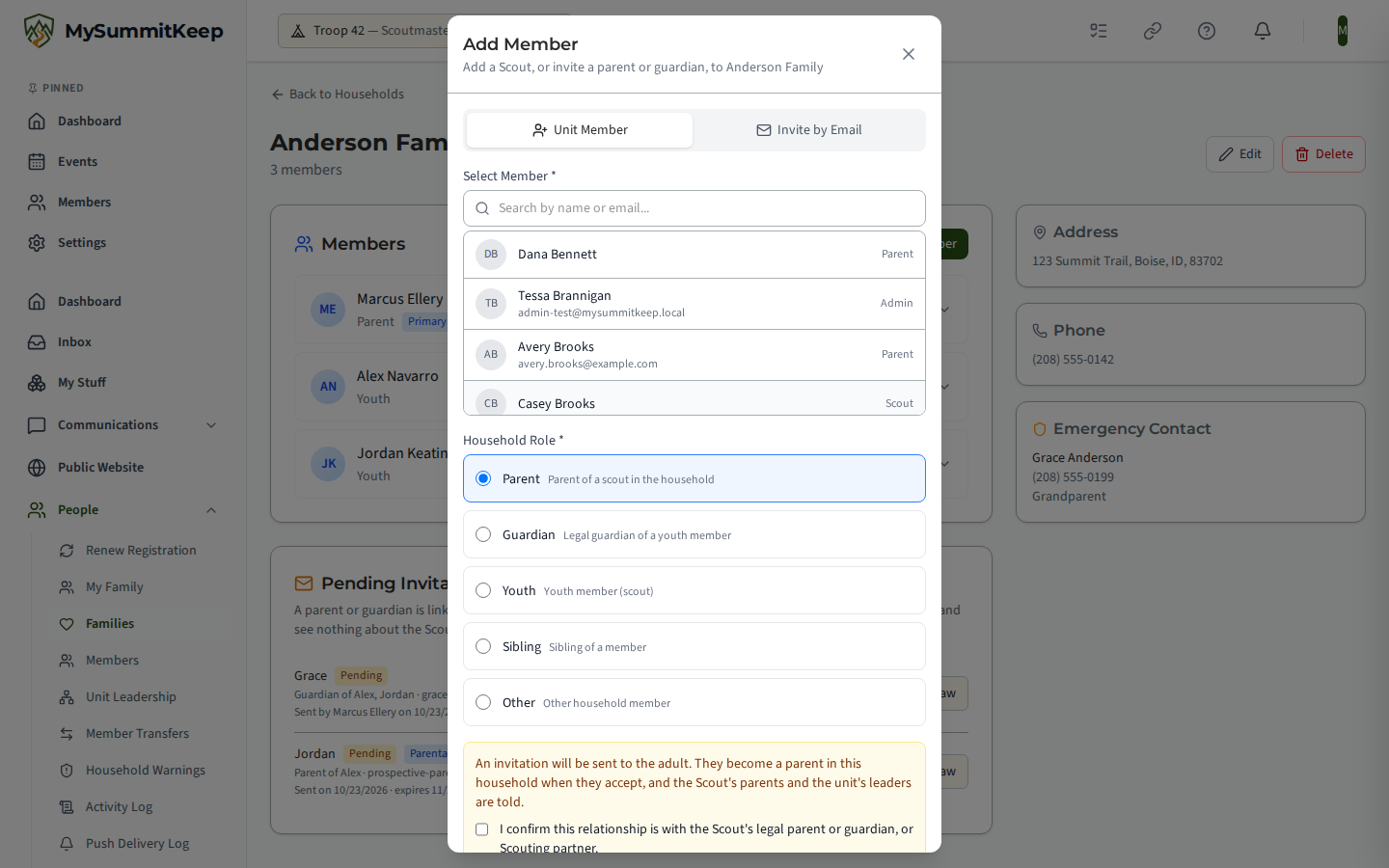
- Not a member of your unit yet? Switch to Invite by Email and enter their email address and first name instead of picking a member. Anyone who opens the emailed link and signs in can accept it, so send it only to the adult’s own email address.
- On the roster but never signed in (a No Account member)? The invitation goes to the email address on their record. If there isn’t one, you’re asked for it: “(Name) has not signed in yet. Enter their email address so the invitation can reach them.” The address you type is used for this invitation only; it isn’t saved on their record. The same caution applies: whoever opens the link and signs in can accept it, and is linked as the account they sign in with. If that turns out to be the roster member, join the two records with the Member Merge tool (see Member Import).
- No Scout in the household yet? Add the Scout first: “This household has no Scout yet. Add the Scout first, then invite the parent or guardian.”
- A Scout or another youth can’t be invited as a parent or guardian.
Removing someone from a household
Section titled “Removing someone from a household”To remove someone, hover over their row in the Members panel and click the remove (person-minus) icon, then confirm. This unlinks them from the household; it does not delete the member record. Removing is one click, but it isn’t quiet:
- It’s recorded in the unit’s Activity Log.
- The removed adult is told they were removed from the household, and the Scout’s other parents and the unit’s leaders are told which Scout’s link was removed.
- Any pending invitation for that person into the household is withdrawn.
- A removed link can’t be brought back from the Recycle Bin: “Family links are not restored from the Recycle Bin. Send the parent a new invitation from the household page.”
- A roster import will not bring back a link a leader removed; it lists it under Households for a leader to restore or keep removed. See Removed links the roster lists again.
Pending Invitations
Section titled “Pending Invitations”Below the members, the household page lists its Pending Invitations: who was invited, as parent or guardian, who sent it (a leader, the roster import, or the Scout’s registration), when, and when the link expires. The parental-consent links for the household’s Scouts are listed here too, marked Parental consent link; you can withdraw one here, and you resend it from Members. For each household invitation you can:
- Resend it. A fresh email goes out with a new link, and the old link stops working.
- Withdraw it. The link stops working and the adult isn’t linked. You can send a new invitation later.
The person who sent an invitation and any unit leader can resend or withdraw it. An invitation expires after 14 days. If the adult declines (their button says Not My Scout), the person who sent it is told, with the reason they gave, if any. Answered, withdrawn, and replaced invitations move under Past invitations as the record of what happened.
Each parent or guardian row in the Members panel also shows how its link stands: an amber Needs Review badge while it’s on the review list, confirmed by a leader once a different leader has looked at it, and who added it (added by a leader, or roster import by the leader who ran the import).
Setting the primary contact
Section titled “Setting the primary contact”The primary contact is the family’s main point of contact. You set it with the Primary Contact checkbox when adding a member in the Add Member modal. The chosen member then shows a blue Primary badge in the Members list, and the same idea applies to the amber Emergency badge for emergency contacts.
Linking parents to scouts
Section titled “Linking parents to scouts”“Linking” means putting a parent (or guardian) and their scout in the same household: a household’s parents and guardians are the parents of every Scout in it. There’s no separate parent-to-scout pairing step: add the Scout with the Youth role, then invite the parent with the Parent or Guardian role. How a parent gets there matches a Scoutbook Plus parent/guardian invitation: you identify the adult, pick the relationship, confirm it’s with the Scout’s legal parent or guardian, or Scouting partner, and the invited parent accepts. The link takes effect when they do. Roster imports link families automatically. Once they share a household, the parent can see that scout on their My Family page and in the family feed.
A parent is linked to a Scout in one of these ways:
- A roster import. Parents listed on your roster are linked automatically; see Family links from the roster.
- An accepted invitation. From you or another leader on this page, from the Scout’s other parent on My Family, or the parental-consent link for a new Scout.
- A confirmed request. A parent asked from My Family, and the Scout’s parent or a leader confirmed it; see Approving family-link requests.
- A leader or a merge changes the household. A Scout a leader adds to a household that already has parents is linked to them at once, and so is a Scout a duplicate-member merge places into a household, and a member of a household who becomes a Scout (see When a member becomes a Scout). A merge also carries a roster link onto a surviving record nobody has signed in to yet (see Member Import). The household’s parents are told, and so, when a leader adds a Scout, are the Scout’s own parents. The links a merge makes go on the review list.
The link also decides who hears from you. A message that reaches a Scout always includes that Scout’s own parent or guardian, and a Scout with no linked parent or guardian can miss emails, group messages, advancement notices, and event packets entirely. Make sure every Scout is linked to at least one adult Parent or Guardian who has a real email address on file. See How We Keep a Parent on Messages to Scouts.
A leader who is also a parent
Section titled “A leader who is also a parent”Nobody can invite themselves, and a leader is no exception. A leader who is a Scout’s parent is invited by the Scout’s other parent (from My Family) or by another leader (from this page), and then accepts, like any other parent. The check runs again when an invitation is accepted, so an invitation can’t be accepted from the account that sent it, even at a different email address. A link to a unit leader also goes on the review list for a different leader to confirm.
Consent links for new Scouts
Section titled “Consent links for new Scouts”When you create a Scout’s profile from Members, or resend a pending parental-consent link, you tick the same relationship box and the link is emailed to the parent. Whoever gives consent from that link becomes the Scout’s parent, so for a Scout who’s already in your unit, the link can’t be addressed to you. The one exception is a Scout record you create in the same step, such as your own child’s: you may send its consent link to yourself and give consent, just as a parent does when their child joins the unit. If your unit has no other leader yet, resending that link to yourself works too. Either way, the link goes on the review list for the next leader to confirm. A Scout record that has been merged with another one with the Member Merge tool is no longer a new record, so neither exception applies to it: its consent link can’t be resent to you, even to the address its roster row named, and even in a unit with no other leader.
When a member becomes a Scout
Section titled “When a member becomes a Scout”A household’s parents and guardians are the parents of every Scout in it, and only of its Scouts: an adult in a household is nobody’s child there. So turning a member of a household that has a parent or guardian into a Scout counts as adding a Scout to it. That happens when a leader switches them to Youth with Update Member Type in Bulk Operations, when a leader approves their join request as a Scout, when an adult’s date of birth becomes a minor’s (a leader’s correction, a roster import or Birthday Report, or an accepted import reconciliation), when a roster import adds a member who already has a record to your unit as a Scout or brings back a removed member’s Scout membership, when a leader accepts a member transferring in as a Scout, or when a member joins the unit as a Scout.
- If you’re an adult in that household, the change is refused and nothing is saved: “You are an adult in a household this member belongs to, so you cannot record them as a Scout: that would make you their household parent. Ask another leader to make this change.”
- If you have a pending invitation to be linked in any household of theirs, even one with no parent or guardian yet, the change is refused the same way: “You have a pending invitation to be linked in a household this member belongs to, so you cannot record them as a Scout: accepting it would make you their household parent. Ask another leader to make this change.”
- Otherwise the change is saved, and the household’s parents and guardians and the unit’s leaders are told. If one of those parents is a unit leader, the link goes on the review list, and links there that a leader already confirmed come back to it.
A roster import is never held up by this: when a row’s date of birth is refused, the rest of the row is still imported, the member’s date of birth stays as it was, and the row in the import’s details starts “Date of birth not updated:” followed by the reason above. When a row would add the member to your unit as a Scout, or bring back their removed Scout membership, and that is refused, the row doesn’t add them to the unit (nor to a patrol, a den or a family): the rest of the row is still saved to their record, and the row starts “Not added as a Scout:” followed by the reason above. Another leader can import the row again. An import reconciliation item, and a transfer’s arrival, are refused on their own, and another leader can accept them.
A member who does this themself, by joining as a Scout, accepting an invitation, signing up, or correcting their own date of birth, is never refused; it’s announced the same way.
A member of more than one unit is one person in all of them. A date of birth belongs to the person, not to a unit, and so does the Scout membership of someone with no date of birth or age on file: making them a Scout in your unit makes them a Scout in their other units’ households too. So the same check covers their households in every unit they belong to. If you’re an adult in one of those households, or have a pending invitation into one, the change is refused with the same message, even though the household belongs to another unit. When it goes ahead, that unit’s household parents and leaders are told, with the name of the unit where the change was made. A unit where they’re already recorded as a Scout gains no new link and isn’t told.
The same goes for a membership that comes back. A household row stays when a member is removed from the unit, but a removed member is nobody’s parent. When they’re active again (for example, re-invited, re-joining, listed again on a roster import, or switched back to active), their family links take effect again, and the unit’s leaders and the parents involved are told.
Approving family-link requests
Section titled “Approving family-link requests”A parent can ask to be linked to a Scout from My Family. Nothing is linked when they ask; a request is created, and somebody else decides it. A date of birth alone no longer links. The parent may enter the Scout’s date of birth, and whoever decides sees what it did: date of birth matched, date of birth did not match, date of birth not entered, or no date of birth on the Scout’s record. Because leaders can see and change a Scout’s date of birth, a match is context, not proof. The requesting adult isn’t treated as the Scout’s parent in any way (no activity feed, no full record, no contact details, no message permissions) until the request is accepted.
Who is asked to decide:
- The Scout’s existing parent, when a parent or guardian already linked to the Scout can sign in. They’re notified and answer on their own My Family page.
- The unit’s leaders, when the Scout has no linked parent who can sign in, for example when the only parent came from a roster import and hasn’t set up an account. Every unit Admin and Leader other than the one asking gets an in-app notification (Family link needs confirmation).
- Never the person who asked, whatever else they are. A leader who asked to be linked sees their own request with the buttons turned off, and the reason: “You asked for this link; the Scout’s parent or another leader must confirm it.”
Leaders can decide any request in the queue, including one sent to the Scout’s parent, so a parent who never answers can’t leave a Scout unlinkable.
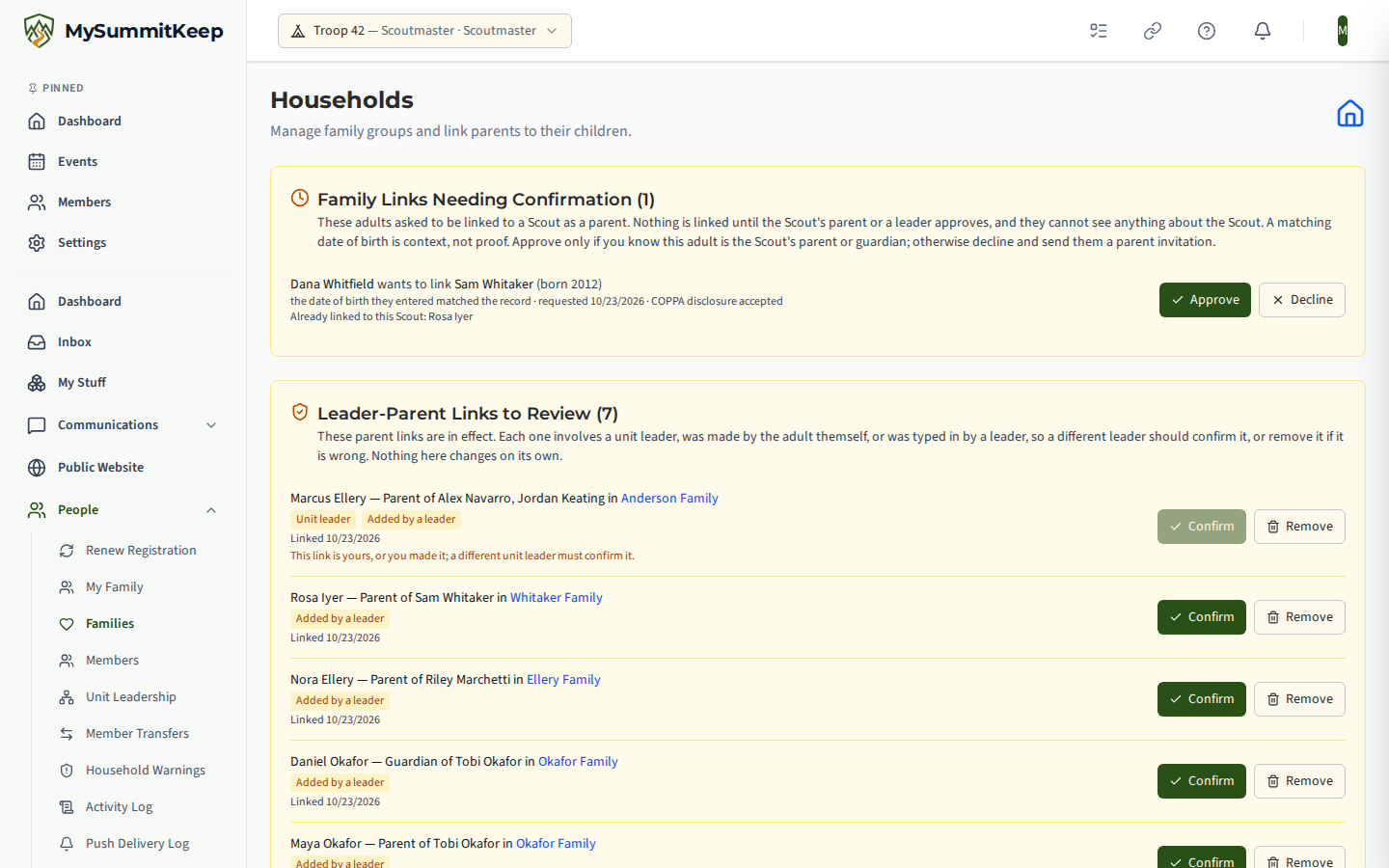
Open Households: a Family Links Needing Confirmation panel appears at the top whenever a request is waiting. Each row names the adult who asked, the Scout (with birth year), what the date of birth did, whether the parent accepted the COPPA disclosure, and which parents or guardians are already linked to that Scout.
- Approve when you know this adult is the Scout’s parent or guardian. The household rows are created at that moment and the parent is notified; the unit’s leaders and the Scout’s other parents are told too. Approving links that adult and nobody else. The Scout joins the adult’s household only when the adult is a parent or guardian there and everyone else in it is a youth. Otherwise the Scout and the adult get a new household of their own, so a co-parent or another adult in the adult’s household isn’t linked by it; to link a co-parent too, have them invited.
- Decline when you don’t. You can add a short reason; the parent is told the request was not confirmed and pointed to the invitation route.
Each adult gets one request per Scout. A record with no date of birth on file is not the parent’s fault — fix the record. This queue holds only requests a parent filed from My Family; invitations and roster-import links never appear in it. If in doubt, decline and send the parent an invitation from the Scout’s household instead.
Leader-Parent Links to Review
Section titled “Leader-Parent Links to Review”A roster import links families automatically and is never blocked, and links made before invitations existed were kept. Some of those links deserve a second leader’s look. The Leader-Parent Links to Review panel at the top of Households lists every parent or guardian link to a Scout that nobody has confirmed yet and that is:
- Linked to a unit leader (tagged Unit leader). The adult is a leader or admin in your unit, however the link was made: a roster import, an accepted invitation, or before invitations existed.
- Self-created (tagged Linked themself). A link the adult made for themselves, such as one made by a matching date of birth before this change. These also carry a Linked by parent tag on the household page.
- Typed in by a leader (tagged Added by a leader). A parent a leader added directly on this page before parents were linked by invitation.
- From a duplicate-member merge (tagged Duplicate-record merge). A link a merge carried onto the surviving record, or a household a merge placed a Scout into.
Self-created links come first, then leader-parent links, then leader-typed ones, oldest first. The heading shows how many are waiting, and the panel is hidden when there’s nothing to review.
Nothing here happens automatically. Each link stays in effect while it waits, and it never expires or disappears by itself. For each one:
- Confirm it when you know the adult is the Scout’s parent or guardian. The link stays as it was, and the member’s row then shows who confirmed it and when.
- Remove it when not, after a confirmation step. That removes the adult from the household, as in Removing someone from a household: the adult, the Scout’s other parents, and the unit’s leaders are told. To link them again, send an invitation.
A different leader must confirm: not the adult who is linked, not the leader who made the link, and not the leader whose merge put it on the list. When that’s you, the button is turned off, with the reason: “This link is yours, or you made it; a different unit leader must confirm it.” The one exception is a roster import: the leader who ran it can confirm the links it made, because the roster named them. Leaders are notified (Family link to review) when a new link lands on the list, and the Family Links to Confirm count in the dashboard’s Action Center includes these links along with the requests you can decide.
The list, Confirm, and Remove work on every plan: deciding who a Scout’s parent is does not depend on your subscription.
The first time you open the panel, it may list many older links, especially leader-typed ones. Confirm the ones you know and remove any that are wrong. When a Scout is added to a household later, confirmed links there that belong on the list come back to it, since a confirmation covers the Scouts who were in the household at the time. A few links may come from an older parent field on a Scout’s record rather than from a household; they’re listed for information only (tagged Legacy parent record), and support can correct them.
Removed Links the Roster Lists Again
Section titled “Removed Links the Roster Lists Again”The BSA roster is the record of who belongs to the unit. It is not a record of who may be a Scout’s parent: it can list a parent the family, or a court, asked the unit to keep away. So a parent link a leader removed stays removed. When a later roster import lists that parent again, the import skips the link instead of re-creating it, and the import still completes. Nothing is blocked, and the adult’s own record and unit membership are left as they are.
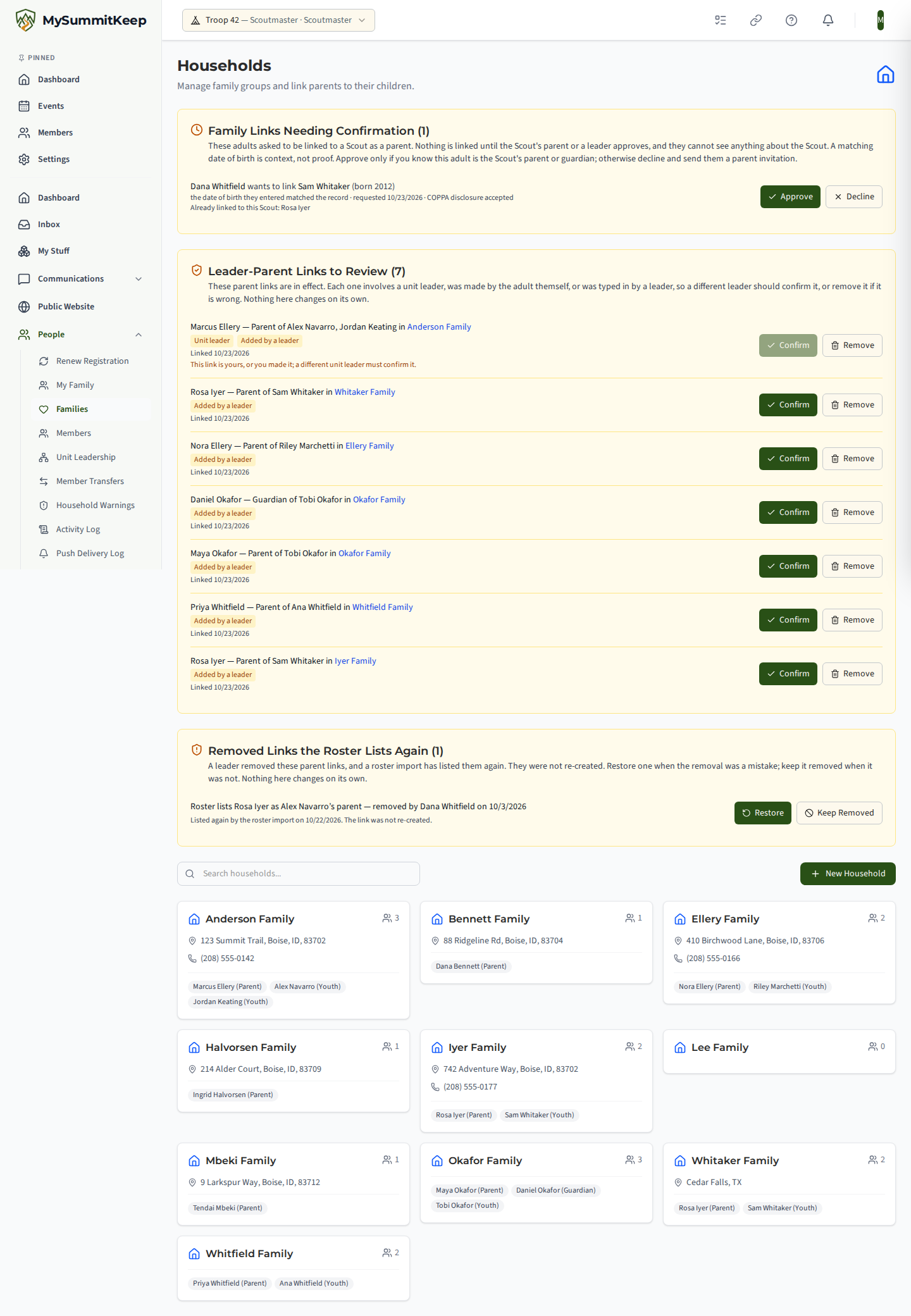
The skipped link appears in the Removed Links the Roster Lists Again panel on Households, under the review list, with a line like Roster lists Pat Rivera as Sam Rivera’s parent — removed by Lee Chen on 9/20/2026. The panel is hidden when there’s nothing to decide, and rows never expire. The unit’s other leaders are told (Removed family link listed again), and the import’s detail page counts the skipped links. The adult is never told, and never sees their own row.
For each one, after a confirmation step:
- Restore it when the removal was a mistake. Exactly that adult and that Scout are linked again, as a parent or guardian as before, at once. The adult joins a household of their own with the Scout, unless they already have one that holds only their own children. It never brings back the old household or any other Scout in it. The Scout’s other parents and the unit’s leaders are told, and the new link carries the tag Restored by a leader; if the adult is a leader, it goes on the review list like any other link to a leader.
- Keep Removed when it was not a mistake. Later roster imports keep skipping the link, and still count it, but it does not come back to the list. To link them later, send the adult an invitation from the Scout’s household; the adult accepts it.
The leader who removed a link may restore it. The linked adult can’t: a different unit leader must, and the buttons are turned off with the reason, for example “This link is yours; a different unit leader must restore it.” If the Scout or the adult has left the unit since, Restore refuses: “The Scout or the adult is no longer an active member of this unit, so this link cannot be restored. Keep it removed, or send a new invitation.” Only an active unit leader can decide: “Only an active unit leader can restore a family link.” Keeping a link removed has the same rule: “This link is about you; a different unit leader must decide it.” The panel, Restore and Keep Removed work on every plan.
What counts as a leader’s removal: removing an adult or a Scout from a household, removing a link from the review list, and deleting a household (each pair in it is remembered). A parent unlinking their own Scout, a leader removing themself, a record merge, and a member leaving the unit are not. A merge carries the memory onto the record you keep. Removals made before this release are not remembered: remove such a link once more after the next import and it stays removed from then on.
If the removed adult asks to be linked again from My Family, the request is still filed, and the leader or parent deciding it sees a line saying a unit leader removed that adult’s link.
Every family link change is logged
Section titled “Every family link change is logged”Every family-link change is recorded in the unit Activity Log, with who did it and when: invitations sent, resent, withdrawn, declined and accepted; requests filed and decided; links made, confirmed and removed; and each link a roster import creates. When a roster import skips a link a leader removed, that is logged too: Family link “Pat Rivera — Parent of Sam Rivera (Rivera Family)” was removed by a leader; a roster import will not re-create it, then … was listed by a roster import and not re-created, and later … was restored, … was kept removed or … was replaced by a newer removal. A restored link reads … was created (restored by a leader). A link reads as a sentence that says how it was made, for example Family link “Pat Rivera — Parent of Sam Rivera (Rivera Family)” was created (roster import) or … was created (invitation accepted). The secret link inside an invitation is never written to the log. Household removals also count toward the unit’s unusual-deletion alert.
Household split warnings
Section titled “Household split warnings”When units split or members move between units, a parent can end up on one unit while their scout lands on another. MySummitKeep detects these mismatches and surfaces them on the Household Split Warnings page (under the leader tools).
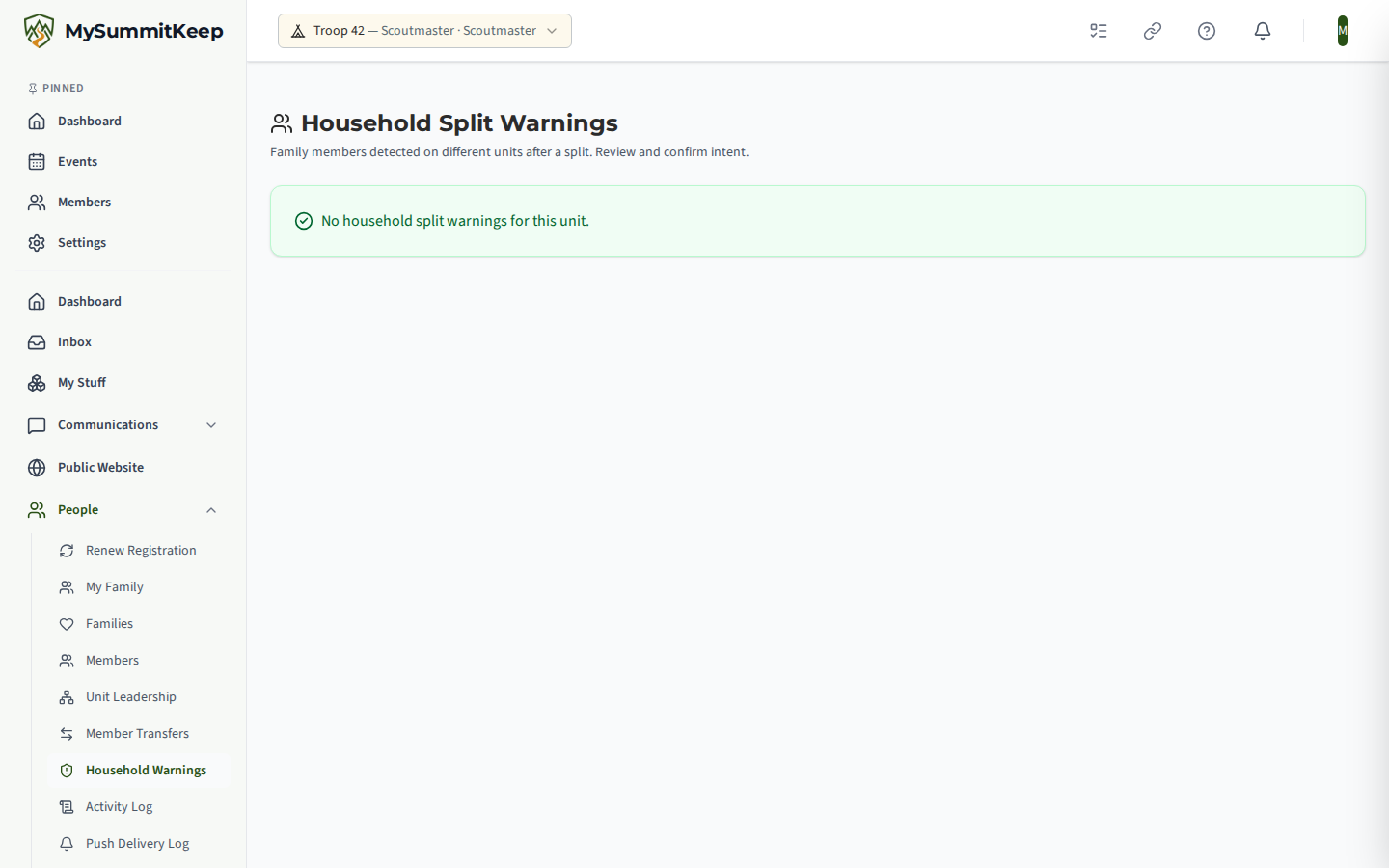
Each warning explains the situation in plain language — for example, “Jane Smith (Parent) is on Troop 100, but John Smith (Youth) is now on Troop 200.” A red badge at the top counts how many are still new (status Detected). For each active warning you can:
- Acknowledge — confirms the split is intentional (a youth moved alone, parents are in different units, and so on). You can add an optional note like “Family decision — youth moved alone.” The warning moves to Acknowledged.
- Suppress (Don’t Show Again) — hides the warning permanently. A reason is required before you can confirm. The warning moves to Suppressed.
When there are no warnings, the page shows a green “No household split warnings for this unit” confirmation.
Parents: the My Family page and granting youth login access
Section titled “Parents: the My Family page and granting youth login access”Parents don’t use the leader Households pages. Instead, they open My Family to see their household, answer invitations and requests, and ask to be linked to their children.
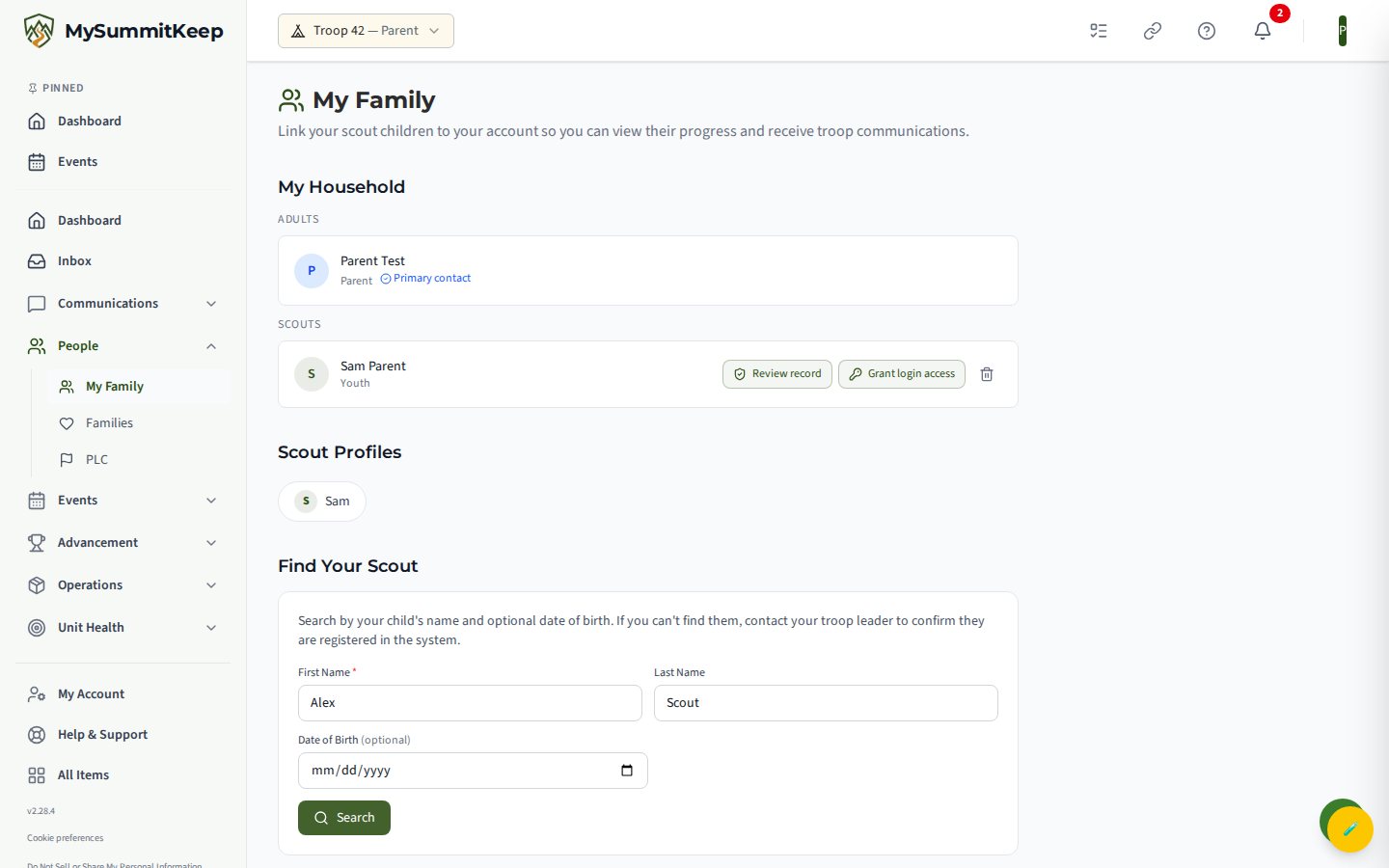
My Household lists the family’s adults and scouts. Under Find Your Scout, a parent searches by:
- First Name (required)
- Last Name (required)
- Date of Birth (optional — not a search filter; it’s shown to whoever decides the request)
Matching scouts appear as cards showing the scout’s name, age, and patrol. The parent clicks Link to My Family to ask to be linked to a scout. Scouts already linked show a green Linked badge instead. Nothing is linked yet: the request goes to the Scout’s parent, or to you and the other leaders when the Scout has no parent who can sign in (see Approving family-link requests).
My Family also shows a parent the invitations waiting for them (Invitations for You) and requests about their own Scouts (Requests About Your Scouts), and lets a parent in a household Invite a Co-Parent or Guardian and resend or withdraw those invitations (Invitations You Sent). See Linking Scouts to Your Household.
Granting youth login access: when enabled for your unit, each linked scout aged 13–17 shows a Grant Login Access button. This lets a parent affirm verifiable parental consent and generate a one-time claim link the youth uses to set their own password and sign in. The claim link is shown only once, so the parent should hand it to the scout right away. This affordance stays hidden when the feature isn’t turned on for the unit.
MySummitKeep is an independent product and is not affiliated with, endorsed by, or sponsored by Scouting America (formerly the Boy Scouts of America). Scouting America, Scouts BSA, Cub Scouts, Venturing, Sea Scouts, and the Order of the Arrow are trademarks of Scouting America. Official program content shown in screenshots and examples is © Scouting America; always confirm current requirements atscouting.org. SeeTerms § 7.3.