
Your Scout's Activity Feed
The Scout Activity Feed is a single, chronological stream of what your Scout is part of in their unit: every channel message and direct message they send or receive, plus a couple of milestone moments like completing an advancement or registering for an event. It’s a read-only “over-the-shoulder” view built for parents and guardians — you’re seeing your Scout’s communications, not joining them.
Each Scout has their own feed at /family/feed/<your-scout's-id>. You don’t type that address — you open it from your home dashboard (see Opening the feed from your Scout’s profile below).
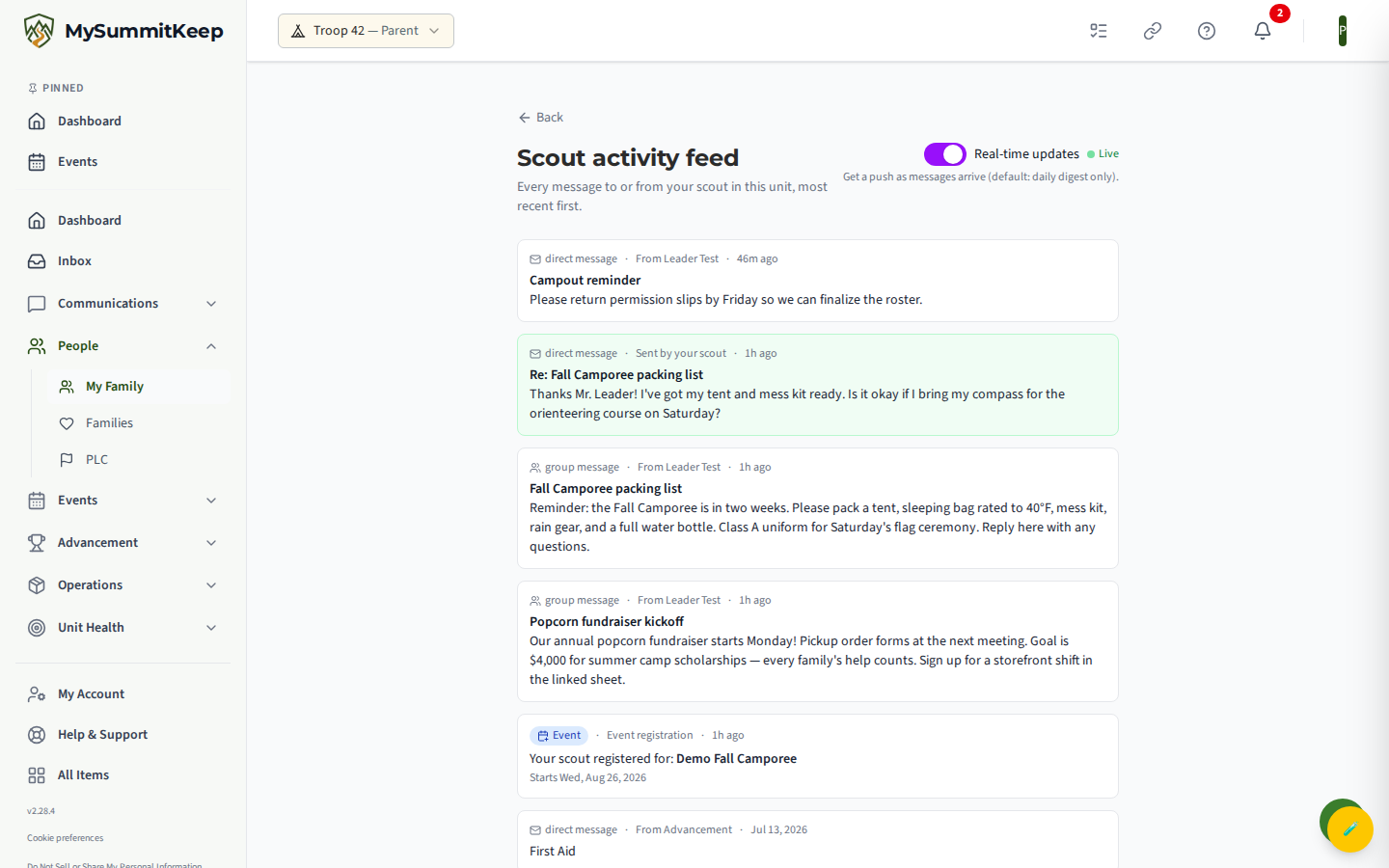
What the activity feed shows
Section titled “What the activity feed shows”At the top of the page you’ll see the header Scout Activity Feed with the line “Every message to or from your scout in this unit, most recent first.” Below it is the stream itself — newest entries first.
If there’s nothing yet, you’ll see a friendly empty state: “Nothing here yet. New messages will appear as they happen.” As the feed fills up, only the most recent entries load at first. Scroll to the bottom and use the Load older messages button to pull in earlier history.
Messages, advancement, and event entries
Section titled “Messages, advancement, and event entries”Every entry is a card with a small badge that tells you what kind of thing it is, who it’s from, and how long ago it happened. The cards fall into three groups:
-
Messages — the bulk of the feed, in three flavors: channel messages (a
#badge, with the channel name as a link), direct messages, and group messages. Messages your Scout sent are highlighted with a soft green card and the attribution “Sent by your scout.” Messages from someone else show “From [name].” The full message text is shown right on the card. -
Advancement (a green Advancement badge with an award icon) — appears when your Scout finishes a rank, award, or adventure. The card reads “Your scout completed: [advancement name].” It’s there to celebrate the milestone, not as a message you need to reply to.
-
Event (a blue Event badge with a calendar icon) — appears when your Scout registers for a unit event. The card reads “Your scout registered for: [event title]” and, when available, the start date.
Real-time updates vs. the daily digest
Section titled “Real-time updates vs. the daily digest”In the top-right corner is the Real-time updates switch, with the helper text “Get a push as messages arrive (default: daily digest only).”
- Off (the default) — you get the daily digest only: one roundup rather than a stream of alerts. The feed page itself still shows everything when you open it; this setting only controls how eagerly you’re notified.
- On — new entries arrive live. When the live connection is active you’ll see a small pulsing green Live indicator next to the toggle, and the feed refreshes itself as messages come in.
Flipping the switch saves your choice immediately and shows a confirmation toast — “Real-time updates on” or “Real-time updates off.” The preference is remembered for that unit, so it stays put across visits and devices.
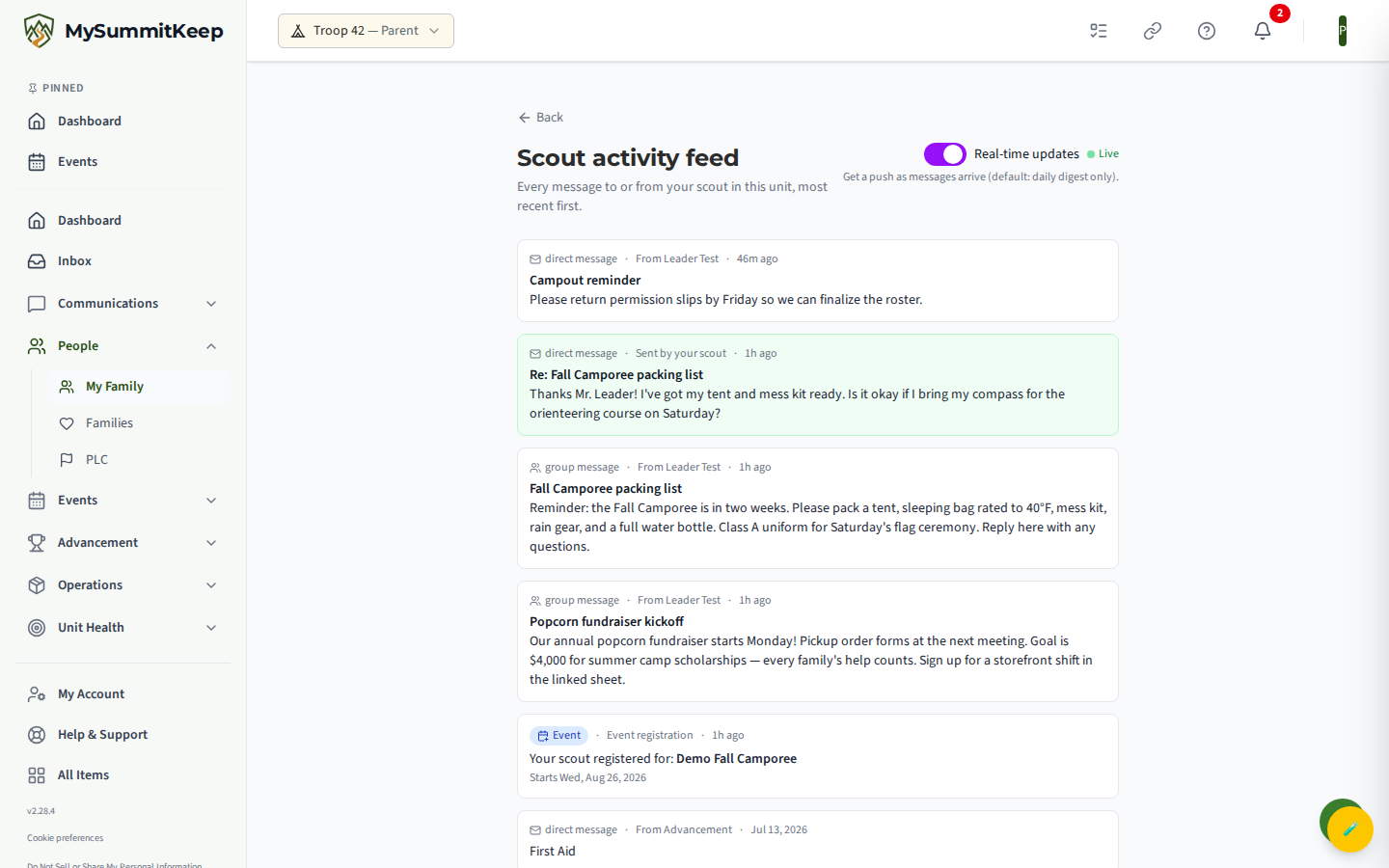
Turning off the digest email
Section titled “Turning off the digest email”Under the Real-time switch is a Daily digest email switch. It is on by default. Switch it off and you stop receiving the daily summary email for that unit. It never hides anything: the feed page keeps showing every update, and the Real-time switch works on its own. Like the other, it is saved per unit and you can switch it back on at any time.
Who can see a Scout’s feed (parent/guardian only)
Section titled “Who can see a Scout’s feed (parent/guardian only)”This feed is for parents and guardians only. The platform checks that you’re a qualifying parent or guardian of the named Scout in the current unit before it shows anything — so you can see your own children’s feeds, and no one else’s. A leader who is also a parent sees their own children’s feeds here, just like any other parent.
Opening the feed from your Scout’s profile
Section titled “Opening the feed from your Scout’s profile”You reach the feed from your home dashboard, not by typing a URL. On your parent dashboard, look for the Scout Communications card — “Every channel message and DM your Scout is part of, in one feed.” It lists one row per child, each with an Open button (and an arrow) that takes you straight to that Scout’s feed.
If you have no Scouts linked in the current unit, the card doesn’t appear — link your Scout first on the My Family page. Once a Scout is linked, their row shows up here automatically. There’s also a Back link at the top of the feed page to return to wherever you came from.
Troubleshooting access
Section titled “Troubleshooting access”- “Couldn’t load this feed.” — The page tells you: “If you’re not a parent or guardian of this scout, you won’t have access.” Usually the parent/guardian link isn’t in place yet, or you’re viewing the wrong unit. Confirm the Scout is linked to you on the My Family page and that the right unit is selected.
- The Scout communications card isn’t on my dashboard. — It only appears once you have at least one Scout linked in the current unit. Link your Scout first.
- The feed looks empty. — “Nothing here yet” just means there are no messages or milestones for this Scout in this unit yet.
- I’m not getting notified. — That’s expected with the default daily digest. Turn on Real-time updates to be notified as messages arrive.
MySummitKeep is an independent product and is not affiliated with, endorsed by, or sponsored by Scouting America (formerly the Boy Scouts of America). Scouting America, Scouts BSA, Cub Scouts, Venturing, Sea Scouts, and the Order of the Arrow are trademarks of Scouting America. Official program content shown in screenshots and examples is © Scouting America; always confirm current requirements atscouting.org. SeeTerms § 7.3.