
Connect Outlook Calendar
MySummitKeep can keep your unit’s events in step with Microsoft Outlook (Microsoft 365) so you see troop meetings, campouts, and deadlines right alongside the rest of your life. You have two ways to do it: a full two-way OAuth sync that pushes and pulls events automatically, or a lightweight iCal feed you can subscribe to from any calendar app with no sign-in.
Everything described here lives on one page: Settings → Calendar (/settings/calendar).
Who can set this up
Section titled “Who can set this up”Calendar integration is gated by the Update Settings permission (the CanUpdateSettings policy). That permission travels with your role rather than a specific job title, so most unit leaders, committee chairs, and admins have it — but if an action (connect, sync, disconnect, or any iCal feed change) returns a “not authorized” error when you click it, ask whoever manages your unit’s roles to grant you settings access. The buttons stay clickable regardless; the permission is enforced when the action runs.
Option 1 — Two-way Outlook sync (recommended)
Section titled “Option 1 — Two-way Outlook sync (recommended)”This connects your own Microsoft account so MySummitKeep can push unit events into Outlook and pull your Outlook events back in.
Connect your account
Section titled “Connect your account”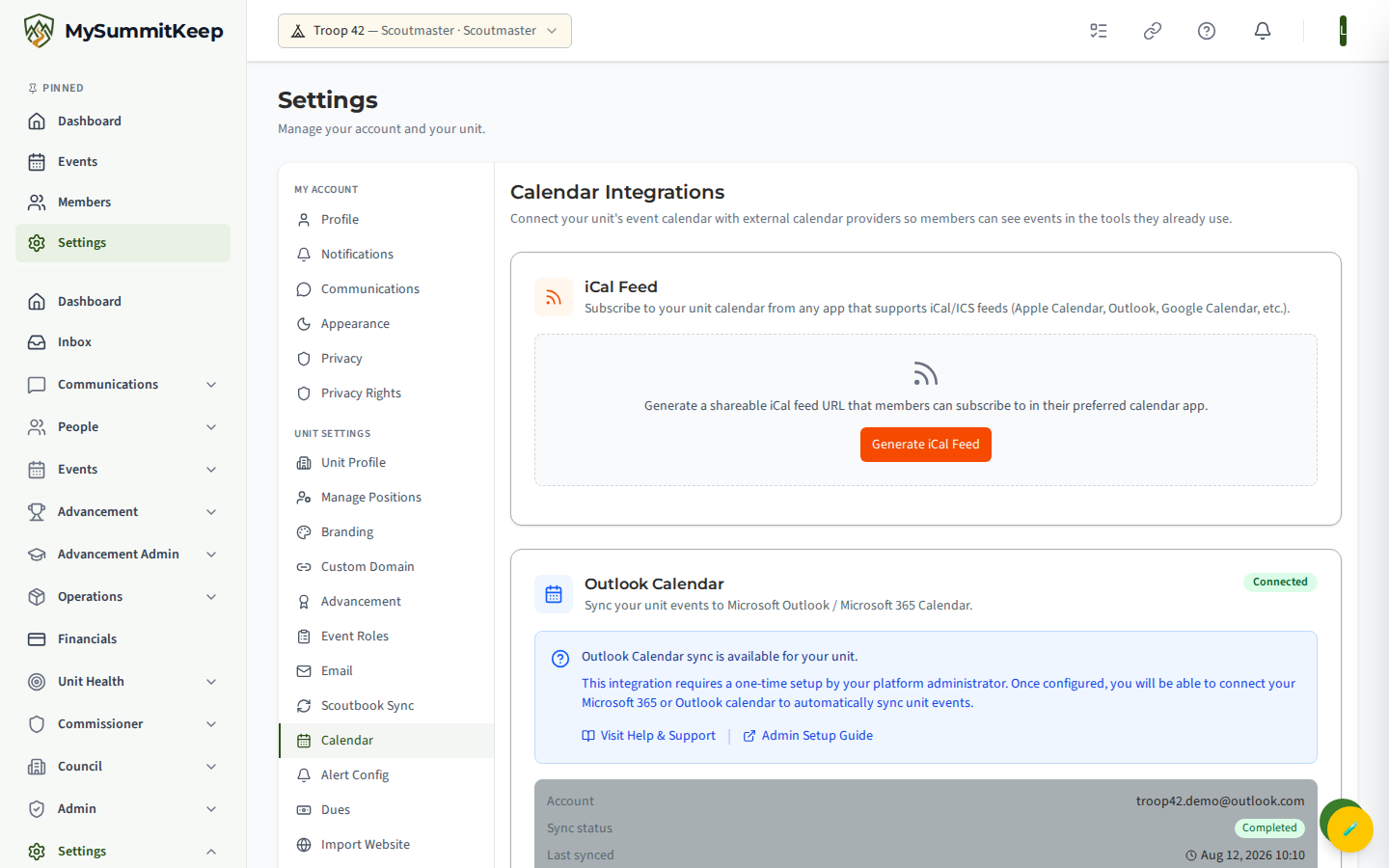
- Open Settings → Calendar and find the Outlook Calendar card.
- Click Connect Outlook Calendar. You’ll be sent to Microsoft’s sign-in page to approve calendar access.
- After you approve, Microsoft returns you to MySummitKeep at the handoff page
/settings/calendar/outlook/callback. You’ll briefly see “Connecting Outlook Calendar — Exchanging authorization code…” while we finish securely exchanging the code for an access token. - When it succeeds you’ll see “Connected!” and be returned to the Settings → Calendar page. The Outlook card now shows a green Connected badge along with your account email and sync status.
Sync to Outlook vs. Pull from Outlook
Section titled “Sync to Outlook vs. Pull from Outlook”Once connected, the Outlook card gives you two sync directions plus a disconnect option.
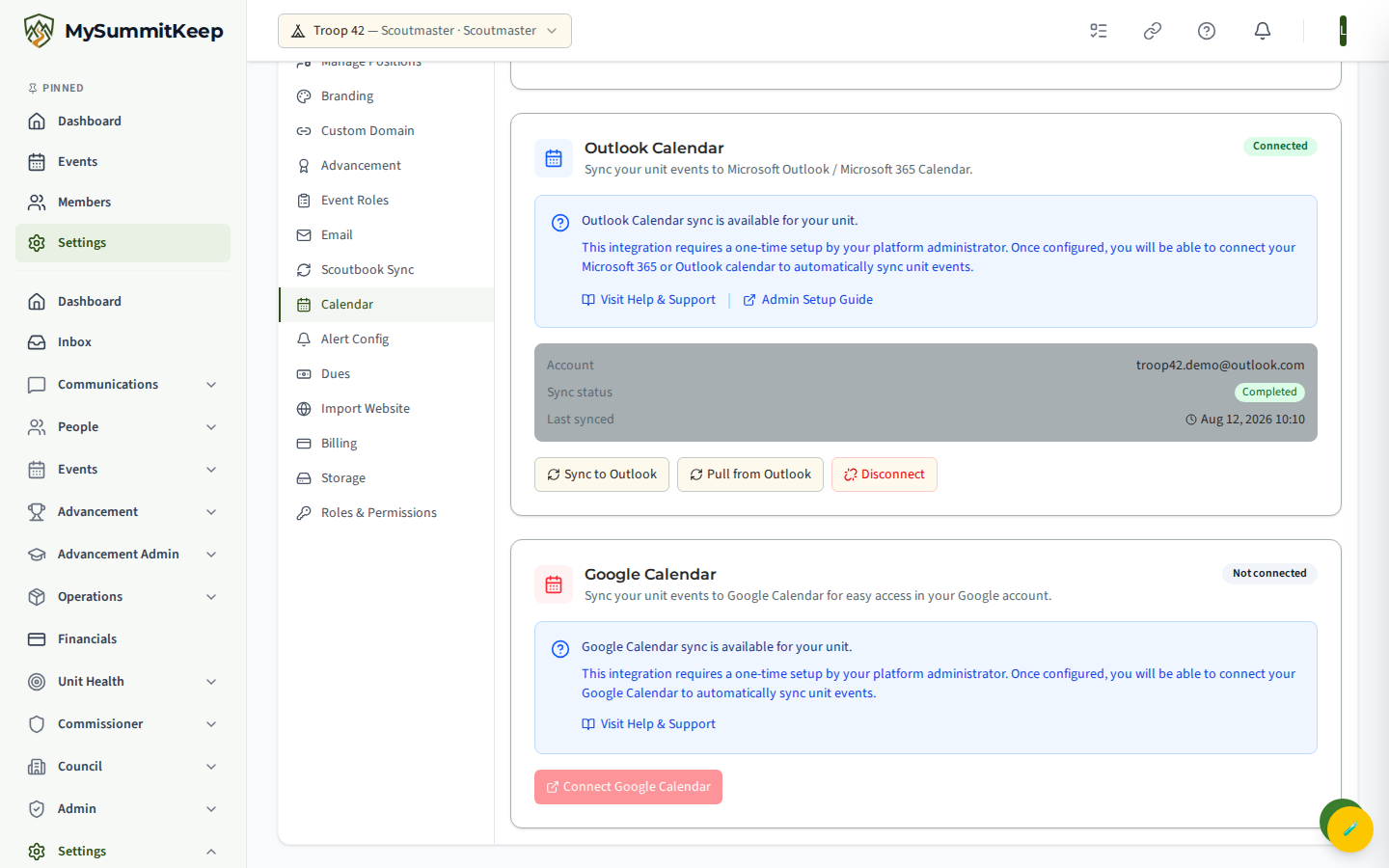
- Sync to Outlook — pushes your MySummitKeep unit events into Outlook. After it runs, you’ll see a short report such as “Sync complete — 5 created, 2 updated.” Run this after adding or editing events in MySummitKeep.
- Pull from Outlook — imports events from your connected Outlook calendar back into MySummitKeep. The report shows how many were imported and how many were skipped because they were already synced.
- Disconnect — removes the Outlook connection and stops syncing. Events already copied in either direction stay where they are; only the link is broken.
The card also shows the last synced time and the current sync status (Idle, Syncing, Completed, Failed, or Pending Authorization). If a sync fails, the most recent error message appears in red on the card so you can see what went wrong.
Option 2 — Subscribe to the iCal feed (no sign-in)
Section titled “Option 2 — Subscribe to the iCal feed (no sign-in)”If your unit’s Outlook sync isn’t enabled, or you just want a read-only copy in whatever app you already use (Apple Calendar, Outlook, Google Calendar, and more), use the iCal Feed card. Only unit leaders can see and copy the feed URL; regular members do not have access to it. It produces a single subscription link that any iCal/ICS-aware app can follow.
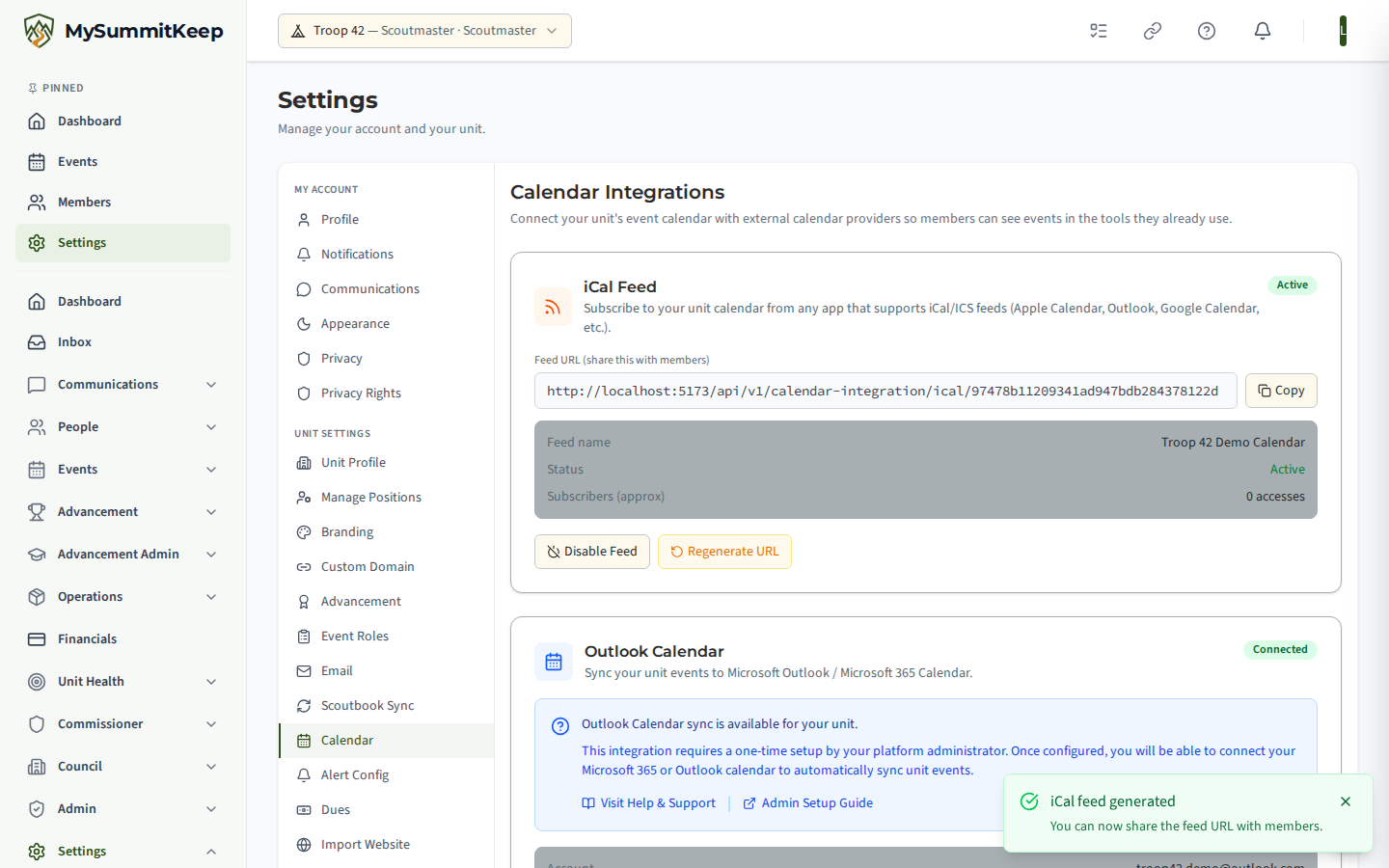
- On the iCal Feed card, click Generate iCal Feed if you don’t have one yet.
- Copy the Feed URL with the Copy button. It is a token-signed address — not a guessable public link — shaped like:
Thehttps://app.mysummitkeep.com/api/v1/calendar-integration/ical/<feedToken>
<feedToken>is a private signature unique to your unit; treat the whole URL as a shared secret. - Subscribe yourself, or deliberately pass the URL on to someone you trust (it is leader-only for a reason: anyone holding it can read the unit calendar):
- Outlook on the web — go to outlook.office.com, open Calendar, then Add calendar → Subscribe from web, paste the URL, name it (for example “Troop 42 Events”), and click Import.
- Outlook desktop — File → Account Settings → Internet Calendars → New, then paste the URL.
- Apple or Google Calendar — use their “subscribe by URL” option and paste the same link.
The card also tracks the feed name, whether it’s active, an approximate subscriber count, and when it was last accessed.
Enable, disable, or regenerate the feed
Section titled “Enable, disable, or regenerate the feed”- Enable Feed / Disable Feed turns the link on or off. While disabled, the URL stops returning events but is not deleted, so you can re-enable it later without resharing.
- Regenerate URL issues a brand-new token. This is your “reset” button if a link leaks. After regenerating, the old URL stops working immediately, so you’ll need to copy the new URL and re-subscribe any calendar that used the old one.
Prefer Google?
Section titled “Prefer Google?”If your unit lives in Google instead of Microsoft, the same Settings → Calendar page has a Google Calendar card with the same Connect / Sync / Disconnect flow. See Connect Google Calendar for the step-by-step.
Troubleshooting
Section titled “Troubleshooting”The Connect button is greyed out — Outlook two-way sync hasn’t been enabled for your unit yet (the platform-side setup is still pending). Use the iCal feed in the meantime. (Note: a missing Update Settings permission does not grey out the button — instead the action fails with a “not authorized” error when you click it.)
Events aren’t showing up after a “Sync to Outlook” — give it a couple of minutes, then check the card’s last-synced time and sync status. If the status is Failed, read the error message shown on the card.
A subscribed iCal calendar looks stale — calendar apps refresh subscriptions on their own schedule (often hours apart), so new events can lag. Removing and re-adding the subscription forces a refresh.
Members get an error opening the feed URL — confirm the feed is Active on the iCal card and that they’re using the full token-signed URL. If you recently clicked Regenerate URL, the old link no longer works; share the new one.
Still stuck? Contact support with your unit name and which option (Outlook sync or iCal feed) you’re using.
MySummitKeep is an independent product and is not affiliated with, endorsed by, or sponsored by Scouting America (formerly the Boy Scouts of America). Scouting America, Scouts BSA, Cub Scouts, Venturing, Sea Scouts, and the Order of the Arrow are trademarks of Scouting America. Official program content shown in screenshots and examples is © Scouting America; always confirm current requirements atscouting.org. SeeTerms § 7.3.