
Training Records (Unit Training)
The Unit Training page is where a unit admin sees, at a glance, whether every adult volunteer is trained for the position they hold — and records the training that gets completed offline. It pairs each member with the courses their position requires, flags gaps and expirations, and lets you enter records one at a time or in bulk.
Find it in the left menu: Advancement → Unit Training.
Where to find it
Section titled “Where to find it”Open Advancement → Unit Training from the left menu. It only appears for admins. The page lives at /training/unit.
How the page is laid out
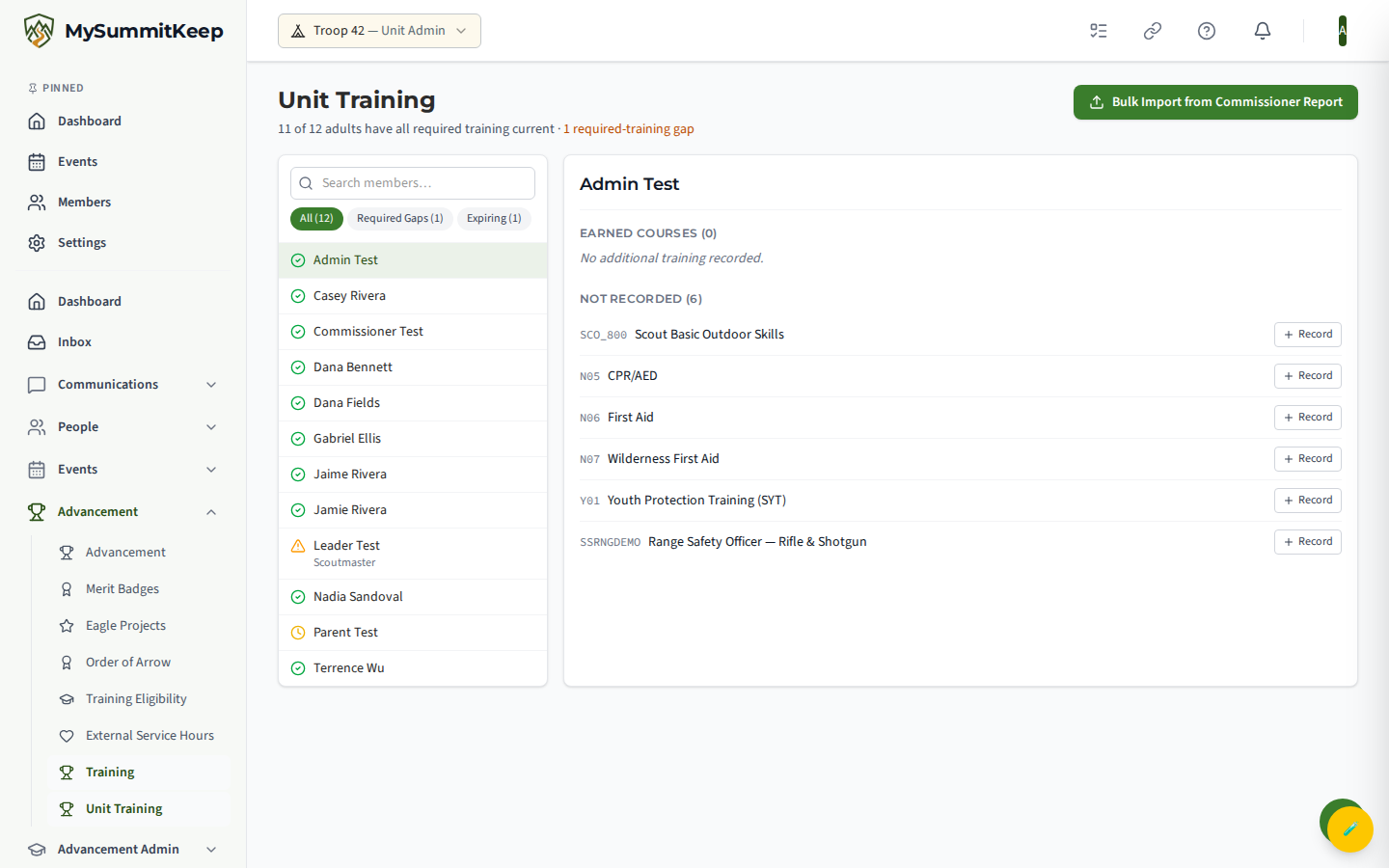
Section titled “How the page is laid out”Unit Training is a two-pane data-entry tool, not a wide spreadsheet:
- Left pane — a searchable list of every adult in the unit. A status icon sits next to each name: a green check (all required training current), a yellow clock (something expiring soon, within 60 days), or an amber triangle (a required course is missing or expired).
- Right pane — the selected member’s full training profile.
Above the list you can search by name and filter with three chips: All, Required Gaps, and Expiring. The header line summarizes compliance for the whole unit — how many adults have all required training current, and how many required-training gaps remain across the unit.
What “required” means here
Section titled “What “required” means here”A course shows as required for a member only when their unit position has a matching training requirement rule (for example, Scoutmaster Position-Specific for a Scoutmaster). Unit Training reads the same requirement rules used elsewhere in the app. If a member’s position has no rule configured, every course shows as optional for them, and their detail panel says so. If the unit has no required-training rules configured at all, the header line notes that as well. District- and council-level requirements are personal to the member and appear on their own Training Management page, not here.
Reading a member’s profile
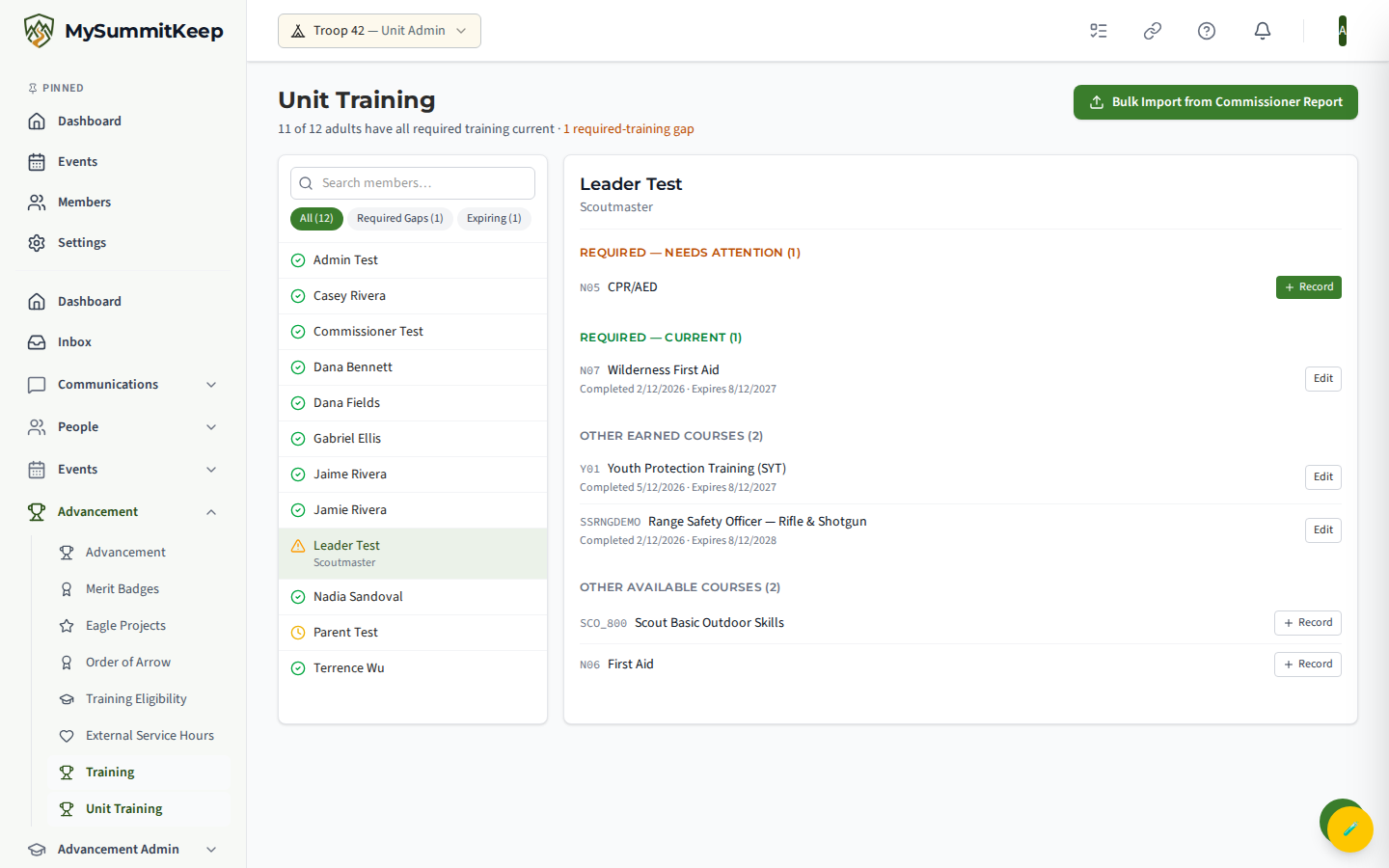
Section titled “Reading a member’s profile”Select an adult to expand their profile in the right pane. Courses are grouped so the most urgent work is at the top:
- Required — needs attention — required courses that are missing or expired. These carry the primary Record button.
- Required — current — required courses that are completed and not expired.
- Other earned courses — anything else the member has on file.
- Other available courses — courses not yet recorded.
Each row shows the course code, course name, the completion date, and the expiration date (in red if expired). A certificate link can be saved with a record (see below), but it is stored for reference rather than shown on the row itself.
Recording training for a member
Section titled “Recording training for a member”To enter a course a leader finished offline — at roundtable, a Wood Badge weekend, an in-person Youth Protection session — click Record (or Edit on an existing row). A small dialog opens with three fields:
- Completed — the completion date (required).
- Expires (optional) — leave blank for courses that do not expire.
- Certificate URL (optional) — a link to the certificate, if you keep one.
Click Save and the member’s profile and the unit rollup update immediately.
Bulk import from a roster report
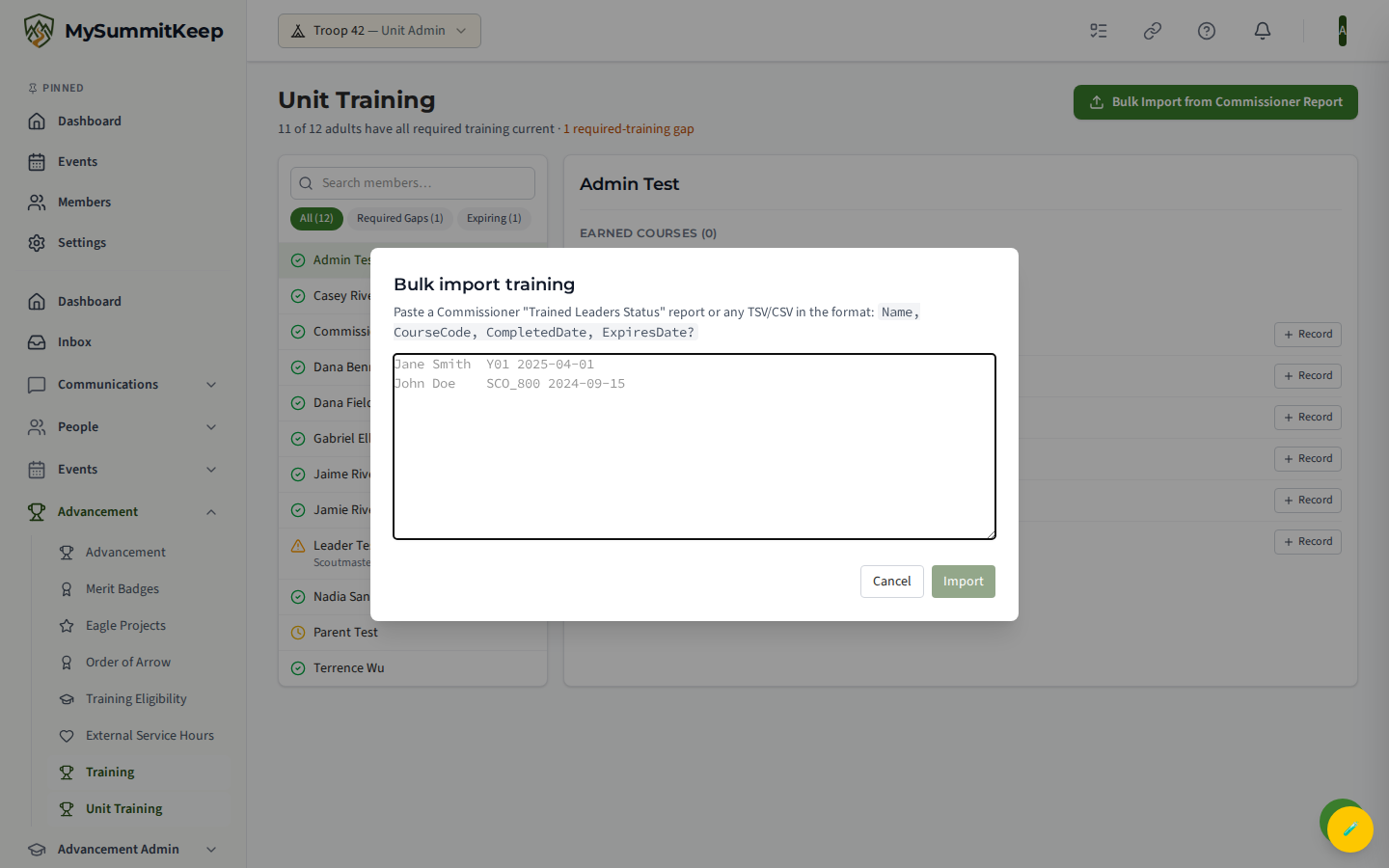
Section titled “Bulk import from a roster report”If you have a list of completions — typically a Commissioner “Trained Leaders Status” report — you can import them all at once instead of entering one by one. Click Bulk Import from Commissioner Report in the page header to open the import panel.
Paste tab- or comma-separated rows in this format:
Name, CourseCode, CompletedDate, and an optional ExpiresDate. For example, a tab-delimited paste looks like Jane Smith then Y01 then 2025-04-01 on one line, and John Doe then SCO_800 then 2024-09-15 on the next.
Click Import and the panel reports how many rows were imported, how many were skipped, and lists any per-row errors (for example, a name that does not match a member, or an unrecognized course code). Fix the flagged rows and paste again — importing is idempotent, so re-running it updates existing records rather than duplicating them.
Companion view: a leader’s own training
Section titled “Companion view: a leader’s own training”Unit Training is for managing other people’s records. For your own, use Training Management at /training, which has tabs for My Trainings, Course Catalog, Training Gaps, Requirements, and SYT Compliance, plus alerts for gaps and expiring courses and an Import from Scoutbook option. See Training Management for the full walkthrough.
Adding an SYT date
Section titled “Adding an SYT date”Your unit’s leaders need a current Safeguarding Youth Training (SYT) date on file so a Scout aged 13–17 with no parent linked can still be messaged with a leader copied. Your own is one click away: the Unit Setup checklist’s Add an SYT date for your unit’s leaders step, and the Add an SYT date link on any screen that reports a Scout left out, open /training?tab=my-trainings&add=syt. That opens Add Your SYT Date (or Renew Your SYT Date, if you already have one) with the date empty; choose the date and Save SYT Date, then optionally add your certificate. For the other leaders, use the SYT Compliance tab at /training?tab=syt-compliance or Record on their profile here. See Adding your unit’s SYT dates.
Permissions
Section titled “Permissions”| Role | Sees Unit Training | Can record / edit |
|---|---|---|
| Scoutmaster / Cubmaster / Crew Advisor | Yes | Yes |
| Committee Chair / Charter Org Rep | Yes | Yes |
| Training Coordinator | Yes | Yes |
| Committee Member | No | No |
| Parent | No | No (uses their own /training) |
| Scout | No | No |
Related guides
Section titled “Related guides”- Training Management — a leader’s own records, gaps, and Scoutbook import
- Member Import — get your roster in so import rows match
- Unit Settings
- Getting Started for Unit Leaders
MySummitKeep is an independent product and is not affiliated with, endorsed by, or sponsored by Scouting America (formerly the Boy Scouts of America). Scouting America, Scouts BSA, Cub Scouts, Venturing, Sea Scouts, and the Order of the Arrow are trademarks of Scouting America. Official program content shown in screenshots and examples is © Scouting America; always confirm current requirements atscouting.org. SeeTerms § 7.3.