
My Account and Scout Account Balance
Your unit keeps a Scout account for you. Think of it like a small money jar with your name on it. Fundraiser earnings, deposits, and credits go in, and things like dues or campout fees come out. The My Account page is where you can see exactly how much is in your jar, where every dollar went, and pay anything you still owe.
This is your own page. Only your balance and your transactions show here. Leaders and your unit treasurer have their own separate roster view of everyone’s accounts, but you only ever see yours.
Opening your account
Section titled “Opening your account”Look at the very bottom of the left sidebar. Below the main menu there’s a footer with a My Account link (it has a little person-and-gear icon). Tap or click it.
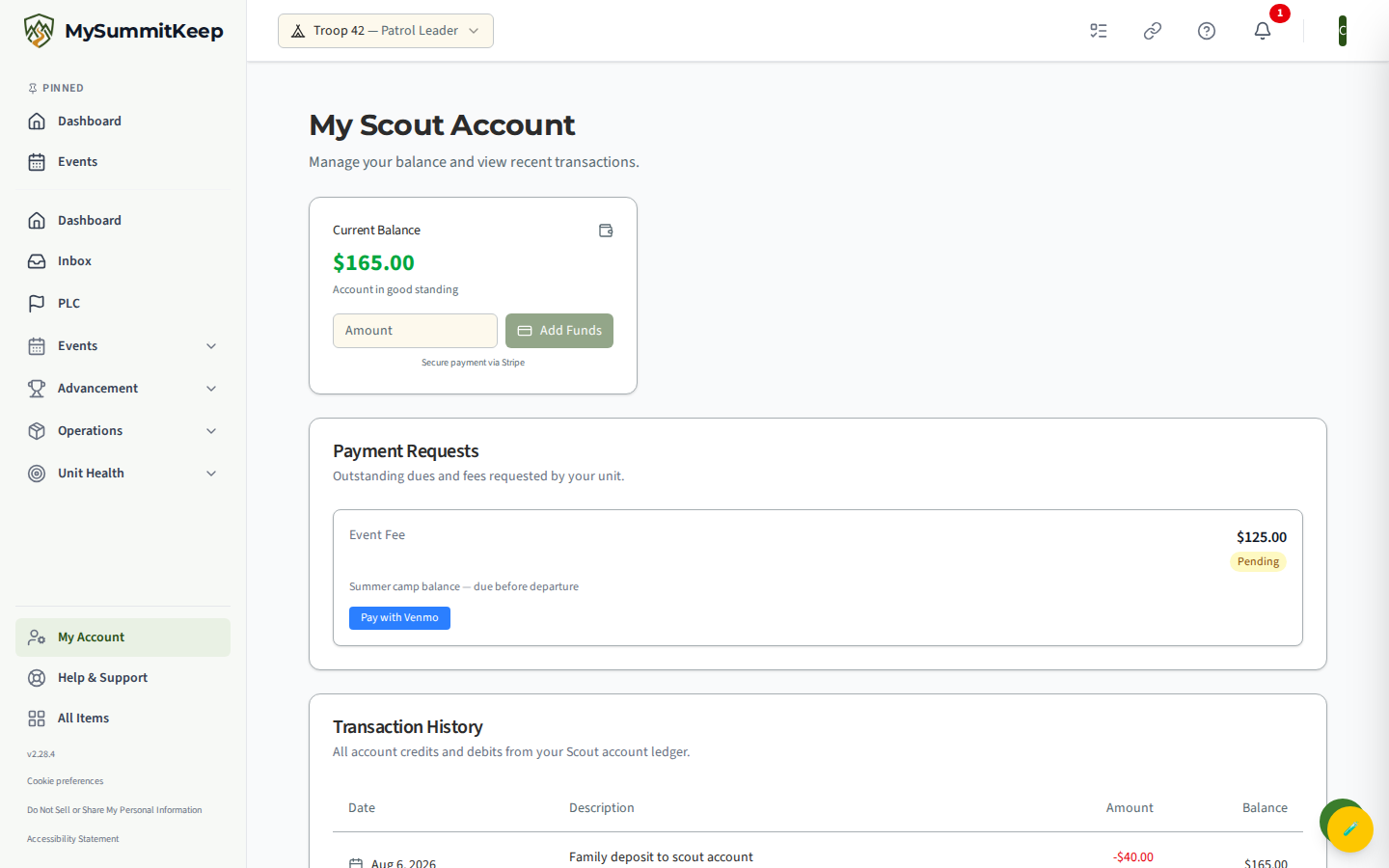
The page is titled My Scout Account. At the top is your Current Balance card.
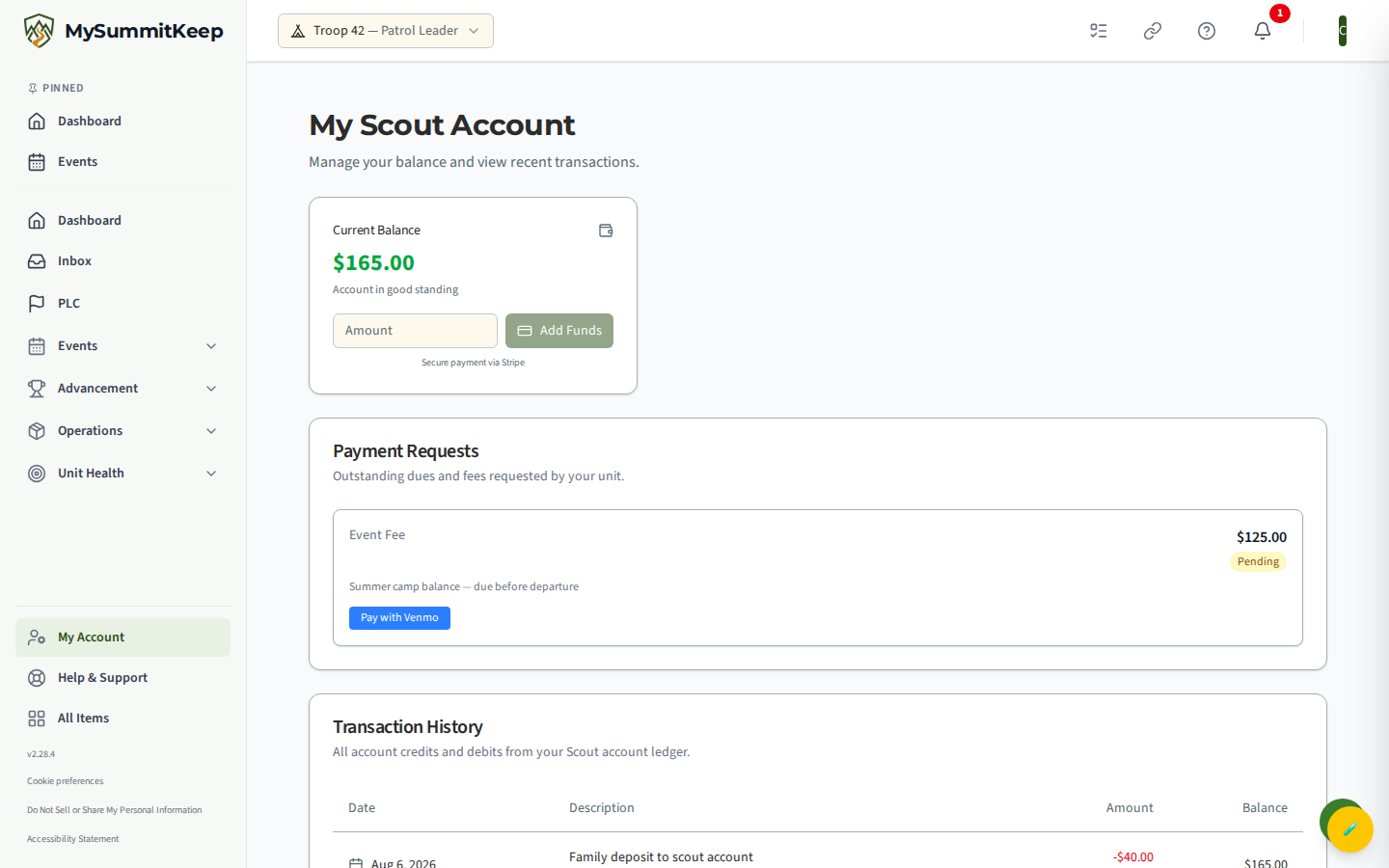
The big number is what’s in your account right now:
- A green balance with Account in good standing means you’re all set — that’s credit you can use toward future fees.
- A red balance with Payment required means you owe your unit money. If that happens, a red Outstanding Balance notice also appears with the exact amount, and it’s a good idea to pay it so you don’t miss out on events.
Reading your transaction history
Section titled “Reading your transaction history”Scroll down to the Transaction History card. This is your full ledger — every credit and debit on your account, newest at the top.
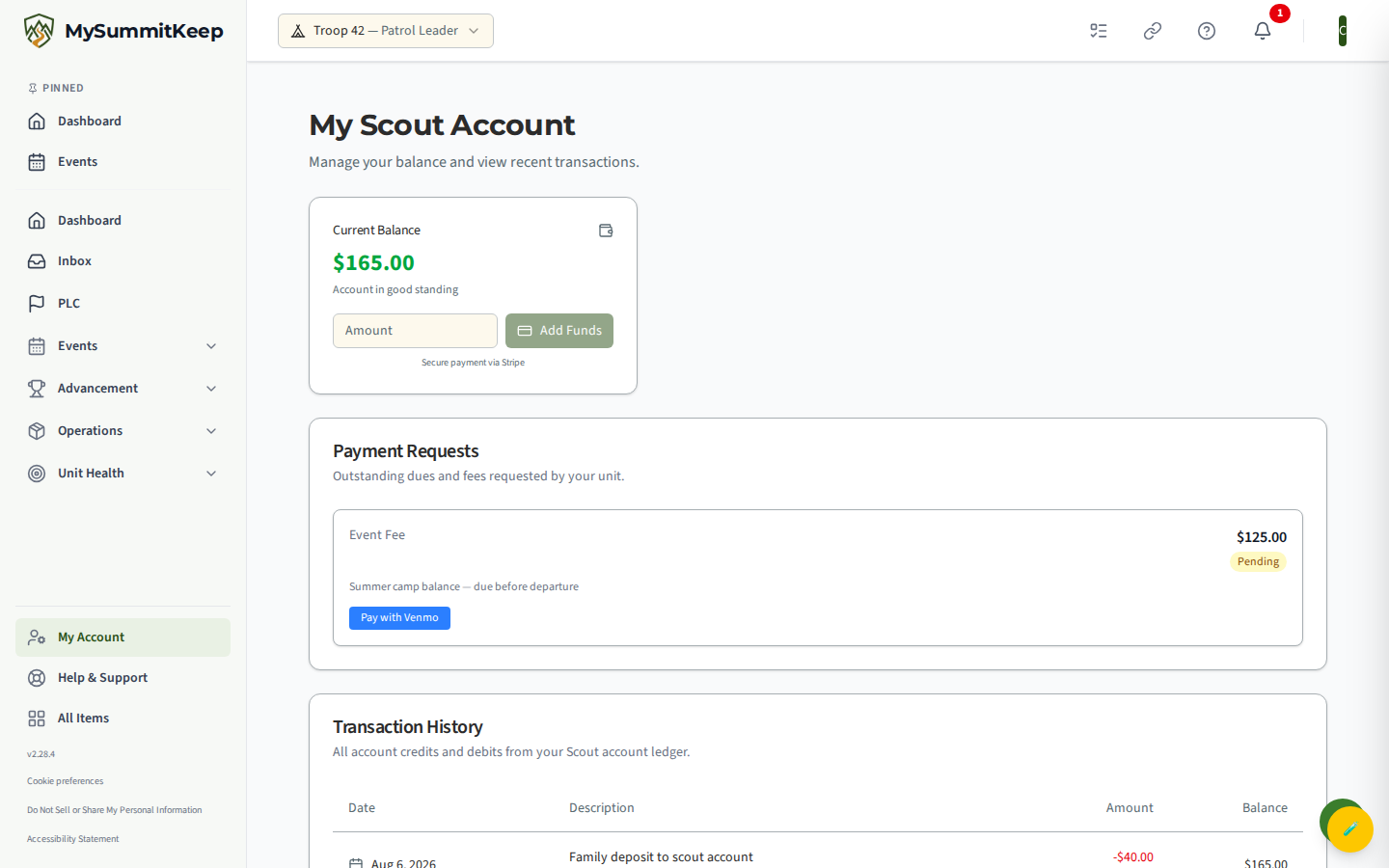
Each row has four columns:
- Date — when it happened.
- Description — what it was for (for example, a campout fee or a fundraiser credit), with a smaller category line underneath when there is one.
- Amount — a green + for credits (money added) and a red − for debits (money taken out), labeled Credit or Debit.
- Balance — the running balance, which is what your account totaled right after that transaction. Read it top to bottom and you can trace exactly how your balance got to where it is today. If a row’s running balance is below zero, it shows in red.
If you’ve never had any money activity yet, you’ll just see a friendly No Transactions message instead of the table. That’s normal for a new account.
Dues or fees you owe (Payment Requests)
Section titled “Dues or fees you owe (Payment Requests)”If your unit has asked you to pay something specific — annual dues, an event fee, or a deposit — a Payment Requests card appears between your balance and your history. Each outstanding item is its own little card showing what it’s for and how much.
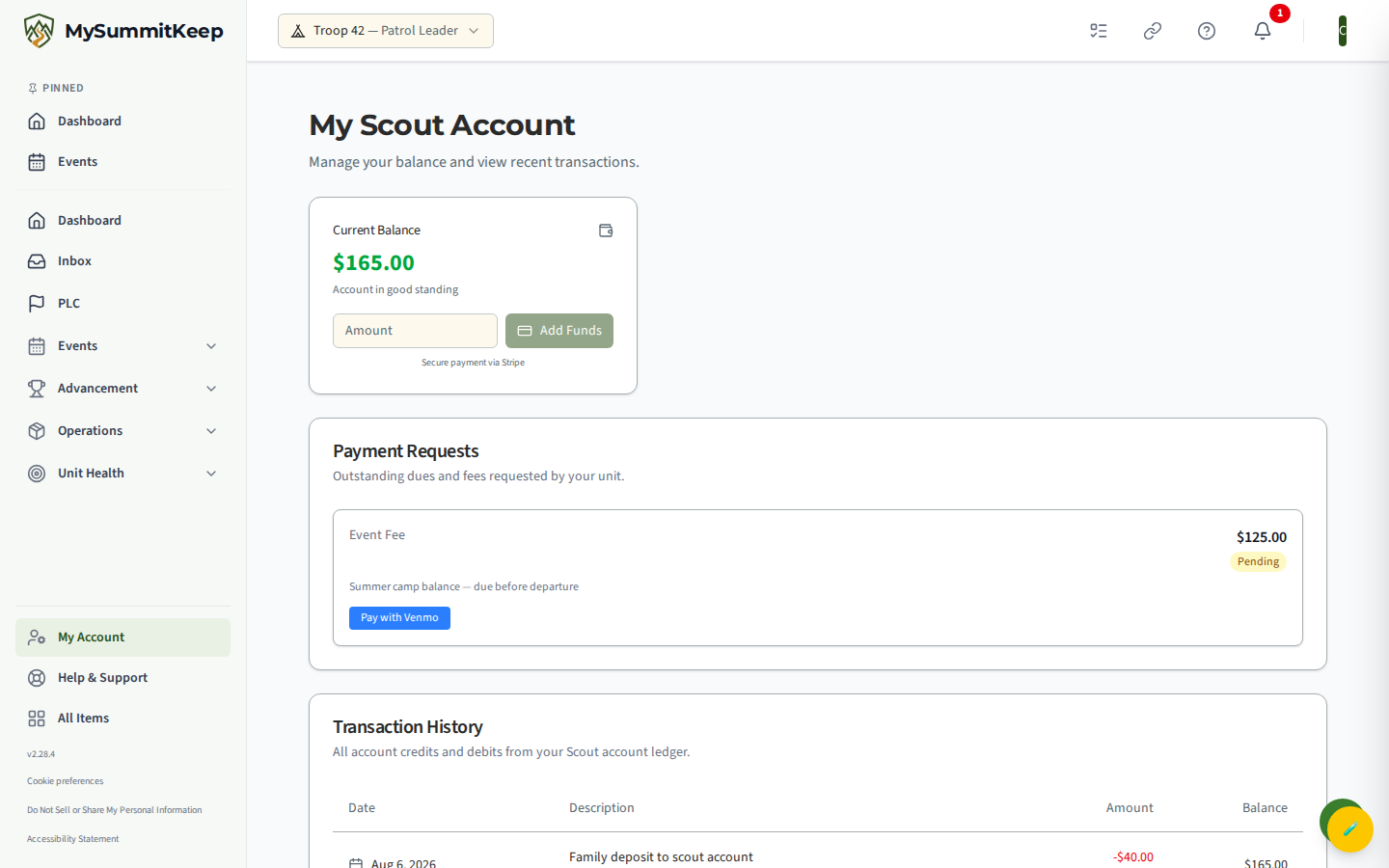
Each request shows a Pay with Stripe button, which opens a secure card-payment page. You type your card details there — your card number is handled by Stripe and never stored by MySummitKeep.
Once a payment goes through, the request clears and the entry shows up in your Transaction History.
Adding to your balance
Section titled “Adding to your balance”Want to put money on your account ahead of time — say, before a big trip so a fee is already covered? Use the Add Funds box on the Current Balance card.
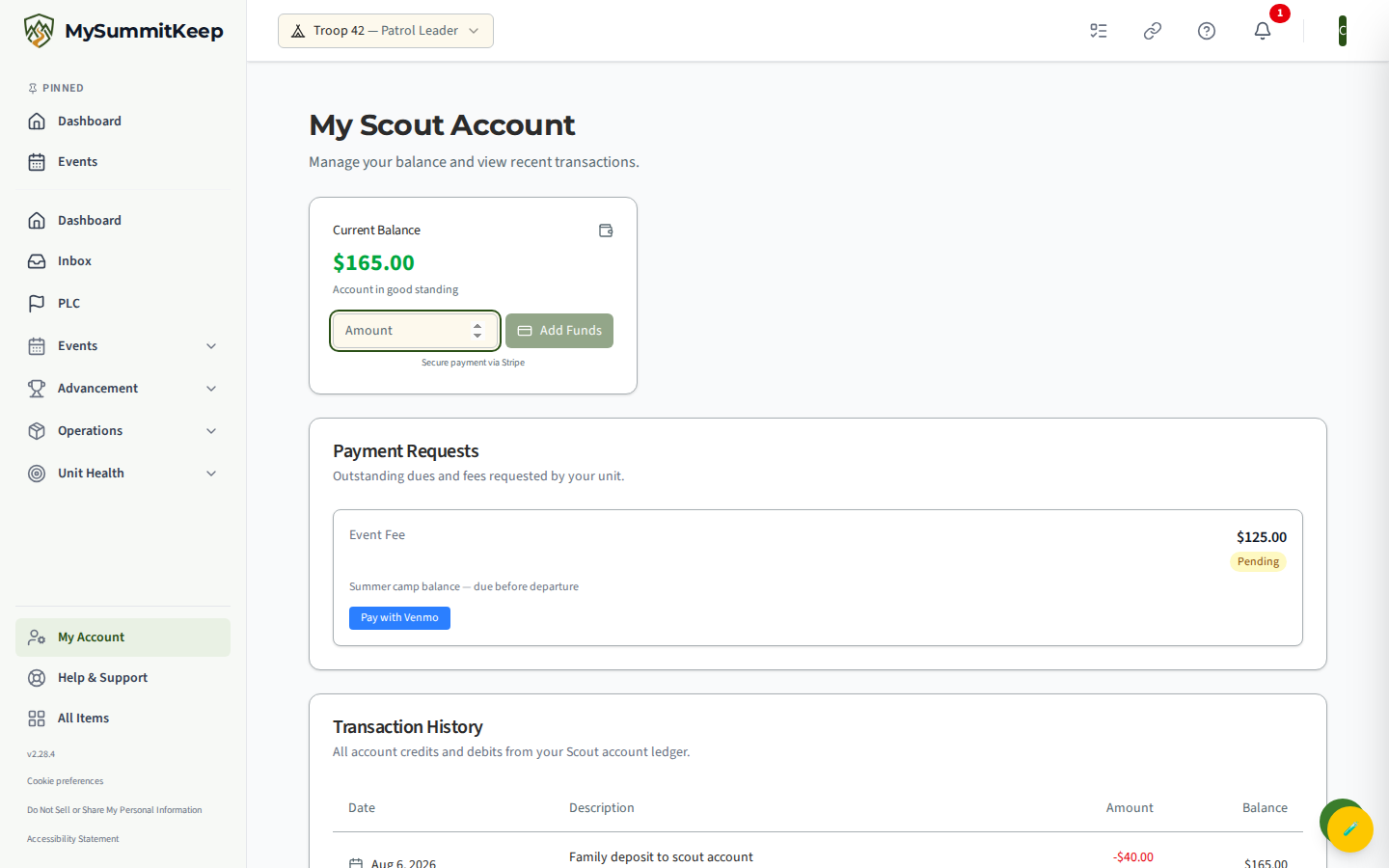
- Type a dollar amount in the Amount field (whole dollars work great).
- Click Add Funds.
- You’re taken to a secure Stripe card page — enter your card details and confirm. The note under the button, Secure payment via Stripe, is your reminder that the card part happens on Stripe’s safe page.
Once the card clears, the money lands on your account and appears as a green credit in your Transaction History. Your unit can then apply it toward future fees.
Common questions
Section titled “Common questions”Do my parents see this too? Your family can see your account from their side, and the money in it belongs to the unit’s account for you. If you’re not sure whether to pay something yourself, check with a parent first.
My payment failed. Usually that’s an expired or declined card. Try again with a different card or method. The attempt shows in your history so you can see what happened.
I don’t have an “Add Funds” or pay button. That depends on what your unit connected. If you think you should be able to pay online and can’t, let a leader or the treasurer know.
Need help? Contact support — we usually answer within 1 business day.
MySummitKeep is an independent product and is not affiliated with, endorsed by, or sponsored by Scouting America (formerly the Boy Scouts of America). Scouting America, Scouts BSA, Cub Scouts, Venturing, Sea Scouts, and the Order of the Arrow are trademarks of Scouting America. Official program content shown in screenshots and examples is © Scouting America; always confirm current requirements atscouting.org. SeeTerms § 7.3.