
Paying Fees and Dues
Your unit collects money for things like annual dues, campout fees, and summer-camp deposits. MySummitKeep gives you a simple way to pay online — credit or debit card through Stripe — and keeps a running record so you always know what you owe and what you’ve already paid. Money goes straight to your unit through its own connected payment account.
Your payments
Section titled “Your payments”Open My Account at the bottom of the left menu (/my-account) to see everything in one place: the Payment Requests your unit has sent you, your invoices, and your Transaction History. Leaders see the same list for the whole unit under Finance → Unit Payments (/financials/payments), which is the page shown below.
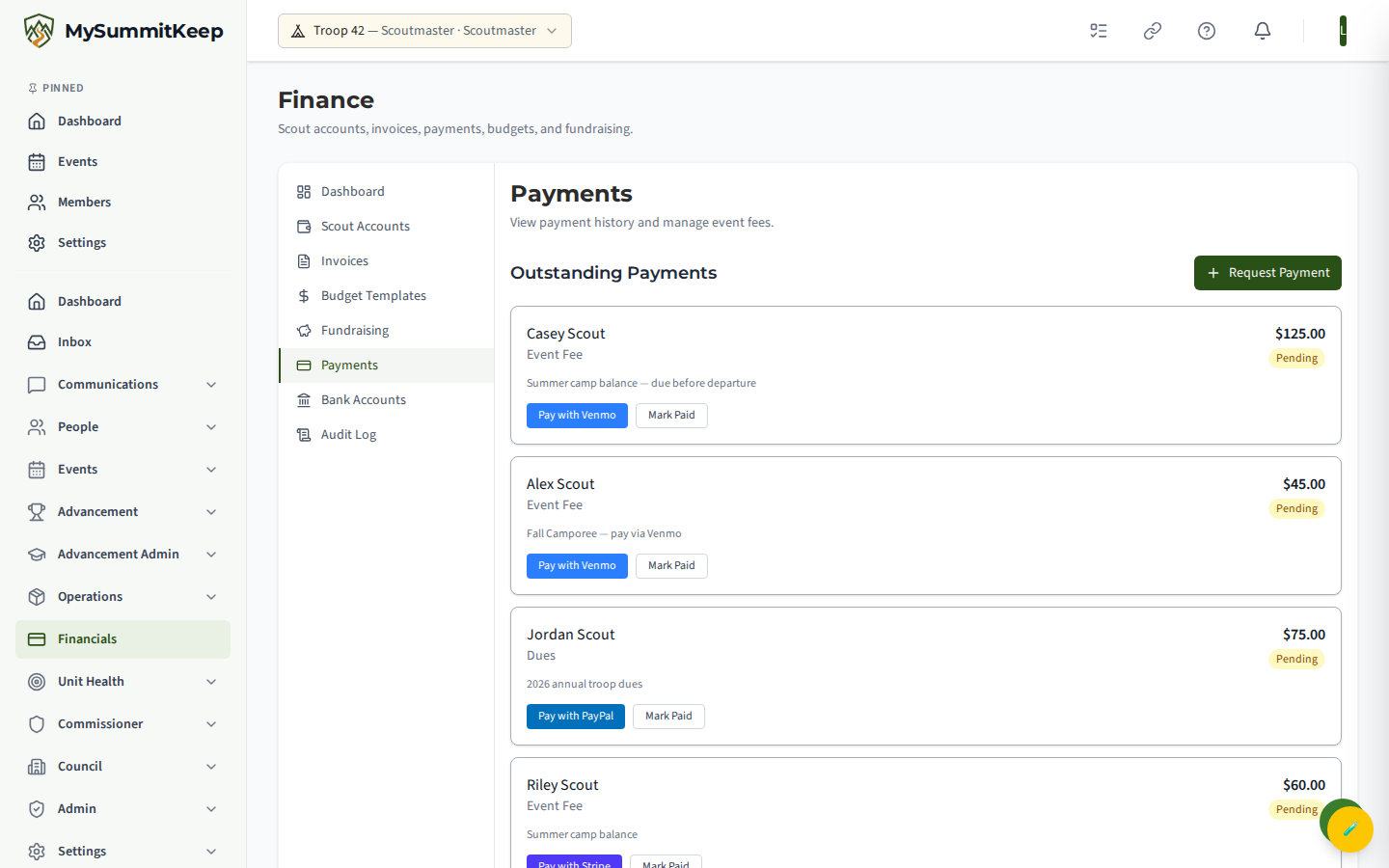
The page has three parts:
- Outstanding Payments — a card for each due, fee, or deposit your unit has requested but you haven’t paid yet. Each card has its own pay button(s).
- Summary cards — quick totals for Total Paid, Outstanding, Succeeded, and Pending.
- Payment history table — every payment on your account, with the member it was for, a description, the amount, a status badge (Paid, Pending, Failed, Refunded), and the date.
Use the search box to filter by member name, event, or description, and the status dropdown to show only Paid, Pending, Failed, or Refunded payments.
Paying a due or fee
Section titled “Paying a due or fee”Each outstanding item shows up as its own card with the scout’s name, what it’s for (Dues, Event Fee, or Deposit), the amount, and the pay options your unit offers.
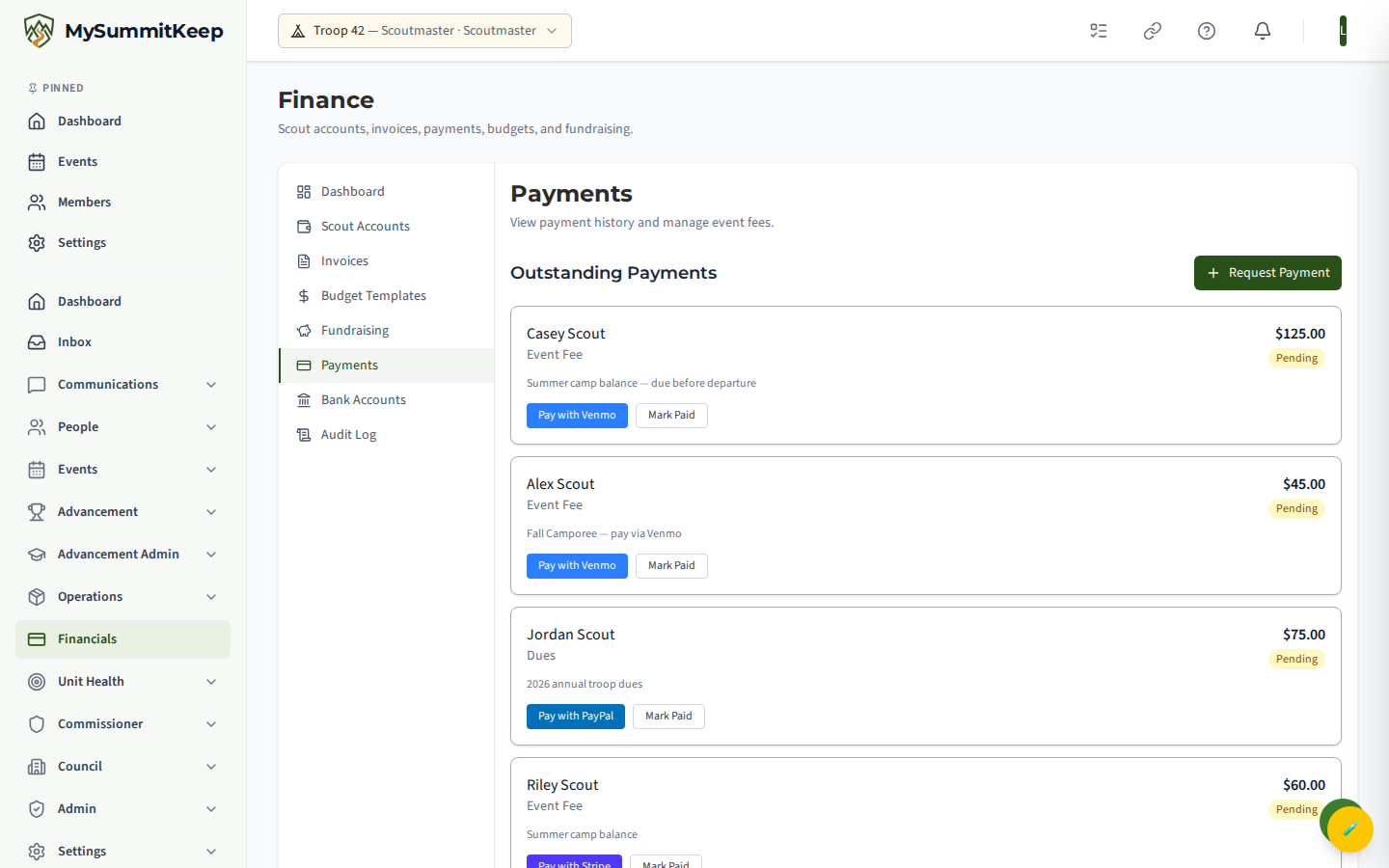
Click Pay with Stripe to be taken to a secure card-payment page. Enter your card details there and confirm — your card number is handled by Stripe and never stored by MySummitKeep.
Once the payment clears, the card moves to Recently Paid and the entry appears in your history table with a green Paid badge.
Paying a specific invoice
Section titled “Paying a specific invoice”Some fees are billed as a detailed invoice (for example, a camp registration with several line items). When you open one of those, you land on the Payment Checkout page for that invoice.
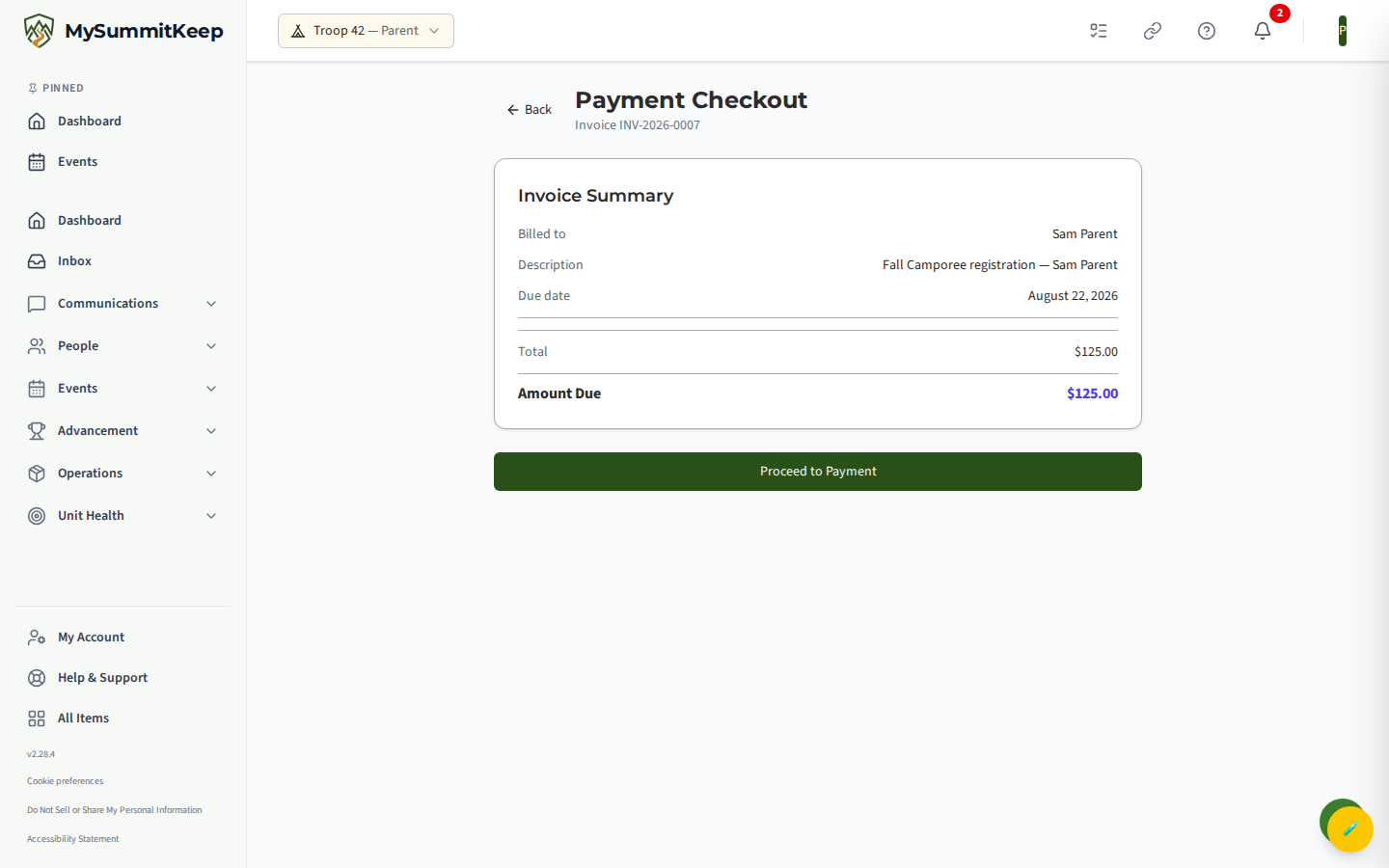
It shows an Invoice Summary — who it’s billed to, the line items, the total, anything already paid, and the Amount Due. Click Proceed to Payment, enter your card details on the secure Stripe form, and you’ll see a confirmation with a receipt summary when it succeeds.
Your Scout account
Section titled “Your Scout account”Open My Account to see your scout’s account balance and ledger. This is where fundraising credits, top-ups, and charges all live.
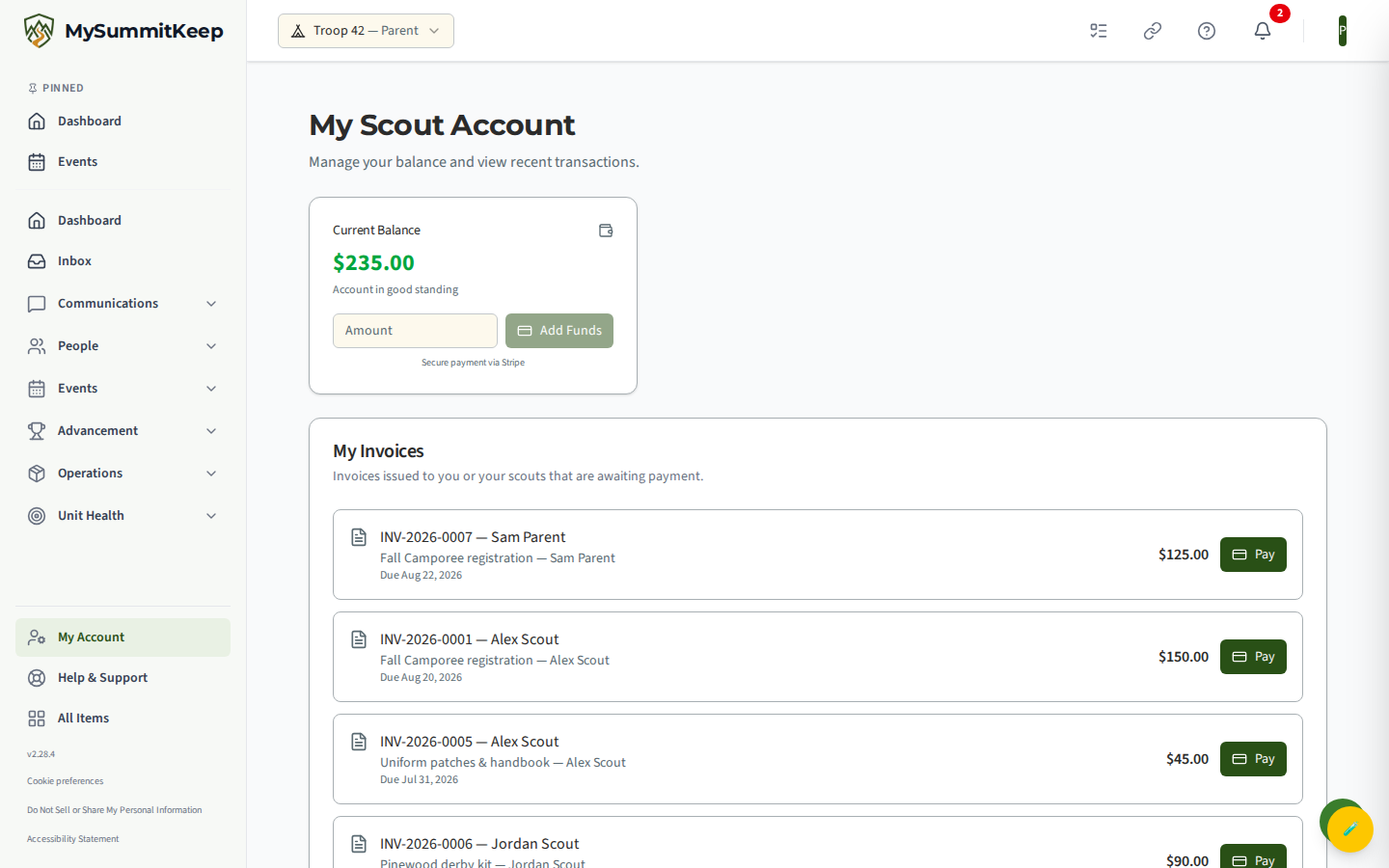
- Current Balance shows whether the account is in good standing or has a balance owed. A negative balance is flagged in red with the amount due.
- Add Funds lets you top up the account: type a dollar amount and click Add Funds to pay by card through Stripe. Once the card payment clears, the deposit is added to your scout’s account so your unit can apply it to future fees.
- Payment Requests lists any outstanding dues or fees so you can pay them right from this page, just like on the Payments page.
- Transaction History is the full ledger — every credit (green
+) and debit (red−) with the date, description, and a running balance so you can trace exactly how the balance got where it is.
Receipts
Section titled “Receipts”Need a record for your files or reimbursement? In the payment history table on the Payments page, any completed payment (Paid, Succeeded, Refunded, or Partial Refund) shows a Receipt button. Click it to open a printable receipt — use your browser’s print dialog to print it or save it as a PDF. It lists the unit, who paid, the description, line items, payment method, confirmation number, and date.
Refunds
Section titled “Refunds”If a payment has been refunded, you’ll see it on the payment itself — a Refunded or Partial Refund status badge, and the refunded amount noted under the payment total in your history. Refunds are issued by your unit treasurer, so if you think a refund is owed (for example, an event you withdrew from), reach out to your unit’s treasurer or leaders directly. There’s no self-service refund button on your side.
Asking to be paid back
Section titled “Asking to be paid back”Bought something for the unit, like firewood or printer ink? Open Reimbursements, choose New Request, enter the amount and what it was for, and add a photo of the receipt (JPEG, PNG or WebP). A treasurer or other finance leader, never you or someone in your household, approves or declines it, and you are told in the app. The unit pays you back outside MySummitKeep, or credits your unit account if the treasurer chooses. You can withdraw a request while it is pending. Details are in Expense Reimbursements.
Your family statement
Section titled “Your family statement”Your unit’s treasurer can email each family a personal statement: what you owe, your family’s unit account balances, and upcoming events. It arrives only when the treasurer chooses to send it, and only to the parents and guardians in the family. To stop these emails, turn off Family statement under Settings → Notifications; it takes effect at once.
Common questions
Section titled “Common questions”A payment failed. Usually an expired card or a declined transaction — try again with a different card or method. The failed attempt shows in your history with a red Failed badge.
I don’t recognize a charge. Open the payment to see its full description and the linked event or invoice. If it’s still unclear, ask your unit treasurer.
My balance looks wrong. Check the running-balance column in your Scout account ledger to see each credit and debit. If a transaction is missing or wrong, your treasurer can correct it.
For how leaders bill members, connect payment methods, and reconcile cash and checks, see Finance and Payments. For where these charges come from, see the Family Page Tour and RSVPing to Events.
Need help? Contact support — we usually respond within 1 business day.
MySummitKeep is an independent product and is not affiliated with, endorsed by, or sponsored by Scouting America (formerly the Boy Scouts of America). Scouting America, Scouts BSA, Cub Scouts, Venturing, Sea Scouts, and the Order of the Arrow are trademarks of Scouting America. Official program content shown in screenshots and examples is © Scouting America; always confirm current requirements atscouting.org. SeeTerms § 7.3.