
Unit Settings
The Unit Settings page (open Settings in the left menu, then choose Unit Profile under the Unit Settings heading) is where you keep your unit’s core details up to date: its name, meeting time, online payments, and communication channels. It has a General tab and a Payments tab, plus a Channels tab that appears only for leaders and admins.
A few related settings — branding, dues, permissions, and positions — live on their own pages rather than inside this one. Each is cross-linked below so you always know where to go.
Who sees Unit Settings
Section titled “Who sees Unit Settings”Every member has a Settings page for their own account (profile, notifications, privacy). The Unit Settings links only appear for the leaders who can use them:
| Pages | Who sees them |
|---|---|
| Unit Profile, Branding, Email, Calendar, Alert Config, Import Website | Leaders who can change unit settings (the Scoutmaster set and unit admins) |
| Billing, Dues, Storage | Leaders who manage the unit’s payments (for example the Scoutmaster or Treasurer) |
| Advancement (merit badge counselors) | Leaders who manage counselors |
| Event Roles | Adult leaders who assign event roles |
| Scoutbook Sync | Adult leaders |
| Manage Positions | Leaders who manage positions. Other members who follow a link to it can see who holds each position but cannot change it. |
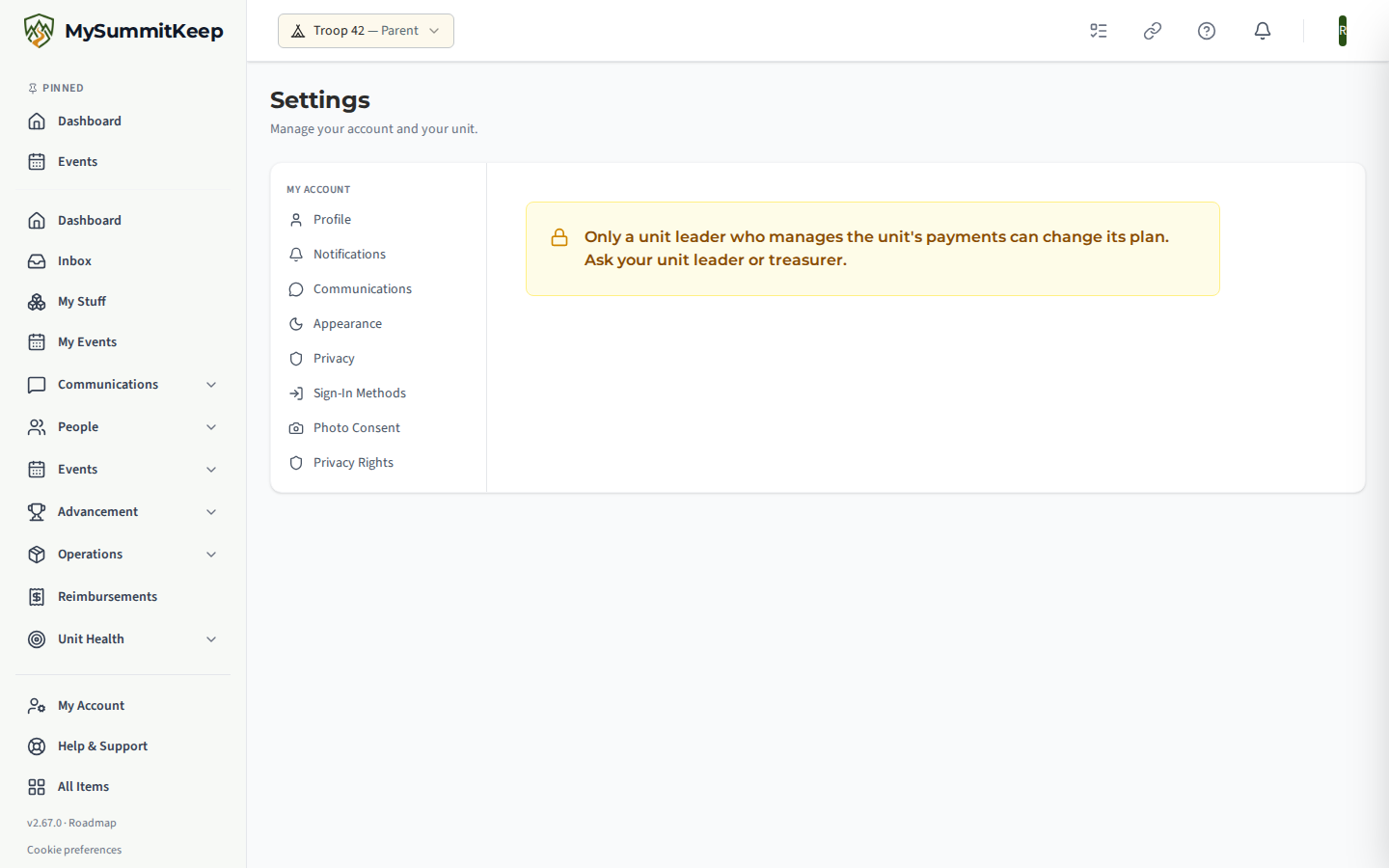
Scouts never see these links, whatever their position. If a member opens one of these pages another way (for example from an Upgrade button), they see a short note saying who can make the change instead of the page.
General tab
Section titled “General tab”The General tab holds your unit’s identity and meeting details.
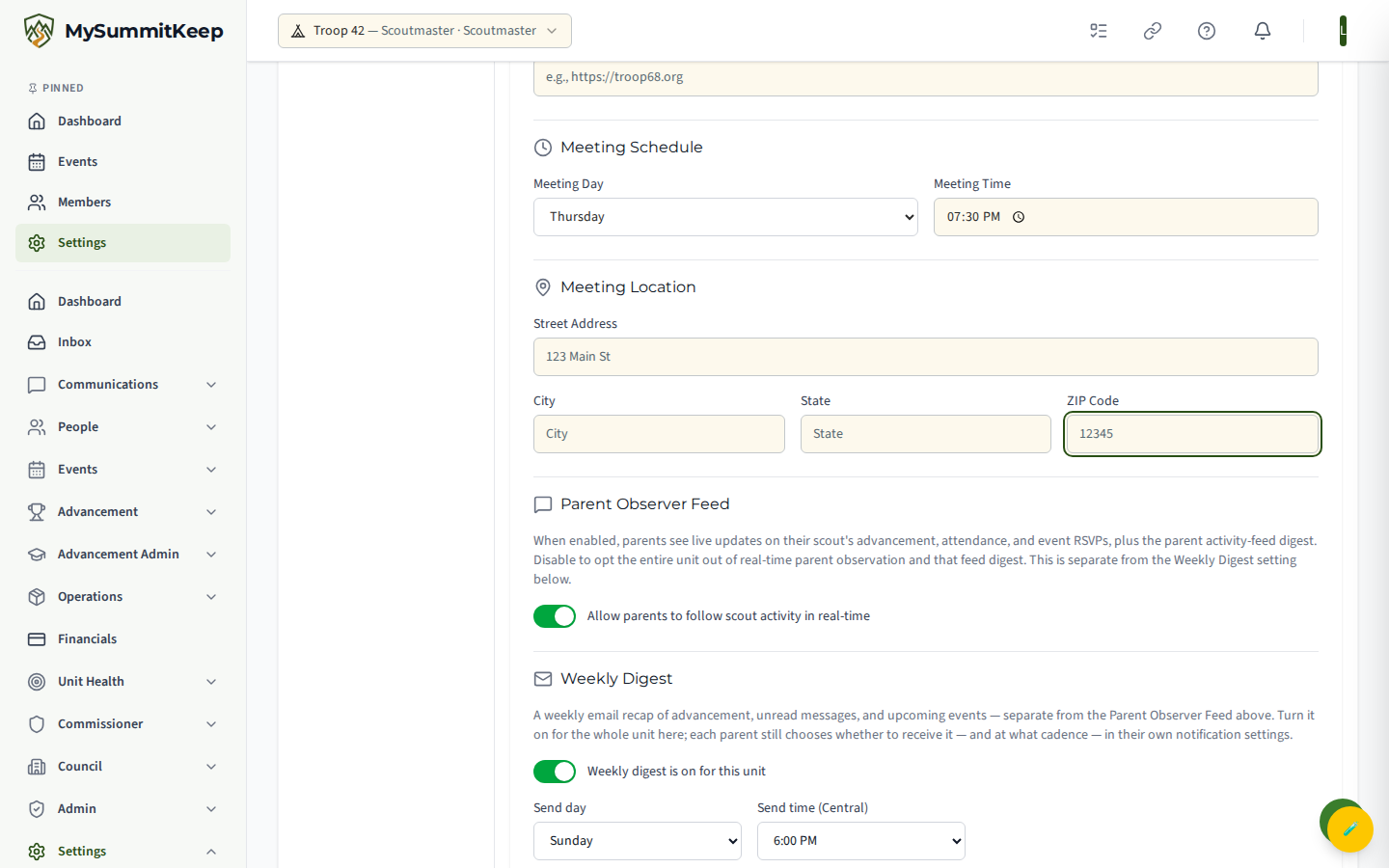
- Unit Information — Unit Name and Unit Number, plus your Charter Organization and Charter Expiration Date. We send proactive recharter reminders to your Key 3 as the expiration date approaches. The Unit Type (Cub Scout Pack, Scouts BSA Troop, Venturing Crew, Sea Scout Ship, or Explorer Post) is shown but cannot be changed after the unit is created.
- Unit URL — your public web address slug (for example,
troop68inmysummitkeep.org/troop68). Edit it here. - Contact Information — a contact email, phone number, and your unit’s external Website.
- Meeting Schedule — your regular Meeting Day and Meeting Time. This is a single recurring slot, not a per-week calendar editor.
- Meeting Location — street address, city, state, and ZIP for where you meet. The map on your public contact page and the distance families see in the unit finder come from this address. Each Save Changes looks the address up again, so if the map pin is ever in the wrong place, saving the settings puts it back on your address.
- Parent Observer Feed (leaders and admins only) — a master switch that lets parents follow their Scout’s advancement, attendance, and event RSVPs in real time, with a daily digest email summarizing new activity. Turning it off suspends both the real-time feed and the digest emails for the whole unit.
- Activity Digest (leaders and admins only) — a recap email of advancement, unread messages, and upcoming events, separate from the Parent Observer Feed above. See Activity Digest settings below.
- Advancement Submission Reminder (leaders and admins only) — a nudge for completed advancement that has not been marked submitted yet. See Advancement reminders below.
- Public Sub-Site — enable a public-facing page for your unit so visitors can see your calendar, news, and photos without logging in. When it’s on, a tagline, welcome text, and a drag-and-drop Site Builder appear. See Your Public Unit Website for the full walkthrough of building, importing, and publishing your public site. Your address, QR code and custom domain are on the separate Public Website page.
- Cub Adventure — Leader Must Observe (Pack units, leaders and admins only) — choose which Cub Scout Adventure requirements need a leader’s own eyes before they count, rather than letting a trust-verified parent or guardian mark them done first. See Configuring Leader-Observed Cub Requirements below.
- Scouts Signing Off Other Scouts (Troop units, leaders and admins only) — let qualifying Scouts sign off Scout through First Class requirements for other Scouts in your troop. Off by default. See Letting Scouts Sign Off Requirements.
Click Save Changes at the bottom to apply everything on this tab. The Cub Adventure — Leader Must Observe and Scouts Signing Off Other Scouts cards are the exception: each has its own Save Changes button, and the one at the bottom does not save them.
Payments tab
Section titled “Payments tab”The Payments tab is where online collection is set up.
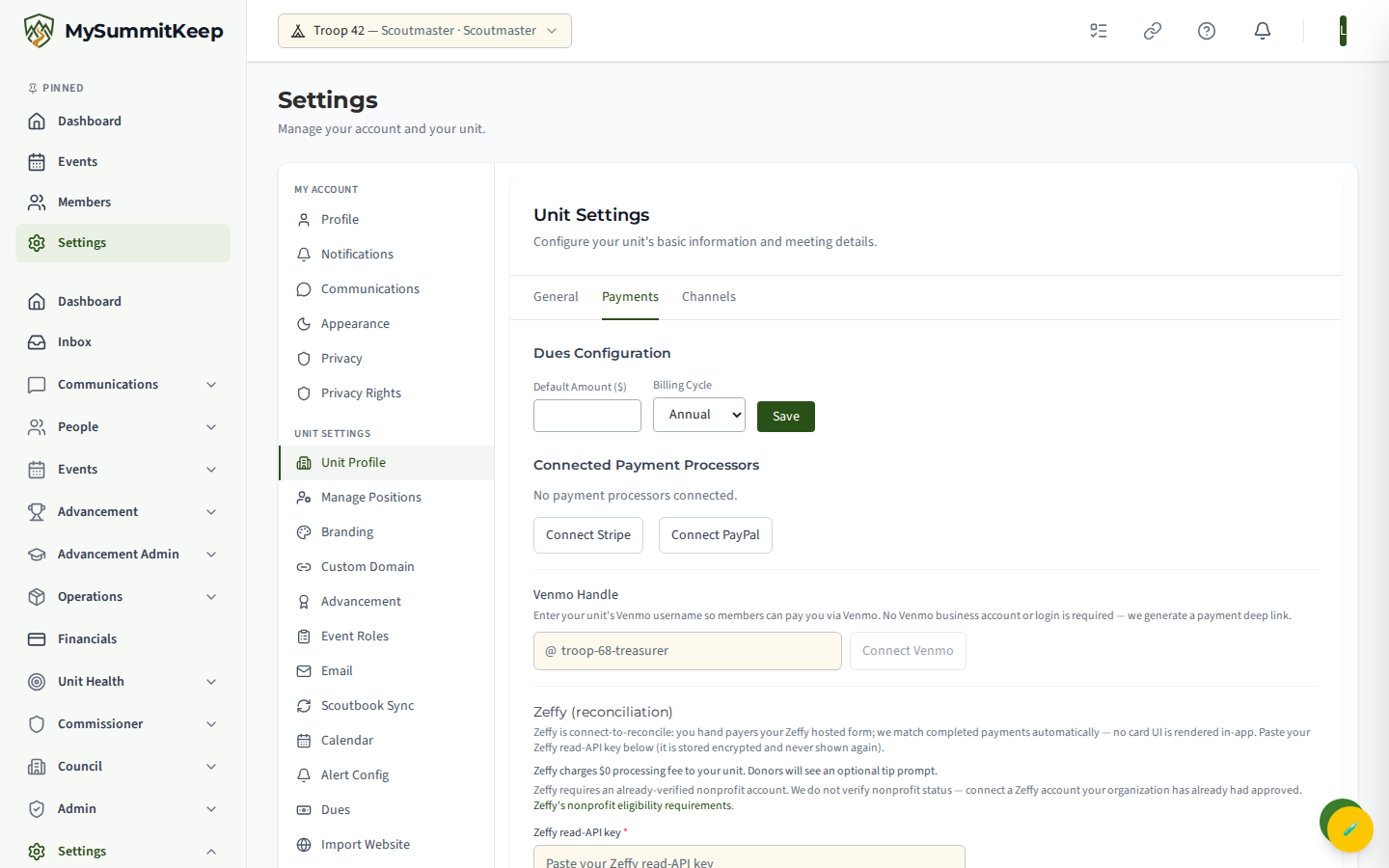
It has a quick Dues Configuration panel — where you can set the Default Amount and Billing Cycle (Annual or Monthly) and Save — plus your Connected Payment Processors. Use Connect Stripe to link an account so families can pay online. For the full dues setup, see the dues configuration section below, and read Finance and Payments for the complete payments workflow.
Channels tab
Section titled “Channels tab”The Channels tab (leaders and admins only) lists the communication channels available to your unit.
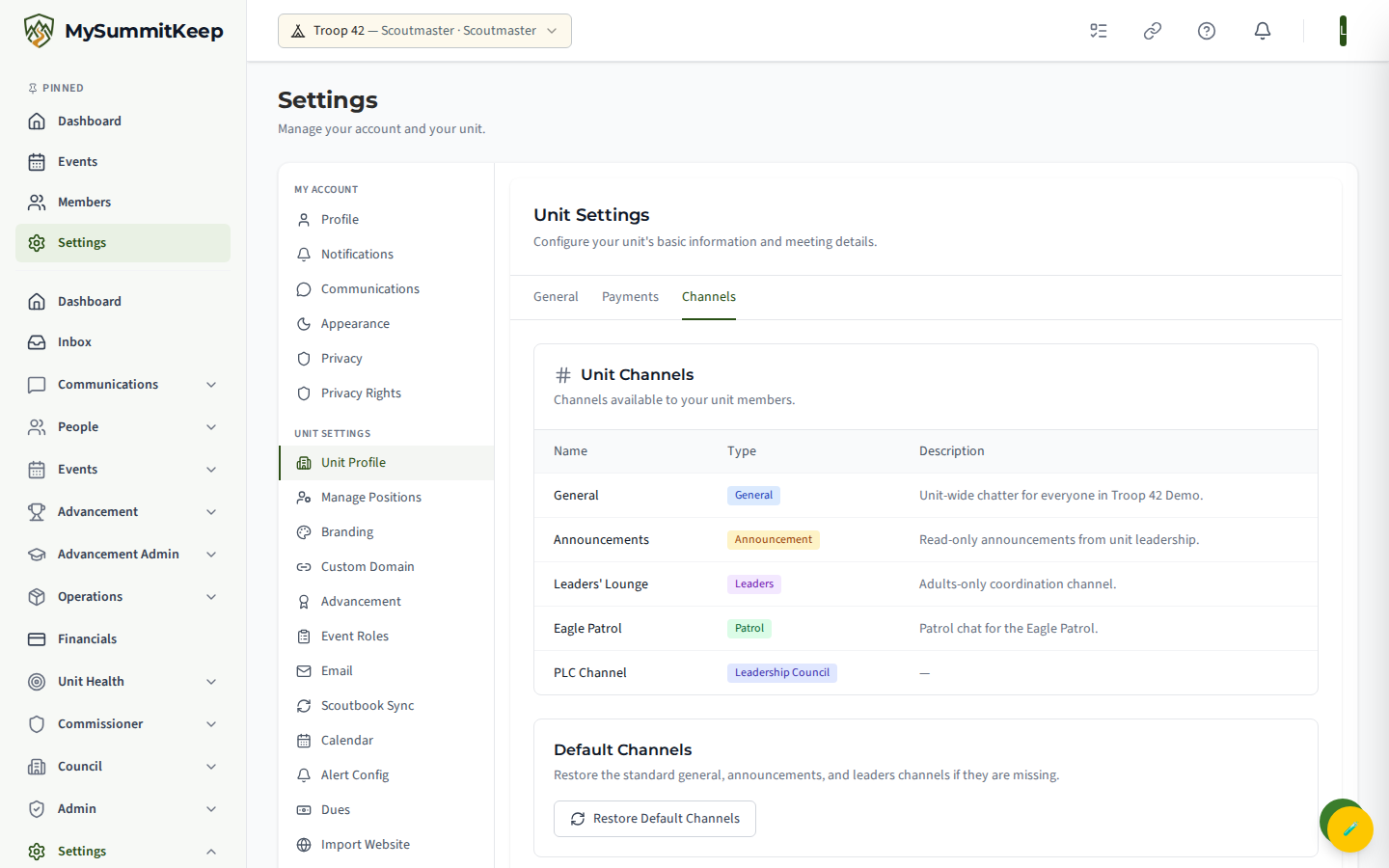
Each channel shows a colored type badge — General, Announcement, Leaders, Patrol, Event, or Leadership Council — along with its description. Archived channels appear dimmed.
If your standard general, announcements, or leaders channels are missing, the Restore Default Channels button recreates them. For day-to-day messaging, see Communications.
Activity Digest settings
Section titled “Activity Digest settings”Leaders and admins turn the unit’s Activity Digest on or off on the General tab. It is a recap email of advancement, unread messages, and upcoming events, and it is separate from the Parent Observer Feed above it.
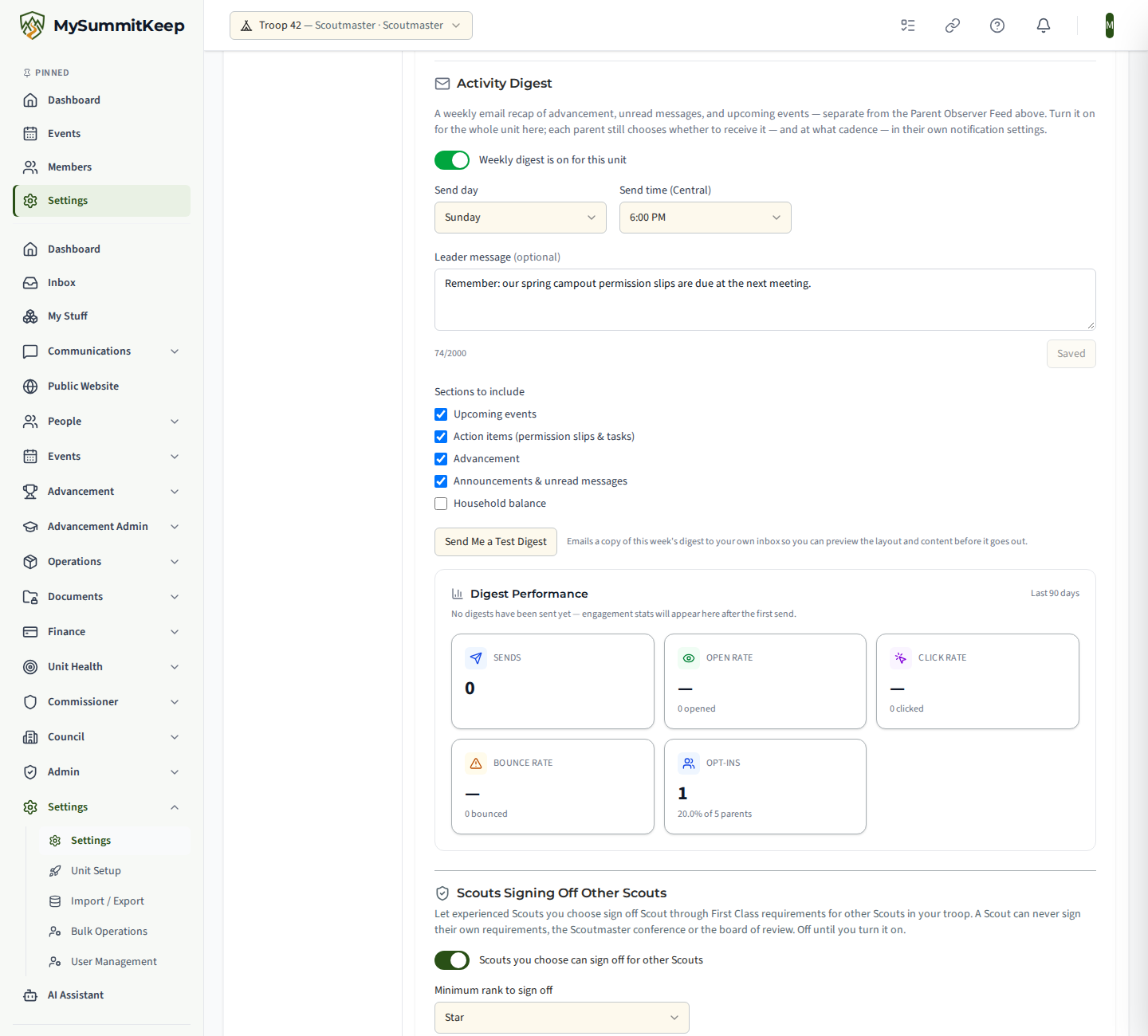
- Unit switch — the master switch for the whole unit. While it is off, no digest is sent to anyone.
- Send day and Send time (Central) — when the digest goes out. A new unit starts on Sunday at 6:00 PM Central; change either one and it saves straight away.
- Leader message (optional) — up to 2,000 characters shown at the top of every recipient’s digest. Click Save message to keep it.
- Sections to include — tick or untick Upcoming events, Action items (permission slips & tasks), Advancement, Announcements & unread messages, and Household balance.
- Send Me a Test Digest — emails a copy of this week’s digest to your own inbox so you can check the layout before it goes out.
Below those controls, a small performance card shows how many people are opted in and how past digests did.
Each person also decides for themselves whether to receive the digest, and whether they want it Weekly or Monthly, in their own Settings → Notifications; a View Digest button there shows their current digest on screen. See Notifications.
Advancement submission reminders
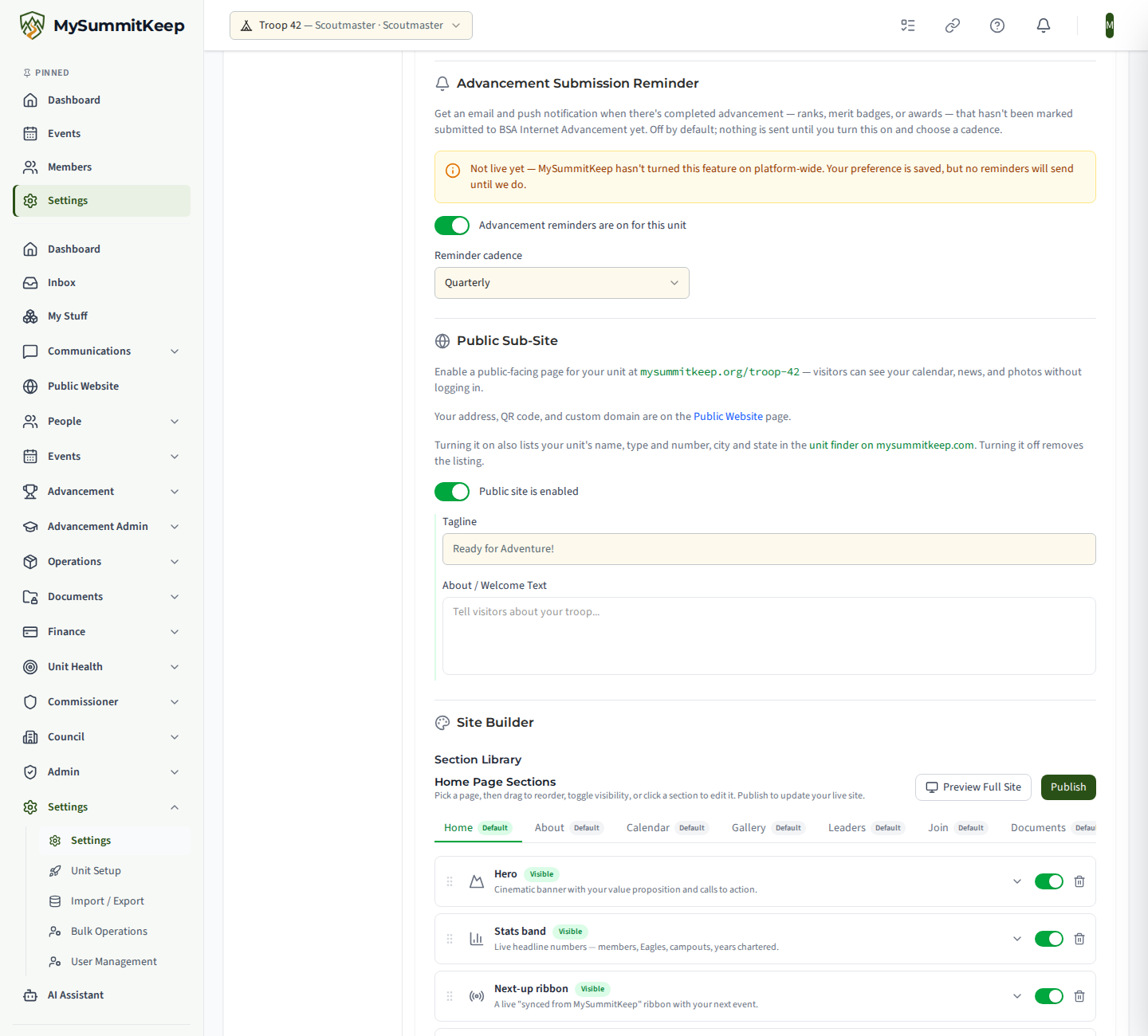
Section titled “Advancement submission reminders”Also on the General tab, Advancement Submission Reminder (leaders and admins only) sends an email and a push notification when completed ranks, merit badges, or awards have not yet been marked submitted to Internet Advancement. It is off for every unit until you switch it on and pick a Reminder cadence: Monthly, Quarterly, or Every 6 months.
Configuring Leader-Observed Cub Requirements
Section titled “Configuring Leader-Observed Cub Requirements”Cub Scout Packs get one more control on the General tab: Cub Adventure — Leader Must Observe. It’s a rank → adventure → requirement checklist covering every seeded Cub Scout Adventure across all six ranks (Lion through Arrow of Light), required and elective alike.
Check a requirement’s box and a trust-verified parent or guardian can no longer mark it done themselves — only a registered leader can record it. Leave a requirement unchecked and a parent may mark it done first (it still doesn’t count toward the rank until a leader records it either way — see Advancement Workflow for that two-step flow). Use the checkbox at the top of each adventure to select or clear every requirement in it at once.
Changing this list only affects new sign-offs going forward. If a parent already marked a requirement done before you added it to this list, that sign-off stays waiting for a leader to record or return — its row in the Approval Queue says “your pack asks a leader to see this one done” so you know to look at it yourself, rather than being silently reset.
Branding
Section titled “Branding”Your unit’s logo, colors, theme, and email styling are configured on the separate Branding page at Settings → Branding.
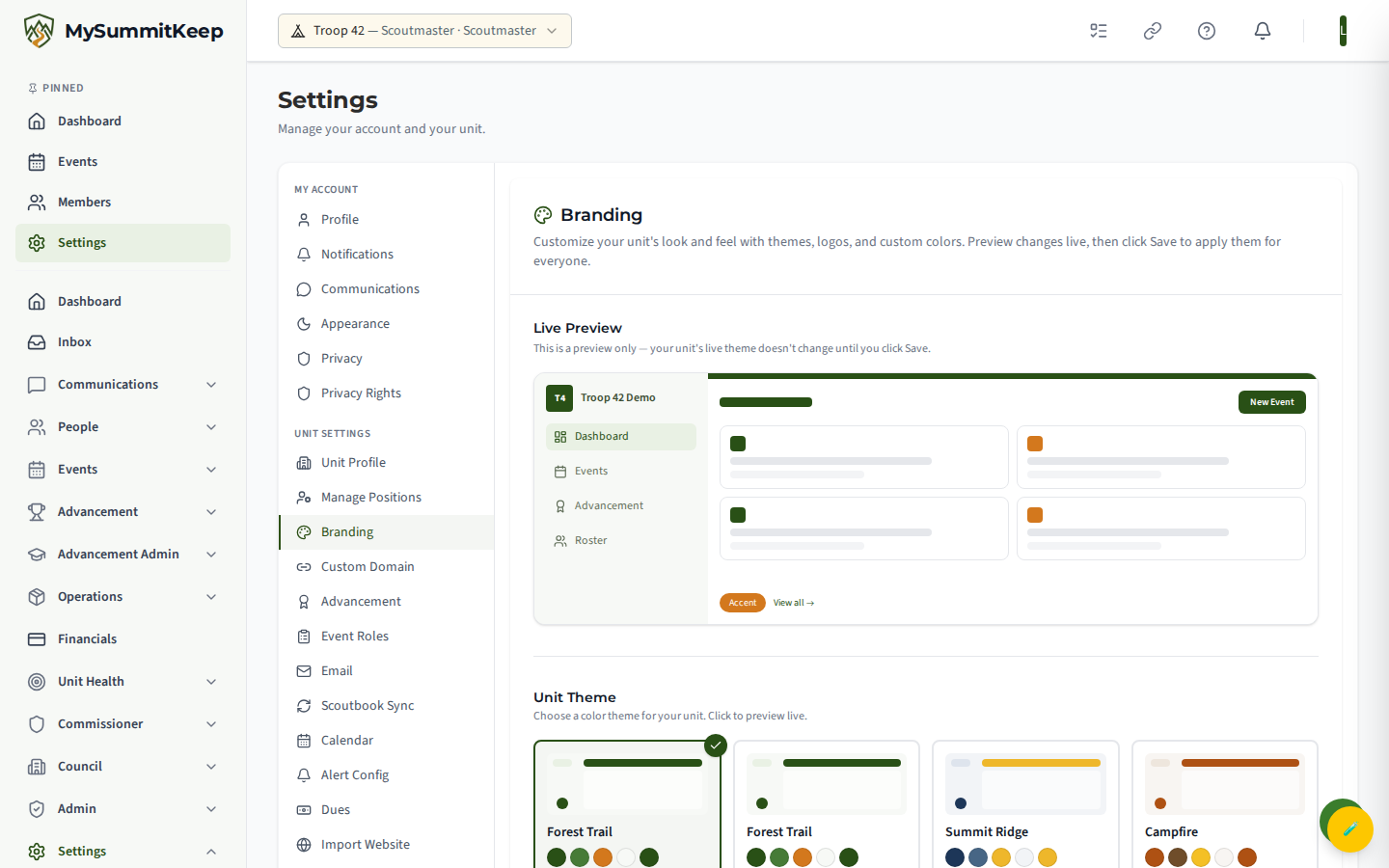
Here you choose a unit theme (the themes for your unit type are listed first and every other theme is available too), pick an accent color (all options meet contrast standards), upload your unit logo, and customize email branding (header color and footer text). A Live Preview at the top shows your choices before anything changes for anyone; nothing applies to your members until you click Save Branding. Your public unit page wears the same theme, in light and dark mode. See Branding, Themes and Appearance for the details. If you don’t see editable controls, branding is locked to your unit’s leadership — contact your Scoutmaster to request a change.
Dues configuration
Section titled “Dues configuration”Dues are configured on the Dues page at Settings → Dues.
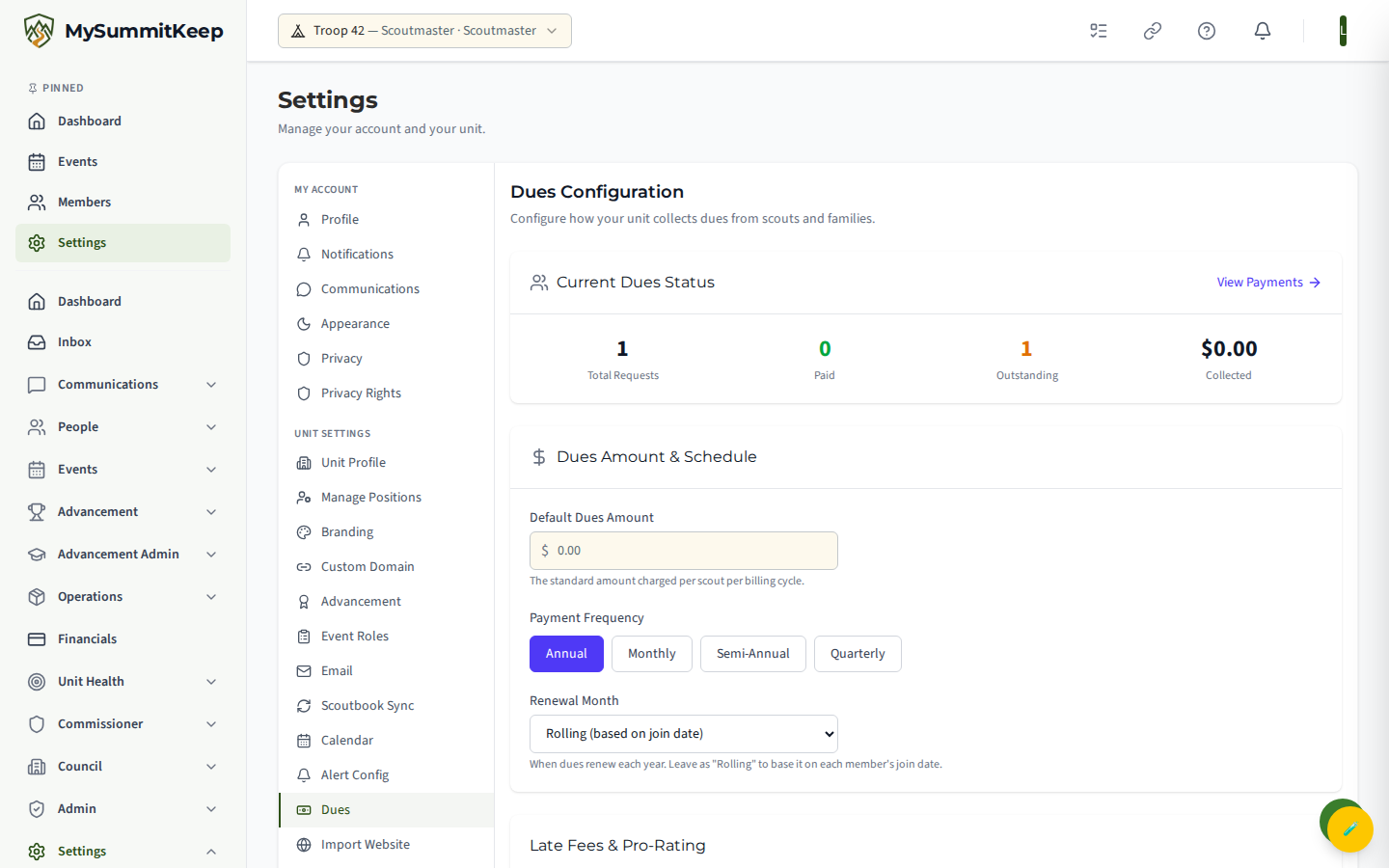
Set your Default Dues Amount, Payment Frequency (billing cycle), and Renewal Month (or leave it rolling, based on each member’s join date). You can also add a grace period, a late fee, pro-rating for mid-year joins, a one-time New Scout Registration Fee, the accepted payment methods (Online, Cash, Check), and payment instructions shown to parents. A summary at the top shows your dues requests — total, paid, outstanding, and amount collected — once you have created some. Creating actual payment requests happens from the Payments page.
Roles and permissions
Section titled “Roles and permissions”The Roles & Permissions page at Settings → Roles & Permissions is a council-admin tool, not a unit-leader one.
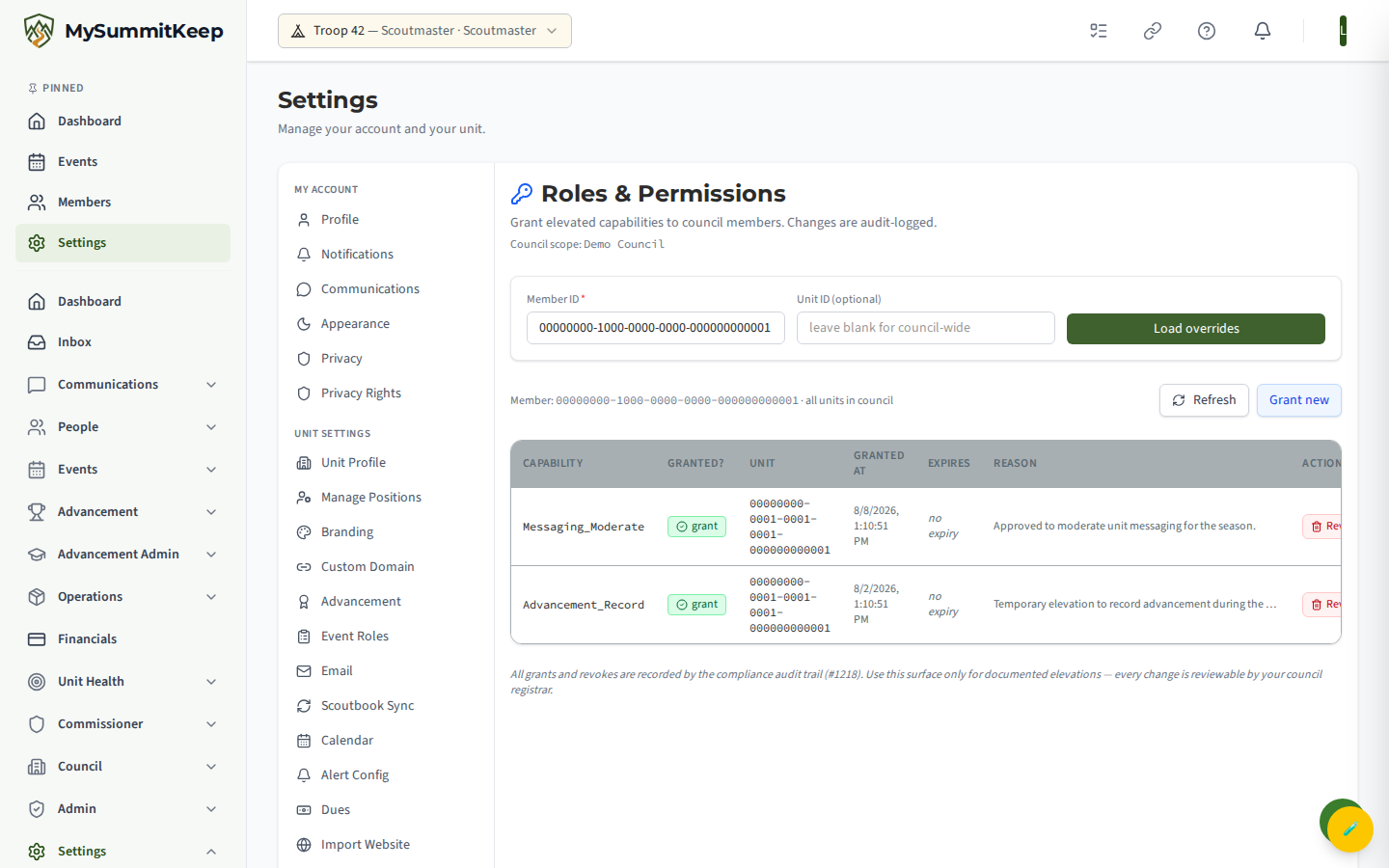
It is restricted to Council Admins — Scout Executive, District Executive, Council Commissioner, or Council President — and is used to grant or revoke individual capability overrides for a member, scoped to the council. Every grant and revoke is audit-logged.
Positions
Section titled “Positions”Assign members to unit positions on the Manage Positions page at Settings → Manage Positions.
Positions are grouped into Key 3 Leadership, Adult Positions, and Youth Positions. Search for a position, then use Assign (or the + button) to add one or more members — multiple people can hold the same position at once. Removing someone ends their assignment. Because access level follows the position, assigning a role here is also how you grant a member the matching app access.
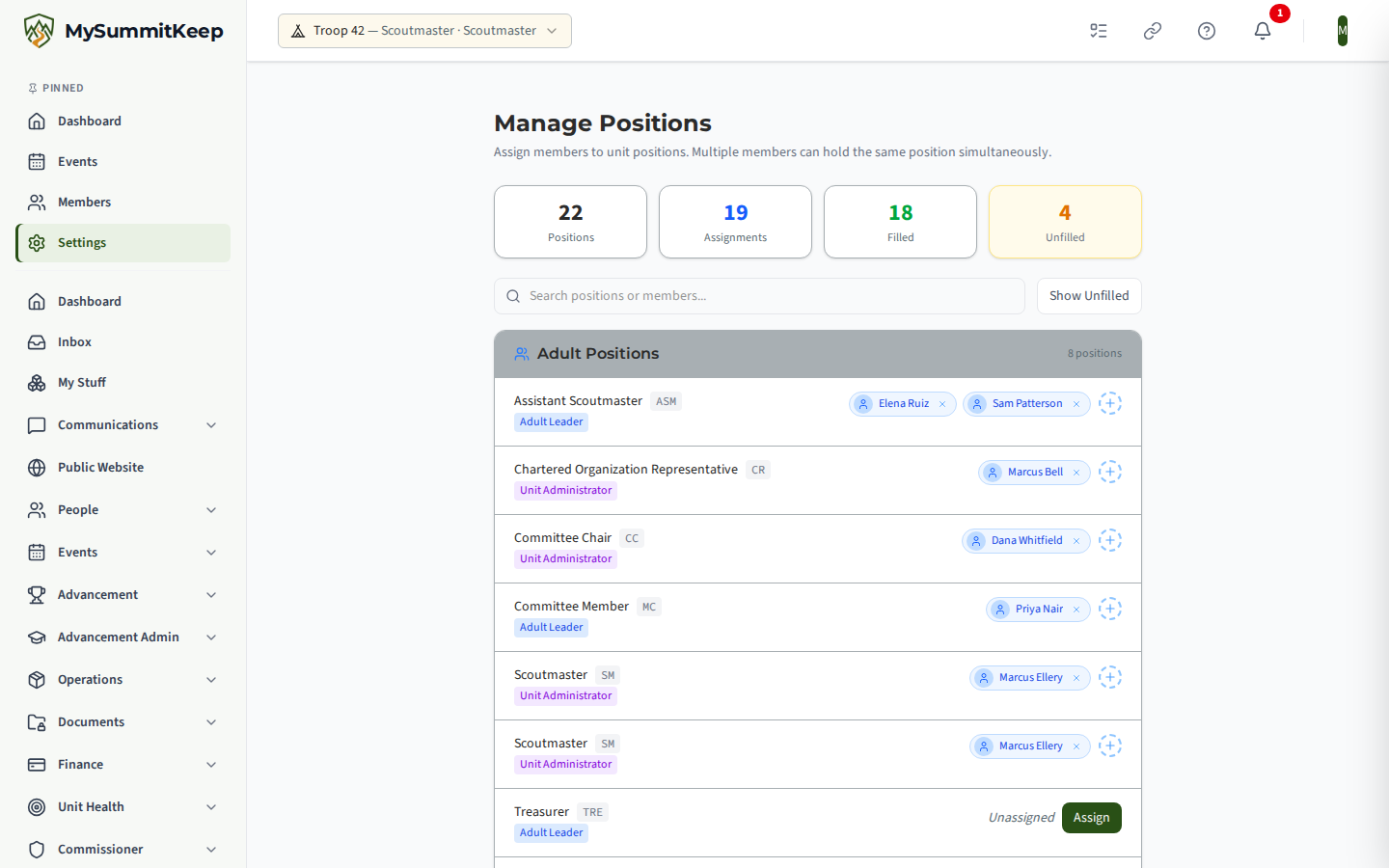
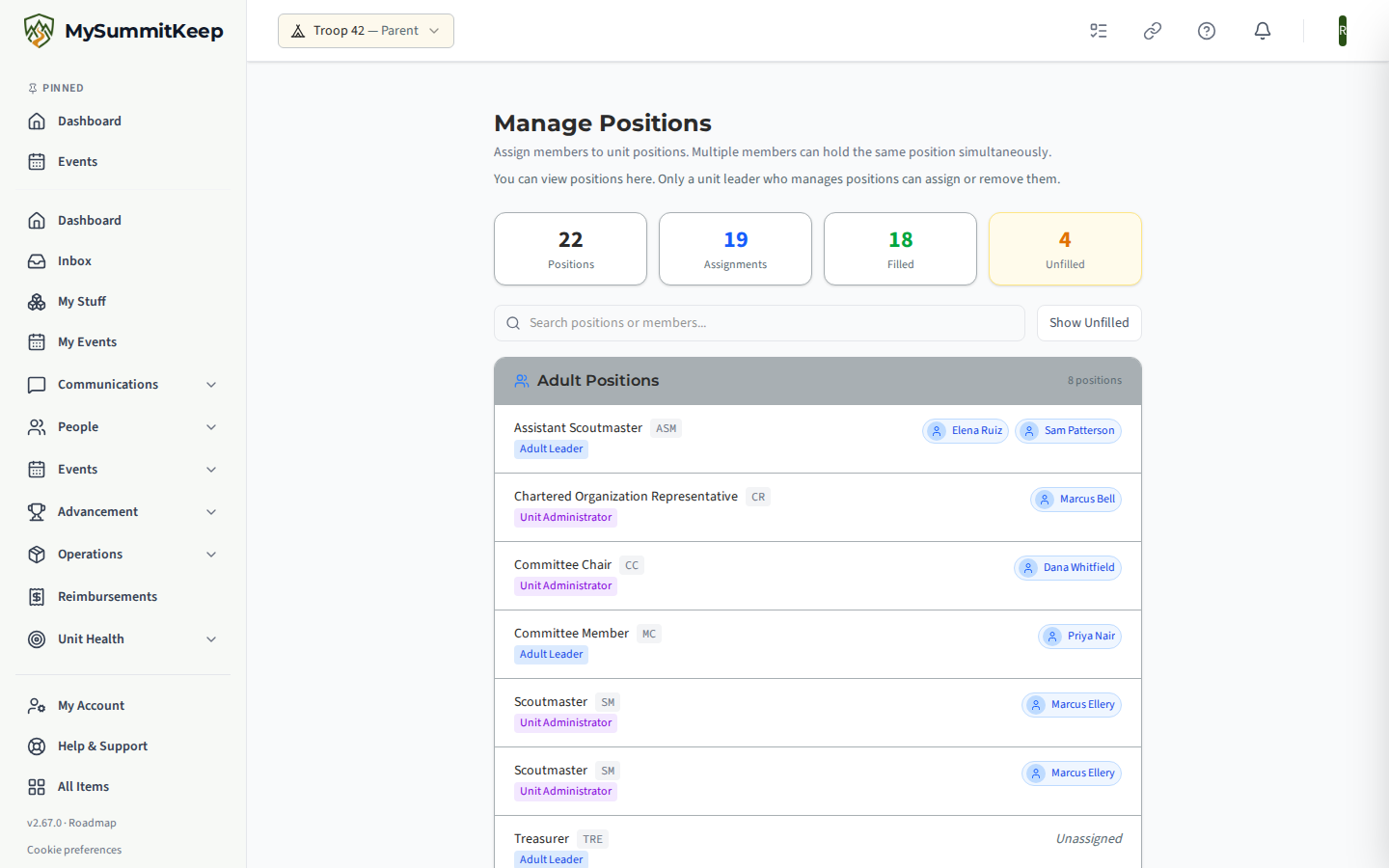
Only leaders who manage positions can assign or remove them. Anyone else who follows a link to the page sees who holds each position, with a note that it is view-only, and no Assign, +, or remove controls.
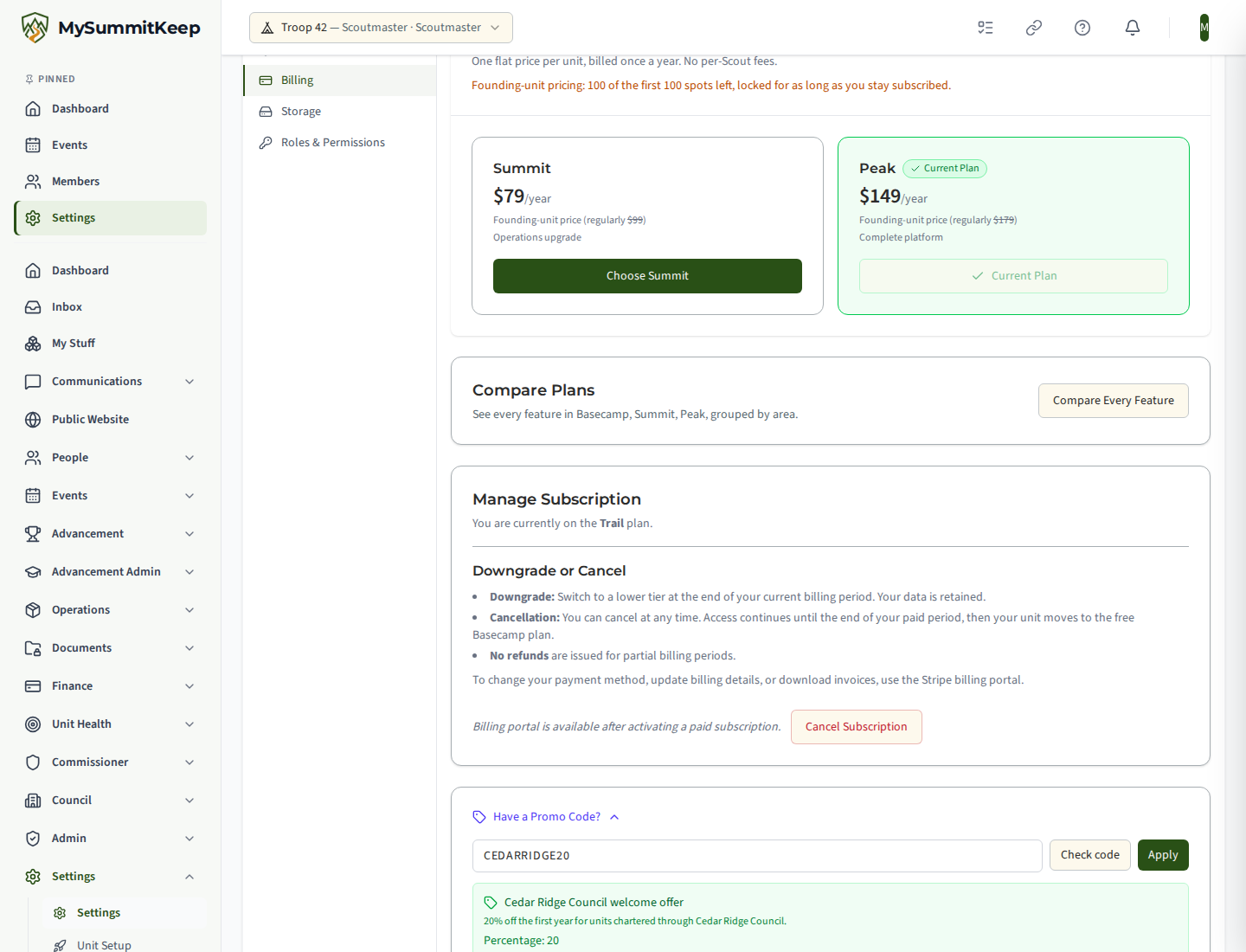
Billing and subscription
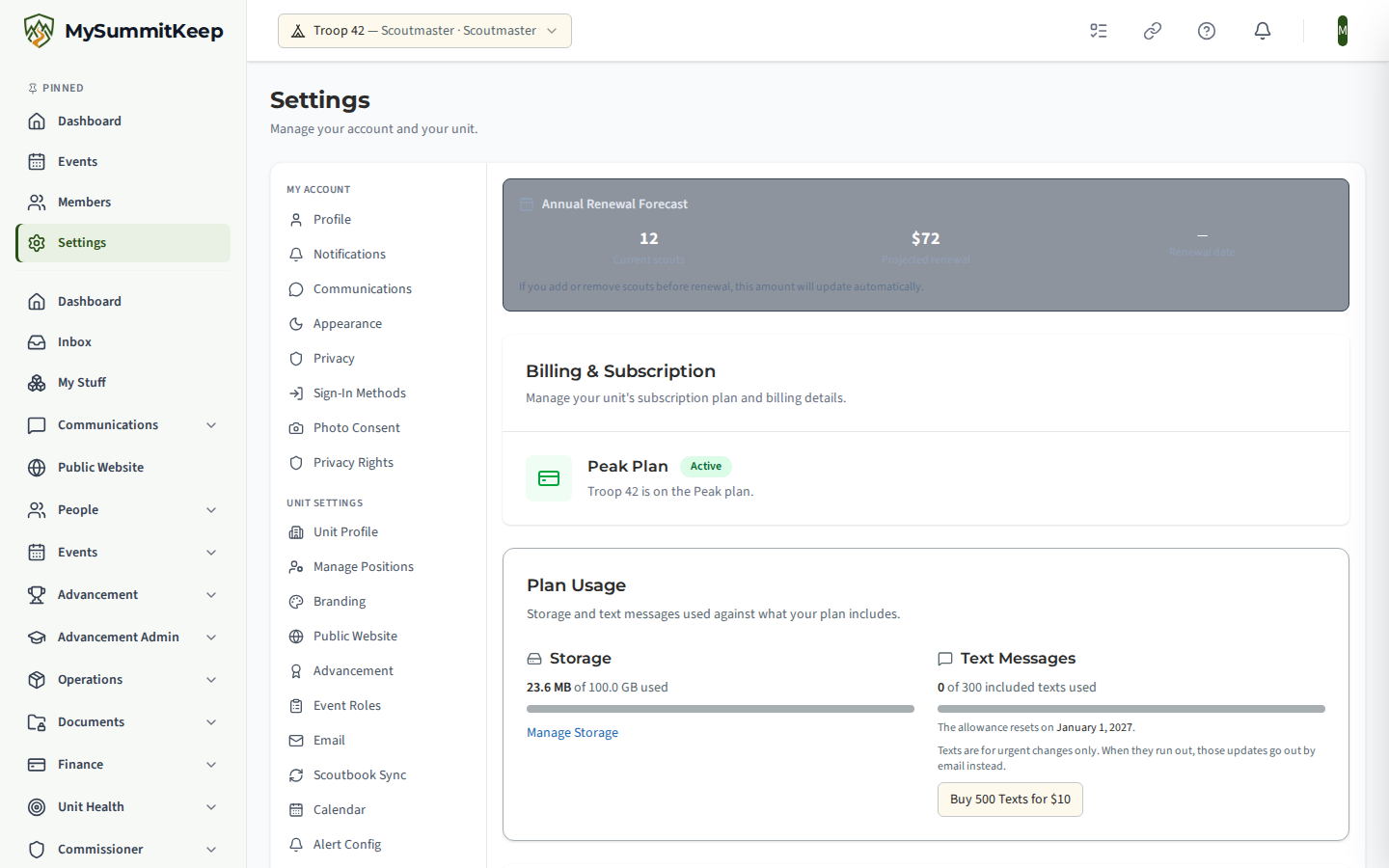
Section titled “Billing and subscription”Billing & Subscription (/settings/billing) shows the current plan and its status, a comparison
of the plans, and the payment and invoice controls.
Plans are per unit and billed once a year, with no per-Scout charge:
| Plan | Price | Storage |
|---|---|---|
| Basecamp | Free, always | 1 GB |
| Summit | $99 per unit per year | 25 GB |
| Peak | $179 per unit per year | 100 GB |
The first 100 units to subscribe get a founding-unit price of $79 per year for Summit or $149 per year for Peak, which stays the same for as long as the unit remains subscribed. If a free trial ends without a subscription, the unit moves to Basecamp.
Promo codes
Section titled “Promo codes”Below the plan cards, click Have a Promo Code? to open the code box. Type the code (it is shown in capital letters), then click Check code to see what it would do before you commit: the code’s name, and either a discount, a number of free months, or, for a trial grant, which plan it unlocks and for how many days. An expired or unknown code shows a red message instead. When you are happy, click Apply. A discount appears on your next invoice; a trial grant switches your unit to that plan straight away.
When your free trial ends
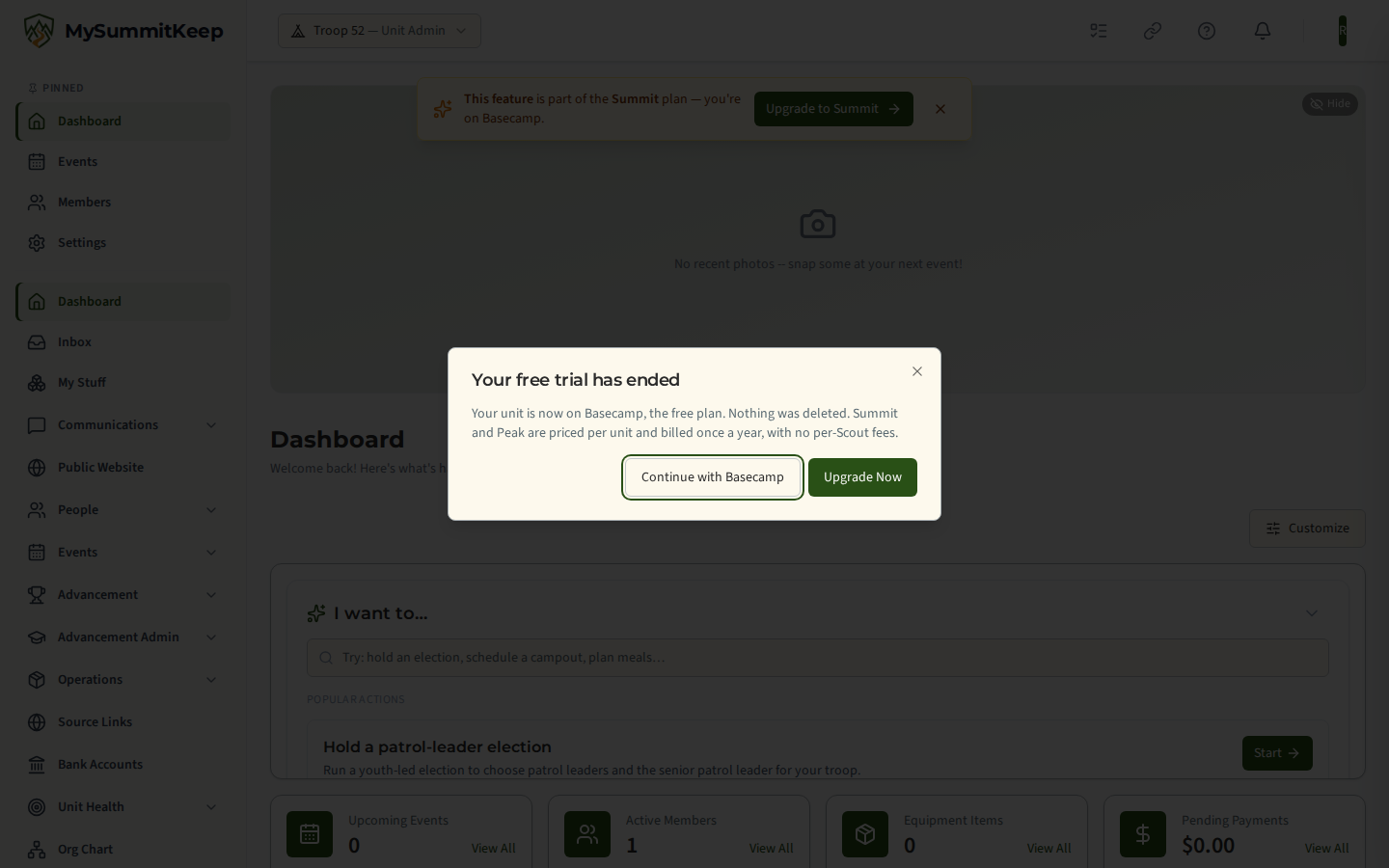
Section titled “When your free trial ends”When a unit’s free trial ends, the first leader who manages payments to open the app sees a Your free trial has ended window. It says the unit is now on Basecamp, the free plan, that nothing was deleted, and that Summit and Peak are priced per unit and billed once a year with no per-Scout fees. Choose Continue with Basecamp to stay as you are, or Upgrade Now to go to the plans page. The window appears once; it does not come back after you close it.
The Upgrade button
Section titled “The Upgrade button”Leaders who manage payments also see an Upgrade button at the bottom of the left menu, below My Account, Help & Support and All Items. It opens the plans page. It is hidden from anyone who cannot change the unit’s plan, and once your unit is already on the top plan.
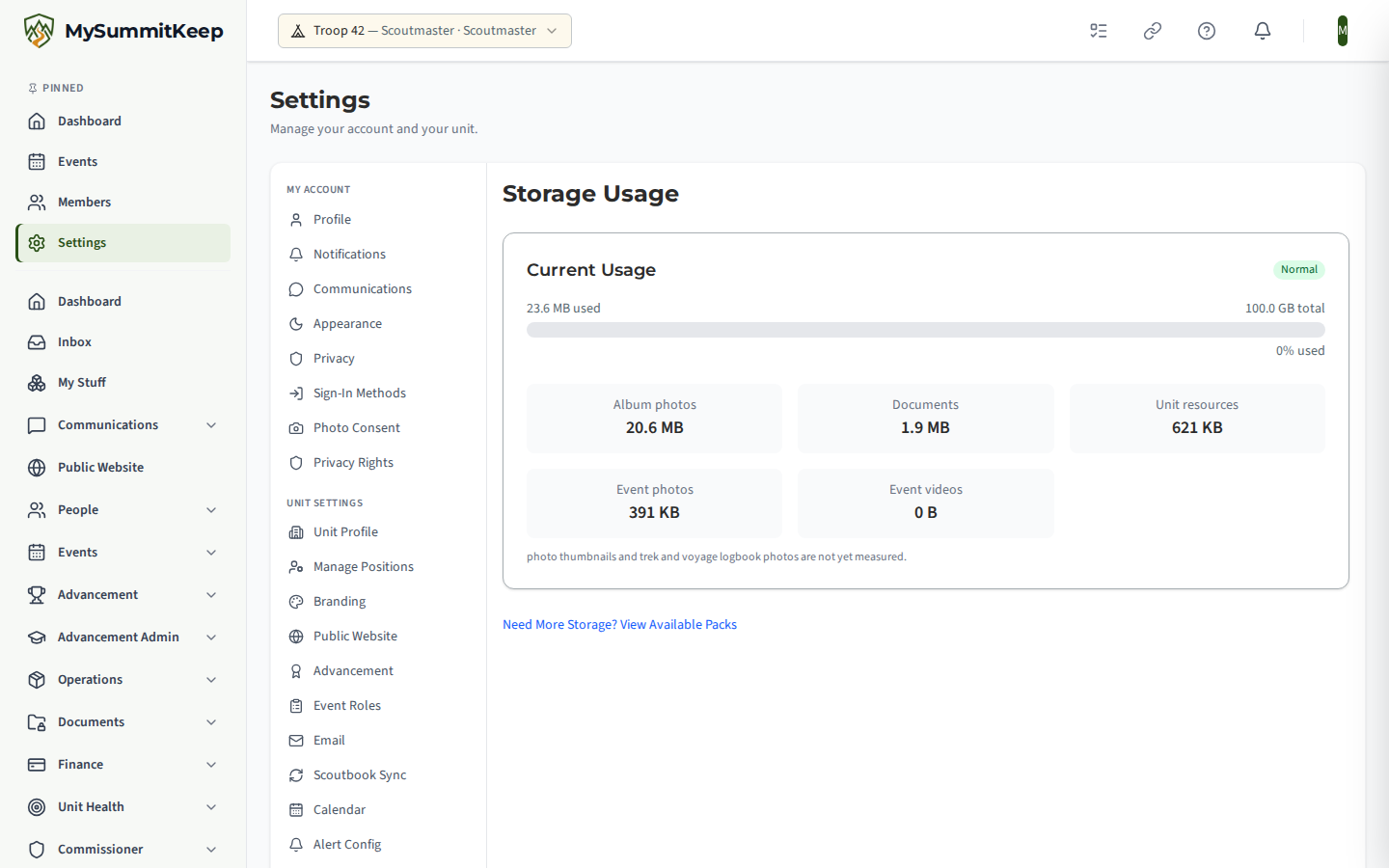
Storage usage
Section titled “Storage usage”Storage Usage (/settings/storage) shows how much of your plan’s storage (1 GB on Basecamp, 25 GB on Summit, 100 GB on Peak) photos and documents
are consuming, which storage packs are active, and what is available to add.
When to revisit Unit Settings
Section titled “When to revisit Unit Settings”- After recharter — confirm your charter organization, expiration date, and meeting details are current.
- When leadership rotates — update positions on the Positions page.
- When dues change — adjust the amount or billing cycle before sending the next round of requests.
- When the chartered organization rebrands — update your logo and theme on the Branding page.
Need help? Contact support — we usually respond within one business day.
MySummitKeep is an independent product and is not affiliated with, endorsed by, or sponsored by Scouting America (formerly the Boy Scouts of America). Scouting America, Scouts BSA, Cub Scouts, Venturing, Sea Scouts, and the Order of the Arrow are trademarks of Scouting America. Official program content shown in screenshots and examples is © Scouting America; always confirm current requirements atscouting.org. SeeTerms § 7.3.