
Your Inbox & Notifications
Your Inbox is the one place to catch up on everything addressed to you in MySummitKeep. Messages from your leaders and patrol mates, unit-wide announcements, and the automatic updates the app sends when you advance a rank or have an event coming up — they all land here. This page shows you how to open the Inbox, move between its tabs, and read and clear what arrives.
Find it in the left menu: Home → Inbox.
Think of the Inbox as your unit mailbox. You’re here to read what comes in. Composing brand-new messages and starting channels is something your leaders and parents handle, so this guide focuses on the part that’s built for you: keeping up with what’s sent your way.
Opening your Inbox
Section titled “Opening your Inbox”Open the Inbox from the navigation, or tap the bell icon in the top-right corner of any screen. The bell shows a red number when you have unread notifications, and it gives a little wiggle when something new arrives. Clicking it opens a quick popover of your most recent notifications with a View All Notifications link at the bottom.
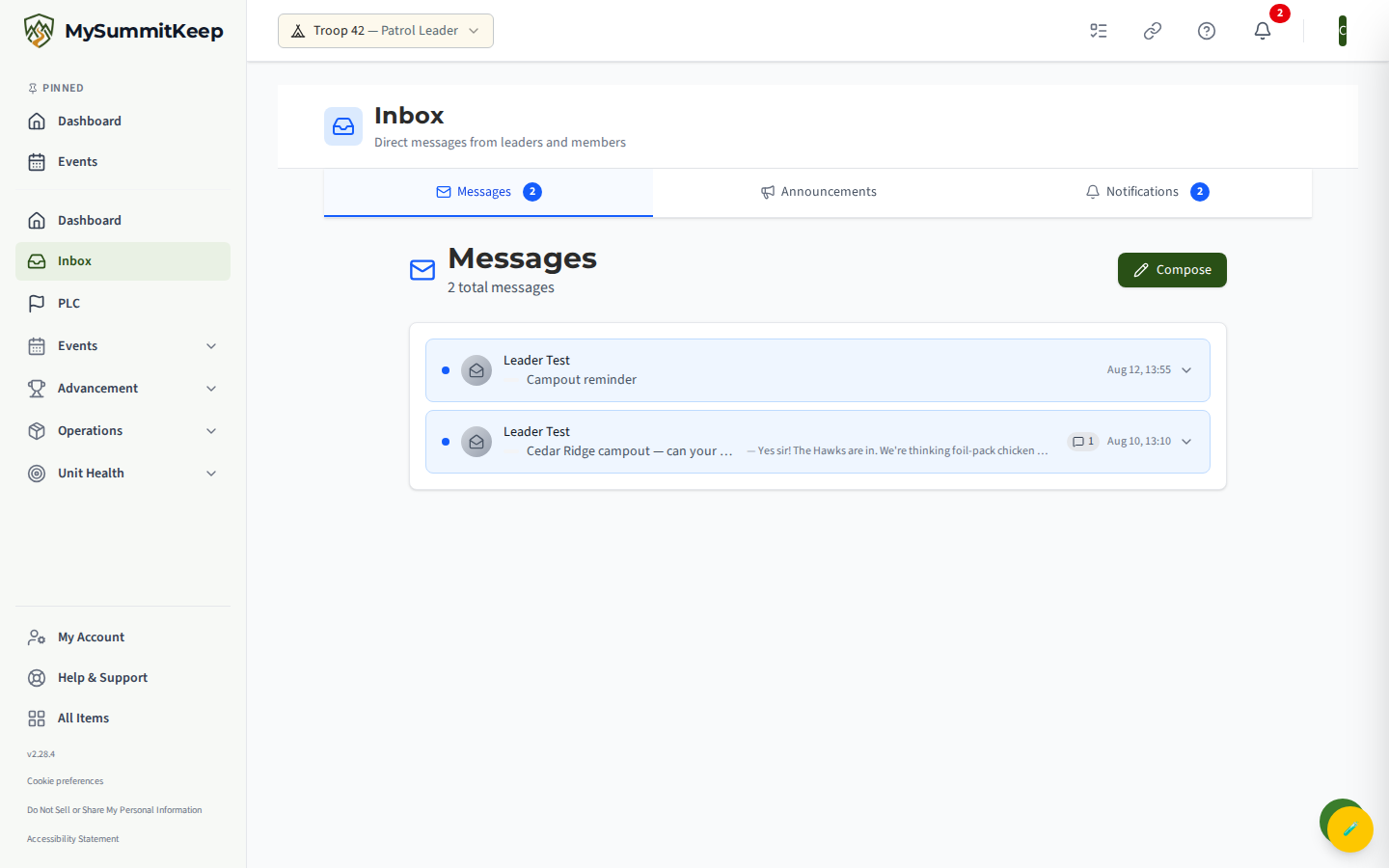
The Inbox header reads Inbox with a short line underneath that describes whichever tab you’re on. Across the top are three tabs:
- Messages — direct messages sent to you by leaders and members.
- Announcements — unit-wide announcements and notices everyone gets.
- Notifications — system alerts, advancement updates, and event reminders.
The Messages and Notifications tabs each show a small blue count badge when you have unread items, so you can tell at a glance where something new is waiting.
Reading a message thread
Section titled “Reading a message thread”Open the Messages tab to see direct messages sent to you. Each row shows who it’s from, the unit, the subject, and the time. Unread messages have a blue dot and a light blue background so they stand out.
Click a row to open it. If the message is part of a back-and-forth, it opens as a thread — the original message plus every reply, stacked in order, with a small reply-count badge on the row. If it’s a single message, the full text opens right below the row instead. Click the row again, or the chevron arrow, to collapse it.
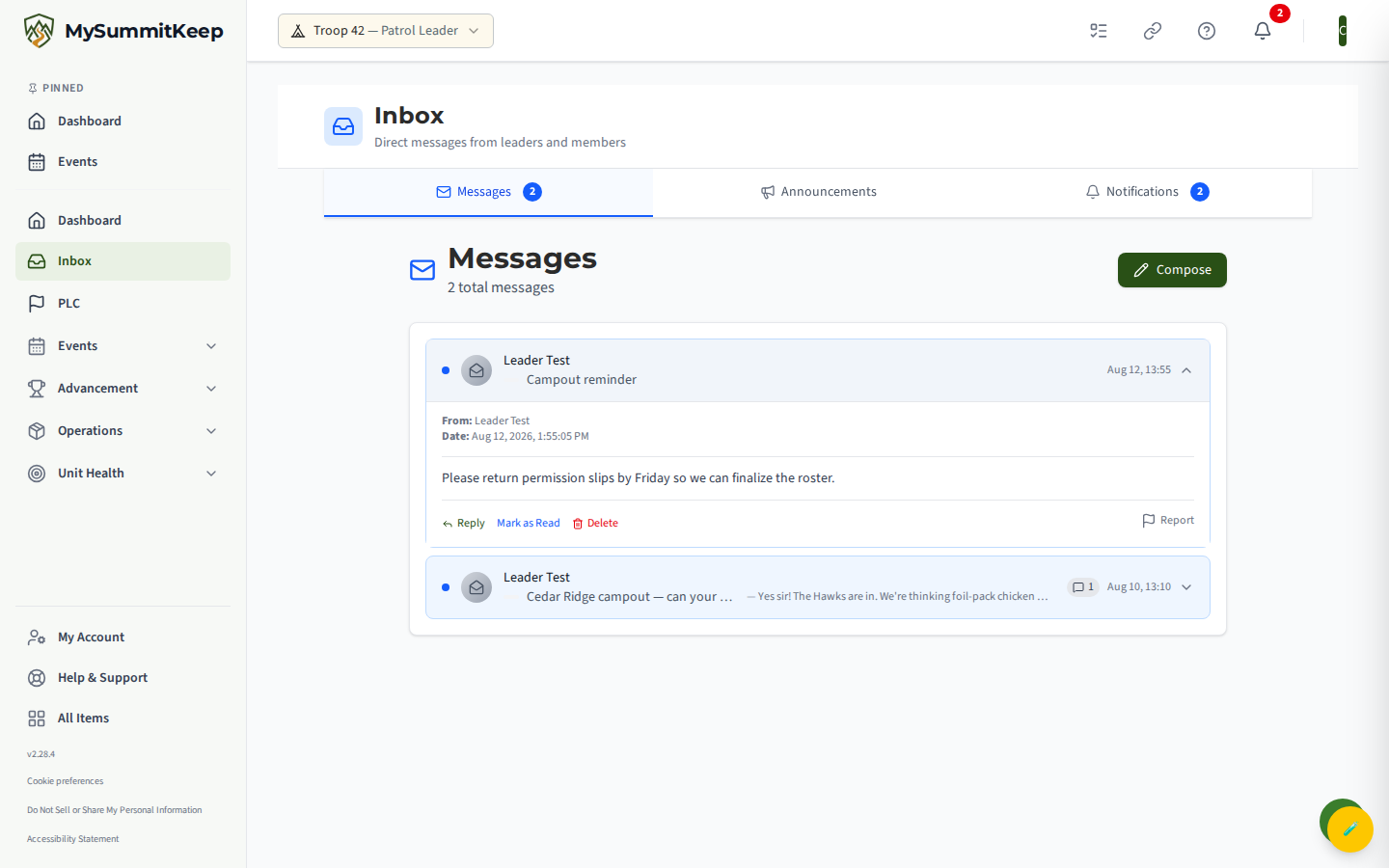
When you open a message, it’s marked read automatically. If you’d rather mark it yourself, an open message shows a Mark as Read link (or Mark Thread as Read for a thread). You can also Reply to keep a conversation going with someone who already messaged you, or use the small report action if a message ever makes you uncomfortable — that quietly flags it for a leader to look at.
Reading a notification and marking it read
Section titled “Reading a notification and marking it read”The Notifications tab is where the app’s automatic updates show up — things like “You advanced a rank,” a merit badge being recorded, service hours getting verified, a new position assigned to you, or a reminder that an event is coming up.
Each notification has an icon, a title, the message, and how long ago it arrived. Unread notifications have a light blue background. If a notification can take you somewhere useful, it shows a Tap to view hint — clicking it both marks the notification read and jumps you to the related page (for example, your advancement or the event).
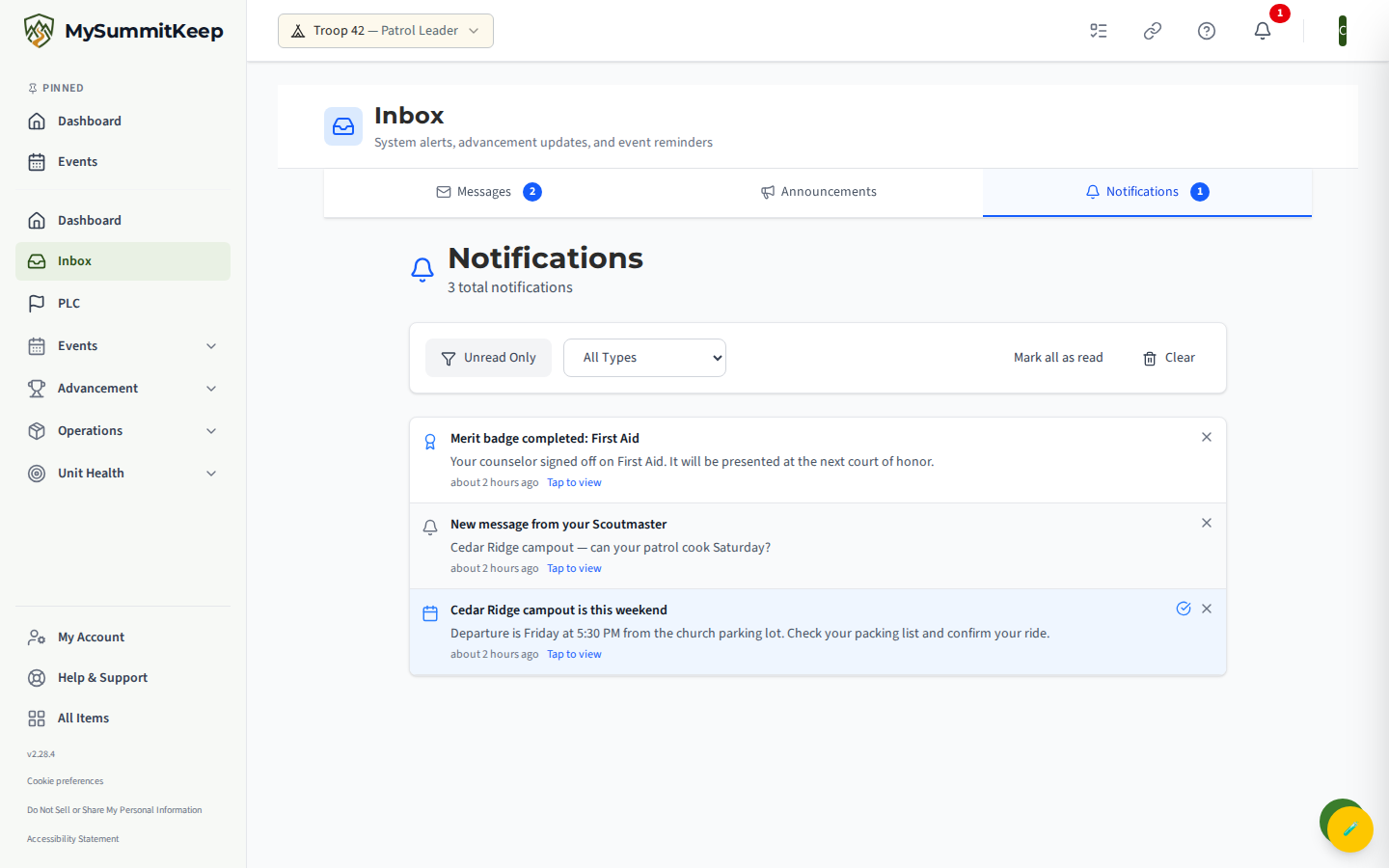
To mark just one notification read without opening it, click the small check-circle icon on its right side. The blue highlight clears and your unread count ticks down. The X next to it removes that single notification from the list.
The full notification center
Section titled “The full notification center”When you want to dig through everything — not just the latest few — open Notifications on its own at /notifications (the View All Notifications link in the bell popover takes you straight there). This is the full notification center, and it’s the same list you see on the Inbox Notifications tab, with a few extra controls.
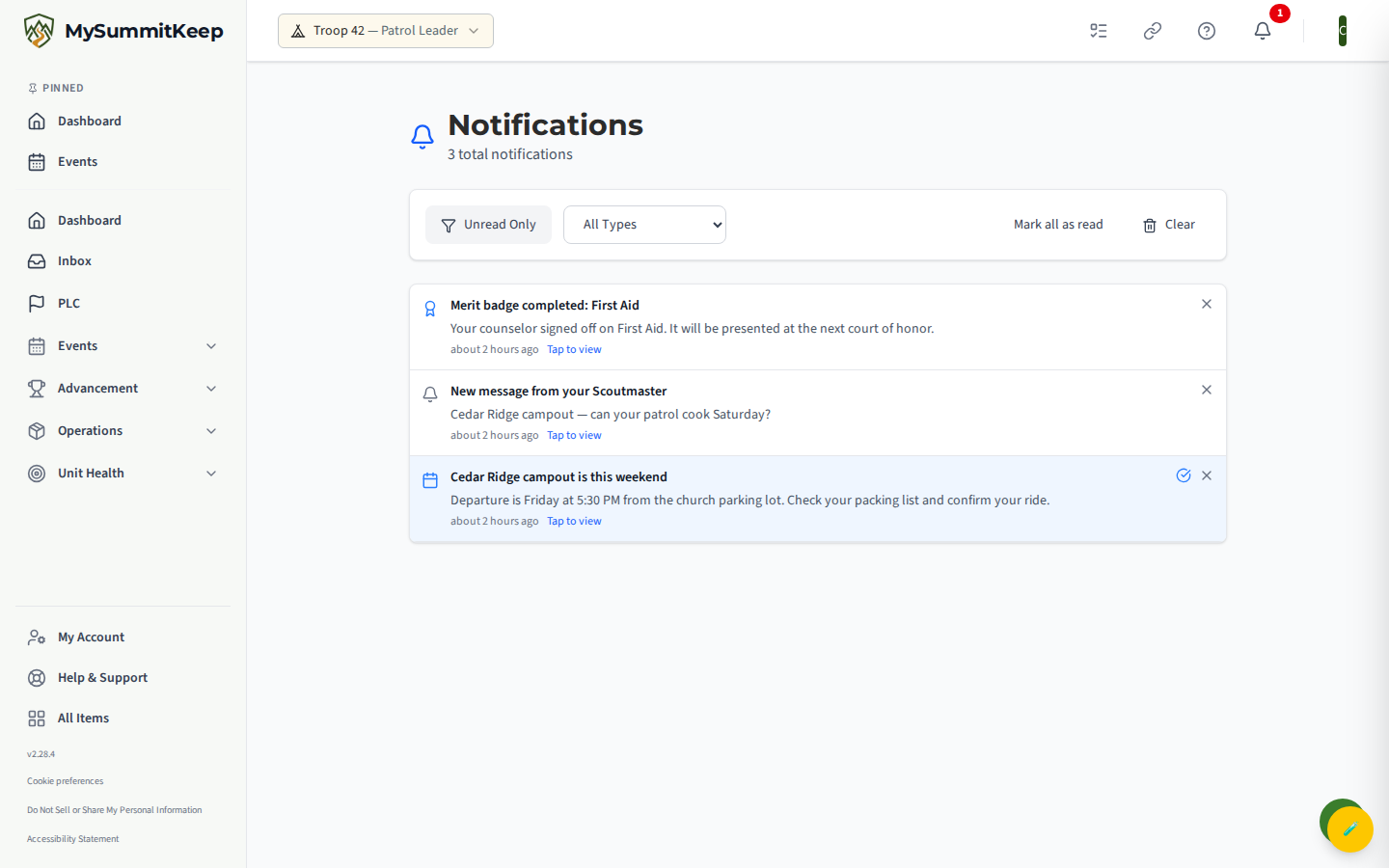
At the top you’ll find:
- Unread Only — a toggle that hides everything you’ve already read so you can focus on what’s new.
- A type dropdown (starts on All Types) to narrow the list to one kind — Rank Advanced, Merit Badge Earned, Service Hours, Position Assigned, or Event Reminders.
- Mark All as Read — clears the unread state on everything at once.
- Clear — removes notifications. It asks you to confirm first, because clearing can’t be undone.
If you have a lot of notifications, they’re split into pages with Previous and Next buttons at the bottom. When you’re all caught up, you’ll see a friendly “No notifications yet” message with the bell icon.
If you’re not seeing notifications
Section titled “If you’re not seeing notifications”- Nothing in the list? That’s normal if nothing has happened yet — finish a requirement, RSVP to an event, or wait for a leader to message you, and items will start appearing.
- Not getting alerts you expected? Check that you’re looking at the right unit if you belong to more than one, since your Inbox follows the unit you currently have selected.
- A message you can’t find? Direct messages live on the Messages tab and announcements live on the Announcements tab — make sure you’re on the matching tab.
MySummitKeep is an independent product and is not affiliated with, endorsed by, or sponsored by Scouting America (formerly the Boy Scouts of America). Scouting America, Scouts BSA, Cub Scouts, Venturing, Sea Scouts, and the Order of the Arrow are trademarks of Scouting America. Official program content shown in screenshots and examples is © Scouting America; always confirm current requirements atscouting.org. SeeTerms § 7.3.