
Document Vault
The Document Vault is your unit’s secure filing cabinet for operational paperwork — tax-exemption letters, your charter, insurance certificates, vehicle registration, tour plans, bylaws, bank documents, and anything else you need to keep handy and protected. Files live in cloud storage and are only ever served through short-lived, signed links, so nothing is exposed to the open web unless you explicitly choose to publish it.
Find it in the left menu: Documents → Document Vault.
Open it from Documents → Document Vault in the left menu (/document-vault).
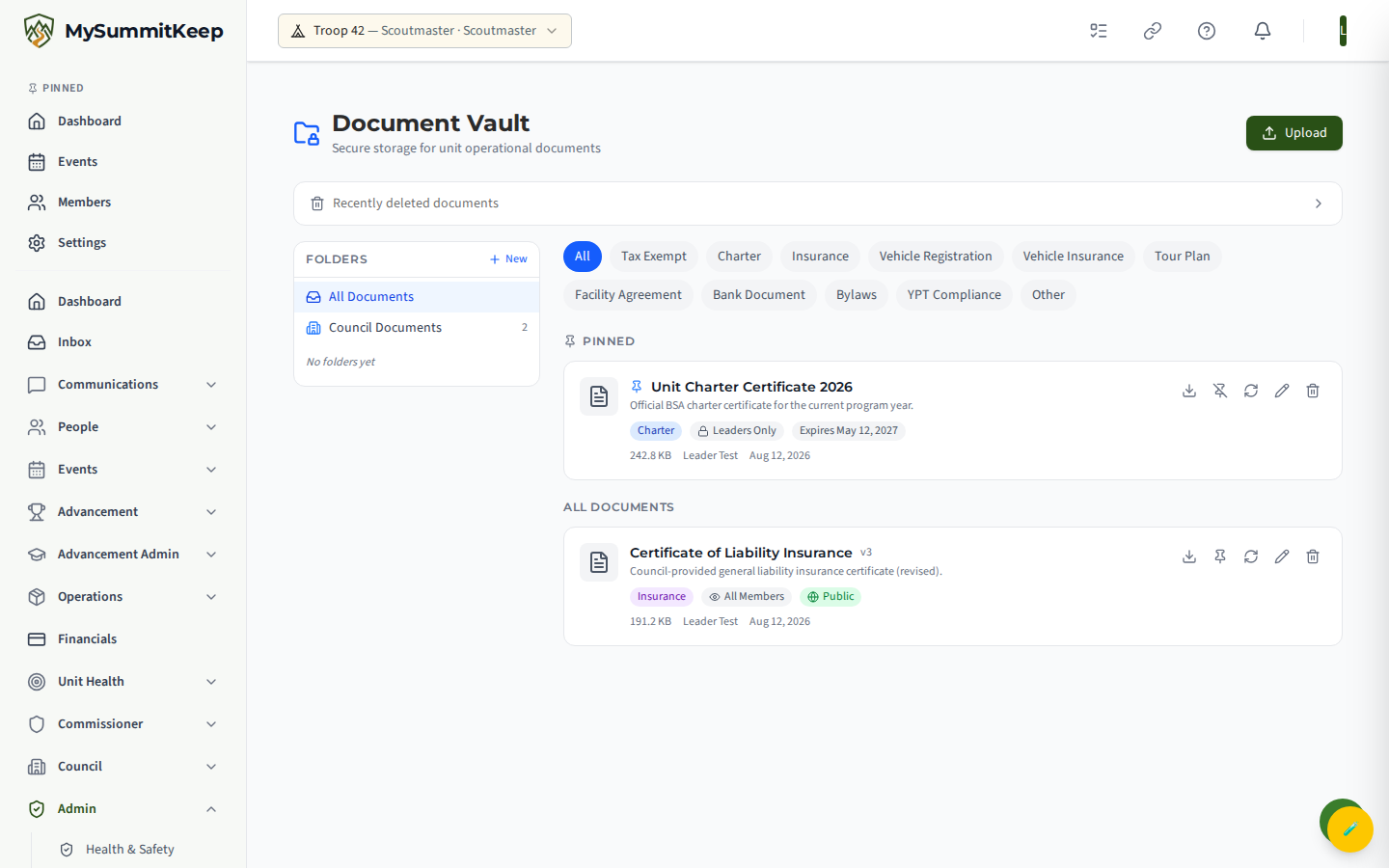
Uploading documents and choosing a folder
Section titled “Uploading documents and choosing a folder”Click the Upload button in the top-right (or Upload Document on an empty folder). The upload panel lets you:
- Drag and drop a file onto the drop zone, or click to browse. Supported types are PDF, Word, Excel, CSV, images (PNG/JPG/GIF), TXT, and RTF, up to 50 MB.
- Title (required) — defaults to the file name, but you can rename it.
- Description — an optional one-line note.
- Category — Tax Exempt, Charter, Insurance, Vehicle Registration, Vehicle Insurance, Tour Plan, Facility Agreement, Bank Document, Bylaws, YPT Compliance, or Other. The category drives the colored badge and the filter pills.
- Access Level — Leaders Only, Admin Only, or All Members (more on this under Permissions).
- Expiration Date — optional; leave it empty for documents that never expire.
- Pin to Top and Show on public site checkboxes.
The document is registered against the folder you currently have selected in the sidebar, so pick the destination folder before you upload — or upload to the root and move it later from the Edit dialog.
Organizing with folders and pins
Section titled “Organizing with folders and pins”The left sidebar is a folder tree. Hover over a folder (or the tree itself) to create, rename, move, or delete folders. Deleting a folder that still contains documents or subfolders asks for confirmation, then removes the folder structure and moves the contained documents back to the root — nothing is lost.
Pinning keeps your most-referenced files at the top. Click the pin icon on any document card, or check Pin to Top when uploading. Pinned documents appear in a dedicated Pinned section above the rest of the list.
If your council has published documents to every unit, a read-only Council Documents entry appears in the sidebar. Those files are managed by council staff — you can open them, but you cannot edit or delete them.
Versioning a document
Section titled “Versioning a document”When a document is reissued — a renewed insurance certificate, an updated charter — you don’t have to delete the old one and lose its history. Click the circular-arrows (new version) icon on the document card and pick the new file.
Uploading a new version:
- Creates a fresh entry that carries over the title, description, category, access level, folder, and public flag from the previous version.
- Bumps the version number (shown as
v2,v3, and so on next to the title) and links it back to the prior version. - Unpins the old version automatically, so only the latest stays pinned.
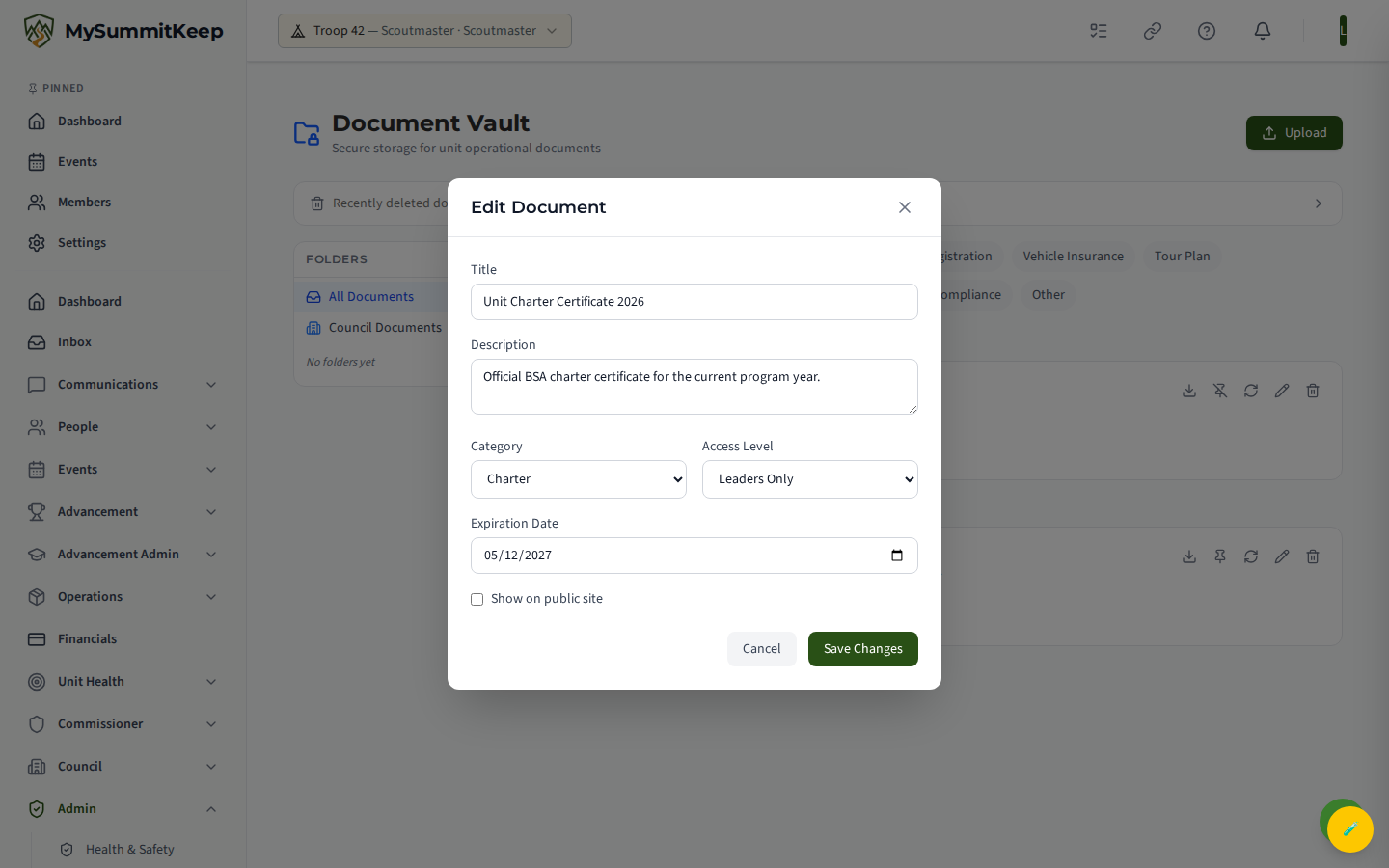
To change a document’s title, description, category, access level, expiry, or public visibility without uploading a new file, use the pencil (Edit) icon instead.
Soft-delete and restore
Section titled “Soft-delete and restore”Deleting a document is reversible. When you delete a file it is soft-deleted — hidden from the main list but kept on hand. A Recently Deleted panel sits near the top of the Document Vault; expand it to see what’s been removed and click Restore to bring a document (and its stored file) straight back.
Expiring documents
Section titled “Expiring documents”Add an Expiration Date to any time-sensitive document (insurance, charter, tour plans) and the vault tracks it for you:
- A document expiring within 30 days is flagged amber on its card.
- An expired document is flagged red with a warning icon.
- A banner at the top of the page summarizes how many documents are expiring or already expired within 30 days, so renewals don’t slip through.
To clear an expiry date, open the document with the Edit icon and remove the date.
Secure downloads
Section titled “Secure downloads”Files are never stored at a guessable public URL. When you click the download icon, the vault mints a fresh, time-limited signed link (valid for roughly 60 minutes) and opens the file in a new tab. Uploads work the same way through a short-lived upload link. Because each link expires, a copied URL stops working after the window closes — which keeps sensitive paperwork from leaking.
If you tick Show on public site, the document is additionally surfaced on your unit’s public-facing pages. Leave it unchecked for anything internal.
Source Links
Section titled “Source Links”For authoritative external references — BSA policy pages, your council’s forms, the Guide to Advancement — use Source Links (/documents/source-links) instead of uploading a copy. Add a URL and a label, and MySummitKeep checks each link daily and flags any that have gone dead (with the HTTP status code or a network-error note) and how long they’ve been broken. Use the Show dead links only toggle to triage what needs updating.
Permissions
Section titled “Permissions”The Document Vault is a leader-managed area. Uploading, editing, creating new versions, pinning, moving into folders, deleting, and restoring all require a Leader or Admin role in the current unit.
Access Level controls who can see each individual document:
- All Members — visible to every active member of the unit.
- Leaders Only / Admin Only — visible only to leaders/admins. Non-leaders cannot list, open, or download these, and cannot even obtain a download link for them.
This enforcement happens on the server, not just in the UI, so sensitive files like your charter, tax letter, and insurance stay restricted regardless of how the page is accessed.
For pulling member records into the platform, see Member Import. To adjust unit-wide options, see Unit Settings.
MySummitKeep is an independent product and is not affiliated with, endorsed by, or sponsored by Scouting America (formerly the Boy Scouts of America). Scouting America, Scouts BSA, Cub Scouts, Venturing, Sea Scouts, and the Order of the Arrow are trademarks of Scouting America. Official program content shown in screenshots and examples is © Scouting America; always confirm current requirements atscouting.org. SeeTerms § 7.3.