
The Member Directory
The Members page is the day-to-day hub for managing your unit roster. From here you can search the people in your unit, switch between a compact table and friendly cards, send invitations, fix details in bulk, and open any single member’s full profile.
You reach it from the left menu at People → Members. Most of the management controls below are visible to leaders and admins; Scouts and parents see a read-only directory.
The Members page at a glance
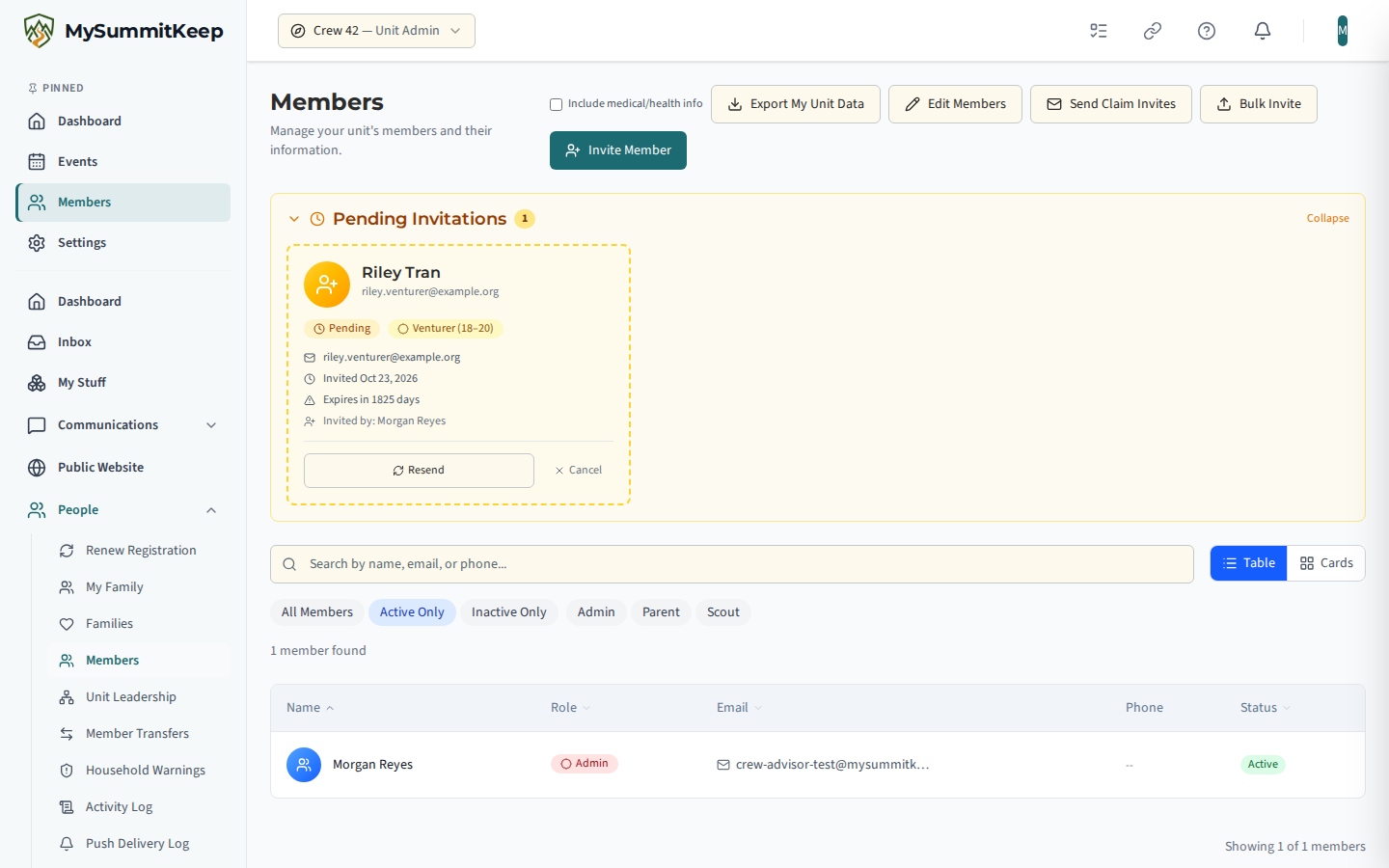
Section titled “The Members page at a glance”The header reads Members with a short subtitle, and the action buttons sit on the right. If you can manage members you will see Edit Members, Send Claim Invites, Bulk Invite, and Invite Member. Send Claim Invites opens a preview of every unclaimed member with an email on file, lets you uncheck anyone you want to skip, then sends each of them a sign-up (claim) link in one batch. Some members can’t be sent one: the preview lists them under Skipped and the results under Not sent, each with the reason. That includes a Scout under 13, any member with no date of birth or age on file, and a Scout aged 13–17 whose parent hasn’t granted login access yet. A Scout aged 13–17 who can be invited gets the invite at the email address on their record, with their parent copied. See How We Keep a Parent on Messages to Scouts.
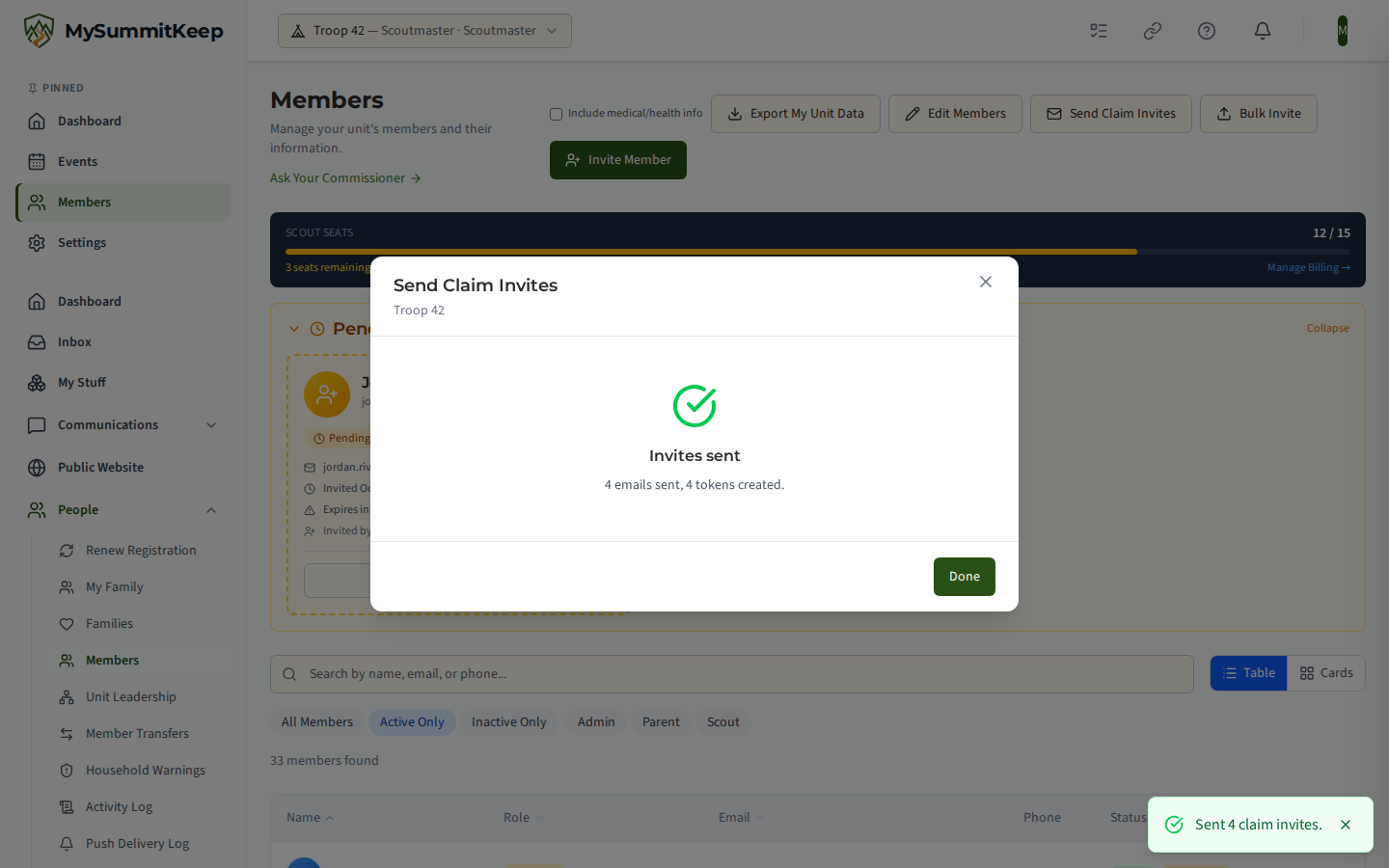
Below the header, leaders see any Pending Invitations, and finally the search, filters, and the list of members itself.
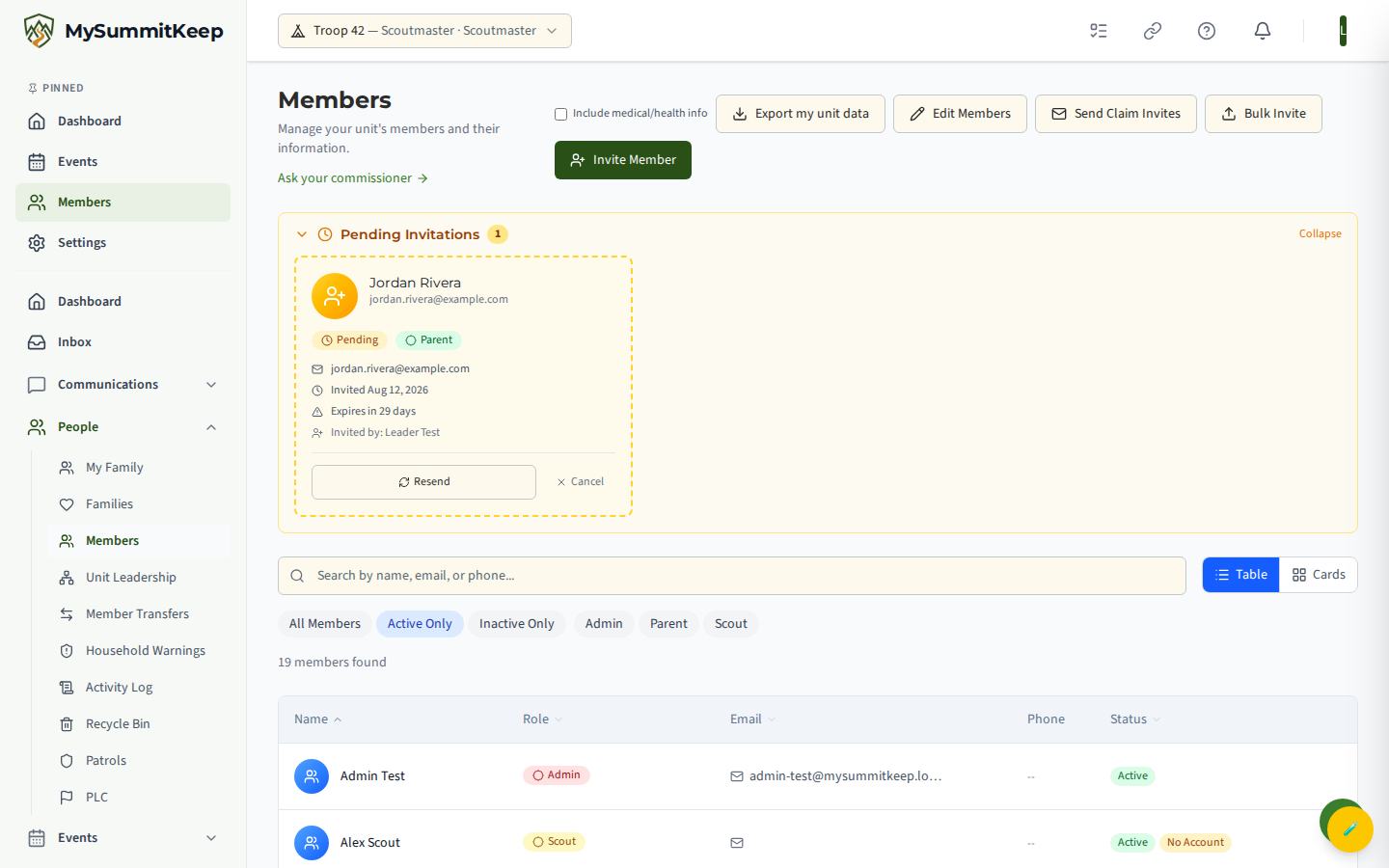
Search, filters, and table vs card view
Section titled “Search, filters, and table vs card view”The search box matches by name or phone number (first, last, or preferred name) and updates as you type (with a short pause so it does not search on every keystroke). Clear it with the × at the right of the box.
Two rows of filter chips sit below the search:
- Status —
All Members,Active Only(the default), orInactive Only. - Role —
Admin,Parent, orScout. Tap a role chip to filter; tap it again to clear it.
A Clear Filters link appears whenever a search term or role filter is active, and the result count (“N members found”) shows beside it.
On the right is the view toggle: switch between Table and Cards.
- Table shows columns for Name, Role, Email, Phone, and Status. The Name, Role, Email, and Status headers are sortable — click one to sort, and again to reverse the order (Phone is shown but not sortable). It is the densest view for scanning a large roster.
- Cards shows one tile per member — better for browsing and on phones.
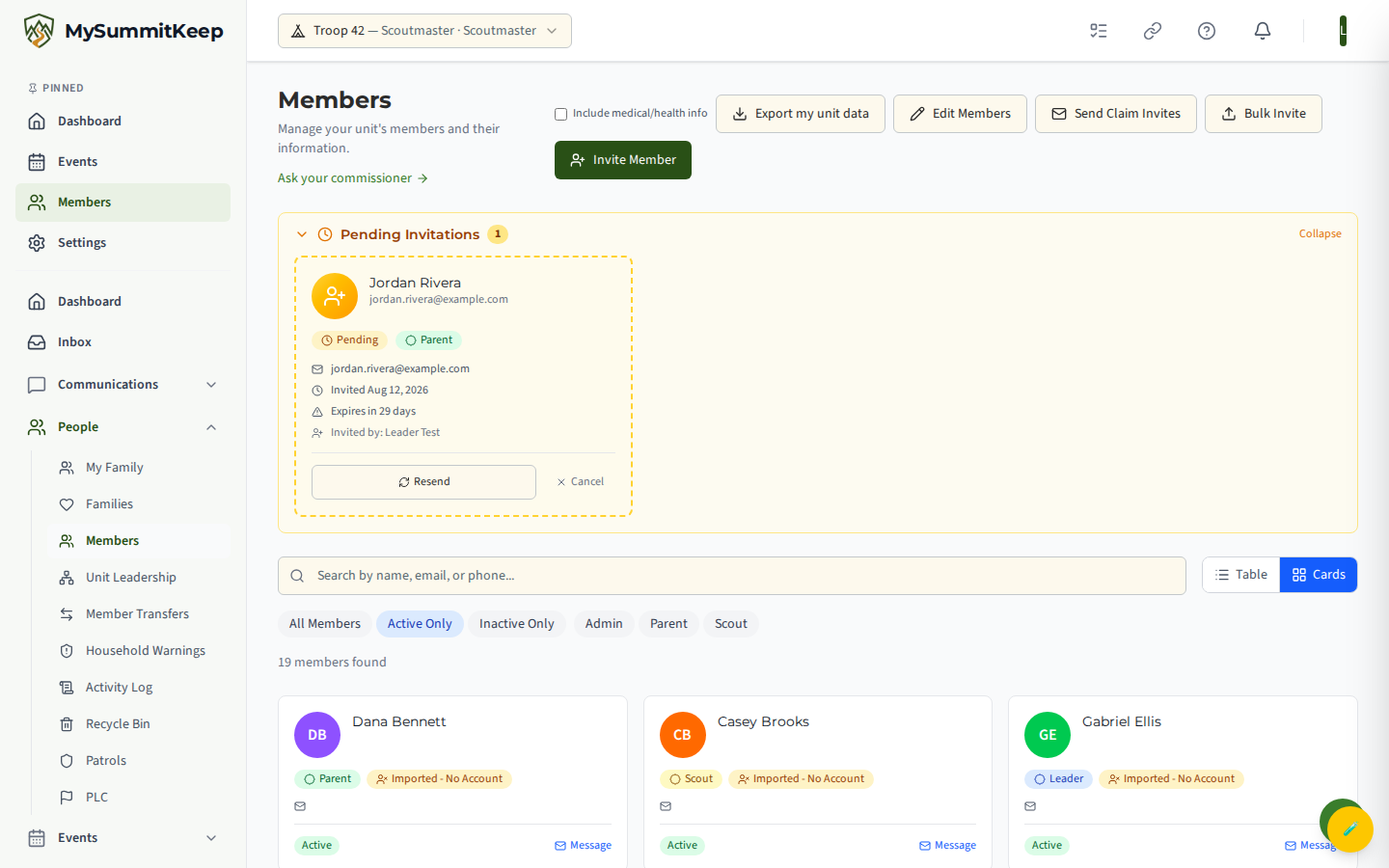
Selecting any row or card opens that person’s member profile.
Active, unclaimed, and inactive members
Section titled “Active, unclaimed, and inactive members”Every member shows a status badge:
- Active — a current member of your unit.
- Inactive — kept on the roster for history but not counted as active.
Members brought in through Member Import who have not yet created a login show a No Account badge. These are unclaimed members. When you can invite people, a small Invite button appears right on that row so you can send them a sign-up link without leaving the directory. The button doesn’t appear on a Scout’s row or on a row with no email address: Scouts are added by their parent, not invited (see below). In a Venturing Crew or Sea Scout Ship, a Venturer or Sea Scout row that shows an email address does get Invite: the directory only shows the address of a member whose record reads as an adult, so it sends an 18–20 invitation.
Inviting a single member
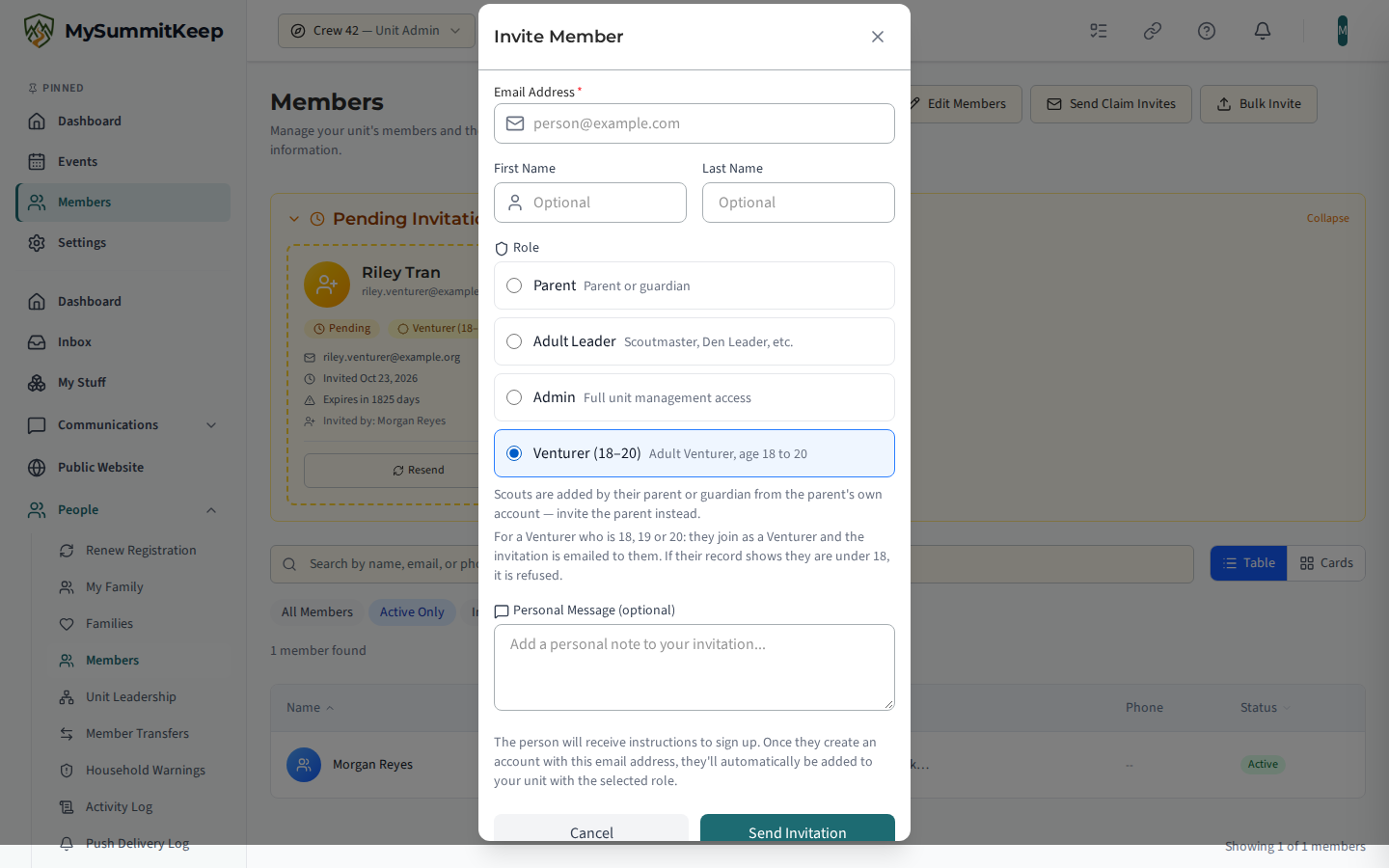
Section titled “Inviting a single member”Click Invite Member to open the invite form. Fill in:
- Email — required.
- First Name and Last Name — optional, but helpful so the pending invitation is easy to recognize.
- Role — Parent, Adult Leader, or Admin. A Venturing Crew also sees venturer (18–20), and a Sea Scout Ship sea scout (18–20), for inviting a member of the program who is 18, 19 or 20.
- A personal message (optional) included in the invitation.
When you send it, the person gets sign-up instructions. Once they create an account with that email, they are automatically added to your unit with the role you chose. Invitations expire after 30 days.
Pending invitations and resending or cancelling
Section titled “Pending invitations and resending or cancelling”Sent invitations that have not been accepted appear in the collapsible Pending Invitations section near the top of the page, with a count badge. Each card shows the name or email, role, when it was sent, who sent it, and when it expires.
Two actions sit on each card:
- Resend — sends the invitation email again (handy if it expired or was missed). Resending an Admin, treasurer, quartermaster or historian invitation needs the same role-management permission as sending one; any other leader sees the reason instead.
- Cancel — revokes the invitation. You will be asked to Confirm Cancel first.
Expired invitations are highlighted in red so they stand out.
Editing members inline (/members/edit)
Section titled “Editing members inline (/members/edit)”For quick roster cleanup, click Edit Members to open the inline edit table at /members/edit. This is a spreadsheet-style grid where you edit many people at once.
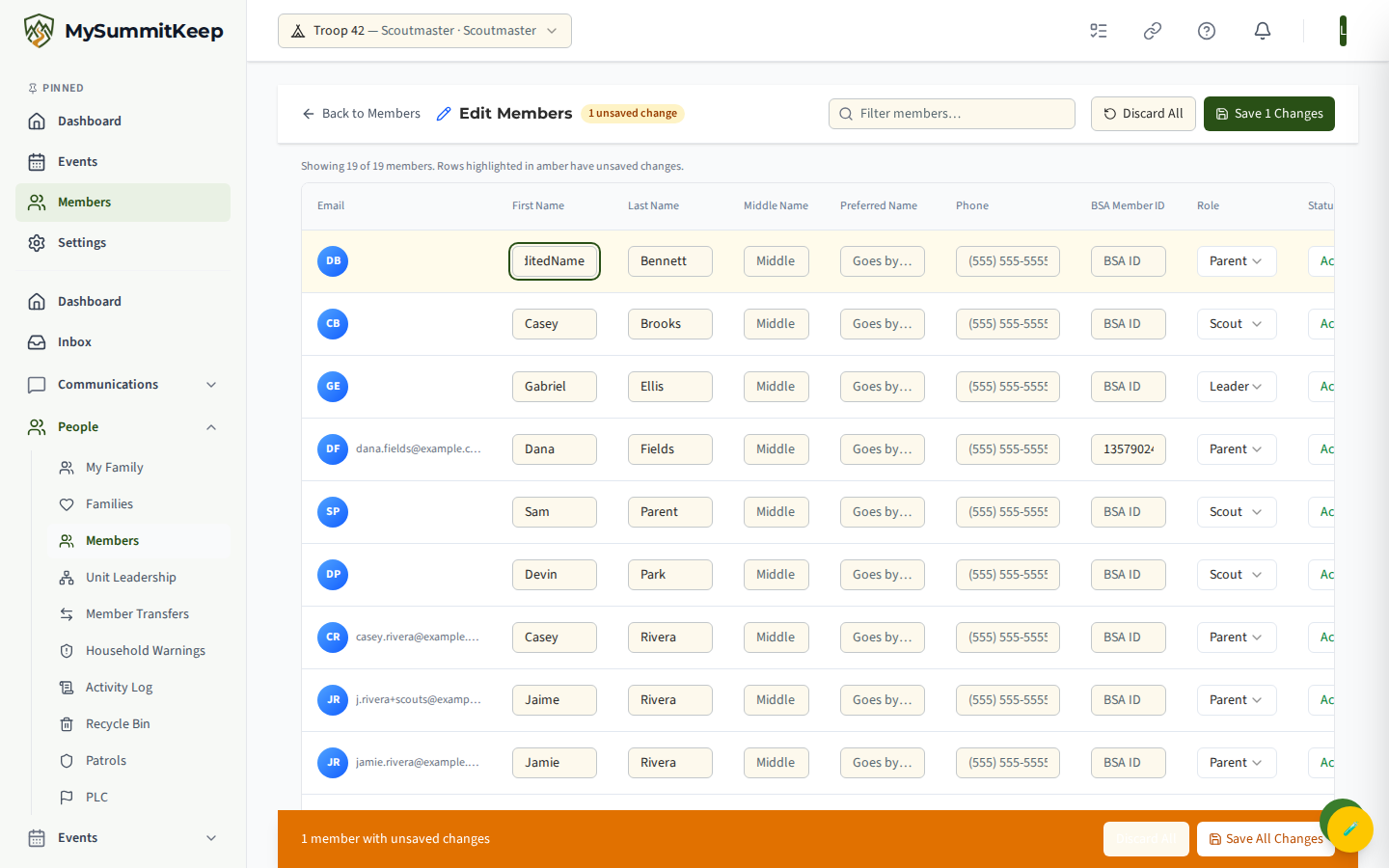
Each row shows the member’s email (read-only, as an anchor) and editable fields for First Name, Last Name, Middle Name, Preferred Name, Phone, BSA Member ID, Role, and Status. A Filter members box at the top narrows the list as you type.
- Rows you change are highlighted in amber and counted as “unsaved changes.”
- The circular revert icon on a row undoes just that row.
- Save Changes writes every edited row at once; Discard All throws away all pending edits.
- A floating amber bar at the bottom appears while you have unsaved changes, with the same Save/Discard actions. Each row shows a spinner, a green check on success, or a red icon (hover it for the error) if a save fails.
Changing a member’s type to Adult, or giving them a role only an adult holds (Parent, Leader or Admin), one at a time or in Bulk Operations, is refused when it would make a member with no date of birth on file an adult — for example a member with no age band at all, or a member with a youth age band given an adult role. The same check runs when a switched-off seat is turned back on or restored from the Recycle Bin. The message names the member: enter their date of birth first; a date that makes them an adult goes through the date-of-birth confirmation.
The member profile and its tabs
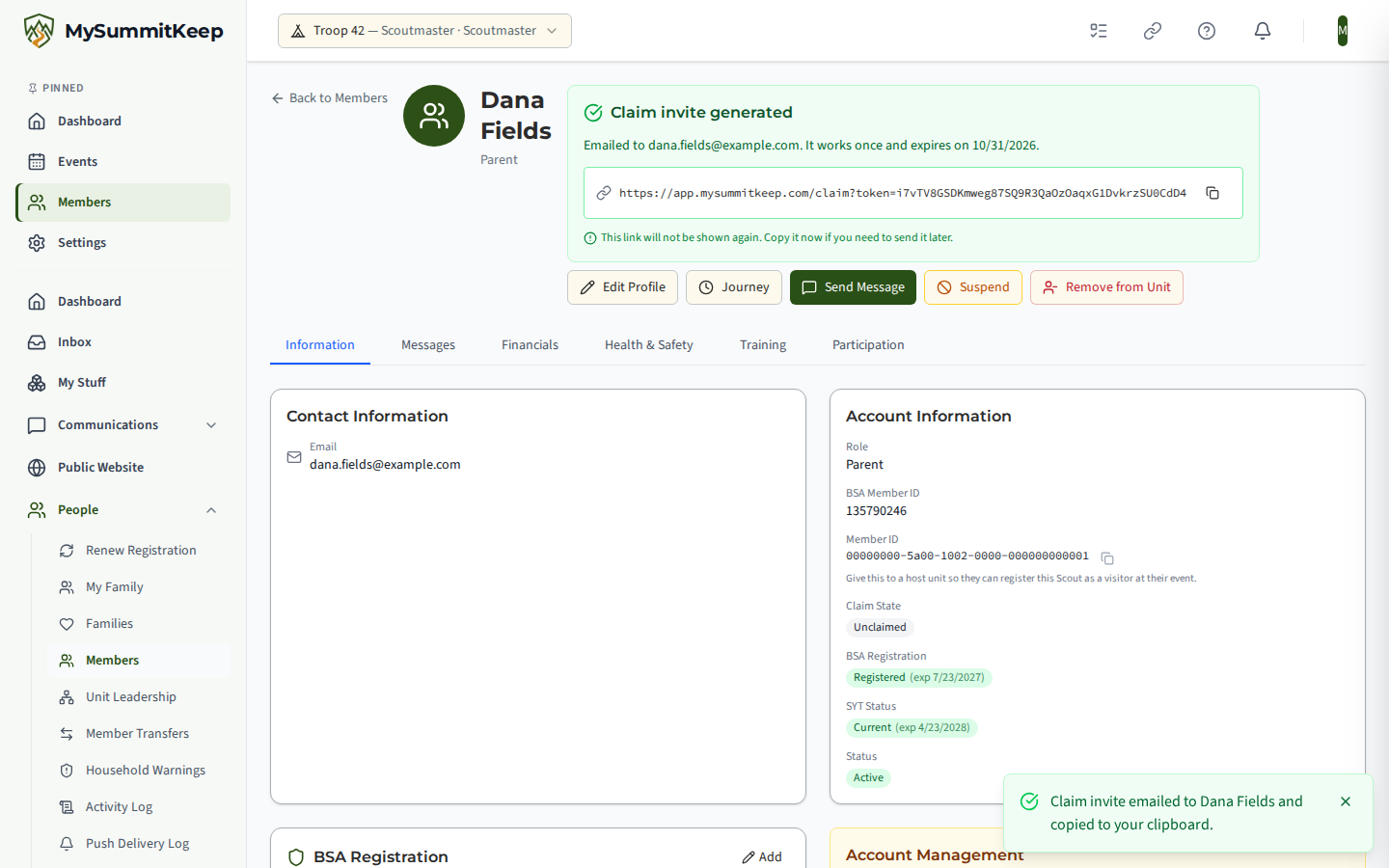
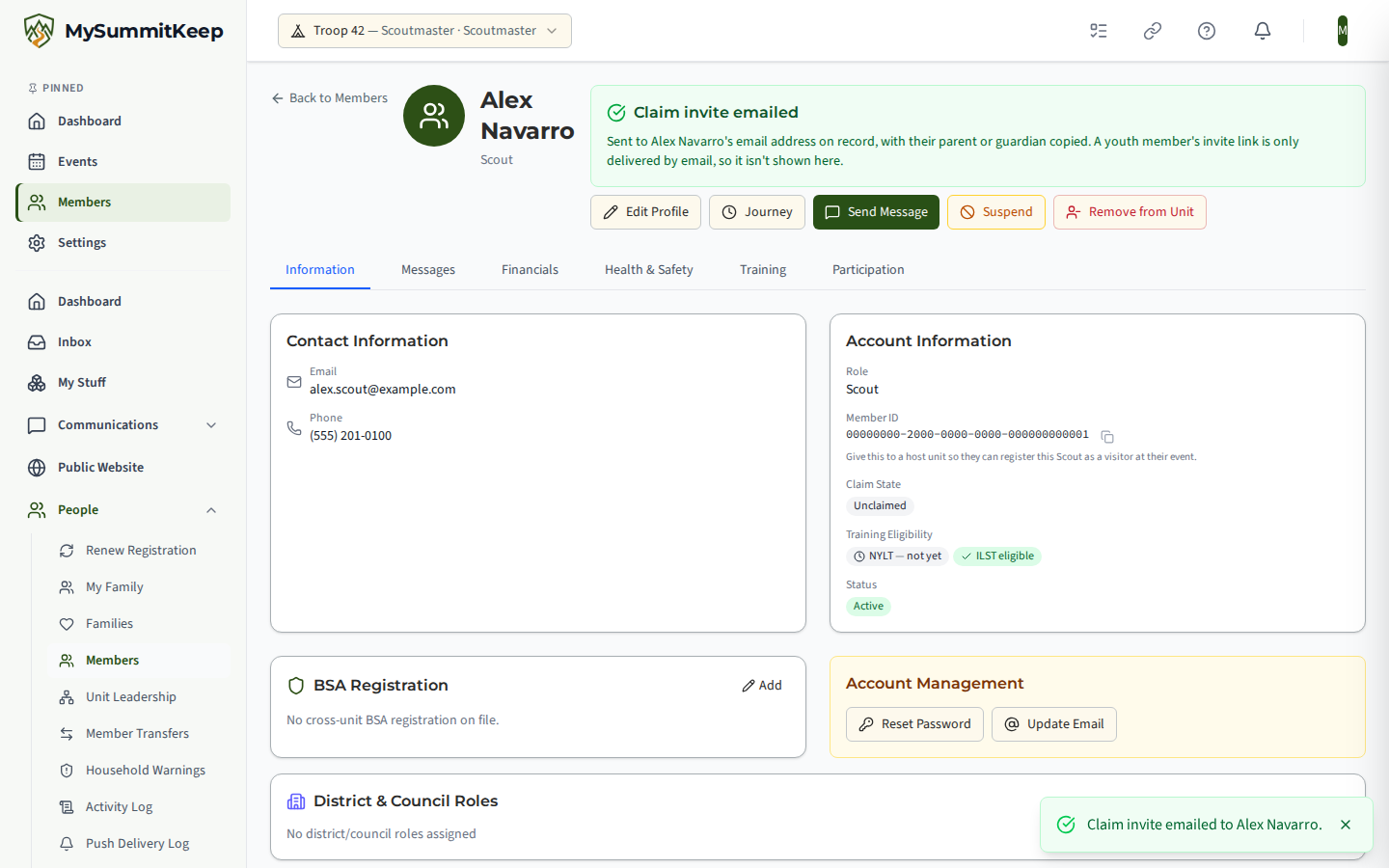
Section titled “The member profile and its tabs”Selecting a member opens their profile at /members/:id. The header shows their photo, name, and role, plus action buttons: Edit Profile, Journey (their history timeline), Send Message, and — for members who have not yet claimed an account — two buttons: Generate Claim Invite creates a one-time sign-up link and copies it to your clipboard, and Email Claim Invite emails it to the member. They follow the same rules as Send Claim Invites: for a member who can’t be sent one, such as a Scout under 13, you see the reason instead. A Scout aged 13–17 can only be sent the invite by email, with their parent copied, so use Email Claim Invite. You won’t see their link. Unit Key-3 leaders also see Suspend and Remove from Unit.
For an adult, Email Claim Invite shows the address it went to and the link itself, which works once and is shown only this one time. For a Scout it shows only that the invite was emailed with their parent or guardian copied.
The profile is organized into tabs:
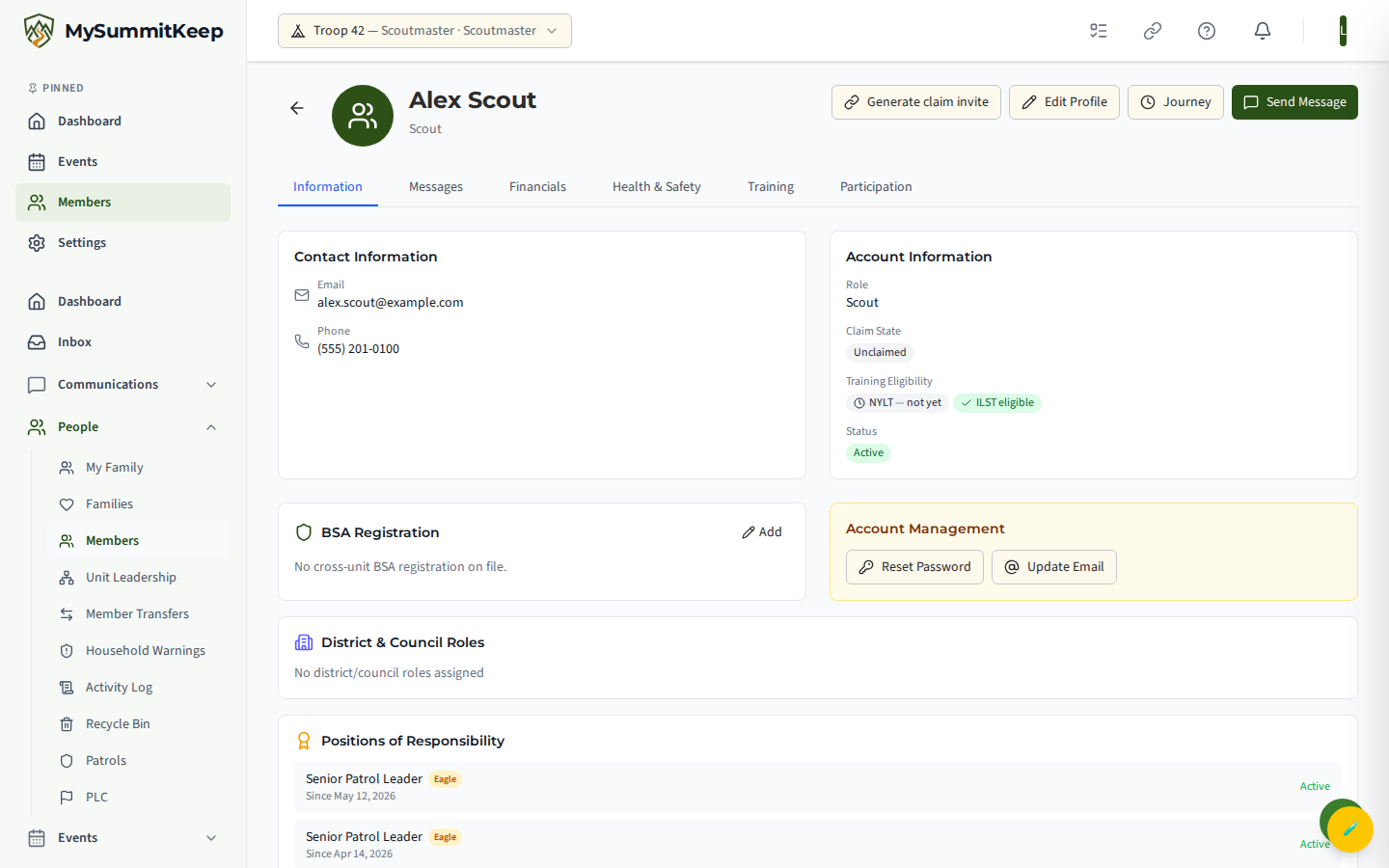
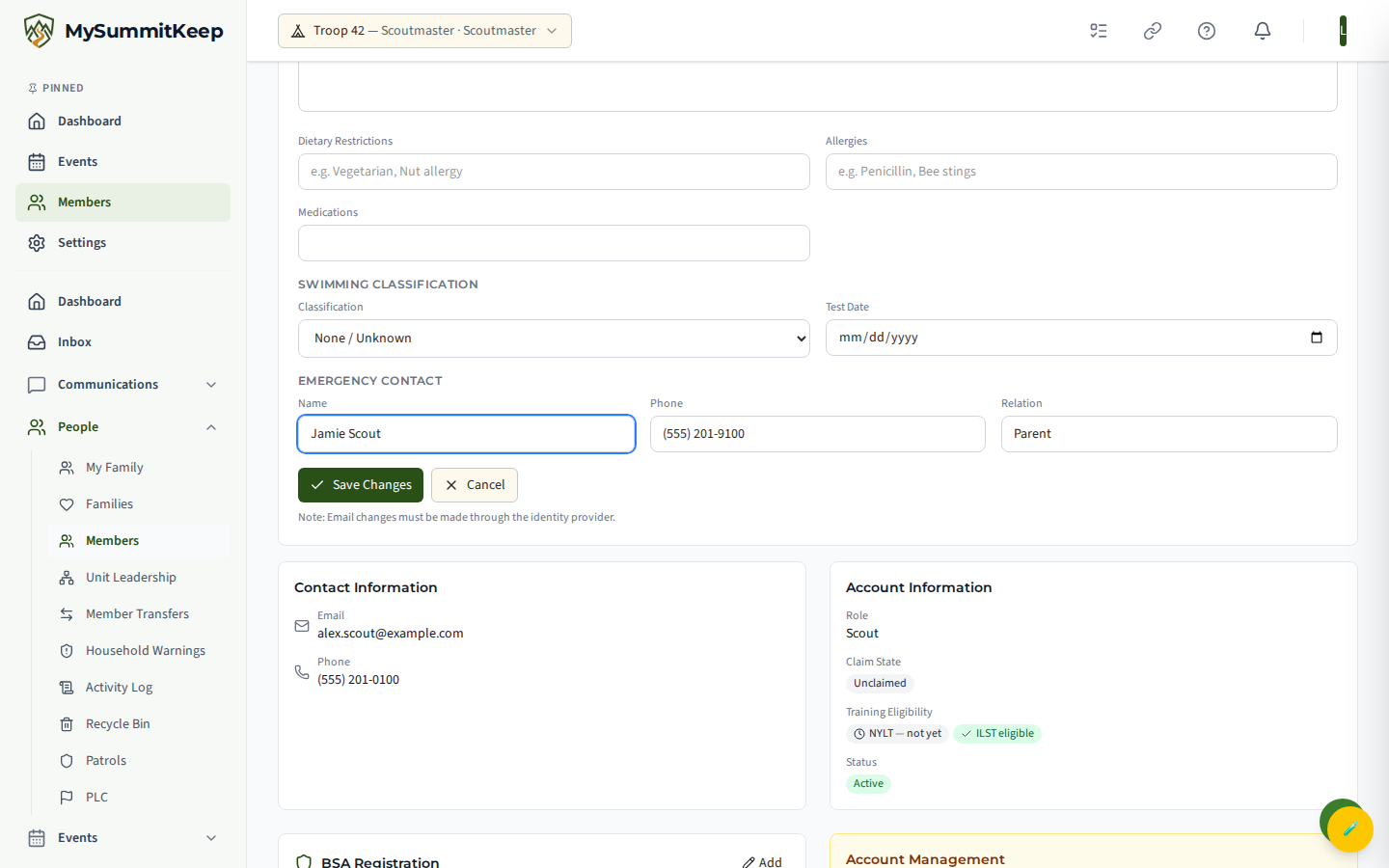
- Information — contact details (email and phone), role, BSA Member ID, and (for leaders) a Claimed/Pending/Unclaimed account badge plus BSA registration status. Edit Profile opens the full set of fields — including address, emergency contact, and (for leaders) health and medical notes — for editing.
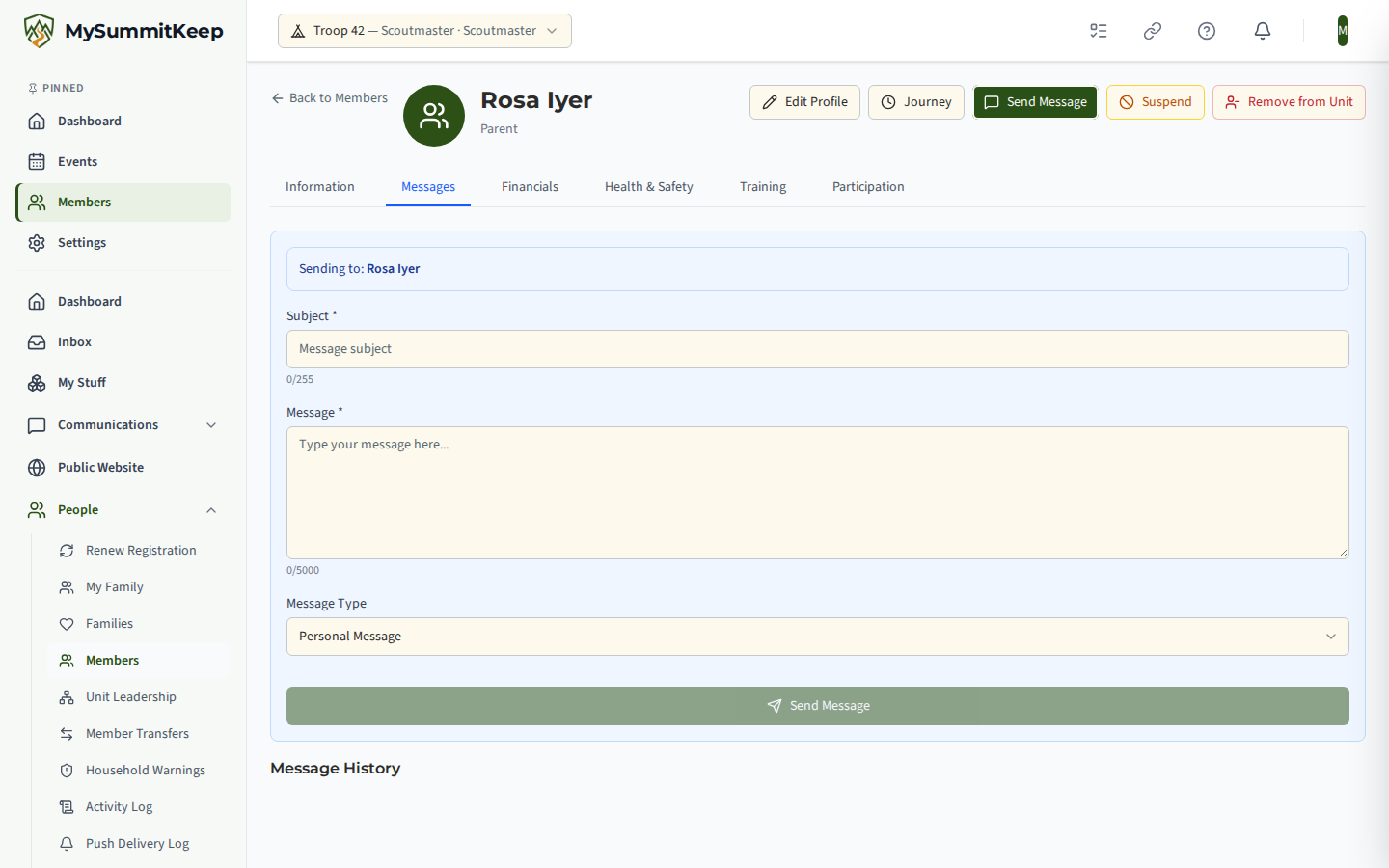
- Messages — the conversation thread with this member; Send Message composes a new one.
- Financials — the member’s current balance, with Record Payment and Adjust Balance for leaders.
- Health & Safety — Annual Health & Medical Record status and safety training (leaders and admins only).
- Training — recorded training courses, with options to record training or import from Scoutbook (leaders and admins only).
- Participation — events the member has been part of.
Platform Notices in Message History
Section titled “Platform Notices in Message History”Now and then MySummitKeep emails every member about something that affects the whole platform, such as planned maintenance or a change to our terms. Your copy is recorded in your own Message History, at the top of the list on your Messages tab, so you can always check that it reached you.
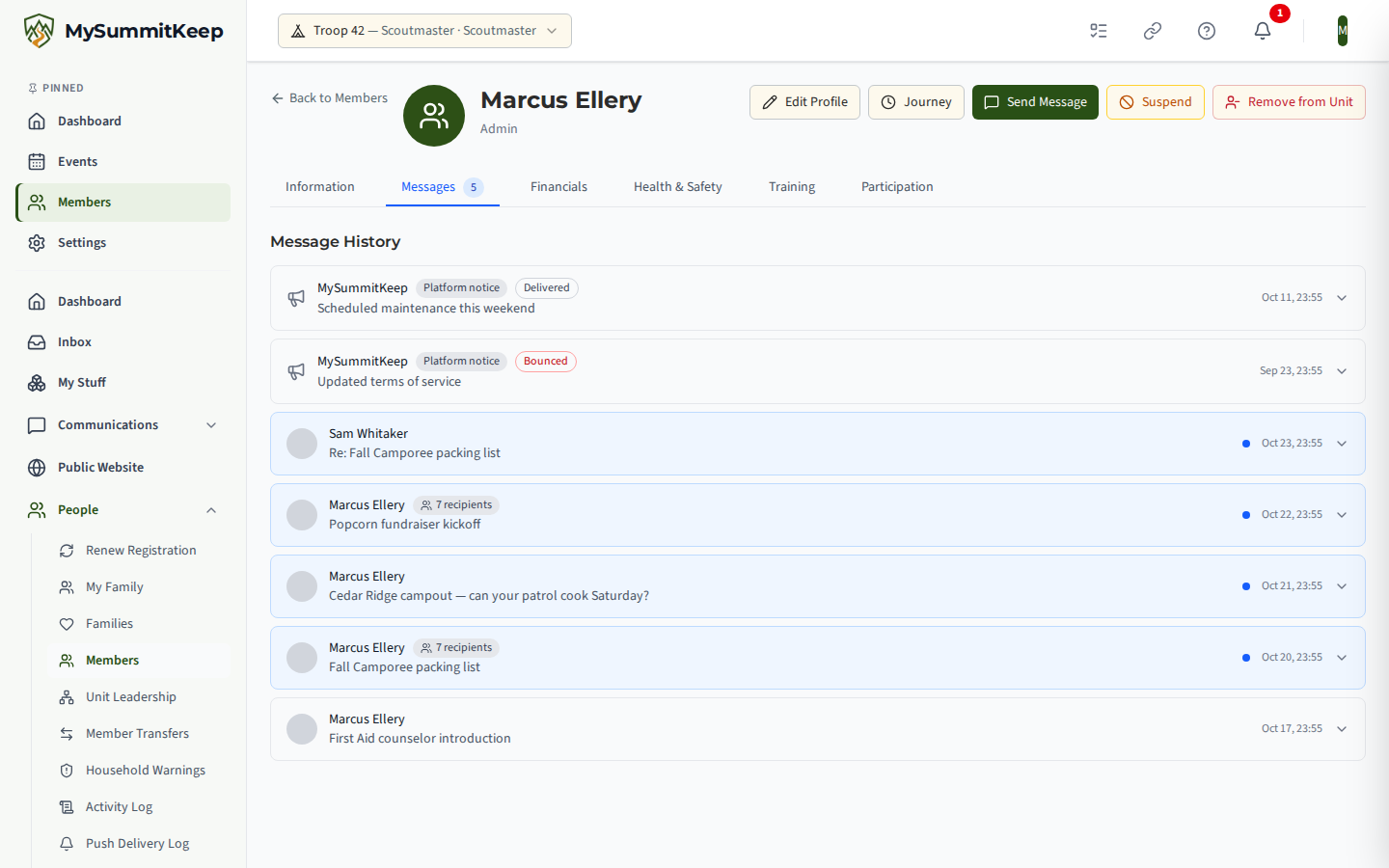
Each notice shows the Platform notice badge, a status label, the title and when it was sent. Select it to read the full text. The status label tells you what happened to the email:
- Delivered — your email provider accepted it.
- Sent — we handed it over and are waiting for a report back.
- Pending — it is queued, or we are trying again.
- Bounced — your email provider refused it, usually because the address is wrong or the mailbox is full. Shown in red.
- Quarantined — your email provider held it back, often in a spam or security hold. Shown in red.
- Failed — we could not send it, even after trying again. Shown in red.
If you see a red label, check the email address on your Information tab and look in your spam or quarantine folder. You only ever see your own notices: a leader opening another member’s profile does not see them.
Restoring a removed member
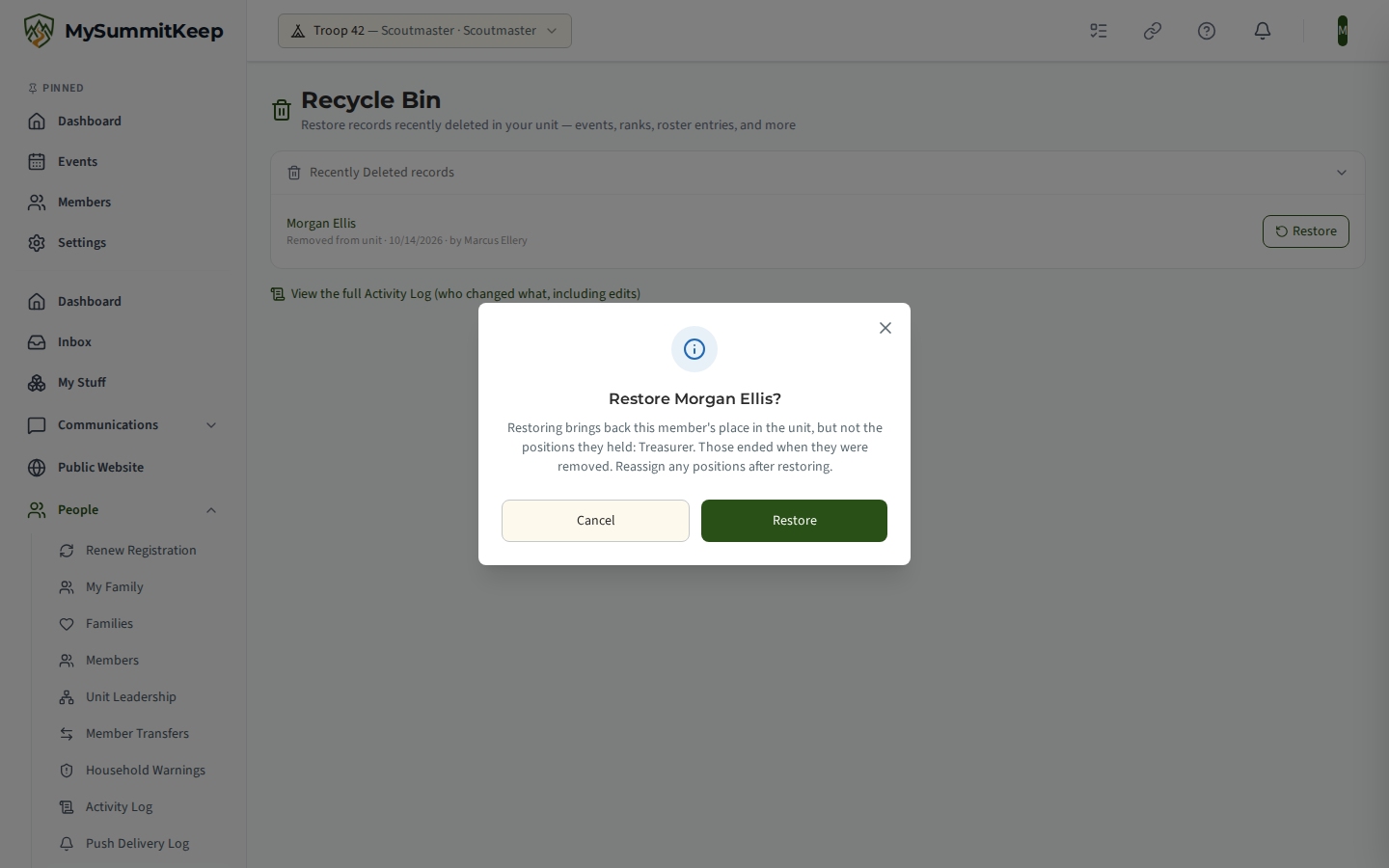
Section titled “Restoring a removed member”When a unit Key-3 leader selects Remove from Unit on a member’s profile, or a leader archives members from Bulk Operations, the member leaves the roster and any positions they held in the unit (such as Scoutmaster, Senior Patrol Leader or Treasurer) end. The removal appears in the Recycle Bin, listed under the member’s name with who removed them and when.
To bring the member back, a unit Key-3 leader (the Committee Chair, Chartered Organization Representative or senior unit leader) selects Restore next to their name in the Recycle Bin. Undoing a removal takes the same authority as making one: a member removed with Remove from Unit is restored only by a Key-3 leader, and an archived member by a Key-3 leader or any leader who can archive members. A leader whose access is suspended cannot restore anyone. Other leaders can see the entry, but they don’t see a Restore button on it: in its place a short note says who can restore it, such as “Only a Key-3 leader can restore this member.” Only leaders who can restore the entry see Restore. Members removed before the Recycle Bin began listing removals aren’t in it and aren’t added later. Restoring brings back their place in the unit, their unit role and their access level, but not the positions they held. Before you confirm, the Recycle Bin warns you, names the positions that ended when they were removed, and says when their role or access level gives them leader access again. After restoring, reassign any positions they should still hold.
If the member has already come back another way, for example by accepting a new invitation, they no longer appear in the Recycle Bin, and that entry does not return if they later leave again another way. A member who transferred to another unit is not in the Recycle Bin, because a transfer is not a removal. A Scout waiting for a parent’s consent who is removed stays removed when the parent consents; restore them from the Recycle Bin once consent is in.
Suspending a leader on notice
Section titled “Suspending a leader on notice”When a leader is leaving on notice, a unit Key-3 leader can open their profile and select Suspend instead of removing them. Suspension takes effect straight away:
- They can’t create, edit, or delete anything in your unit.
- They no longer see other members’ email, phone number, or BSA ID: not on the Members page, a member’s profile, the member directory, or a patrol roster, and not in a member export. They can’t download the unit data export at all, because it is built around that contact information.
- They no longer see anyone else’s medical information: the medical notes, allergies, medications and emergency contacts on a member’s profile, health forms, incident reports and their medical notes, the health and safety summary and compliance pages, the medical notes on a summer camp roster, event emergency and trip-pack exports, the event packet (it lists attendees’ allergies and dietary needs, so they can’t download it and it isn’t emailed to them), and the emergency contact and medical columns of a member export. Their own record (and their own child’s) is still theirs to see.
- They can’t preview or merge member records.
- A suspended Key-3 leader keeps their position but not its authority: they can’t remove, restore, suspend or reinstate members.
- They can still see the rest of the unit, and they remain a member.
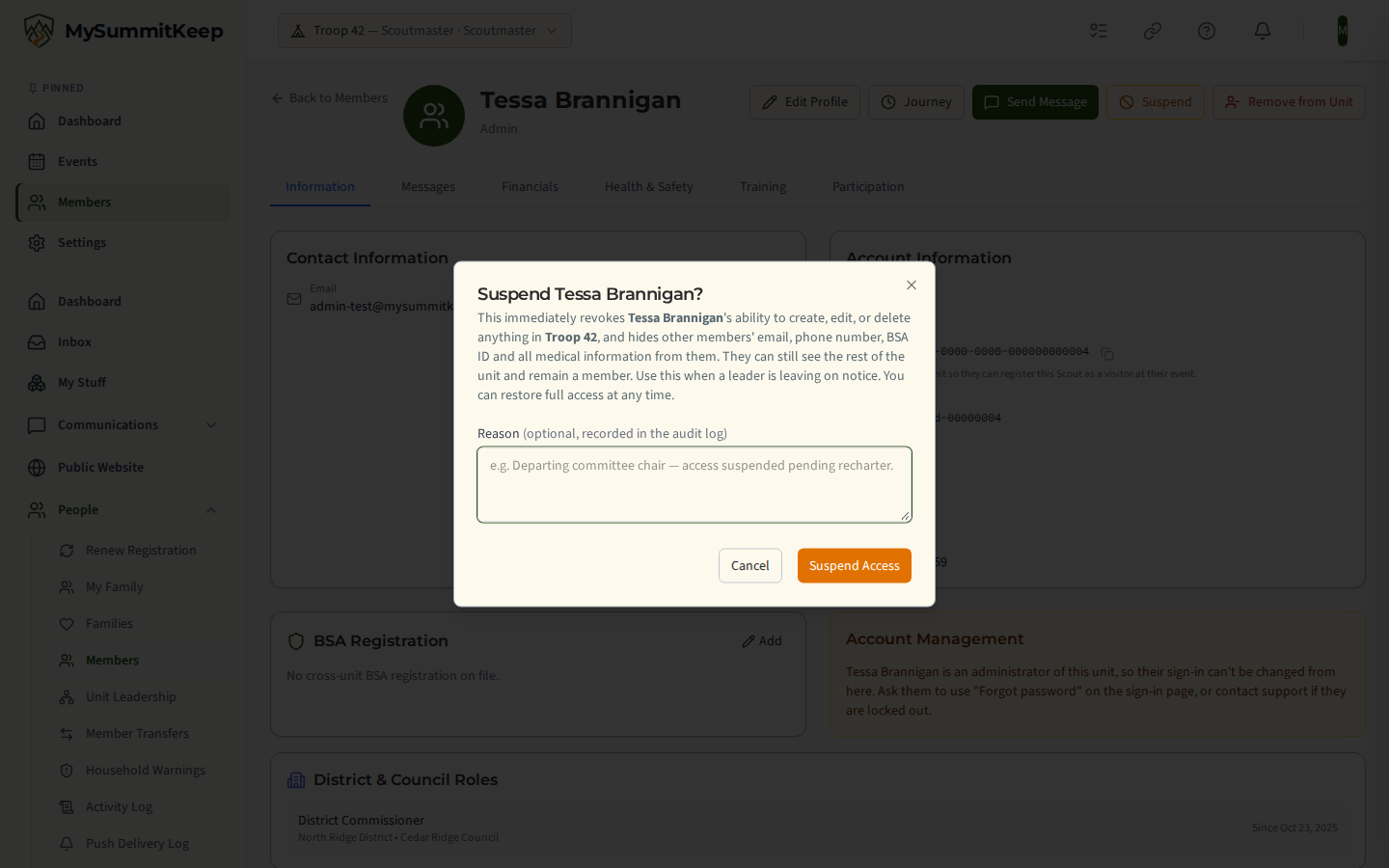
You can add a reason. It is recorded in the unit’s audit log and isn’t shown to the member. Their profile then shows an Access suspended banner, and Restore Access gives everything back at once. You can’t suspend yourself, and you can’t suspend your unit’s last Key-3 leader.
Scout history
Section titled “Scout history”The Journey button (also reachable at /members/:id/history) opens a member’s full chronological history — a summary of milestones at the top and a timeline of BSA achievements and events below. It is the place to look back at a Scout’s whole story in one view.
Ask my Commissioner about a member
Section titled “Ask my Commissioner about a member”If your unit has a serving commissioner, leaders see an Ask Your Commissioner link near the top of the Members page. It opens the commissioner contact form pre-set to ask about a member, so you can get help with a specific roster or registration question without leaving the directory. The link stays hidden when no commissioner is assigned to your unit.
MySummitKeep is an independent product and is not affiliated with, endorsed by, or sponsored by Scouting America (formerly the Boy Scouts of America). Scouting America, Scouts BSA, Cub Scouts, Venturing, Sea Scouts, and the Order of the Arrow are trademarks of Scouting America. Official program content shown in screenshots and examples is © Scouting America; always confirm current requirements atscouting.org. SeeTerms § 7.3.