
The Family Page
My Family is where you connect yourself to your Scout’s record and keep an eye on how they’re doing. Open it from People → My Family in the left menu, or go to /family.
Find it in the left menu: People → My Family.
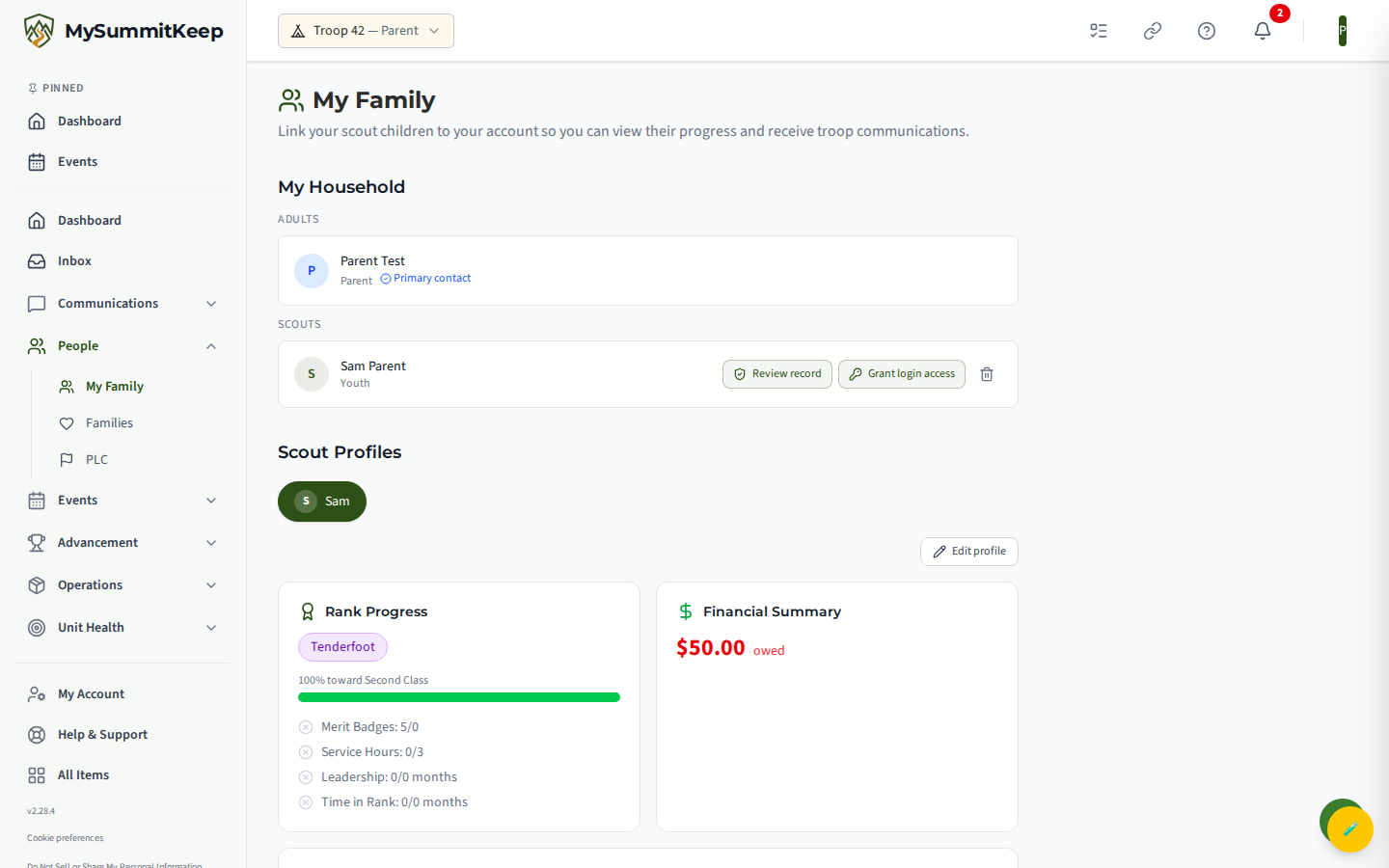
The page does three focused things, top to bottom: it shows your household (the adults and Scouts linked to you), it gives you a read-only Scout profile viewer, and it lets you find your Scout in the unit’s roster so you can ask to be linked. When someone has invited you to be linked to a Scout, or has asked to be linked to one of yours, a card for it appears on the page too (see Invitations and requests). That’s the whole page — it is not your dashboard. The “what needs my attention” widgets live on your home dashboard (see Getting Started for Parents), and your messages live on the separate unified inbox.
Your Scouts across units
Section titled “Your Scouts across units”If you have Scouts in more than one unit (for example one in a Pack and one in a Troop), the Your Scouts card at the top of the page lists all of them in one place. Each Scout appears once, with a small badge for every unit they are in, such as Pack 3111 or Troop 42. You do not need to switch units to see them.
A few things to know:
- It only shows your own Scouts. The card lists the Scouts linked to you in each of your units, the same ones you already see under My Household. It never shows another family’s Scouts, even with the same name.
- Different states, separate groups. Privacy rules differ from state to state. If your Scouts live in states with different rules, the card lists them in separate groups, with a short note above. Nobody is hidden, and the stricter protections apply to each Scout.
- Consent Needed still applies. A Scout under 13 whose parental consent is not on file shows by first name only, with the Consent Needed badge (see Consent Needed).
- Other units are still listed below. If some of your Scouts are not shown on this card, for example because a membership is suspended, you’ll see the line “Some of your Scouts aren’t shown here; you’ll find them under their unit below.” Each unit’s own household is always available further down the page.
The card shows names and units only. It does not show balances, fees, addresses or phone numbers.
My Household
Section titled “My Household”The top section lists everyone currently linked to you in this unit, split into Adults and Scouts:
- Adults are guardians in your household. They’re shown for reference and can’t be removed from here. A parent or guardian in the household can use Invite a Co-Parent or Guardian to invite another adult; the adult is linked when they accept (see Inviting a co-parent or guardian).
- Scouts are the youth linked to your household. Each Scout card has a trash icon to remove them from your household — you’ll get a confirmation prompt first. To be linked to that Scout again later, ask a unit leader to add the Scout back to your household.
If nothing is linked yet, you’ll see a prompt to search below and add your child.
Consent Needed
Section titled “Consent Needed”For a Scout under 13, we can only show you their details once parental consent is on file. Until then, the Scout’s card shows only their first name and a Consent Needed badge, and their email address and date of birth are hidden. The Scout stays in your household, and nothing has been removed.
Select Send Me the Consent Form on the card and we email the consent form to the address on your own account (you’ll see it confirmed with part of the address hidden, like j***@example.com). Open the link in that email to give consent; nothing is recorded until you do. You can ask again, but not more than once every 10 minutes or more than 5 times a day, and the form only ever goes to you. Use Review Consent to see the consents on file for that Scout. If you don’t receive the email, check your spam folder, or ask a unit leader to resend it. Once consent is recorded, the card returns to normal the next time you open the page.
Invitations and requests
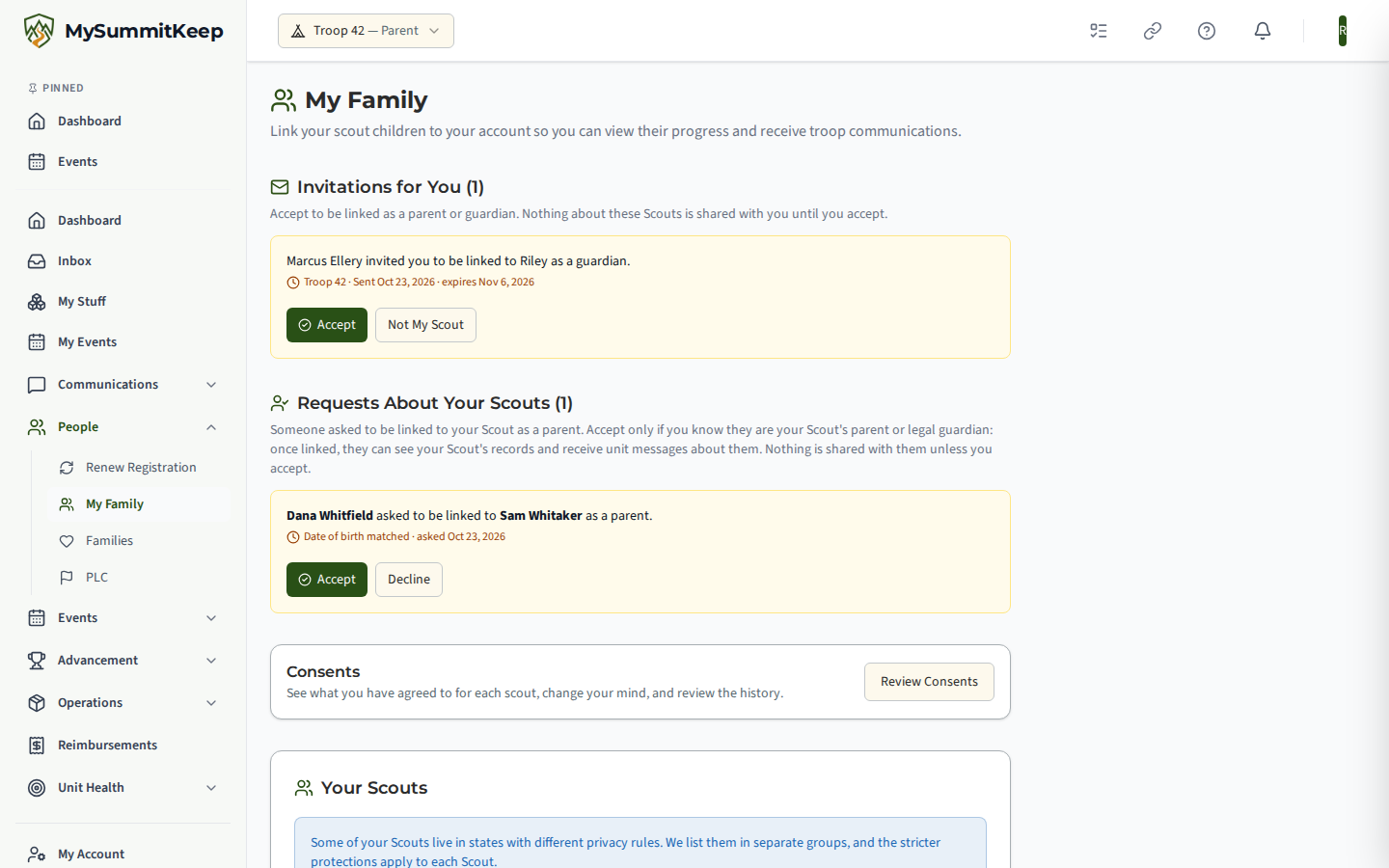
Section titled “Invitations and requests”Three cards appear on My Family only when there’s something in them: two at the top of the page for you to answer, and one under My Household for invitations you’ve sent.
Invitations for You
Section titled “Invitations for You”When a unit leader or another parent invites you to be linked to a Scout, the invitation appears here. Each one shows the first names of the Scouts in the household, the household, the relationship (parent or guardian), who invited you, and when it expires. An invitation expires after 14 days.
- Accept links you to the Scouts in that household. If a Scout is under 18, you’re asked to read and accept the parental-consent disclosure first.
- Not My Scout turns it down. You can add a short reason, then select Decline Invitation; the person who invited you is told.
Nothing is linked while an invitation is waiting: a pending invitation doesn’t let you see the Scout’s records or put you on their messages. Invitations sent to an email address rather than to your account don’t appear here; open them from the email. See Accepting an invitation.
Requests About Your Scouts
Section titled “Requests About Your Scouts”When another adult asks to be linked to one of your Scouts, you’re the one asked to confirm it. The card names the adult who asked and the Scout, and says whether the date of birth they entered matched the Scout’s record, didn’t match, or wasn’t entered.
- Accept only if you know this person is your Scout’s parent or guardian. They’re linked at that moment.
- Decline if not. You can add a short reason, then select Decline Request; they’re told.
The date of birth is context, not proof: a leader can see and change a Scout’s date of birth, so a match alone doesn’t show someone is the parent. A unit leader can answer these requests too, and a request is never answered by the person who made it. See Requests about your Scouts.
Invitations You Sent
Section titled “Invitations You Sent”If you’re a parent or guardian in your household, Invite a Co-Parent or Guardian next to the My Household heading invites another adult to be linked to your Scouts; they’re linked when they accept. Until they answer, the invitation waits in the Invitations You Sent card just below that heading, with who you invited and the address it went to, shown partly hidden (its first letter and the part after the @, so a mistyped domain is easy to spot):
- Resend sends a fresh link to an invitation that was lost or has expired; the old link stops working.
- Withdraw cancels one that went to the wrong address, after a second click to confirm. The link stops working and nobody is linked.
See Inviting a co-parent or guardian.
Scout Profiles
Section titled “Scout Profiles”Once you’ve linked at least one Scout, a read-only viewer appears. Tap a Scout’s avatar to switch between children, then review their record without being able to edit anything you shouldn’t:
- Rank progress — current rank and how far along they are
- Merit Badges and other advancement / awards
- Financial summary — balances and fees tied to that Scout
- Upcoming Events they’re involved with
Everything here is view-only by design (Youth Protection). The Edit Profile button (a pencil icon, above the cards) opens a limited correction form where a parent or guardian can fix personal details — name, contact info, address, date of birth, and health/emergency fields. Leave a field blank to keep it unchanged. Identity fields like email and BSA member ID can’t be changed here, and BSA registration data is managed by your unit leaders. There’s also a Download My Child’s Data button that exports a full ZIP of every record on file.
Find Your Scout
Section titled “Find Your Scout”The bottom section is a roster search you use to ask to be linked to your child. Enter your child’s first name and last name (both required), then click Search.
Matching Scouts in the unit appear as cards showing name, age, and patrol/den. Each has a Link to My Family button; any Scout already in your household shows a Linked badge instead.
Link to My Family sends a request; it doesn’t link you by itself. The Scout’s parent confirms it, or a unit leader does when the Scout has no parent who can sign in, and the request shows under Waiting for confirmation until then. The optional Date of Birth field isn’t a search filter, and a date of birth alone no longer links: whoever confirms your request sees whether the date you entered matched the Scout’s record. You get one request per Scout; see Linking Scouts to Your Household. If you’d rather skip the request, a unit leader or the Scout’s other parent can send you an invitation instead.
If your search returns nothing, double-check the spelling or contact your unit leader to confirm your Scout is registered in the system — only Scouts already on the roster will appear. Leaders add members through Member Import or by inviting families directly.
Following your Scout’s activity feed
Section titled “Following your Scout’s activity feed”From a linked Scout you can open their Scout Activity Feed at /family/feed/{scout}. It’s a single chronological stream, newest first, of everything you’re entitled to see for that child in this unit:
- Messages to or from your Scout — channel posts, group messages, and direct messages. Items your Scout sent are highlighted.
- Advancement — a green “Advancement” card each time they complete an advancement item (a rank, merit badge, or award). It posts when the whole item is finished, not on each individual requirement.
- Event Registrations — a blue “Event” card when they register for an outing, with the start date.
Use Load older messages at the bottom to page back through history.
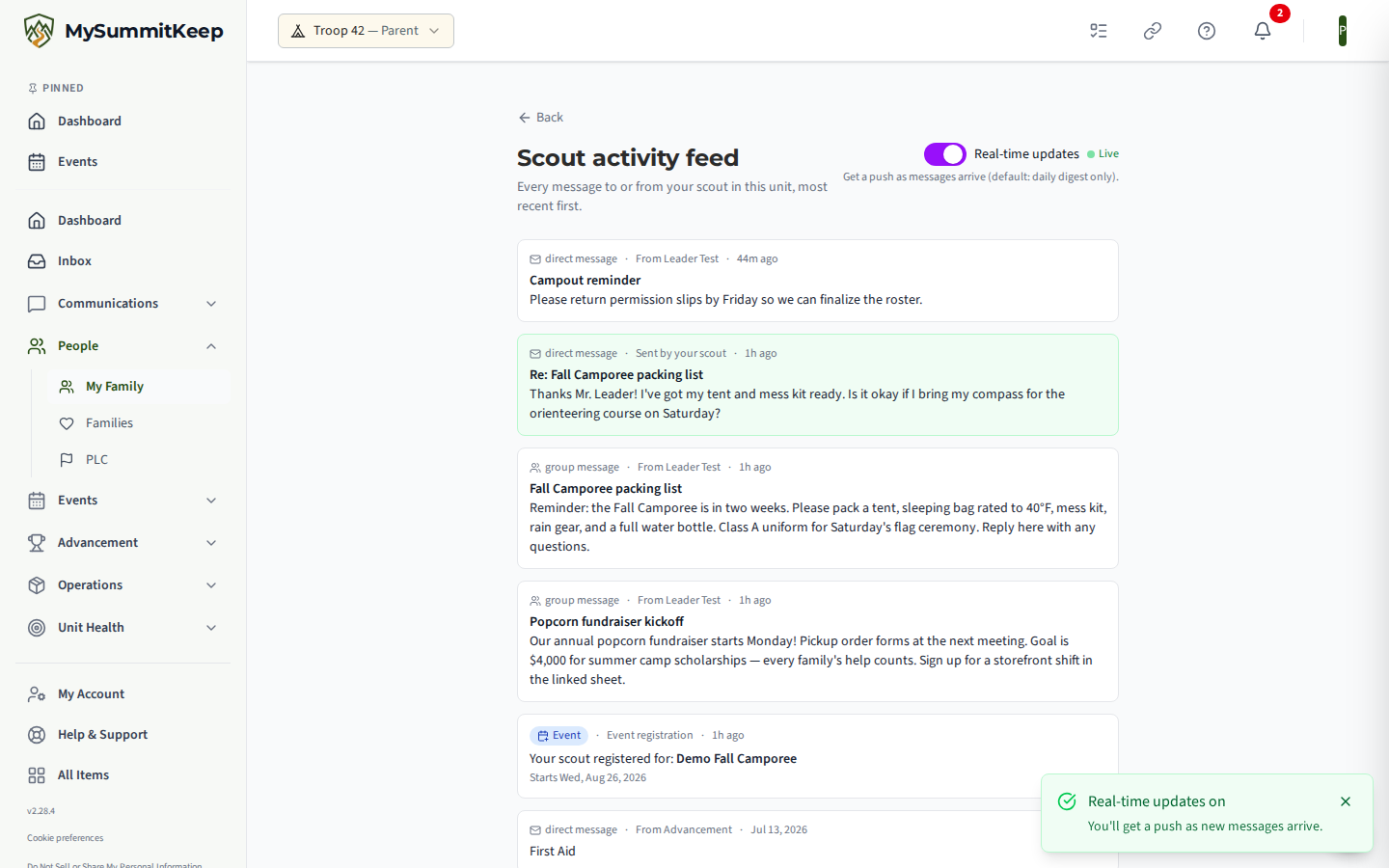
At the top of the feed is a Real-time updates toggle. By default it’s off, which means you receive a daily digest only. Turn it on to get a push as new items arrive — when it’s active and connected you’ll see a pulsing green Live indicator. The setting is saved per unit, so it carries across devices and browser tabs.
Need help linking your Scout? See Linking Your Household, or contact support — we usually respond within one business day.
MySummitKeep is an independent product and is not affiliated with, endorsed by, or sponsored by Scouting America (formerly the Boy Scouts of America). Scouting America, Scouts BSA, Cub Scouts, Venturing, Sea Scouts, and the Order of the Arrow are trademarks of Scouting America. Official program content shown in screenshots and examples is © Scouting America; always confirm current requirements atscouting.org. SeeTerms § 7.3.