
Your Scout Dashboard (Home)
When you sign in, MySummitKeep drops you on your home page — your personal dashboard. It’s built for you, the Scout: your advancement, your events, your tasks, and your unit’s latest photos. You won’t see the admin, finance, or settings tools that leaders and parents use — your dashboard stays focused on the things you actually do.
Find it in the left menu: Home → Dashboard.
Your home page lives at the top of the sidebar (the Home or Dashboard link), and it’s where you land every time you log in.
![The Scout home page top-to-bottom: a 'Welcome back, [name]!' greeting, a photo carousel of recent unit events, three Quick Link cards (My Advancement, My Badges, Events), and the Upcoming Events list below.](/screenshots/scout-dashboard-overview.png)
Your greeting and recent photos
Section titled “Your greeting and recent photos”At the very top you’ll see a friendly Welcome back, [your name]! with a line about what’s coming up for your unit. Right below it is a photo carousel showing recent event photos from your troop, crew, or pack — a nice reminder of the last campout or meeting.
Don’t want the photos taking up space? Tap Hide in the corner of the carousel and it collapses to a small Show Photo Hero link you can tap any time to bring it back. Your choice is remembered on that device.
Quick Links
Section titled “Quick Links”Below the photos are three big Quick Link cards. Each one is a one-tap shortcut to the part of the app you reach for most:
- My Advancement — track your rank progress and see which requirements you still need.
- My Badges — view the badges you’ve earned and the ones you’re still working on.
- Events — browse everything on the calendar and register for what’s next.
Tap any card to jump straight there.
Upcoming Events (with one-tap RSVP)
Section titled “Upcoming Events (with one-tap RSVP)”The Upcoming Events panel lists the next few events your unit has on the calendar, each with its date. You can open an event for full details by tapping its row — but you don’t have to leave the dashboard just to say you’re coming.
Each event has a small RSVP button right on its row. When you’re not signed up yet it says RSVP. Tap it once and it instantly flips to a green Going badge, and you’ll get a quick “You’re going!” confirmation. Changed your mind? Tap Going again to cancel — it turns back into RSVP.
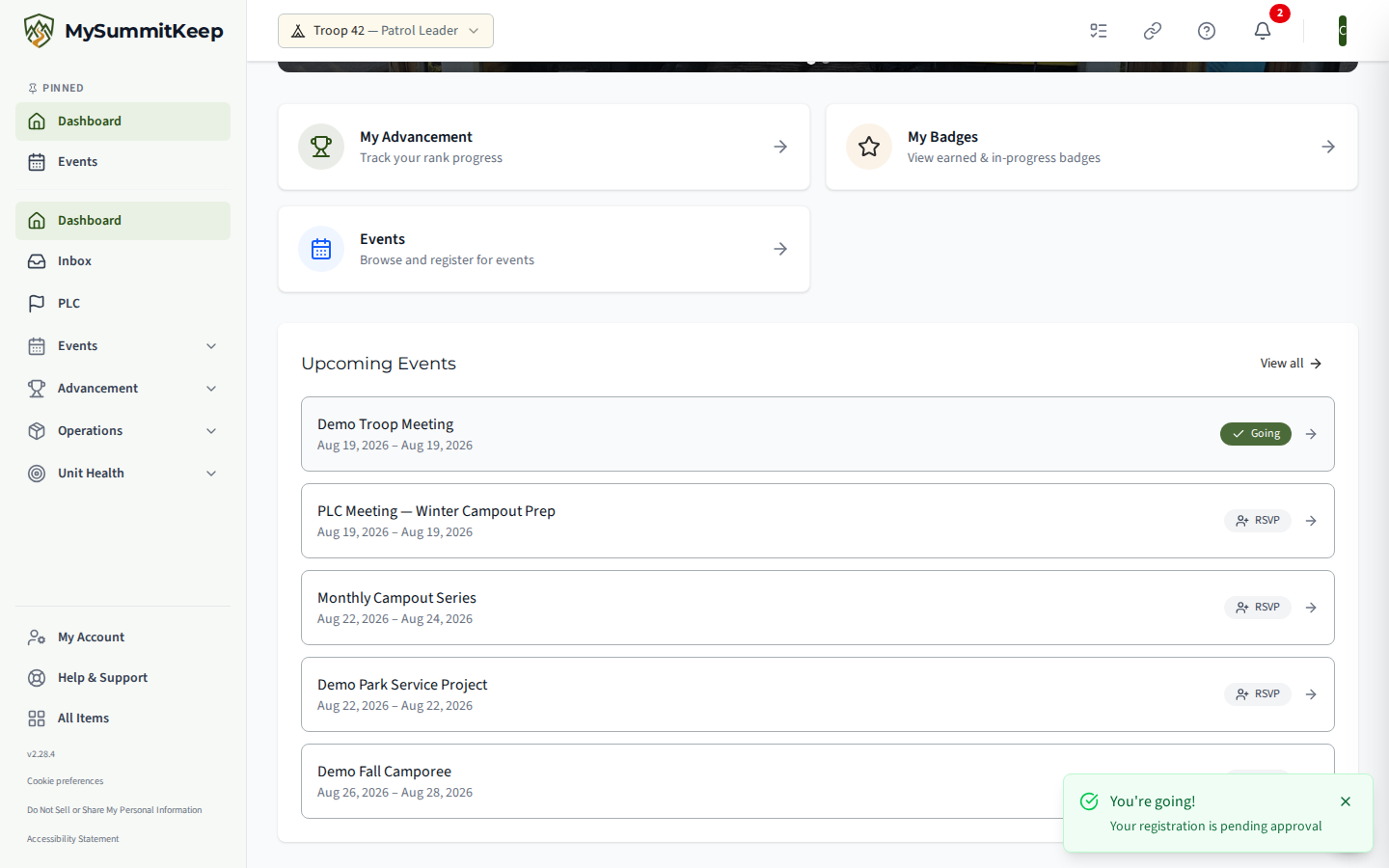
To see the whole calendar, tap View All in the corner of the panel (or the Events Quick Link above it).
My Tasks
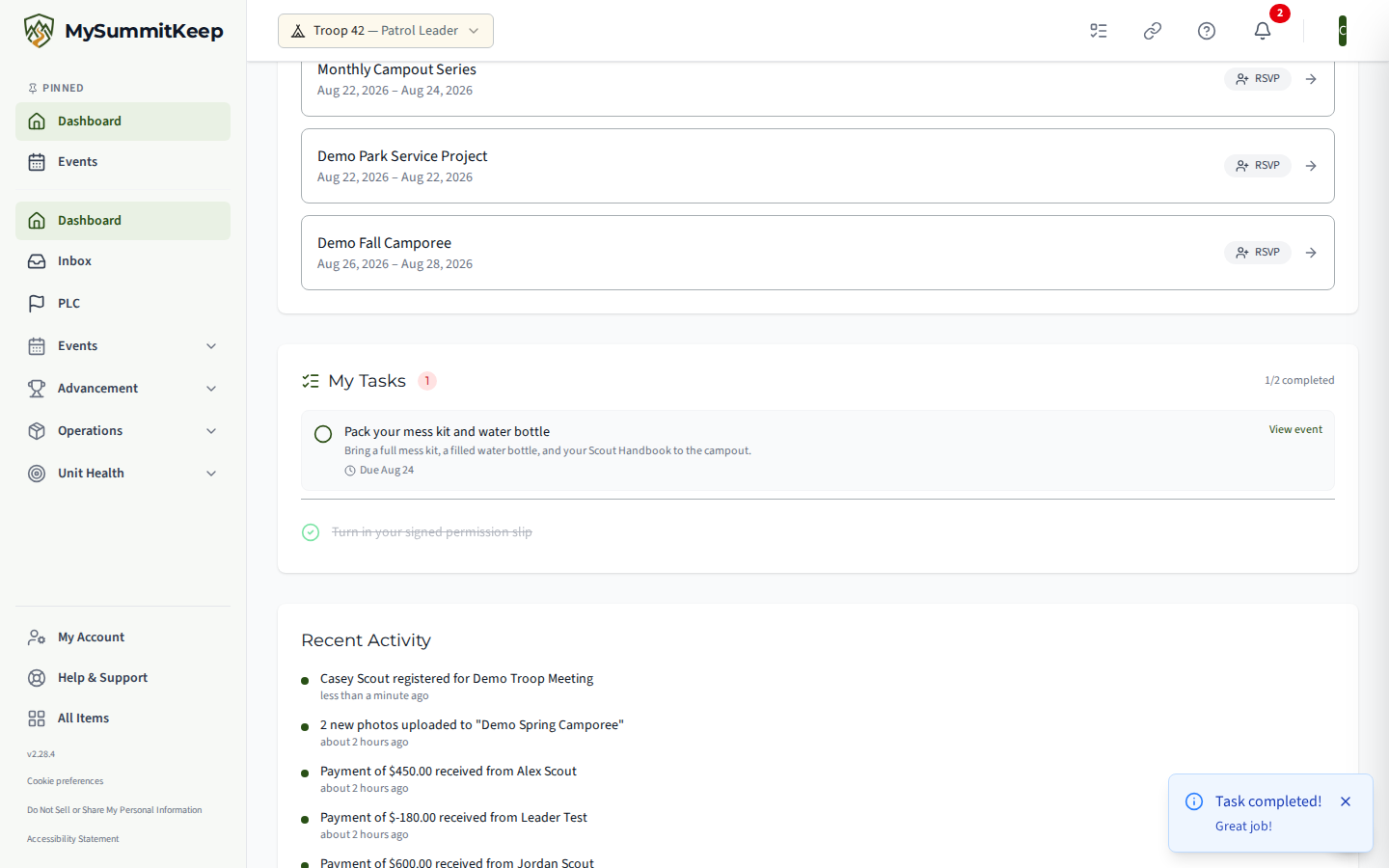
Section titled “My Tasks”If a leader has assigned you a task tied to an event — like “bring the camp stove” or “sign up for a duty roster slot” — it shows up in the My Tasks widget. A red number next to the heading tells you how many tasks are still waiting on you, and overdue tasks are highlighted so they’re hard to miss.
To mark a task done, tap the circle on the left side of the task. It fills in, and the task moves to your completed list (you’ll see a “X/Y completed” count). Each task also has a View Event link if you want to see the event it belongs to.
Recent Activity
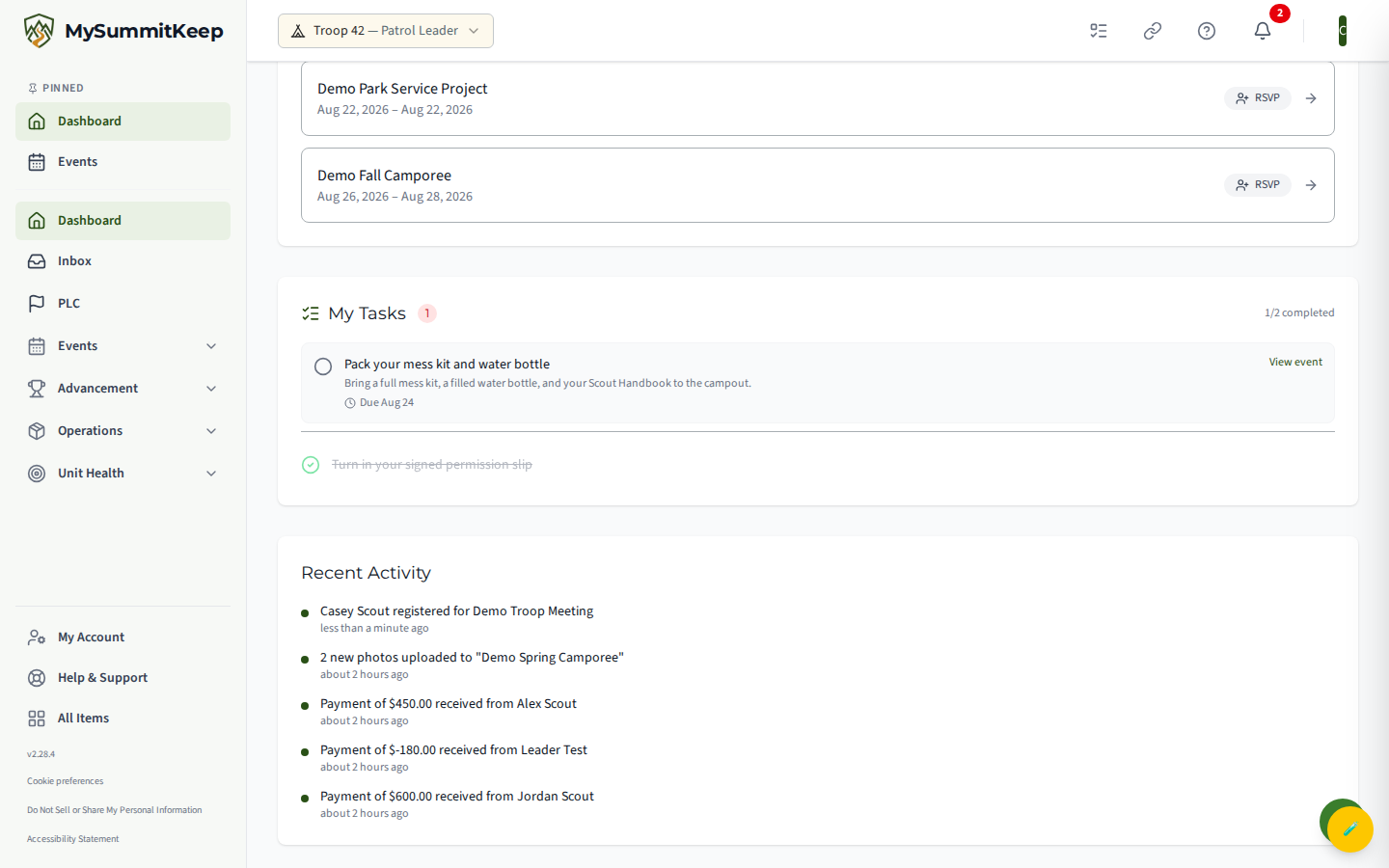
Section titled “Recent Activity”At the bottom is your Recent Activity stream — a short, scrollable list of the latest things happening for you and your unit, like a new RSVP or a posted photo, each with a “how long ago” timestamp. Scroll through it to catch up on what you might have missed.
What you won’t see (and that’s on purpose)
Section titled “What you won’t see (and that’s on purpose)”Your dashboard leaves out the leader-only widgets on purpose — things like unit member counts, two-deep leadership tracking, pending payments, and announcement management. Those belong to leaders and admins. Your home page is trimmed down to exactly what helps you stay on track: your progress, your events, and your tasks.
Need help? Contact support — we usually respond within 1 business day.
MySummitKeep is an independent product and is not affiliated with, endorsed by, or sponsored by Scouting America (formerly the Boy Scouts of America). Scouting America, Scouts BSA, Cub Scouts, Venturing, Sea Scouts, and the Order of the Arrow are trademarks of Scouting America. Official program content shown in screenshots and examples is © Scouting America; always confirm current requirements atscouting.org. SeeTerms § 7.3.