
Commissioner Dashboard & Ops Overview
The Commissioner section is your home base for the units you serve. It has two complementary landing pages: the Commissioner Dashboard (the assigned-units roster at /commissioner) and the Commissioner Overview (the operational at-a-glance view at /commissioner/dashboard). Together they answer the two questions every commissioner asks: which of my units need attention? and what do I need to do this week?
Find it in the left menu: Commissioner → Commissioner Dashboard.
Who sees the Commissioner section
Section titled “Who sees the Commissioner section”The Commissioner menu is hidden from anyone who isn’t actively serving as a commissioner. You’ll see it only if you hold an active Unit, District, or Council Commissioner role. If you open a commissioner page without that role, you’ll get a friendly “Commissioner access required” message — if you serve as a Unit, District, or Council Commissioner, request access from the Join Another Unit modal (open it from the unit switcher).
The units roster and health-score bars
Section titled “The units roster and health-score bars”The roster lives at /commissioner and lists every unit you serve. It’s deliberately sorted worst-first — the unit with the lowest composite health score sits at the top, so the units that need you most are never buried.
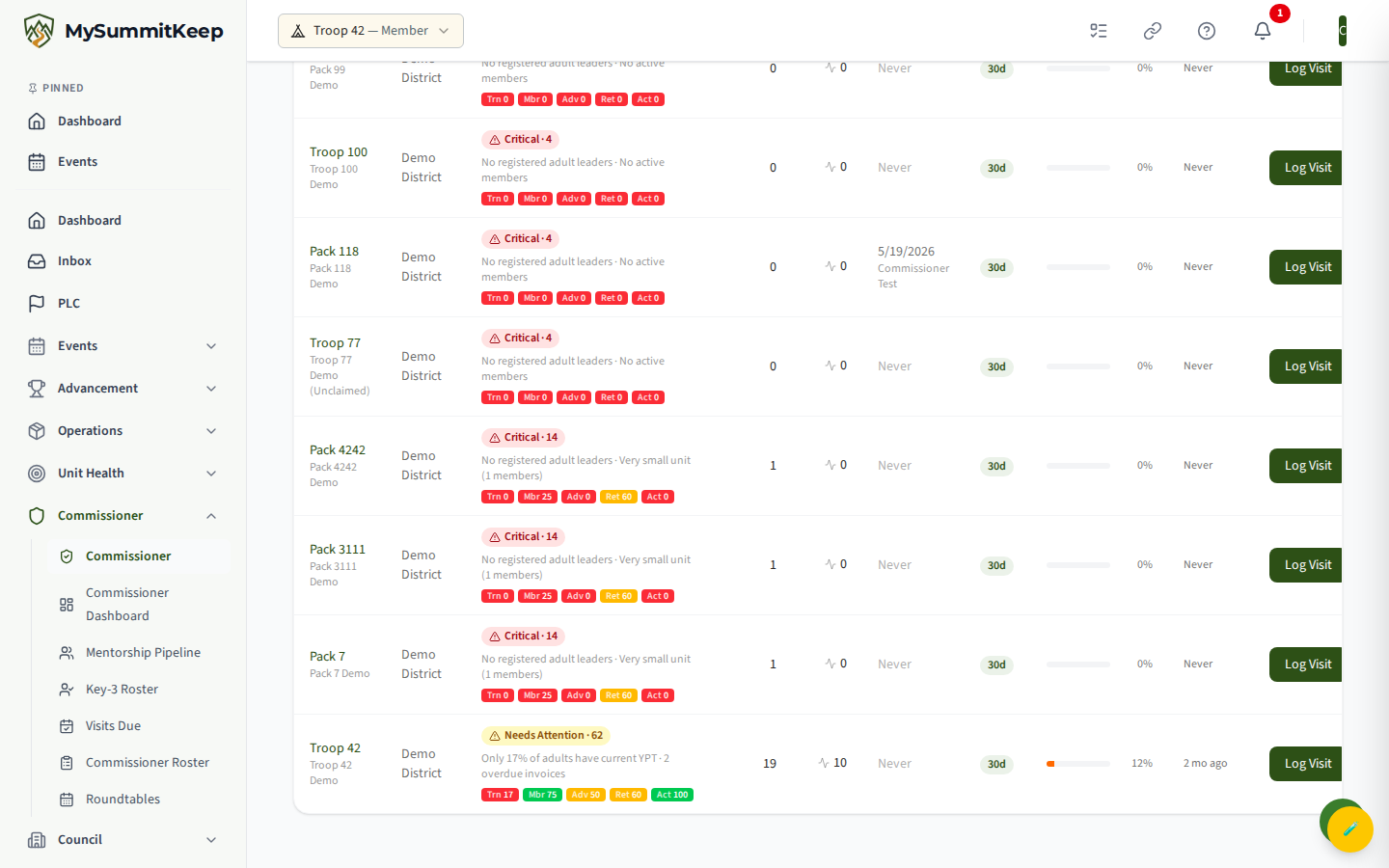
Each row gives you a fast read on one unit:
- Health — a colored pill showing the level (Healthy, Needs Attention, At Risk, or Critical) and the composite score out of 100. Below it, the two top issues plus a row of five small metric bars: Training (Trn), Membership (Mbr), Advancement (Adv), Retention (Ret), and Activity (Act). Each bar is colored green, amber, or red so you can spot a weak area at a glance — hover any bar to see its exact score out of 100.
- Members and Events (30d) — the active member count and how many events the unit has run in the last 30 days.
- Last Visit — the date and the name of whoever last logged a commissioner contact, or “Never.”
- Stage — the unit’s lifecycle stage (for example Pre-Formation, 30/60/90 Days, Sustaining, or Self-Sufficient). Click it to open the stage-history popover.
- Plan % — how far along the unit’s success plan is, shown as a progress bar.
- Last Assessed — when the unit last completed a self-assessment.
The top of the roster also shows Your Roles (each commissioner scope you hold, with its district or council), a tab strip linking to Training, Districts, Recharter, Applications, Coverage Gaps, Alerts, and Retention, and Compose Newsletter / History buttons for broadcasting to your units.
Every row ends with a Log Visit button that opens the full visit debrief pre-filled for that unit. More on that below.
The ops overview action cards
Section titled “The ops overview action cards”The Overview page at /commissioner/dashboard is the operational counterpart to the roster. Instead of listing every unit, it surfaces three big numbers — the count of items you actually need to act on — across the district tied to your currently selected unit.
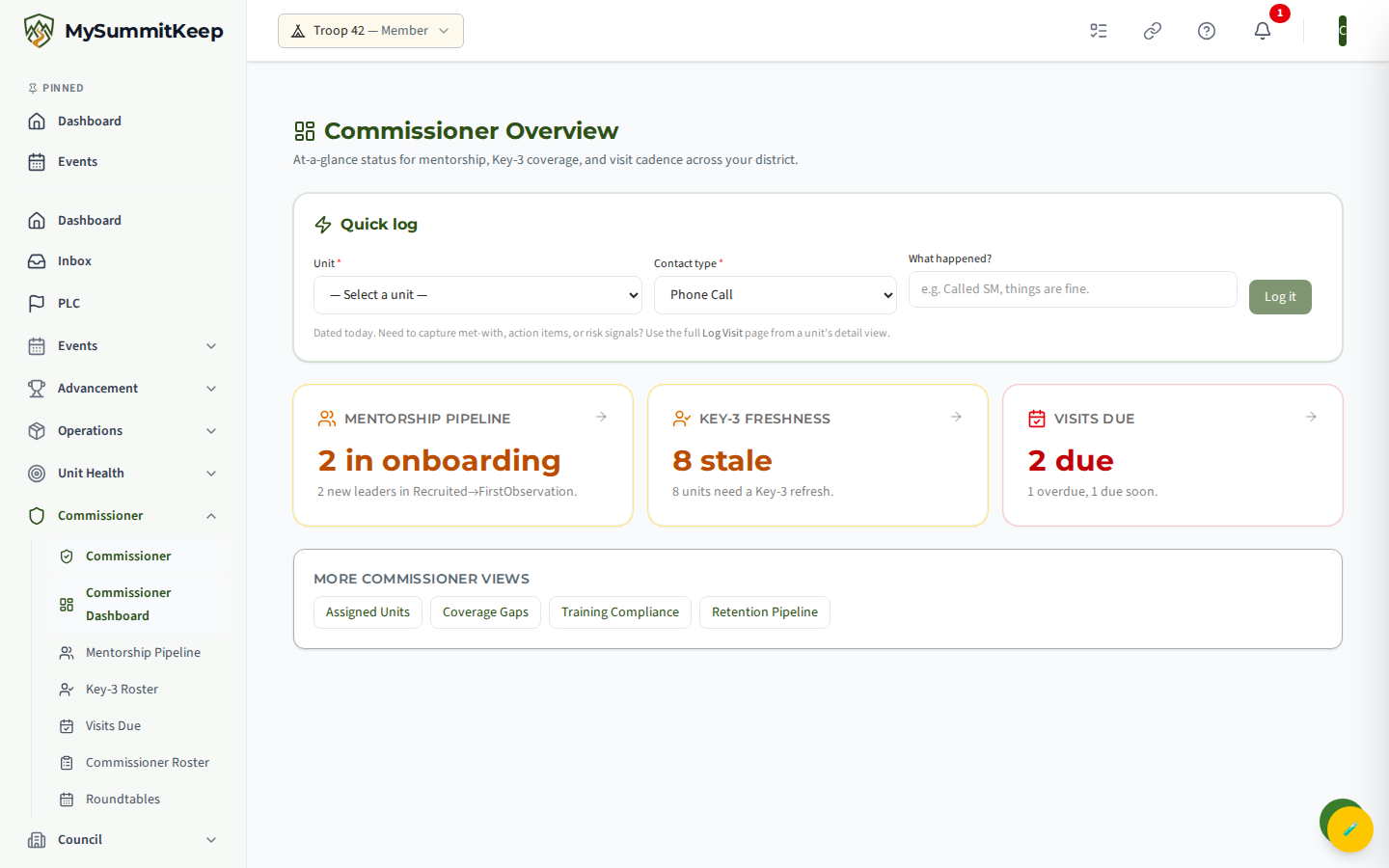
- Mentorship Pipeline — how many new leaders are still mid-onboarding (in the Recruited, Welcomed, Oriented, or First Observation stages). These are the mentees who need the most hands-on attention.
- Key-3 Freshness — how many units have a stale Key-3 capture that needs refreshing. “All current” means every unit’s Key-3 is up to date.
- Visits Due — how many units need a commissioner visit, combining units that are overdue with units due within the reminder window. When something is overdue the card turns red.
The quick-log tile
Section titled “The quick-log tile”Above the three cards sits the Quick Log tile — the fastest way to record a touch-point. The full visit page captures everything (who you met with, assessed health, risk signals, action items, follow-up date); the quick-log tile asks for just three things:
- Unit — pick from your assigned units.
- Contact type — Phone Call, Email, In-Person Visit, or Text.
- What happened? — an optional one-line note (the field grows when you click into it).
Hit Log It and the interaction is saved to that unit’s visit history, dated today. The tile keeps the unit selected so you can log several touch-points in a row (for example “called the SM, then emailed the CC”), and your dashboards refresh automatically.
Where each card takes you
Section titled “Where each card takes you”Every tile is a shortcut into a focused sub-page:
- Mentorship Pipeline opens the mentorship pipeline view (
/commissioner/mentorships). - Key-3 Freshness opens the unit Key-3 status page (
/commissioner/key-three). - Visits Due opens the visits-due list (
/commissioner/visits-due). - The Log Visit button on a roster row opens the visit debrief at
/commissioner/visits/newwith the unit pre-selected. (The quick-log tile itself has no link to that page — for the full debrief it points you to a unit’s detail view.)
A “More commissioner views” footer on the Overview also links across to Assigned Units, Coverage Gaps, Training Compliance, and the Retention Pipeline, so you can pivot from the at-a-glance numbers into the detailed list views without hunting through the menu.
MySummitKeep is an independent product and is not affiliated with, endorsed by, or sponsored by Scouting America (formerly the Boy Scouts of America). Scouting America, Scouts BSA, Cub Scouts, Venturing, Sea Scouts, and the Order of the Arrow are trademarks of Scouting America. Official program content shown in screenshots and examples is © Scouting America; always confirm current requirements atscouting.org. SeeTerms § 7.3.