
Reports & Custom Report Builder
MySummitKeep turns your unit’s data into clear, on-screen reports — no spreadsheets required. From Reports you can review built-in dashboards for member health, leadership, compliance and finances, export any of them, automate weekly or monthly email summaries, and build your own reports column by column.
Find it in the left menu: Advancement Admin → Reports.
Reports are generated in real time from your live unit data and cached for about five minutes, so a freshly run report reflects what’s in MySummitKeep right now.
The Reports dashboard
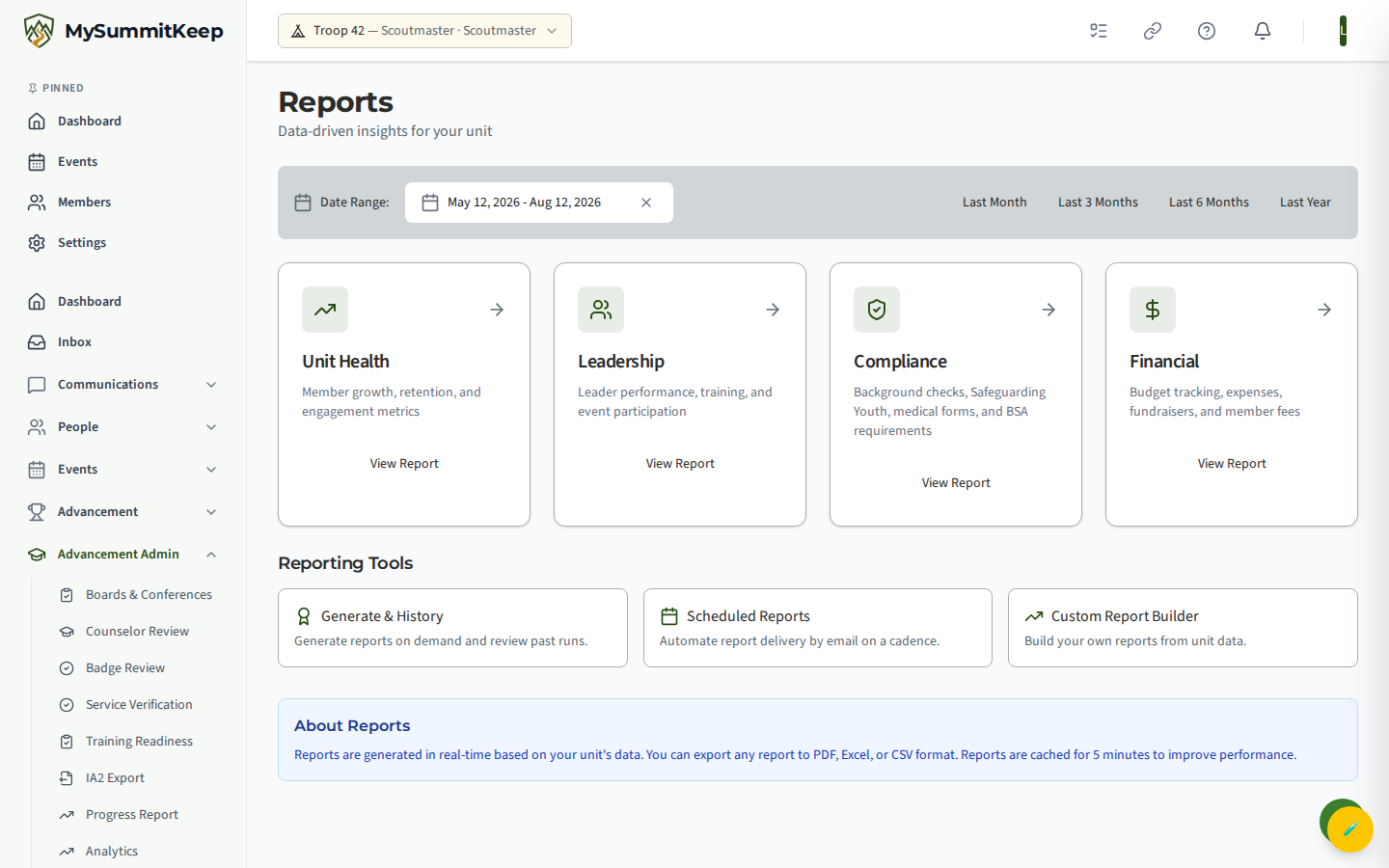
Section titled “The Reports dashboard”Open Advancement Admin → Reports in the left menu (/reports). At the top is a Date Range picker with quick buttons for Last Month, Last 3 Months, Last 6 Months and Last Year (the default is the last three months). The range you pick here is carried into whichever report you open next, so set it before clicking a report card.
Below the picker are four report cards — Unit Health, Leadership, Compliance and Financial — and a Reporting Tools section with up to four more tools: Generate & History, Scheduled Reports, Official Reports and Custom Report Builder. You only see the tools your role or position can use.
Built-in reports
Section titled “Built-in reports”Click a card on the dashboard to open that report for the selected date range. Each report shows summary KPI cards at the top followed by charts and tables.
- Unit Health (
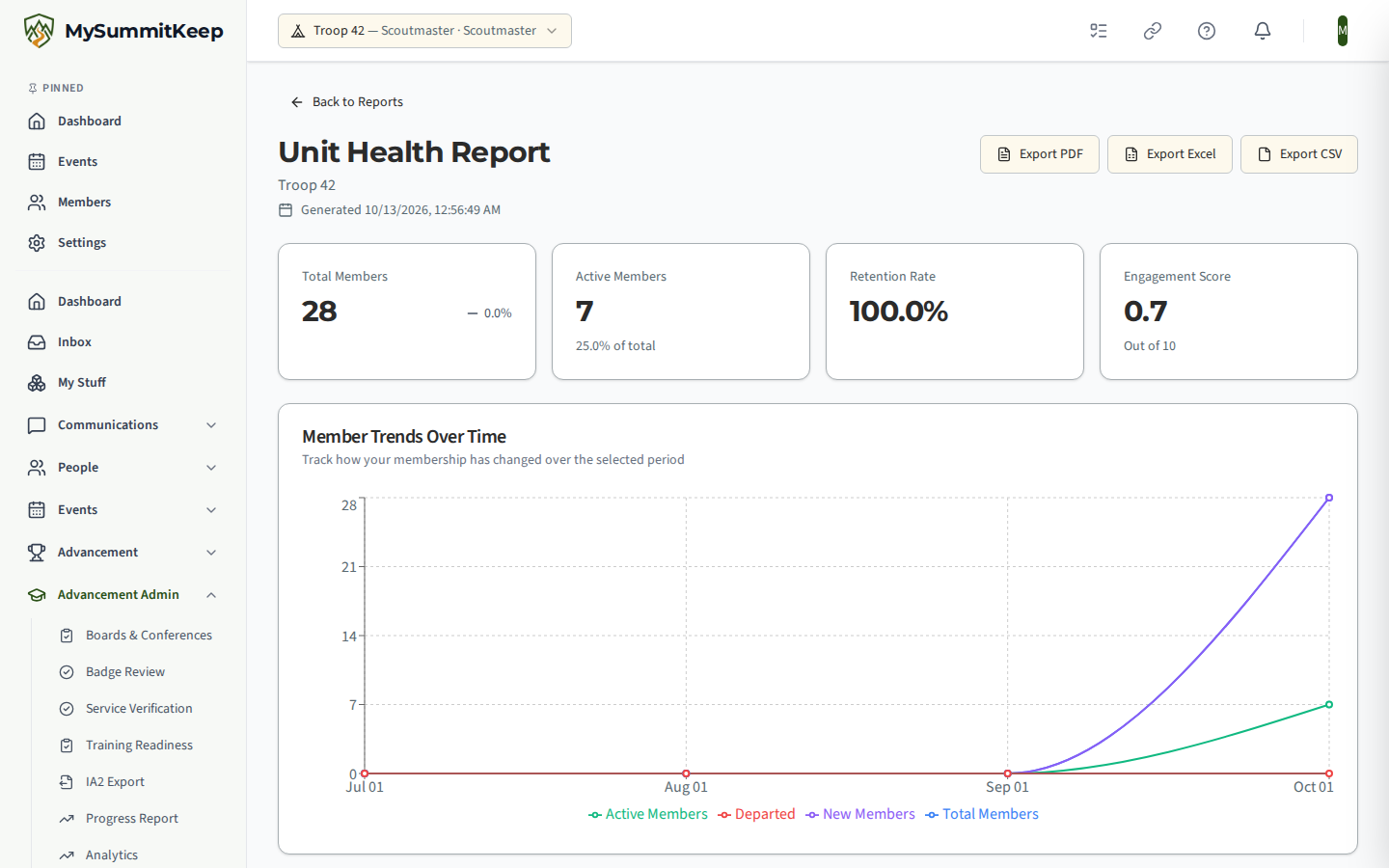
/reports/unit-health) — total and active members, retention rate, an engagement score, member trends over time, the advancement pipeline, members by program and by patrol, and your youth-to-adult ratio (with the BSA 8:1 guideline noted). - Leadership (
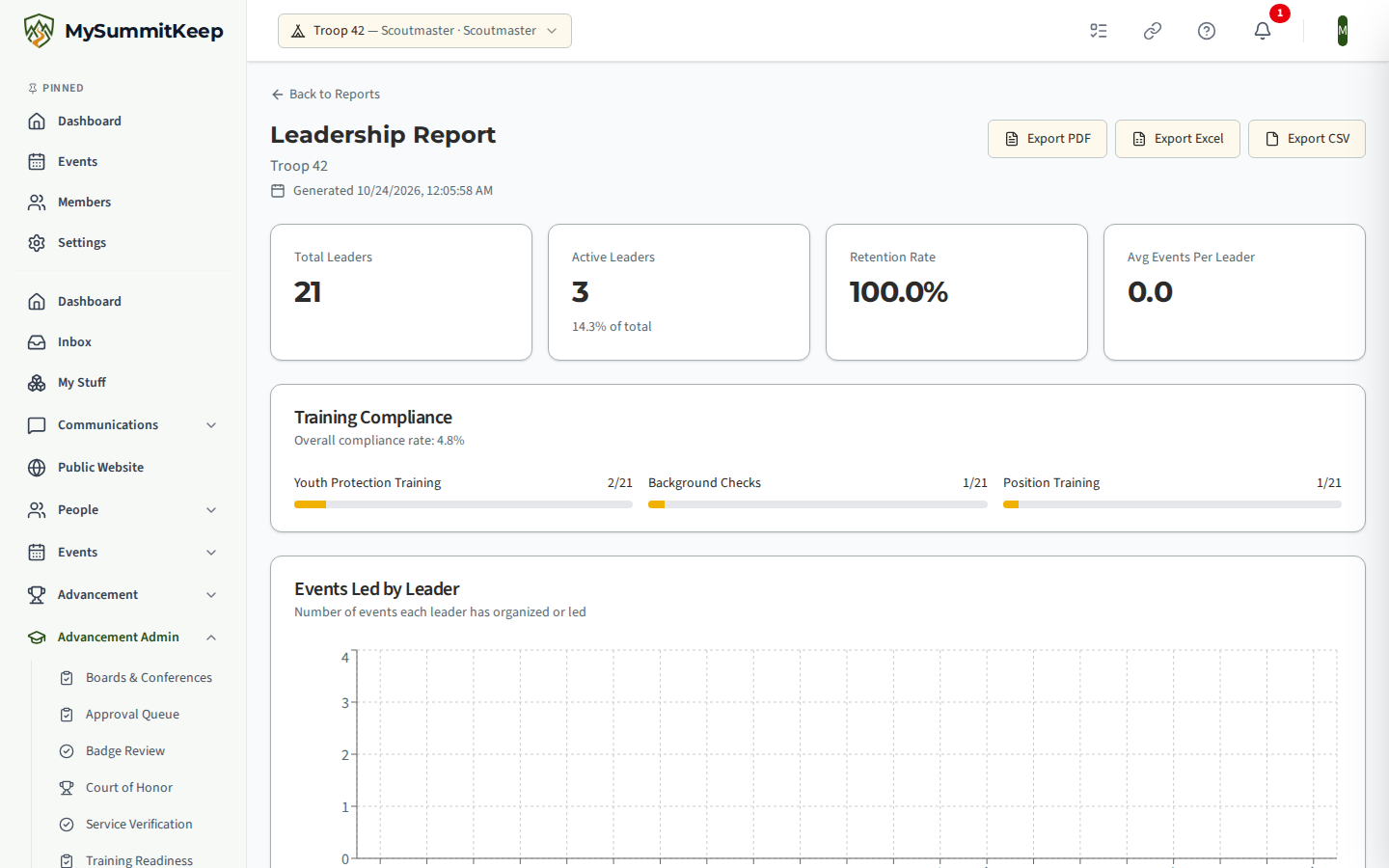
/reports/leadership) — total and active leaders, retention, average events per leader, and training compliance. - Compliance (
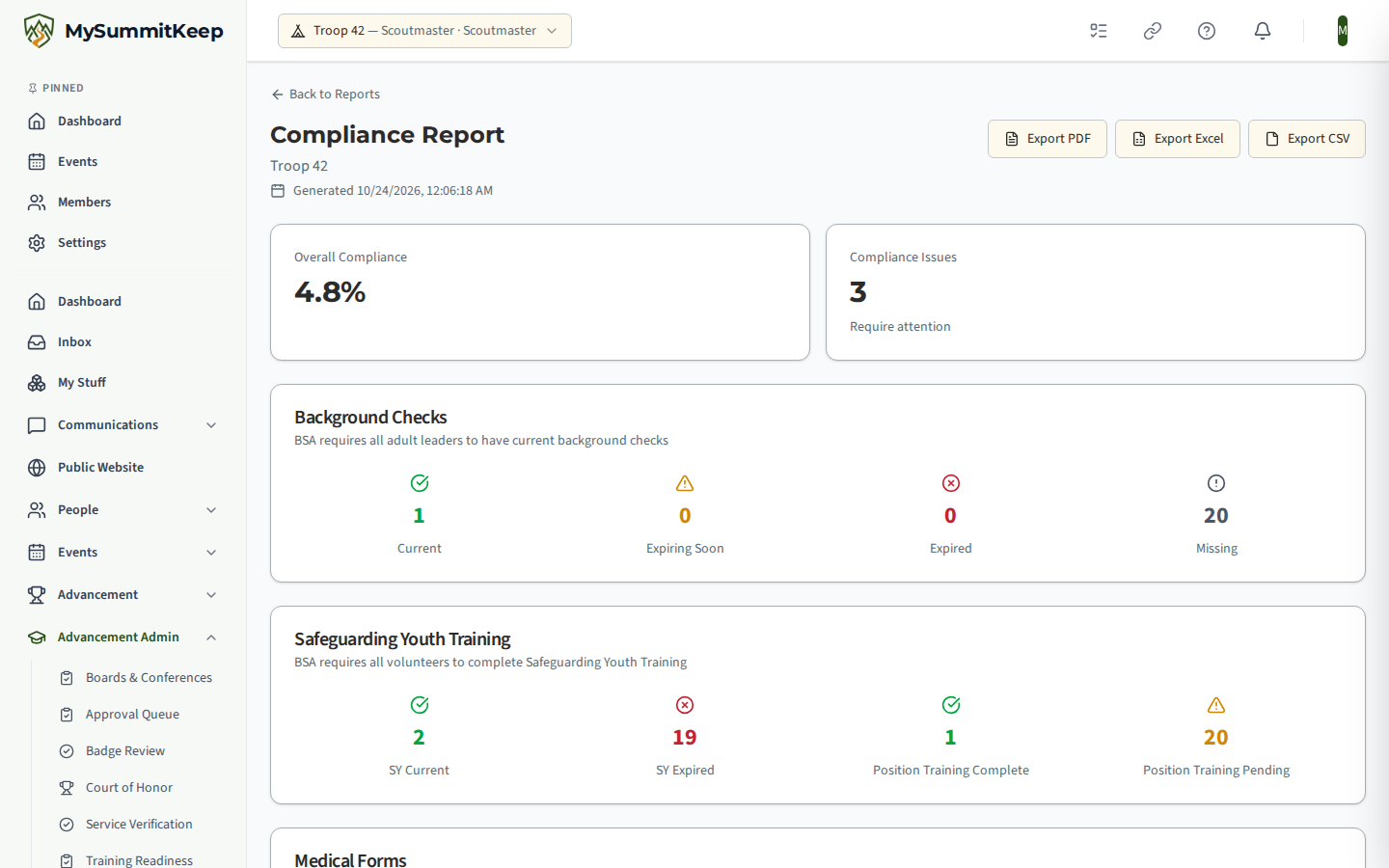
/reports/compliance) — overall compliance score, open compliance issues, background checks, Safeguarding Youth training, medical forms, BSA membership status, and two-deep leadership coverage. Pair this with Health Forms to chase down anything that’s expiring. - Financial (
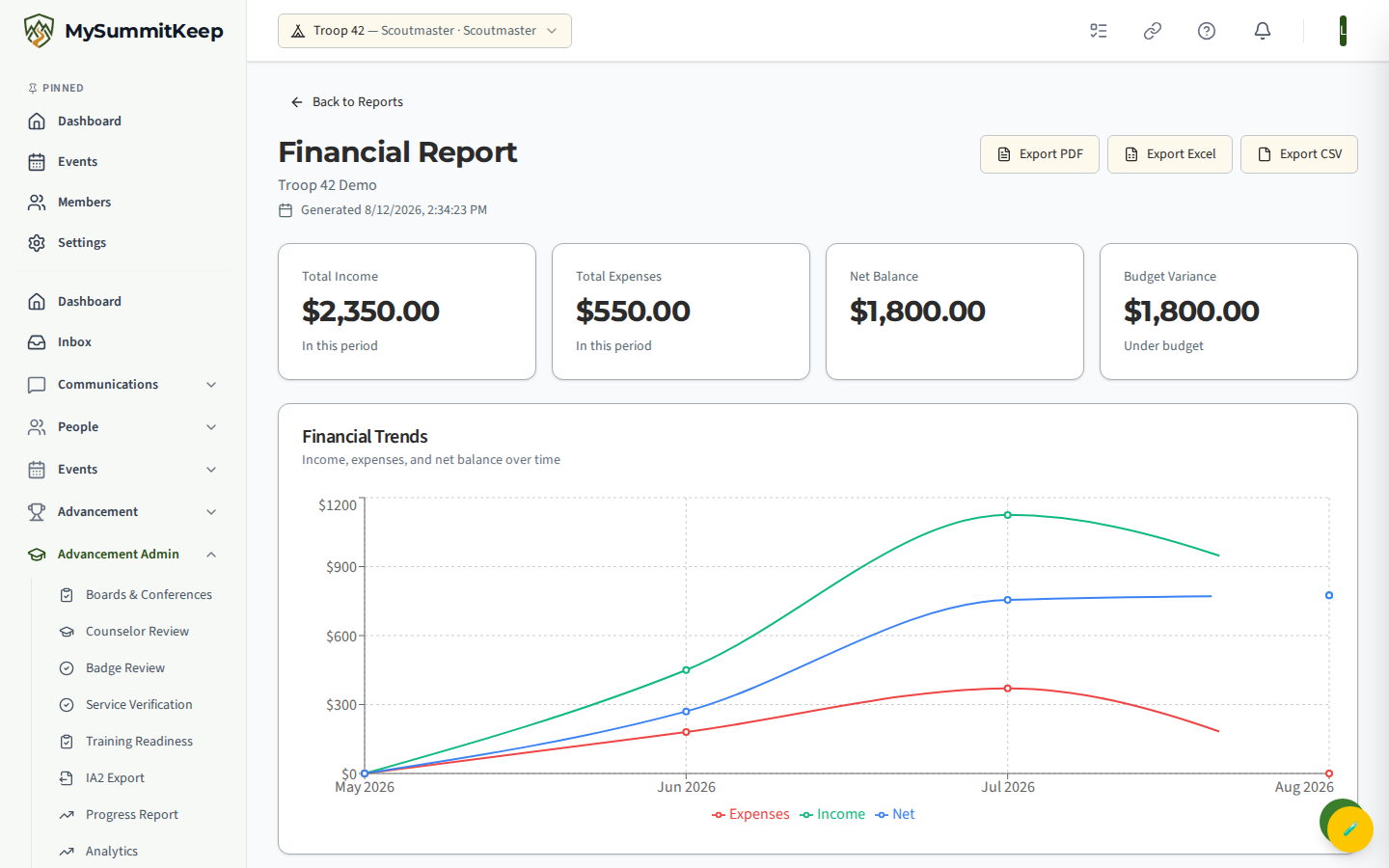
/reports/financial) — total income, total expenses, net balance and budget variance, monthly trend lines, income and expense breakdowns by category, a member-fees summary (collected, outstanding, paid, pending), and tables for event costs and fundraisers. For the underlying transactions, see Finance & Payments.
Exporting (PDF, Excel, CSV)
Section titled “Exporting (PDF, Excel, CSV)”Every built-in report has three buttons in its header: Export PDF, Export Excel and Export CSV. Click one and MySummitKeep generates a downloadable file for that report and date range.
- PDF — a formatted, print-ready copy with the charts, ideal for a committee meeting or recharter packet.
- Excel — the report’s tables as a spreadsheet for further analysis.
- CSV — plain data for importing elsewhere.
Generating on-demand reports and viewing history
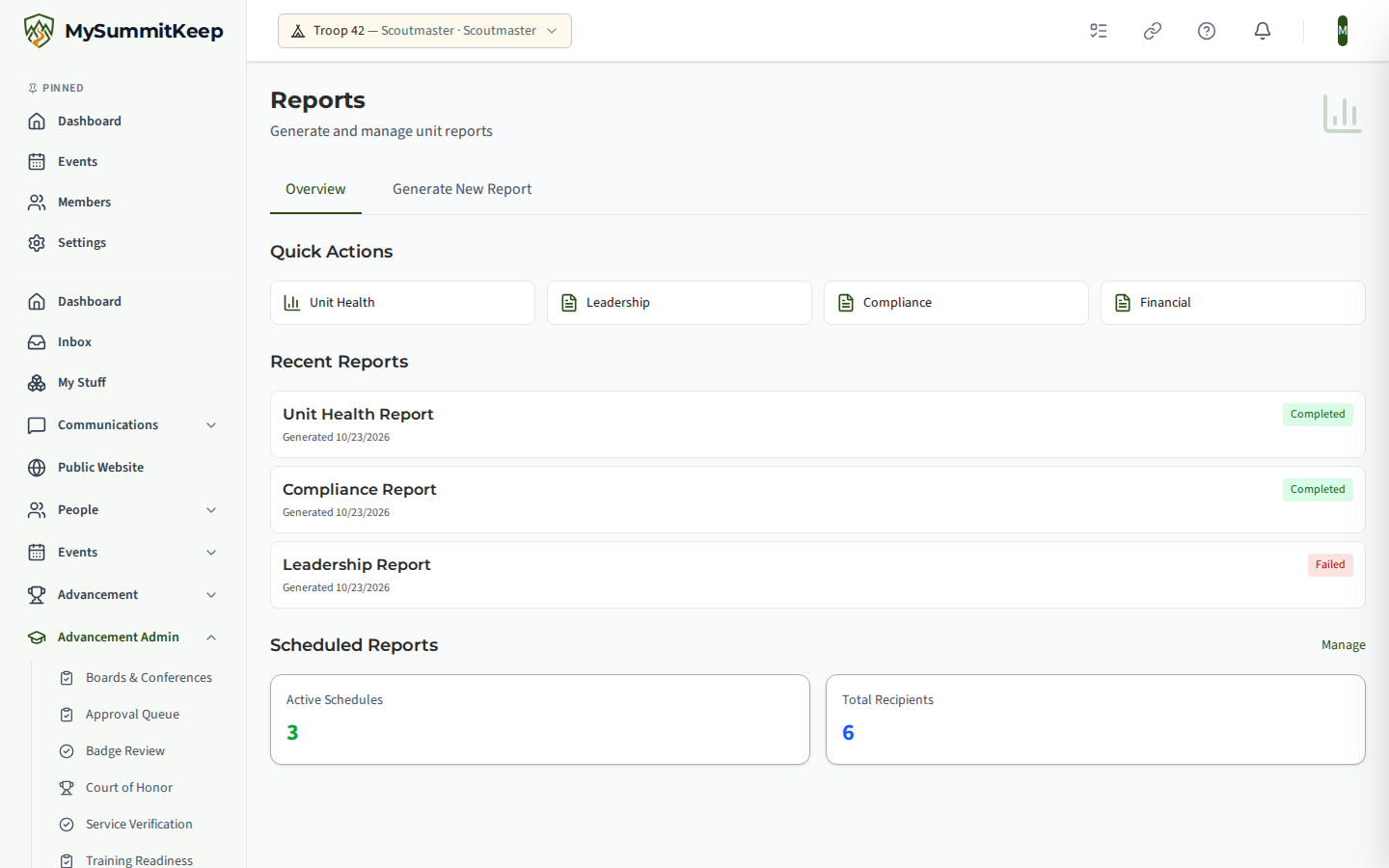
Section titled “Generating on-demand reports and viewing history”The Generate & History tool (/reports/manage) keeps a record of reports you’ve run. It has two tabs:
- Overview — your recent report runs and active schedules, with links to reopen any past report.
- Generate New Report — pick a report type and run it immediately. The finished report opens at
/reports/view/:reportId.
This is the place to look when someone asks “what did the numbers say last month” — the run is saved, not just the live view.
Scheduling recurring report emails
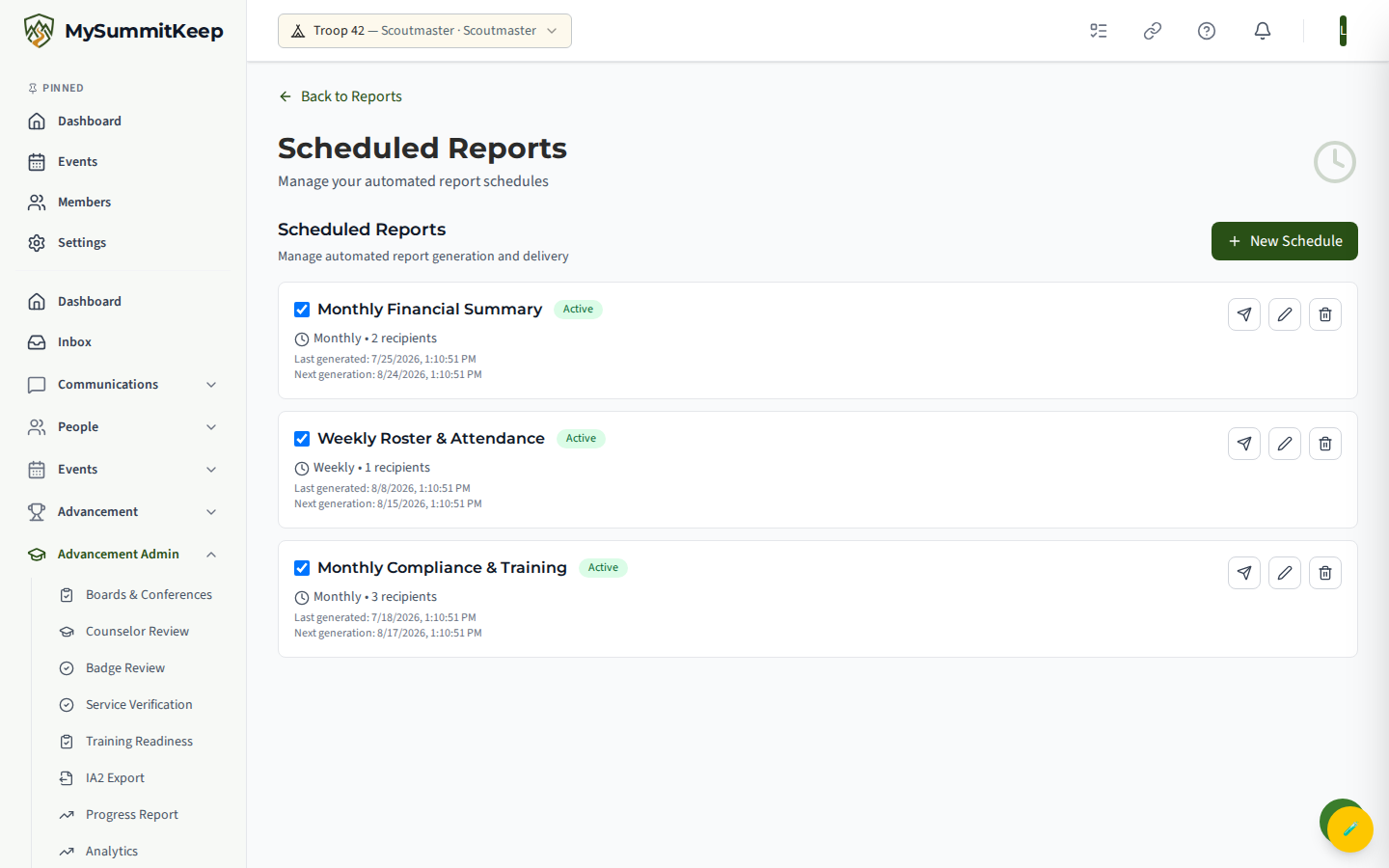
Section titled “Scheduling recurring report emails”To send a report automatically on a cadence, open Scheduled Reports (/reports/scheduled) and choose New Schedule.
On the form, set:
- Name — a label for the schedule, e.g. “Weekly Unit Health”.
- Report Type — Unit Health, Leadership, Compliance, Financial, or Custom Report. If you pick Custom Report, choose one of your saved custom reports from the dropdown (build one first — see below).
- Frequency — Daily, Weekly or Monthly.
- Recipients — one email address per line (commas and semicolons also work).
Back on the list, each schedule can be toggled active/inactive, edited, deleted, or sent right away with Send now to test delivery.
Official reports
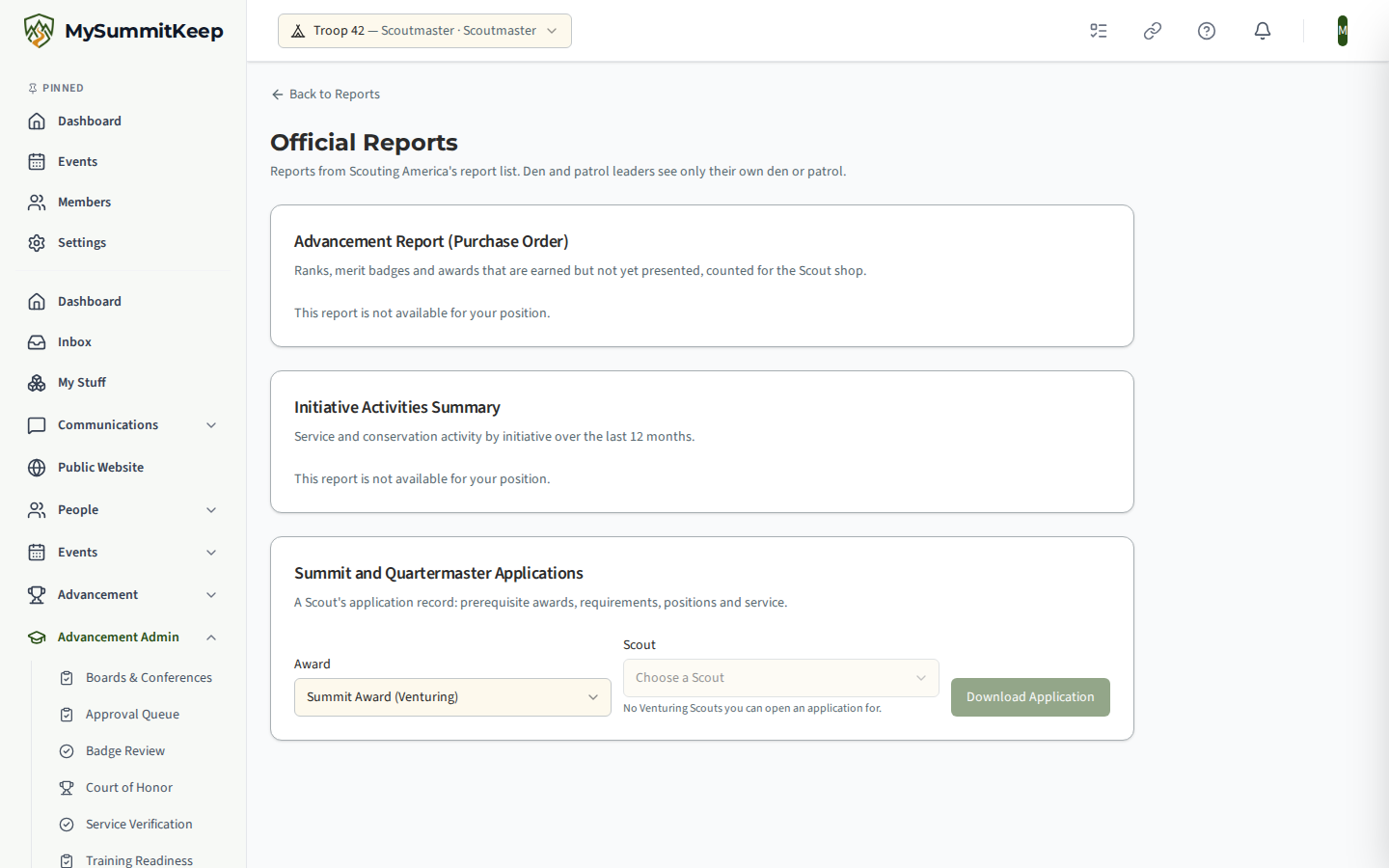
Section titled “Official reports”Official Reports (/reports/official) holds reports from Scouting America’s official report list that the built-in reports don’t cover. Open it from the Official Reports card under Reporting Tools. The page has three sections. Unlike the built-in reports, official reports have no Excel or CSV export: the purchase order and the award applications download as PDF, and the initiative summary is shown on screen.
Advancement Report (Purchase Order)
Section titled “Advancement Report (Purchase Order)”This is your shopping list for the Scout shop. It counts every rank, plus every verified merit badge and award, that has been earned but not yet recorded or presented, grouped by Type and Item with a Quantity for each. Anything already marked presented at a court of honor is left off, and so are Scouts who are no longer active in the unit. If nothing is waiting, the section says Nothing is waiting to be presented.
Choose Download PDF for a printable copy. The PDF lists the item counts first, then each recipient: who the item is for and the date it was earned. To plan the ceremony itself, use the Court of Honor Wizard.
Initiative Activities Summary
Section titled “Initiative Activities Summary”This table totals the unit’s service and conservation activity over the last 12 months, grouped by initiative. For each initiative it shows Activities, Youth, Adults, Service Hours and Conservation Hours, with the busiest initiatives first.
- Service hours logged with a service type (for example Scouting for Food) are grouped under that type. Hours with no type appear as Service (no initiative named).
- Hours recorded on unit events appear as Conservation (unit events) and Service (unit events).
The summary contains counts and hours only, no names. To record or approve the hours behind it, see Recording & Verifying Service Hours.
Summit and Quartermaster Applications
Section titled “Summit and Quartermaster Applications”Pick an Award, either Summit Award (Venturing) or Quartermaster Award (Sea Scouts), then Choose a Scout and select Download Application. The PDF is the Scout’s application record: the prerequisite awards (Venturing, Discovery and Pathfinder for Summit; Apprentice, Ordinary and Able for Quartermaster), the award’s own requirement sign-offs, positions of responsibility, service hours, and anything still open.
The Scout list only shows Scouts whose application you can open for the award you picked: youth in that award’s program (Venturing for Summit, Sea Scouts for Quartermaster), and, for a den or patrol position, only your own den or patrol. Change the award and the list reloads. If nobody qualifies, the page says No Venturing Scouts you can open an application for. (or No Sea Scouts…).
The application is PDF only. If a download is refused, the page shows That report is not available for your position or for this Scout. The PDF file name never includes the Scout’s name.
Who sees what
Section titled “Who sees what”Unit leaders and admins can open the purchase order and the initiative summary. A Summit or Quartermaster application opens for adults with advancement authority over that Scout. The positions on Scouting America’s report access list, such as Council Unit Representative, Key 3 Delegate, COR/CUR Delegate and Unit Support, open the sections that list grants them. A section that a position can’t open says This report is not available for your position.
Den-level and patrol-level positions (Den Leader, Assistant Den Leader, Den Support and Sub-Unit Support) see only the Scouts in their own den or patrol. When the purchase order is limited this way, it says Showing your den or patrol only.
Building a custom report
Section titled “Building a custom report”When the built-in reports don’t have exactly the columns you need, open the Custom Report Builder (/reports/builder) and choose New Custom Report.
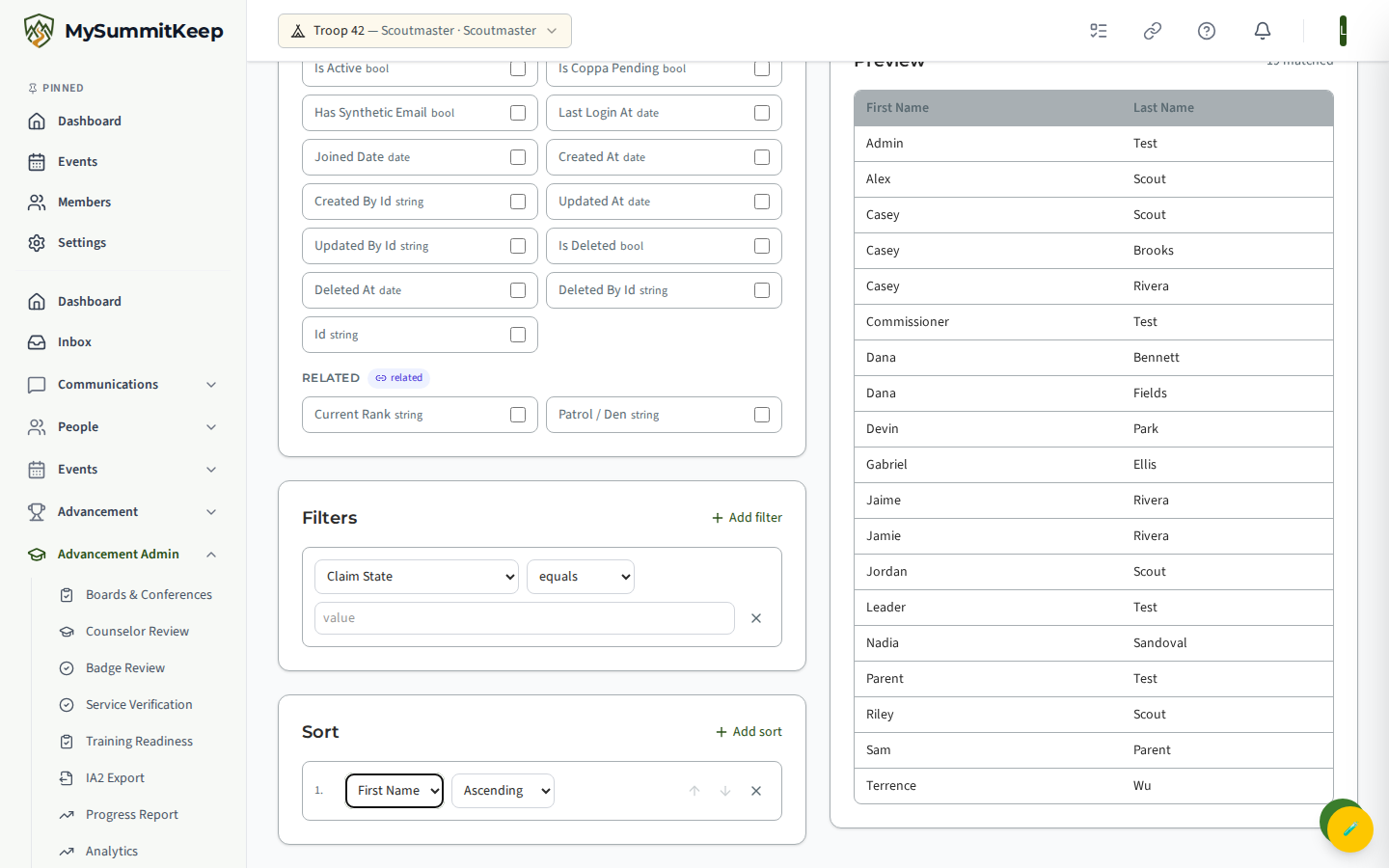
Build a report in four steps:
- Details & Data Source — name the report and pick a data source: Members, Events, Advancement Records, Finances or Equipment. Changing the source clears your field, filter and sort choices.
- Fields — tap the columns to include. A separate Related group offers fields joined in from linked records.
- Filters — add conditions to narrow the rows. Operators include equals, contains, starts with, greater than, less than, between (two values) and is one of (a comma-separated list). With no filters, every record is included.
- Sort — add one or more sort fields, each ascending or descending. The first sort has top priority; use the arrows to reorder.
Use Preview at any time to run the report against your data and see the matching rows and total count in the panel on the right. When it looks right, Save the definition. Saved reports appear in a list where you can Generate (opens the result at /reports/view/:reportId), Edit, or Delete them. Generated and scheduled, a custom report behaves just like the built-in ones.
Unit Health, Leadership and Compliance reports
Section titled “Unit Health, Leadership and Compliance reports”Three built-in reports answer the questions that recur at recharter and in commissioner conversations. Each renders with the unit name, a generated-at line, and PDF/Excel/CSV export.
Unit Health (/reports/unit-health) summarises membership and activity into health metric cards.
Leadership (/reports/leadership) covers who is registered in which role and their training
status — the usual source of a recharter surprise.
Compliance (/reports/compliance) scores the unit overall and then lists the specific issues
behind the score — Youth Protection Training, registration and similar.
Generating a report on demand
Section titled “Generating a report on demand”Reports (/reports/manage) is where a report is generated outside its schedule, alongside a
history of previous runs with their type, date and download link.
Permissions
Section titled “Permissions”- Viewing reports (the dashboard, built-in reports, previews and generating) requires a read reports permission. Reports are restricted to leaders and admins — scouts and parents don’t see them.
- Exporting to PDF/Excel/CSV requires a separate export permission.
- Creating, editing, deleting or sending schedules and custom report definitions requires a leader/admin role.
If a button is missing or a report won’t load, it’s almost always a permissions gap — confirm your role on the unit, or ask a unit admin to grant the right access.
MySummitKeep is an independent product and is not affiliated with, endorsed by, or sponsored by Scouting America (formerly the Boy Scouts of America). Scouting America, Scouts BSA, Cub Scouts, Venturing, Sea Scouts, and the Order of the Arrow are trademarks of Scouting America. Official program content shown in screenshots and examples is © Scouting America; always confirm current requirements atscouting.org. SeeTerms § 7.3.