
Permission Slips
A permission slip is the document a parent or guardian signs to authorize their scout to take part in an activity. MySummitKeep handles slips entirely online — no print, sign, scan, and photograph. Every slip captures an emergency contact, optional medical notes, and a typed digital signature, and is timestamped so a leader can verify your scout is covered.
Find it in the left menu: Events → Permission Slips.
MySummitKeep has two kinds of permission slip, and your unit may use either or both:
- Per-event slips — signed on a specific event you’re registered for. Good for campouts and trips that need details unique to that activity.
- Standing (annual) slips — signed once and valid for about a year, covering your scout across the unit’s activities so you don’t re-sign for every outing.
Per-event permission slips
Section titled “Per-event permission slips”When you RSVP to an event that requires a slip, the event detail page shows a Permission Slip Needed badge with a Sign Now button. Once signed, that badge changes to Permission Slip Signed.
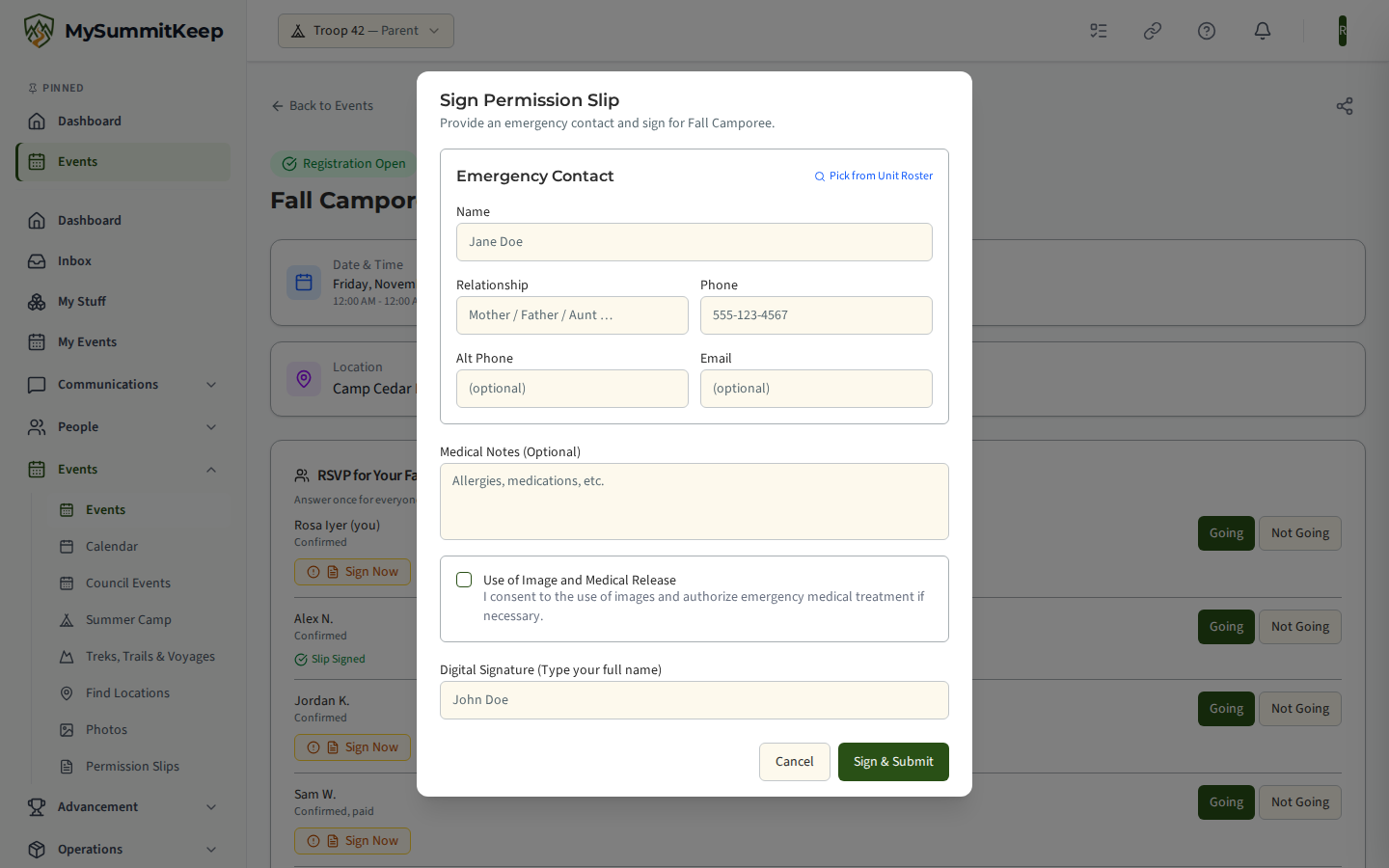
Clicking Sign Now opens the Sign Permission Slip modal for that event:
- Emergency Contact — enter a Name and Phone (both required). Relationship, Alt Phone, and Email are optional. You can also use Pick from Unit Roster to fill the name, phone, and email from someone already in your unit.
- Medical Notes (optional) — note allergies, medications, or conditions a leader should know about for this trip.
- Use of Image and Medical Release — check the box to consent to use of images and to authorize emergency medical treatment if it’s ever needed.
- Digital Signature — type your full name. This is your electronic signature.
- Click Sign & Submit.
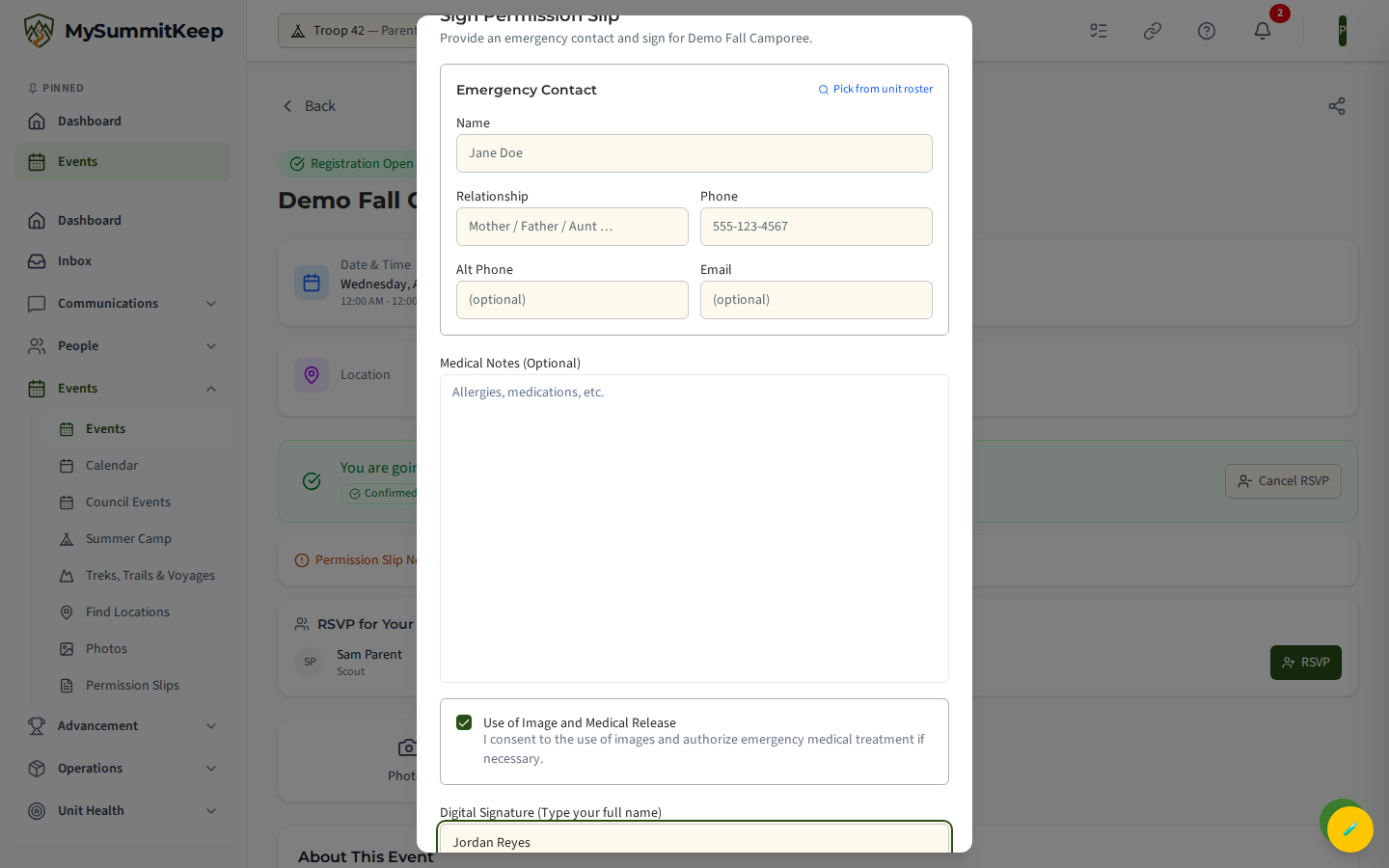
That slip is attached to the event registration. The leaders running the event can see it; nobody outside your unit can. See RSVPing to Events for how registration works.
Standing (annual) permission slips
Section titled “Standing (annual) permission slips”If your unit uses standing slips, you sign once and the slip covers your scout for the unit’s configured validity period (typically 1 year from the date you sign). Standing slips live on the Permission Slips page, under Events → Permission Slips in the left menu (/permission-slips).
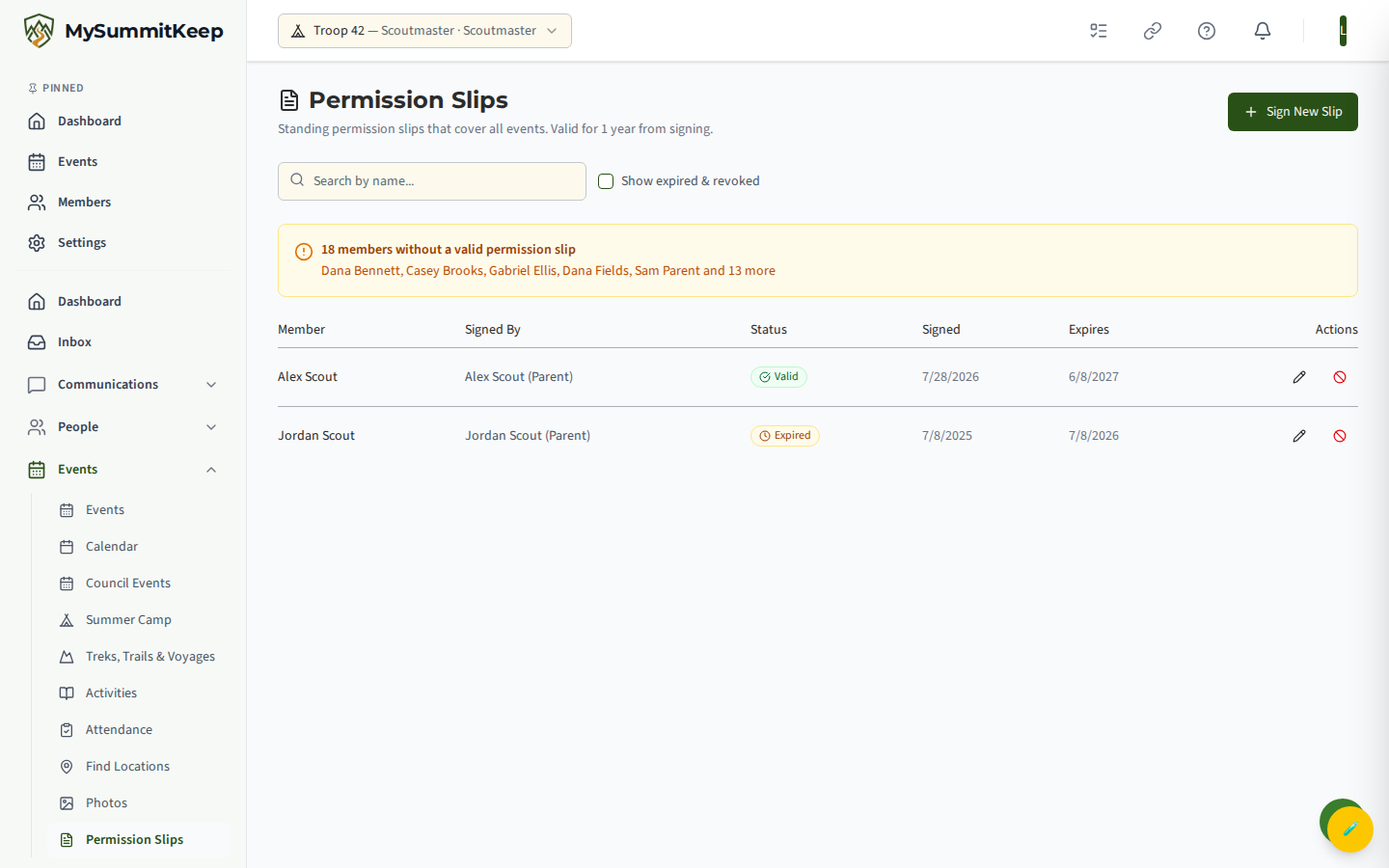
The page lists each slip with its Member, who Signed By it, the Status (Valid, Expired, or Revoked), the Signed date, and the Expires date. By default only active slips show; tick Show expired & revoked to see the full history, and use the search box to find a member by name.
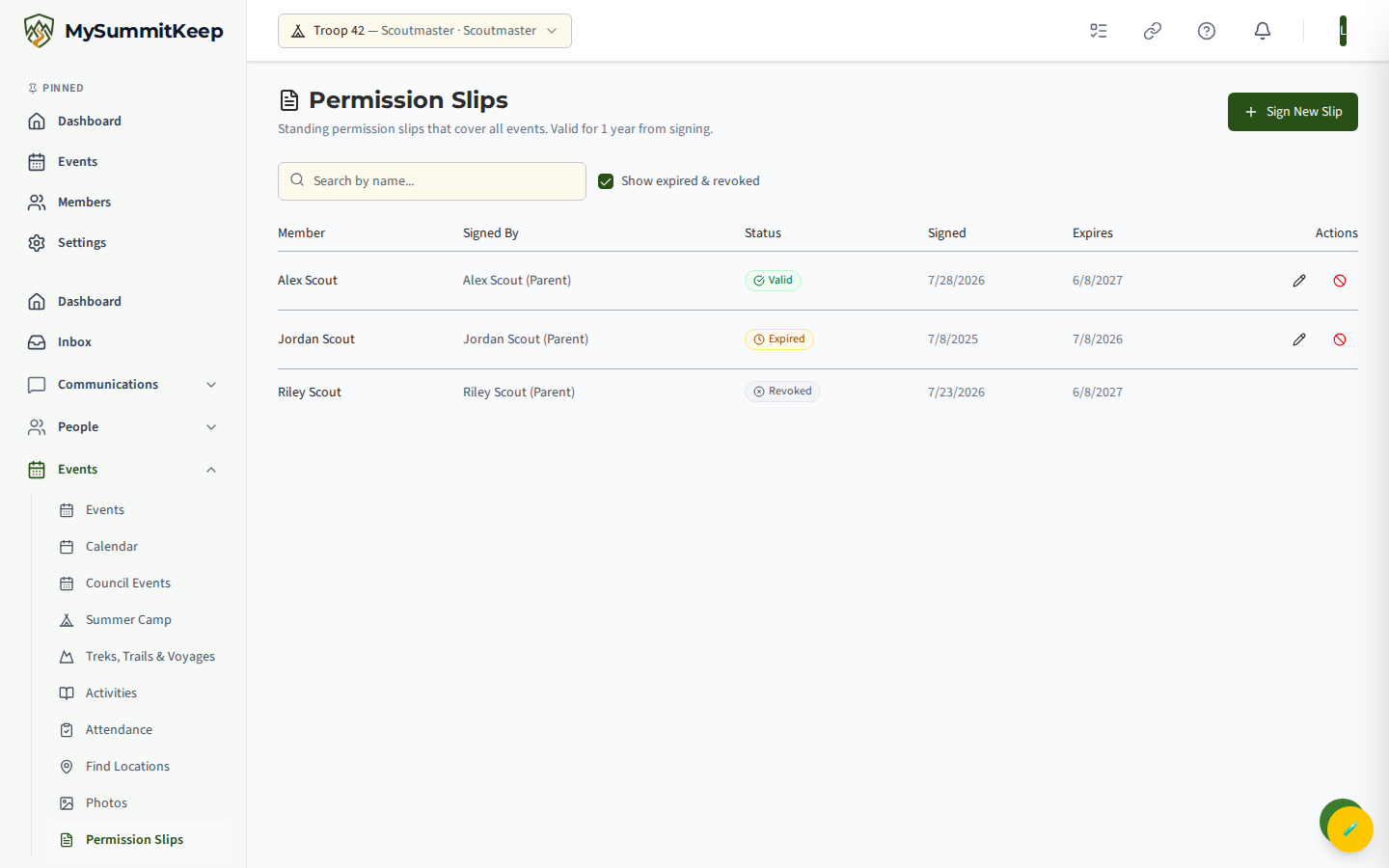
Signing a standing slip
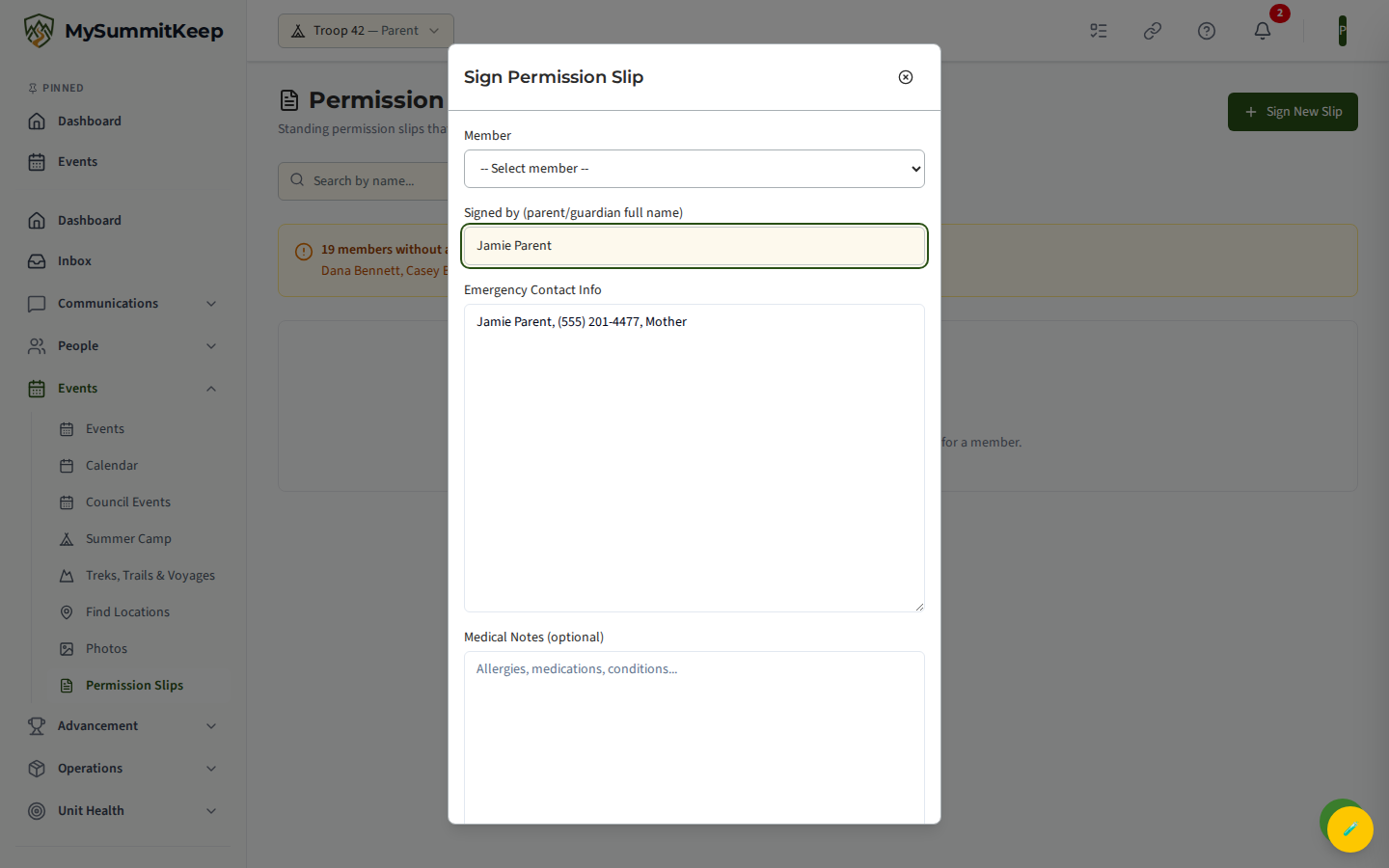
Section titled “Signing a standing slip”Click Sign New Slip to open the signing modal:
- Member — choose the scout the slip is for.
- Signed by — type your full legal name as the parent or guardian.
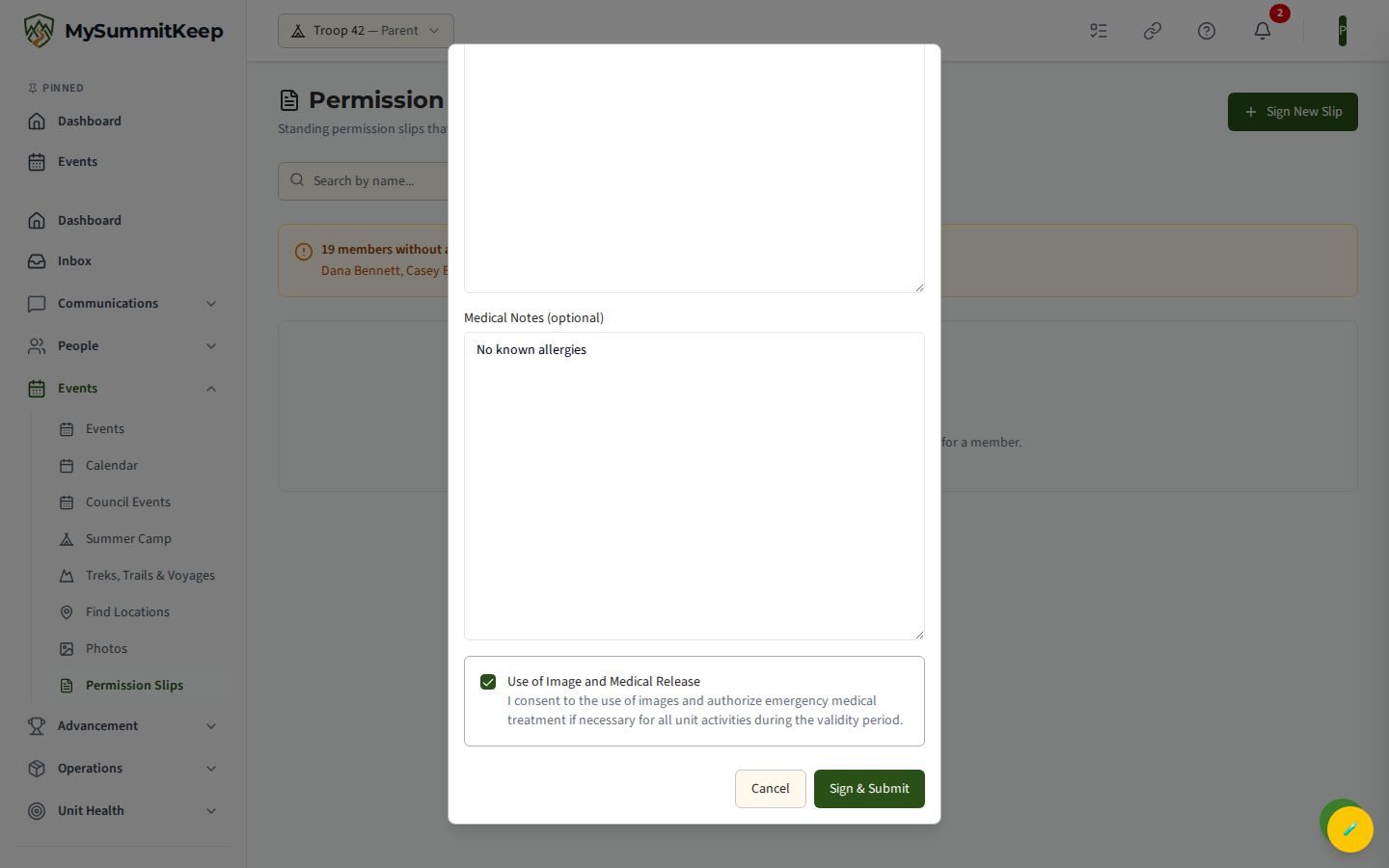
- Emergency Contact Info — enter a name, phone, and relationship.
- Medical Notes (optional) — allergies, medications, conditions.
- Use of Image and Medical Release — check the box (you must consent to sign).
- Click Sign & Submit.
Signing a new slip for a scout who already has one automatically replaces the old slip with the fresh one and its new expiration date.
Amending a slip
Section titled “Amending a slip”If your emergency contact or medical notes change, you don’t have to re-sign. In the register, the pencil (amend) action on the slip opens a short form — update the Emergency Contact Info and/or Medical Notes, enter your name, and click Save Changes. The original signature and expiration date stay in place; the slip records when it was amended and by whom. Because the amend action sits in the leader-only register, ask your leader if you need a standing slip amended.
Revoking a slip
Section titled “Revoking a slip”The Ban (revoke) action deactivates a slip — for example if your scout leaves the unit. The status changes to Revoked and they’ll need a new slip to take part in activities again. Only active slips can be amended or revoked. Like amending, this action lives in the leader register.
The “members without a valid slip” banner
Section titled “The “members without a valid slip” banner”On the leader/admin Permission Slips register, an amber banner lists the members who don’t yet have a valid slip — so leaders can see at a glance who still needs to sign and follow up. (This banner is part of the leader-only register, so parents don’t see it.) Each member drops off the list as their slip is signed.
Everything assigned to you
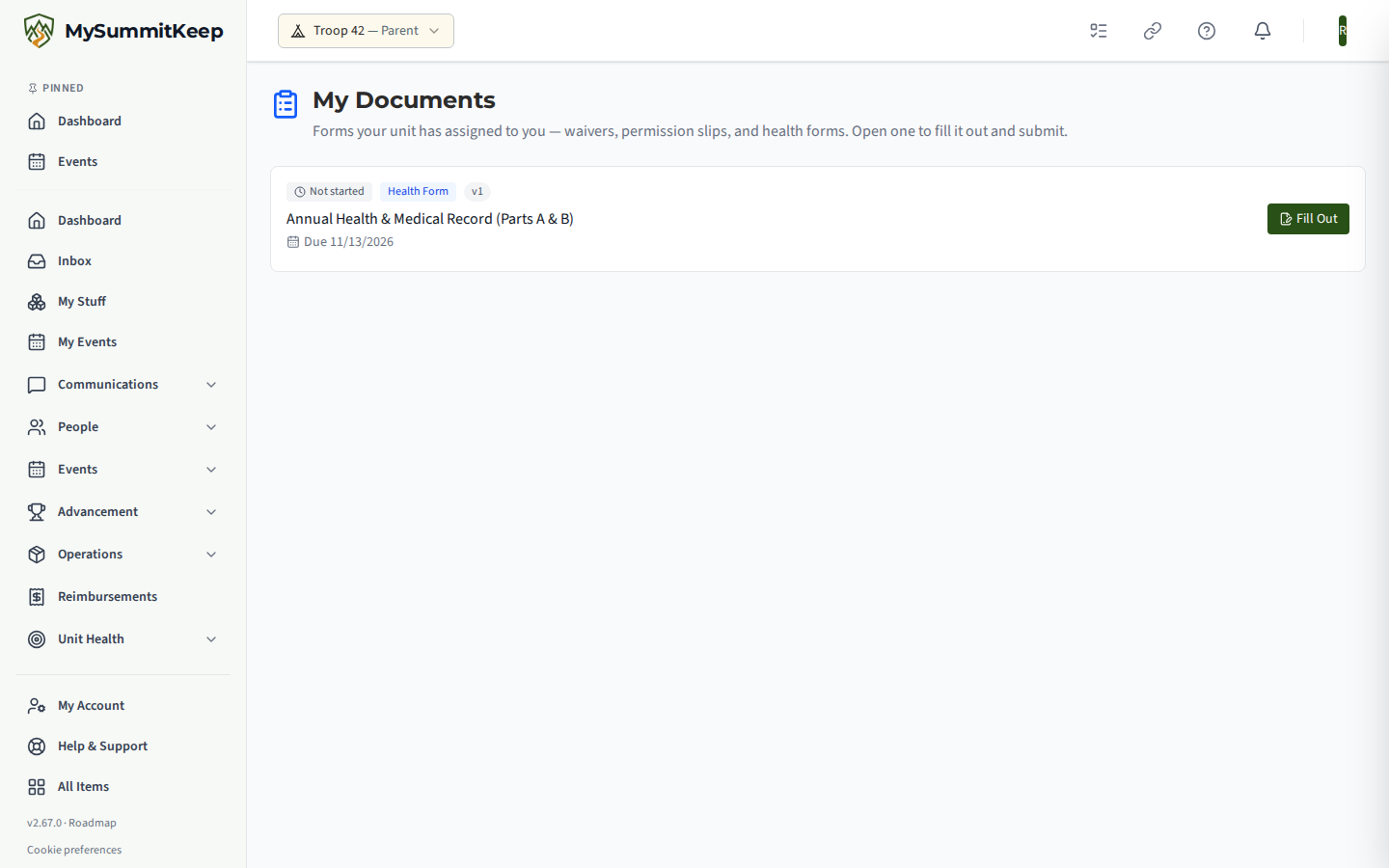
Section titled “Everything assigned to you”My Documents (/documents/assignments) is the single list of forms assigned to you or your
Scouts that still need completing or signing, each showing what it is and where it stands. Check it
before a trip rather than hunting back through email.
What if I can’t sign in time
Section titled “What if I can’t sign in time”For per-event slips, sign from the event detail page as soon as you see the Permission Slip Needed badge. If a slip is required and you genuinely can’t sign before the activity, contact your leader directly — see Communications from Leaders. A standing slip, once signed, removes that last-minute scramble entirely.
Need help? Contact support — we usually respond within 1 business day.
MySummitKeep is an independent product and is not affiliated with, endorsed by, or sponsored by Scouting America (formerly the Boy Scouts of America). Scouting America, Scouts BSA, Cub Scouts, Venturing, Sea Scouts, and the Order of the Arrow are trademarks of Scouting America. Official program content shown in screenshots and examples is © Scouting America; always confirm current requirements atscouting.org. SeeTerms § 7.3.