
Account Security
Your account holds personal information about your family — your scout’s birthdate, your address, your contact details, and any records leaders have attached. A few minutes of setup goes a long way. This page covers how sign-in works, how to turn on two-factor authentication, how to recover a locked account, and the privacy controls you own.
How sign-in works
Section titled “How sign-in works”MySummitKeep does not store your password. Sign-in is handled by Microsoft Entra — the same identity service that secures Microsoft 365. When you sign in, Microsoft verifies you and tells the platform “this is a real person, here is their identifier.” The platform never sees or keeps your password.
This means:
- Your password reset goes through Microsoft, not MySummitKeep.
- Your second factor (authenticator app, etc.) is enrolled in Microsoft, not stored here.
- If your Microsoft sign-in is compromised, you resolve that with Microsoft directly — then sign back in to MySummitKeep.
Turn on two-factor authentication
Section titled “Turn on two-factor authentication”Two-factor authentication (also called MFA or 2FA) asks for a second proof of identity at sign-in — usually a tap or a code from an authenticator app. It is the single biggest improvement you can make to your account security.
In MySummitKeep, two-factor is an in-app preference you set on your own profile. Go to Settings → Profile (/settings/profile) and scroll to the bottom. Under Two-Factor Authentication, flip the toggle labeled Require a second factor when signing in.
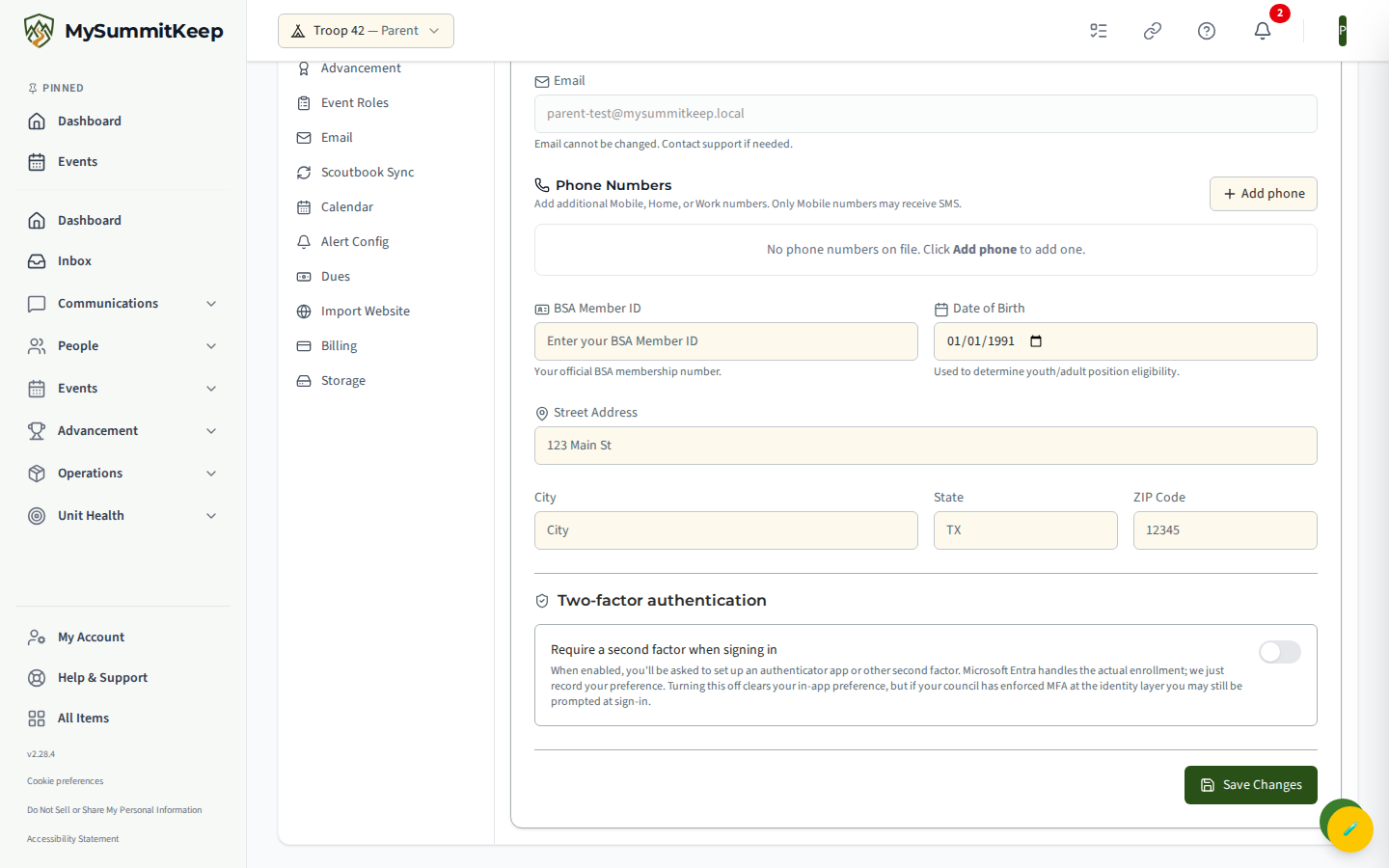
When you turn the toggle on, the platform saves your preference and opens a new browser tab that drops you straight into Microsoft Entra’s enrollment flow. Follow Microsoft’s prompts to register an authenticator method (the Microsoft Authenticator app is the smoothest option). From then on, sign-in asks for both your usual credential and the second factor.
Turning the toggle off clears your in-app preference. If your council or organization has enforced MFA at the identity layer, you may still be prompted for a second factor at sign-in even with the toggle off — that enforcement lives in Microsoft, outside your personal preference.
Recover a locked account
Section titled “Recover a locked account”Because Microsoft owns the credential, recovery starts with Microsoft. There is no separate recovery panel inside MySummitKeep.
- Forgot password — From the sign-in screen, choose Microsoft’s “Forgot password” link. Microsoft sends a reset to the email on your account.
- Lost your second-factor device — Microsoft has a recovery flow that verifies your identity. This can take time, so register a backup method (a second device or phone number) when you first enroll.
- Locked out entirely — Contact support. We can verify your identity through your unit and help re-issue an account invitation so you can sign back in.
Privacy Controls
Section titled “Privacy Controls”You decide how much of your contact information other families in your unit can see. Go to Settings → Privacy (/settings/privacy). The page is three simple visibility toggles:
- Profile Photo — show your profile photo to other unit members.
- Phone Number — show your phone number to other unit members.
- Email Address — show your email address to other unit members.
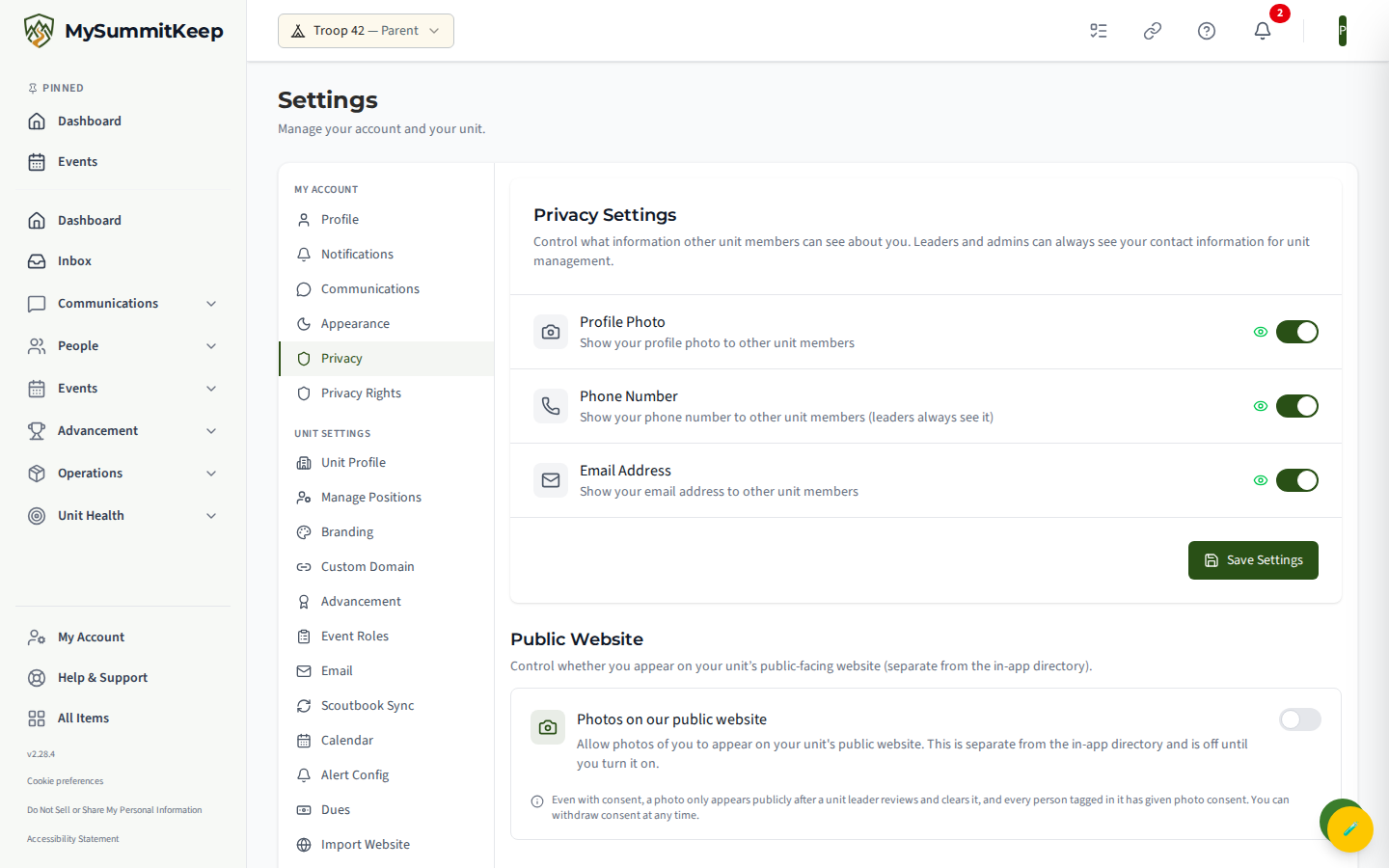
Flip the toggles you want and click Save Settings.
Exercise your privacy rights
Section titled “Exercise your privacy rights”MySummitKeep gives adults a self-service way to act on the data-privacy rights granted by laws such as CCPA, FDBR, VCDPA, CPA, and CTDPA. Go to Settings → Privacy Rights (/settings/privacy-rights) — the page is headed My Privacy Rights — to see your requests and lodge a new one.
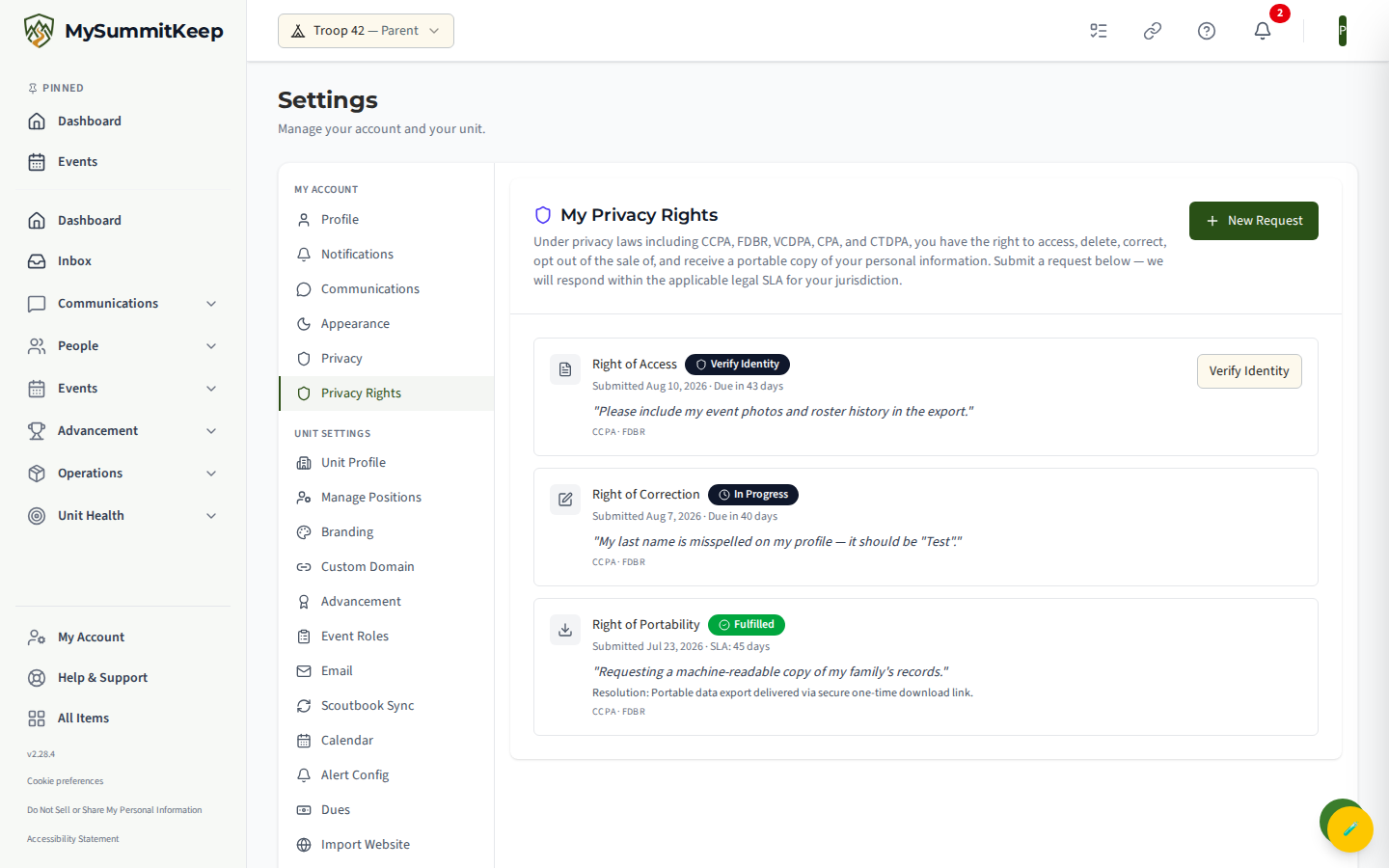
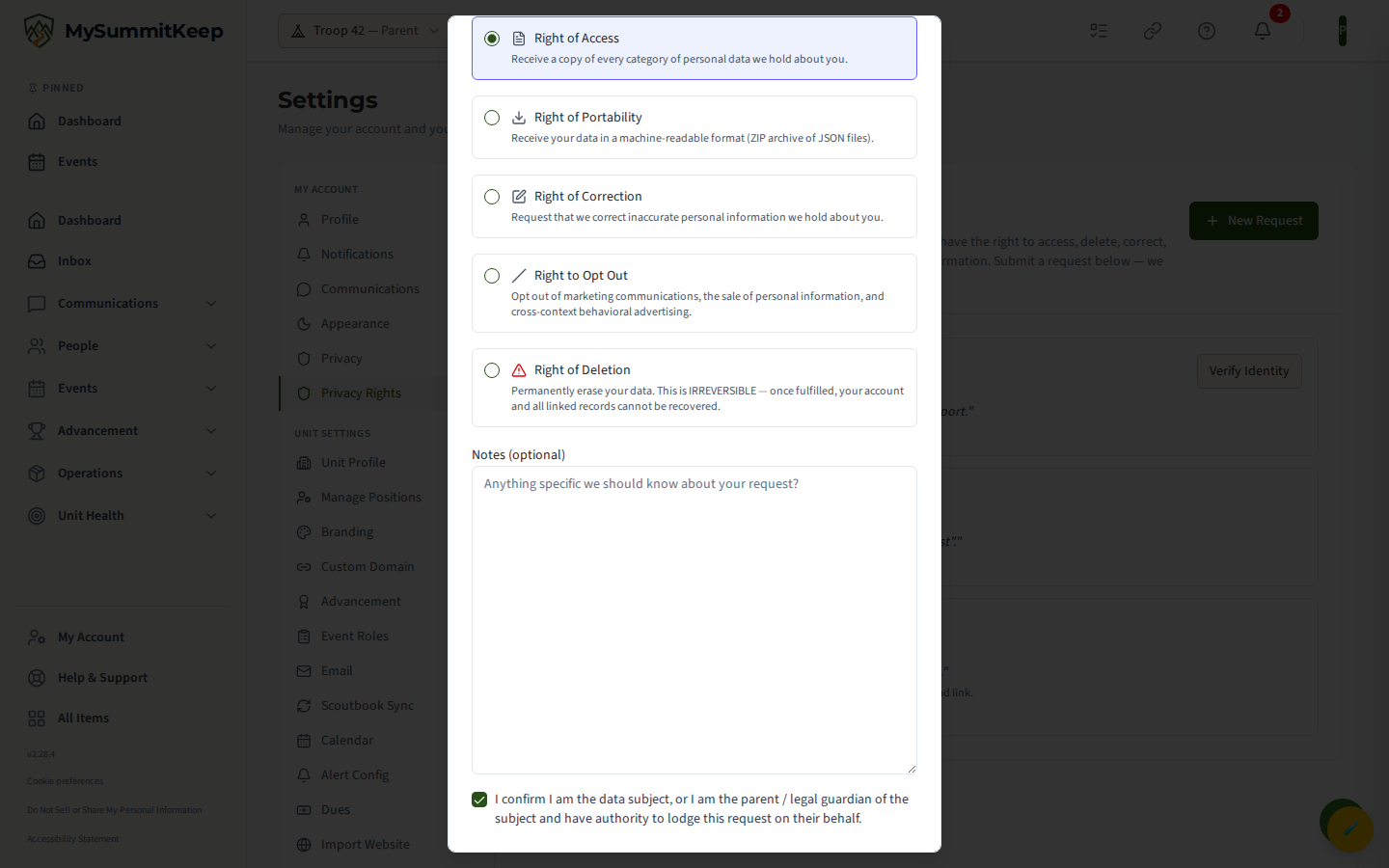
Click New Request to open the submit dialog. Choose the right you want to exercise:
- Right of Access — receive a copy of every category of personal data on file about you.
- Right of Portability — receive your data in a machine-readable format (a ZIP archive of JSON files).
- Right of Correction — ask us to fix inaccurate personal information.
- Right to Opt Out — opt out of marketing, the sale of personal information, and cross-context behavioral advertising.
- Right of Deletion — permanently erase your data. This one is irreversible: once fulfilled, your account and linked records cannot be recovered.
You must check the box confirming you are the data subject (or the parent/legal guardian acting on their behalf) before you can submit.
After you submit, each request is tracked on the page with a status (Submitted, Verify Identity, In Progress, Fulfilled, Rejected, or Expired) and an SLA deadline showing how many days remain. Sensitive requests — Access, Portability, and Deletion — first land in Verify Identity: click Verify Identity on the request to clear the identity check before processing begins. We respond within the legal SLA for your applicable jurisdiction.
Good habits
Section titled “Good habits”- Don’t share your sign-in. If your spouse needs access, link them to the household instead — see Household Linking. They get their own login and the history stays clean.
- Sign out on shared computers. Library, school, or work machines — sign out fully, don’t just close the tab.
- Verify unexpected emails. If a message says “confirm your account,” go directly to the MySummitKeep sign-in URL rather than clicking the link.
Need help? Contact support — we usually respond within one business day.
MySummitKeep is an independent product and is not affiliated with, endorsed by, or sponsored by Scouting America (formerly the Boy Scouts of America). Scouting America, Scouts BSA, Cub Scouts, Venturing, Sea Scouts, and the Order of the Arrow are trademarks of Scouting America. Official program content shown in screenshots and examples is © Scouting America; always confirm current requirements atscouting.org. SeeTerms § 7.3.