
Reviewing Commissioner Access Requests
When a volunteer wants to serve as a commissioner over one or more units, a district, or a whole council, they submit an access request instead of being granted the role silently. Those requests land in a review queue where an approver can confirm the role or turn it down with a reason. This keeps commissioner authority deliberate and auditable rather than self-service.
Find the queue under Commissioner → Commissioner Dashboard, then the Applications tab (/commissioner/applications).
How a request is submitted
Section titled “How a request is submitted”A prospective commissioner starts the process by requesting access to the units, district, or council they want to serve. Behind the scenes this is a single submission that carries:
- The units they are asking to oversee (one or more).
- An optional district or council scope, when the request is broader than individual units.
- The commissioner role they are requesting (for example a Unit Commissioner, Assistant District Commissioner, or District Commissioner level).
- Optional notes explaining who they are and why they are asking.
Nothing changes about that person’s access at this point — the request simply enters the queue as Pending and waits for a reviewer. The requester is not granted any commissioner permissions until someone approves the request.
The review queue and statuses
Section titled “The review queue and statuses”The Commissioner Applications page lists requests so you can act on them. By default it opens to the Pending filter; switch to All to also see requests that have already been decided.
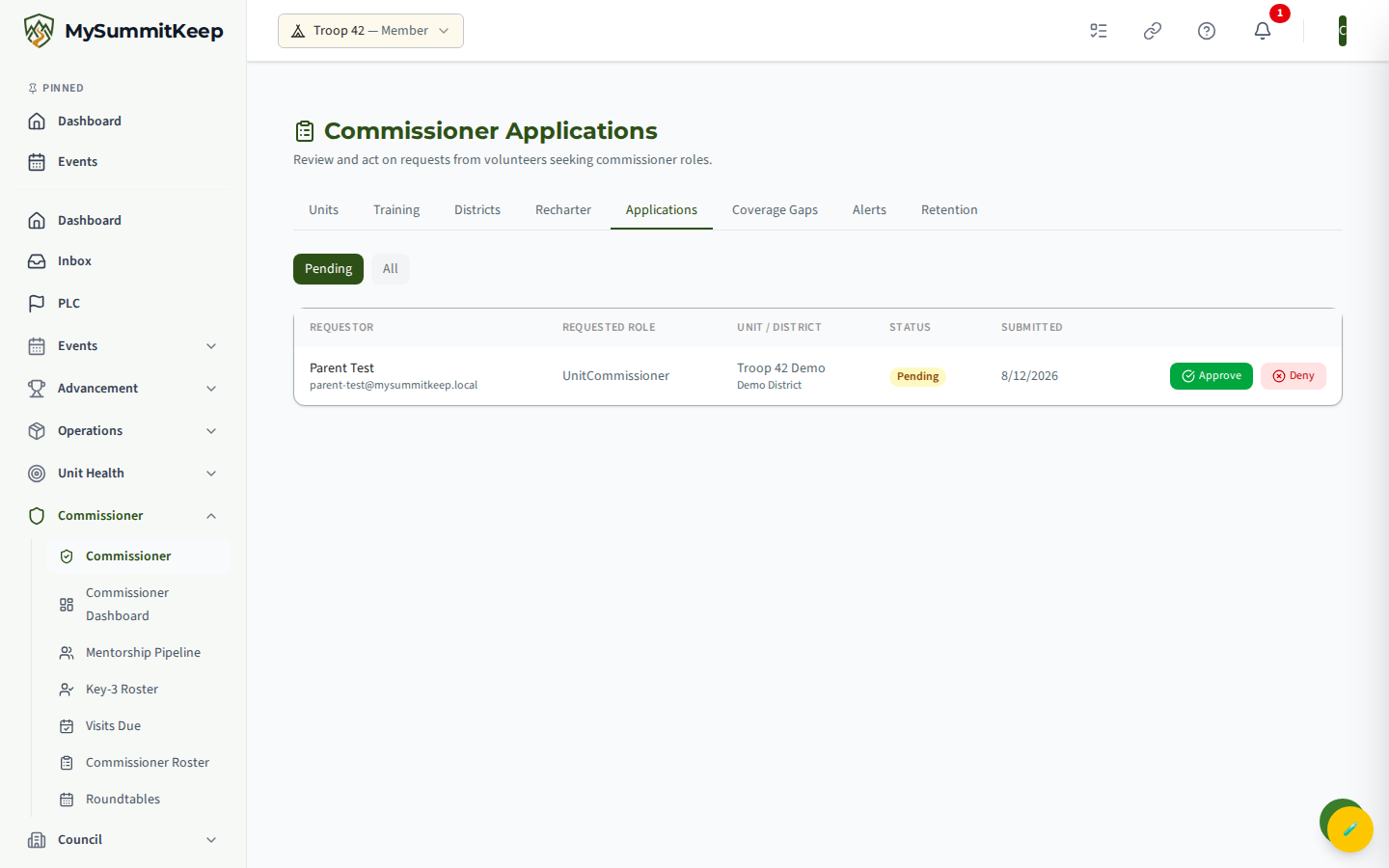
Each row shows:
- Requestor — the volunteer’s name, with their email shown underneath as a contact detail.
- Requested Role — the commissioner role they asked for.
- Unit / District — the unit they want to serve, with the district or council shown below it for context.
- Status — a colored badge: Pending (yellow, awaiting a decision), Approved (green), or Denied (red). A denied row also shows the reason that was given, if any.
- Submitted — the date the request came in.
Every request carries exactly one of three statuses:
| Status | Meaning |
|---|---|
| Pending | Submitted and waiting for a reviewer. Approve and Deny actions appear on these rows. |
| Approved | Granted. The requester now holds the commissioner role they asked for. |
| Denied | Turned down. No role is granted; an optional reason is recorded on the request. |
Approving a request
Section titled “Approving a request”To grant the request, click Approve on the Pending row. The decision is applied immediately — the requester receives the commissioner role they asked for, and the row’s status badge flips to Approved. There is no extra confirmation step for an approval, so make sure you have the right row before clicking.
Denying with a reason
Section titled “Denying with a reason”Click Deny on a Pending row to open the Deny Application dialog. This is where you can record why the request is being turned down.
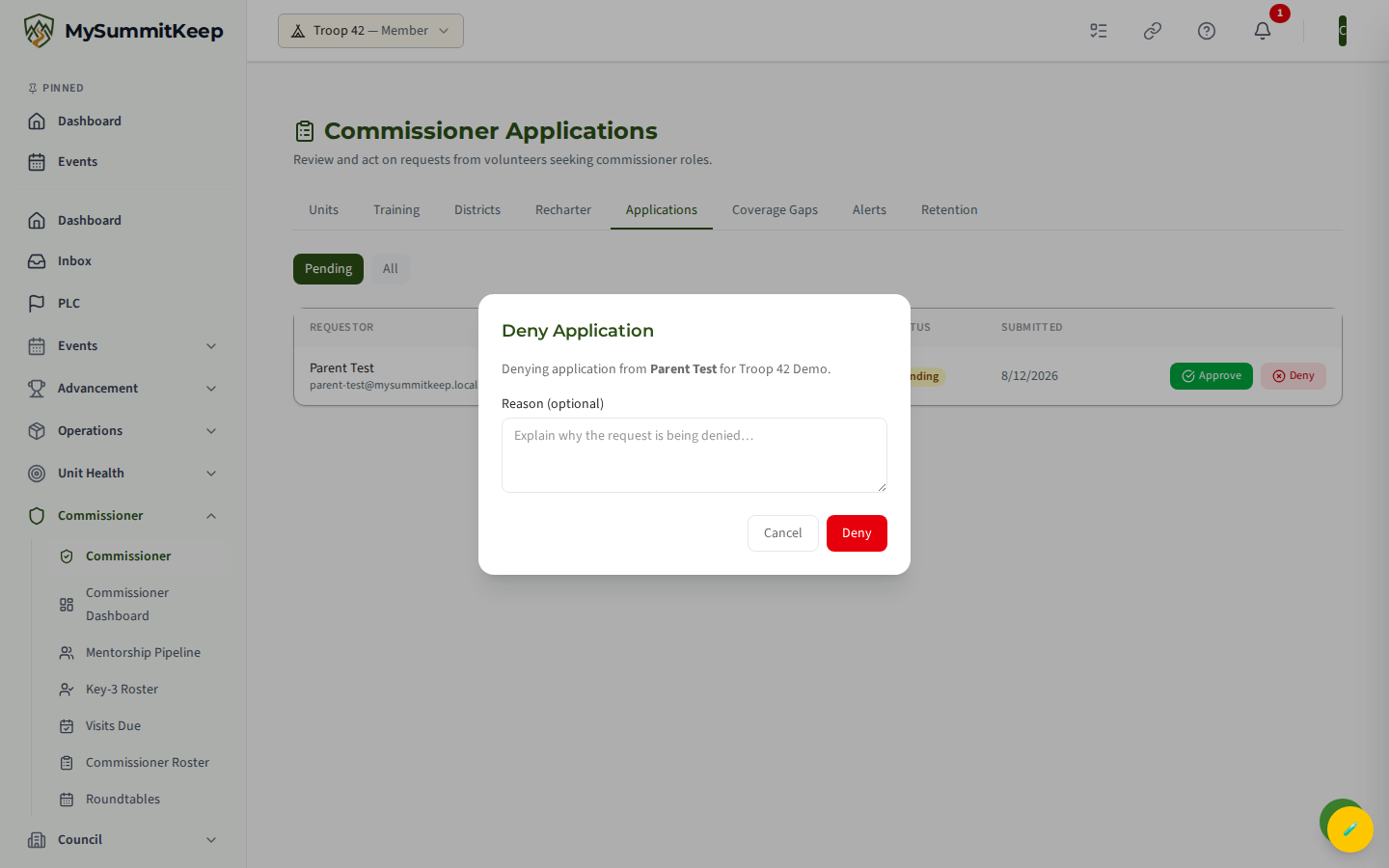
The dialog confirms whose request you are denying and offers a Reason (optional) box. Type a short explanation — for example, that the volunteer first needs to complete a training, or that the unit is already fully covered — then click Deny to finish. You can also click Cancel to back out without changing anything.
The reason is optional, but it is worth writing one: the text is saved with the request and shown on the denied row, so the next person who looks at the queue understands the decision without having to ask.
Who can review
Section titled “Who can review”Submitting a request is open to any signed-in user, but reviewing requests is restricted. The Applications page is gated to people with an active commissioner role, and the approve/deny actions themselves require platform-level administrator authority. If you open /commissioner/applications without a commissioner role, you will see a Commissioner access required message instead of the queue — that is expected, not an error. In that case, contact your District or Council Commissioner.
Once a request is approved, the new commissioner can start using the rest of the commissioner tools — see the Commissioner Dashboard for an overview, and Add Unit Commissioners for assigning approved commissioners to specific units.
MySummitKeep is an independent product and is not affiliated with, endorsed by, or sponsored by Scouting America (formerly the Boy Scouts of America). Scouting America, Scouts BSA, Cub Scouts, Venturing, Sea Scouts, and the Order of the Arrow are trademarks of Scouting America. Official program content shown in screenshots and examples is © Scouting America; always confirm current requirements atscouting.org. SeeTerms § 7.3.