
Events: Browsing & RSVP
Your unit’s campouts, hikes, service projects, meetings, and courts of honor all live on the Events page. As a Scout you use Events to see what’s coming up, read the details of any activity, and RSVP — tell your leaders you’re coming. You take part in events; leaders and youth leaders are the ones who create and run them, so you won’t see “Create Event” buttons, and that’s exactly how it should be. This page walks you through browsing, RSVPing, checking the details, and the calendar.
Find it in the left menu: Events → Events.
Browsing the events list
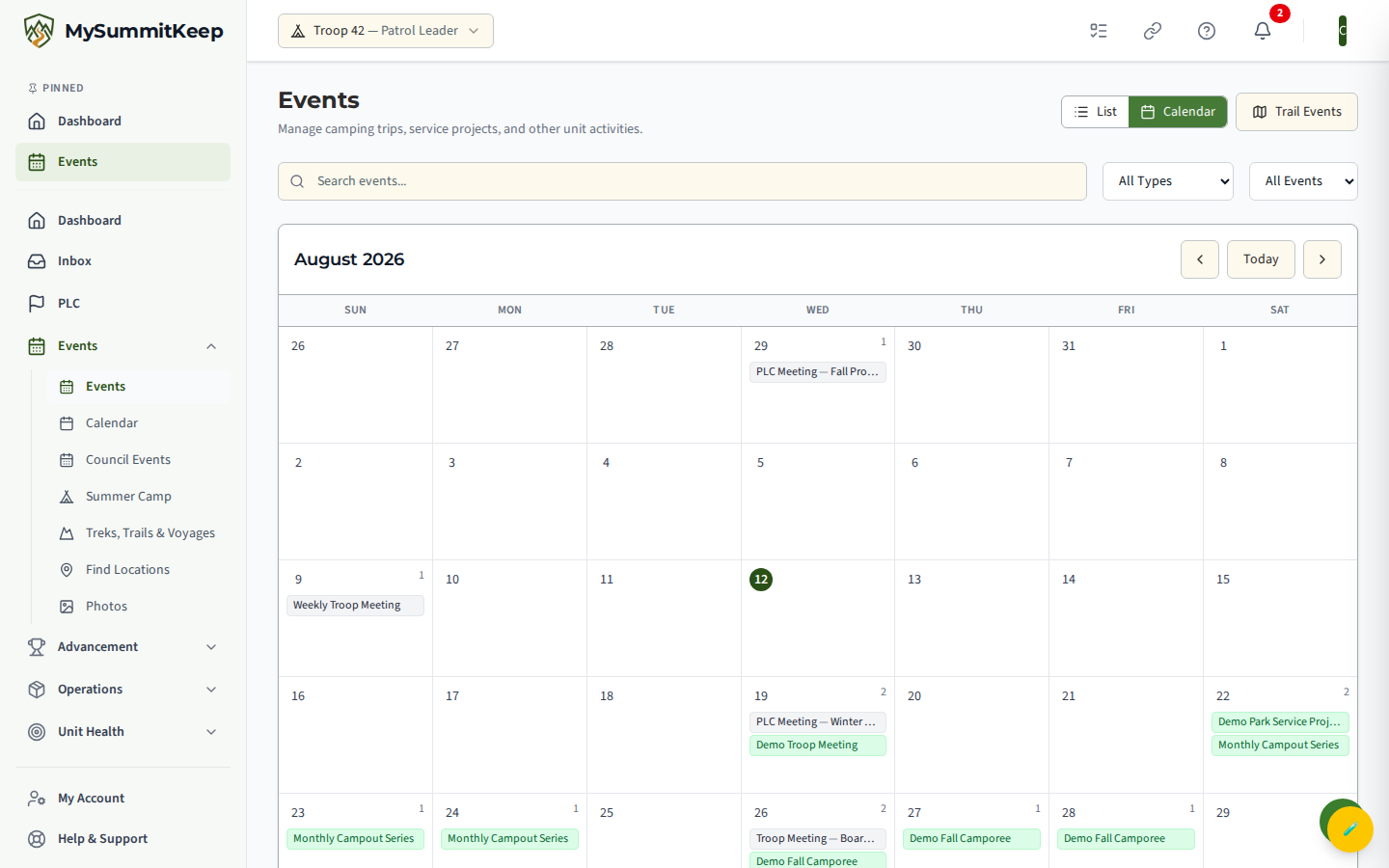
Section titled “Browsing the events list”Open Events from the sidebar (/events). You land on a calendar by default, but the toolbar in the top-right has a List / Calendar switch — tap List to see your unit’s events as cards instead.
Each event card shows:
- The date across the top, plus an end date if it runs more than one day.
- The title of the event.
- A type badge — Campout, Hike, Service Project, Meeting, Court of Honor, and so on — and a status badge like Upcoming or Completed.
- How many people have signed up so far — a green Youth count and an amber Adults count.
Use the Search events… box to find an event by name, and the two dropdowns to filter by type or status. Tap any card to open that event’s full details.
Opening an event and RSVPing as a participant
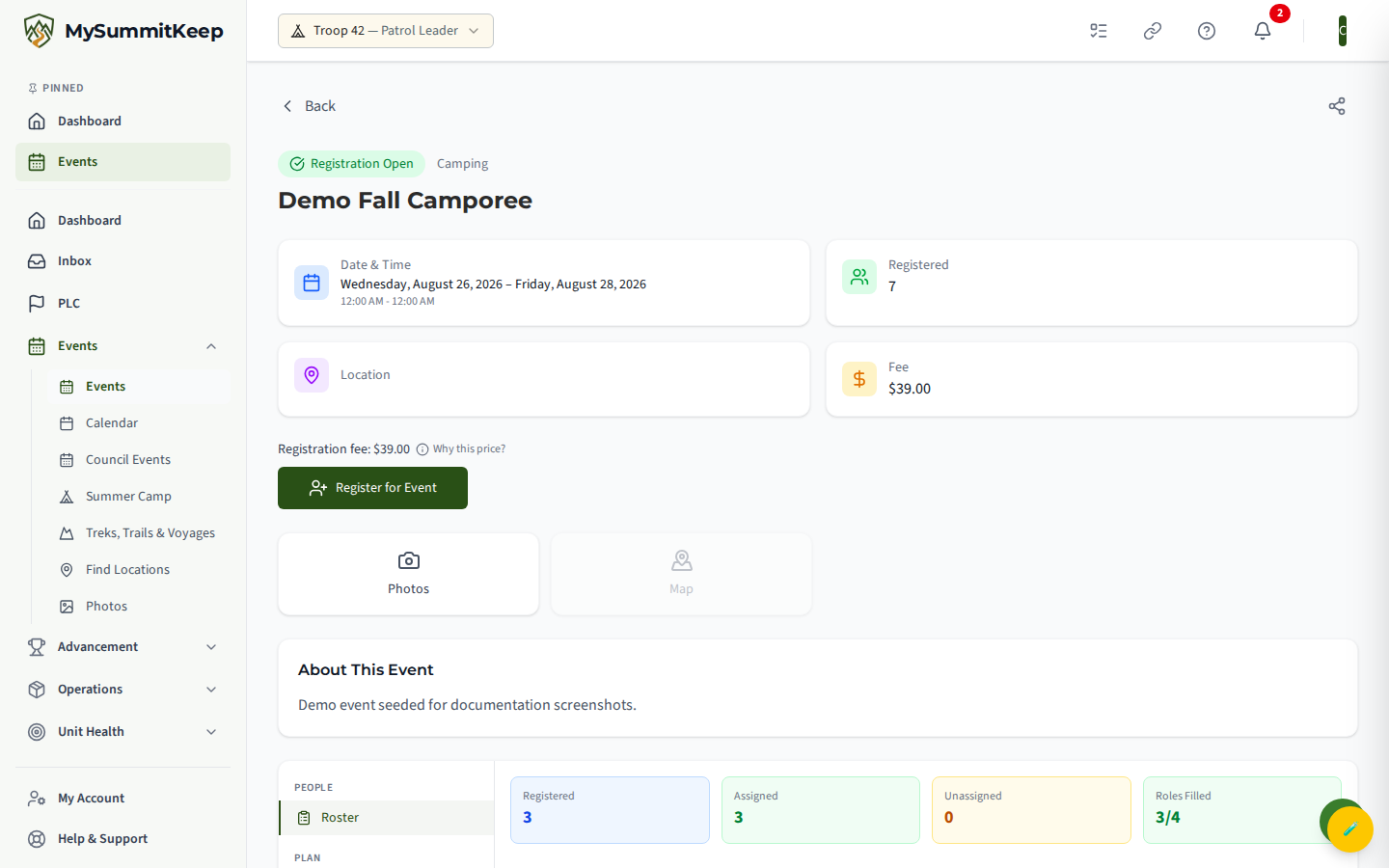
Section titled “Opening an event and RSVPing as a participant”Tap an event card to open its detail page. Near the top you’ll see quick tiles for the date and time, the number Registered, the Location, and the Fee (or “Free”). Below those tiles is your RSVP section.
If you haven’t signed up yet, you’ll see a big Register for Event button. If the event has a registration fee, the amount shows just above the button. Tap Register for Event to RSVP — a “Registered!” message confirms you’re in.
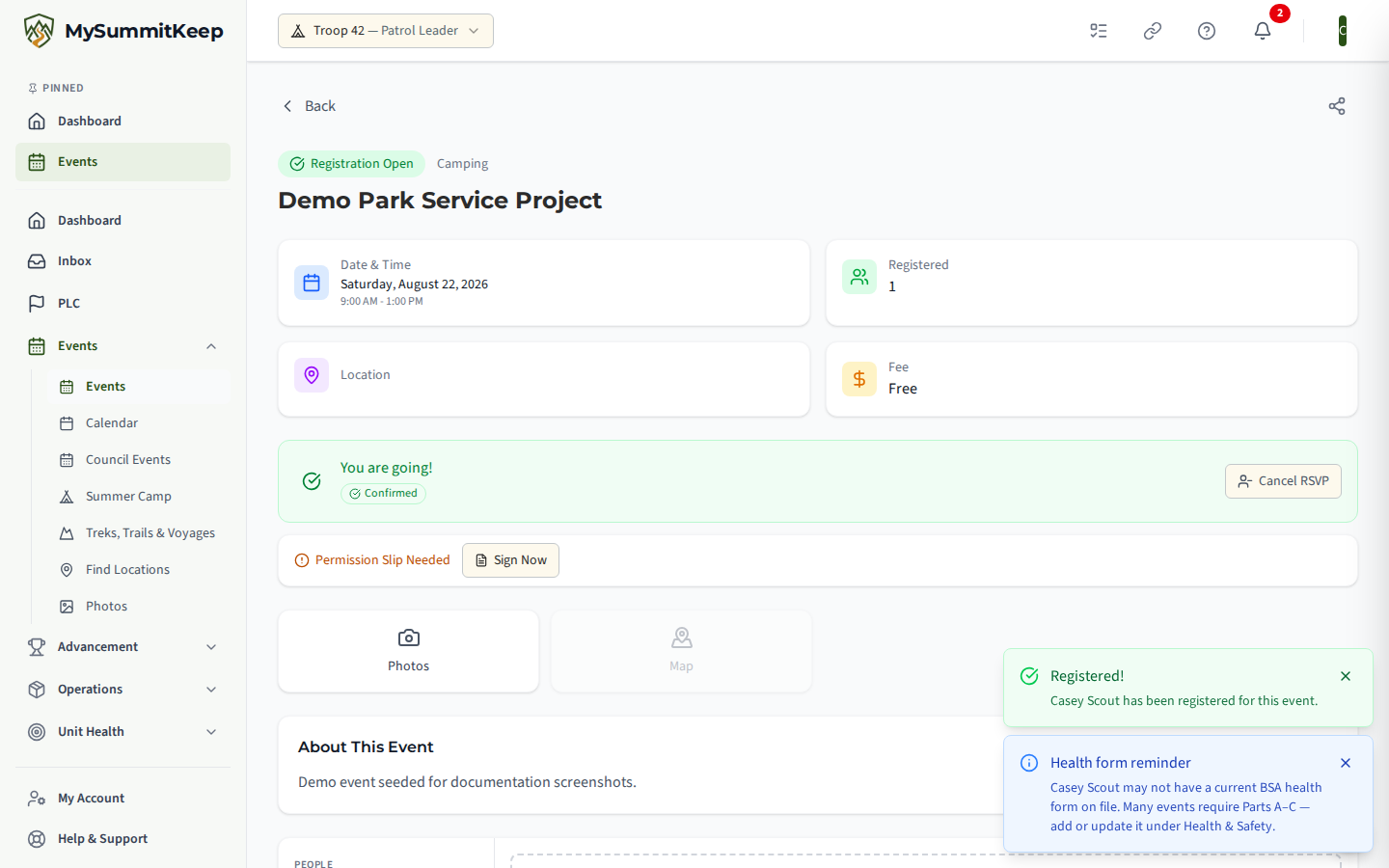
Once you’re registered, the RSVP section changes to show your status:
- You are going! with a green Confirmed badge — you’re all set.
- Registration pending approval — your leaders approve sign-ups for this event, so you’re saved but waiting on a yes.
- You are on the waitlist — the event was full when you signed up; you’ll move up if a spot opens.
If you change your plans, tap Cancel RSVP in that same section to give up your spot.
Your ride and your duties
Section titled “Your ride and your duties”Two event tabs matter on the day. Carpools shows your ride once a parent or leader has arranged one: the driver’s name and where they leave. You can’t ask for a ride yourself; a parent or leader does that. Duty Roster shows which patrol or Scout has cook, clean-up, water, fire and other jobs for each meal or day. Your name shows as your first name and last initial. If you are a patrol leader or senior patrol leader you can also edit the duty roster for your campout.
Checking the date, location, and roster status
Section titled “Checking the date, location, and roster status”Everything you need to show up prepared is on the event detail page:
- Date and time — the start and end, shown in the tile at the top.
- Location — the place name, and an address underneath when there is one. If the location is linked, you can tap it (or the Location quick action) to see it on a map.
- Registered — how many people have signed up, shown as a count (for example
8 / 20when the event has a capacity limit, with an At Capacity note if it’s full). - About This Event — the full description your leaders wrote, with anything you need to bring or know.
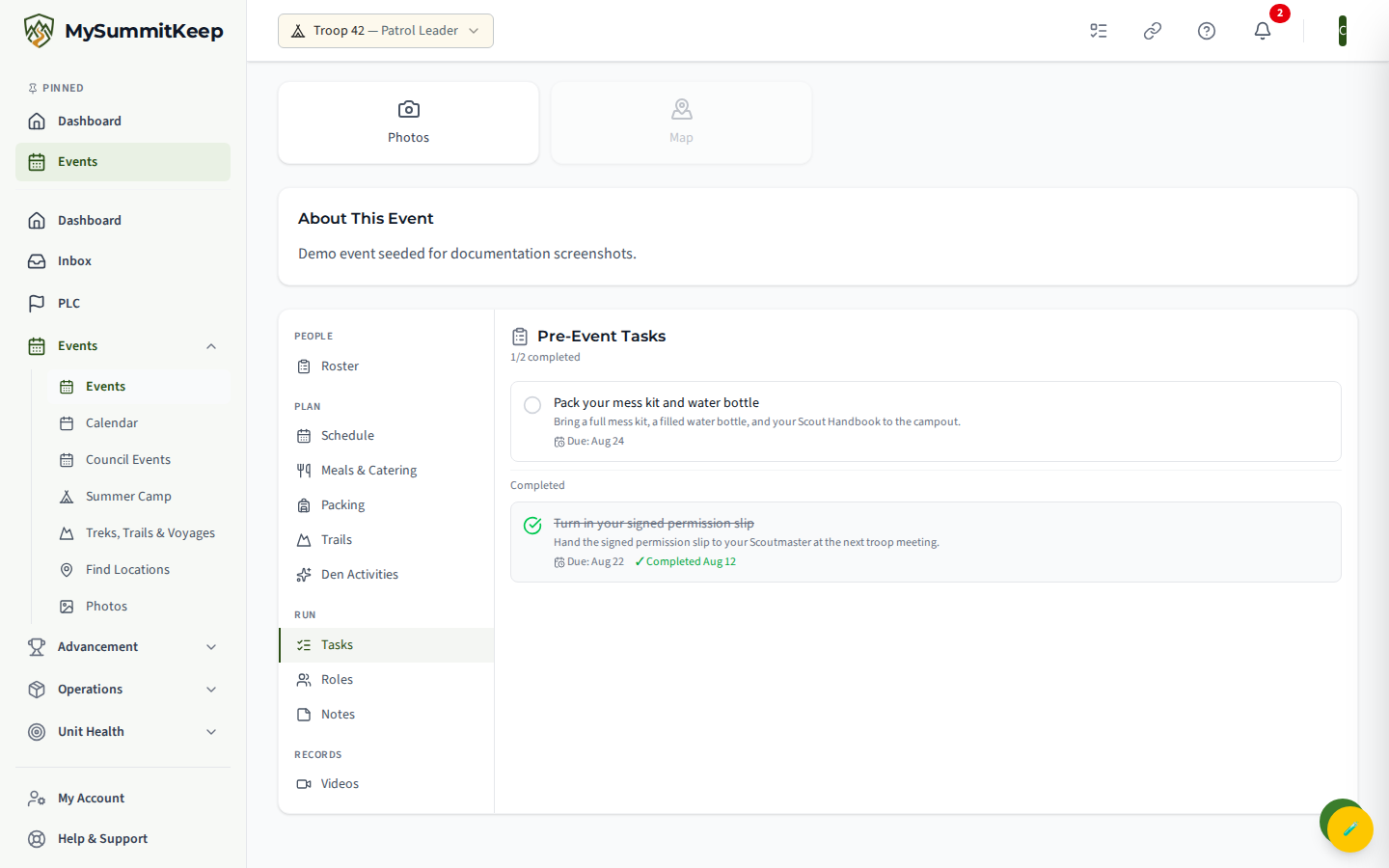
Scroll down and you’ll find tabs like Registrations, Packing, and Tasks. The Tasks tab lists jobs for the event — and any tasks assigned to you show up here so you know what you’re responsible for, like bringing a tent or leading a song. You can see and check off your own tasks; assigning tasks to others is a leader’s job.
Viewing the calendar
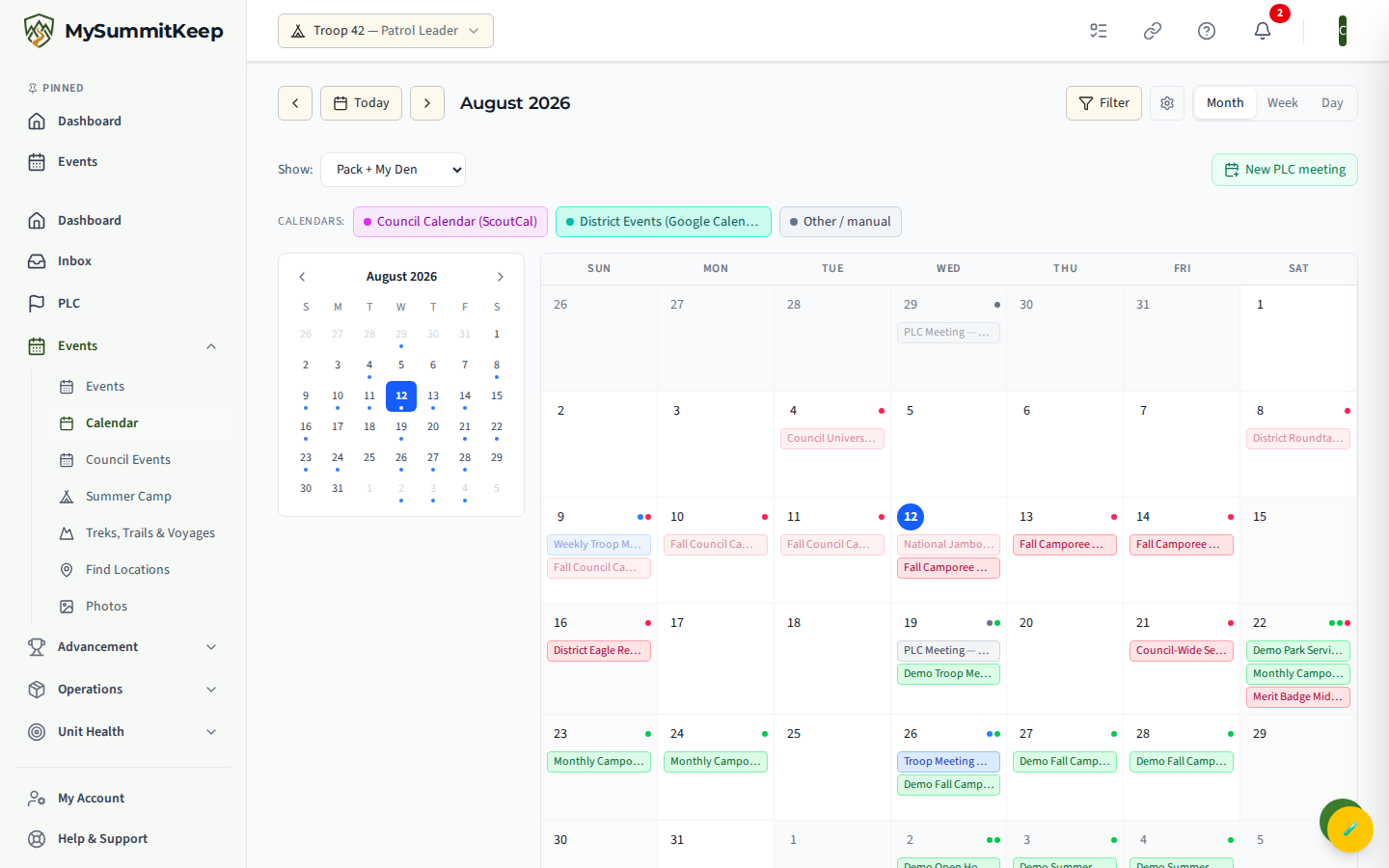
Section titled “Viewing the calendar”Prefer to see everything by month? Open Calendar from the sidebar (/calendar), or switch the Events page to its Calendar view. The calendar lays out the whole month at once, with each event shown on its day. Days with several events show a small count, and crowded days show a + more link.
Use the arrows beside the month name to step back and forward a month, or tap Today to jump back to the current date. Tap any event right on the calendar to open its detail page and RSVP.
Need help? Ask a leader, or contact support — we usually respond within 1 business day.
MySummitKeep is an independent product and is not affiliated with, endorsed by, or sponsored by Scouting America (formerly the Boy Scouts of America). Scouting America, Scouts BSA, Cub Scouts, Venturing, Sea Scouts, and the Order of the Arrow are trademarks of Scouting America. Official program content shown in screenshots and examples is © Scouting America; always confirm current requirements atscouting.org. SeeTerms § 7.3.