
Admin Tools Reference
The Admin Dashboard and Tools page introduces every admin tool in a sentence or two. This page goes one level deeper on four of them.
Merge Members
Section titled “Merge Members”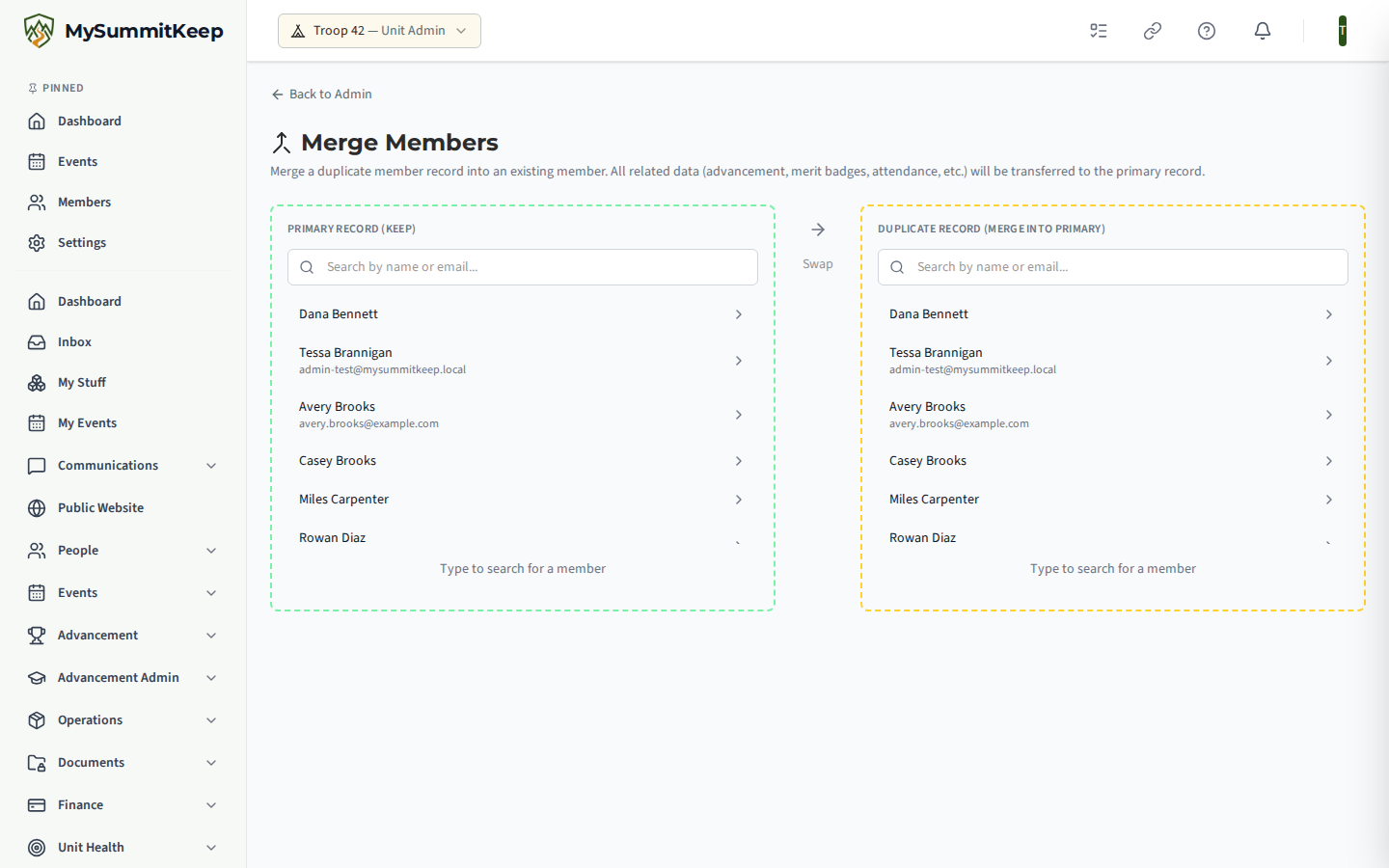
Merge Members (/admin/member-merge, linked from the Admin Dashboard) folds a duplicate member record into the record you want to keep. It is open to leaders and admins on every plan, including Basecamp.
- In Primary Record (Keep) search for the member to keep, by name or email.
- In Duplicate Record (Merge Into Primary) search for the duplicate. The two panels exclude each other, so you cannot pick the same person twice.
- Use Swap if you picked them the wrong way round.
- Review the preview, then click Merge Records.
The preview has three parts:
- Field Comparison lists each field with the primary value, the duplicate value and an action. Rows in green marked Fill will be filled in from the duplicate because the primary record had nothing there.
- Records to Transfer shows counts of what will move: merit badges, advancements, ranks, event registrations, attendances, service hours, training records, household links, patrol memberships, position assignments, requirement completions and other records. If there is nothing, it says “No related records to transfer.”
- A Family Links warning appears only when the duplicate has family links. A parent or guardian link becomes an invitation the surviving adult must accept, a duplicate Scout’s link is moved but put on the Households review list for another leader to confirm, and some household links are dropped. The panel states the counts before you merge and again afterwards.
If the duplicate also belongs to other units, a note says those seats are kept: this unit’s seat and its own training, dues, payment and event registration records move to the kept record, while the duplicate’s sign-in, health forms, BSA registrations and other units’ records stay with it.
Clicking Merge Records opens Confirm Member Merge: the action cannot be undone, the duplicate is merged into the primary record and then deactivated. When it finishes, Merge Complete reports how many records were transferred and profile fields merged, with Merge Another to continue.
GtSS Compliance
Section titled “GtSS Compliance”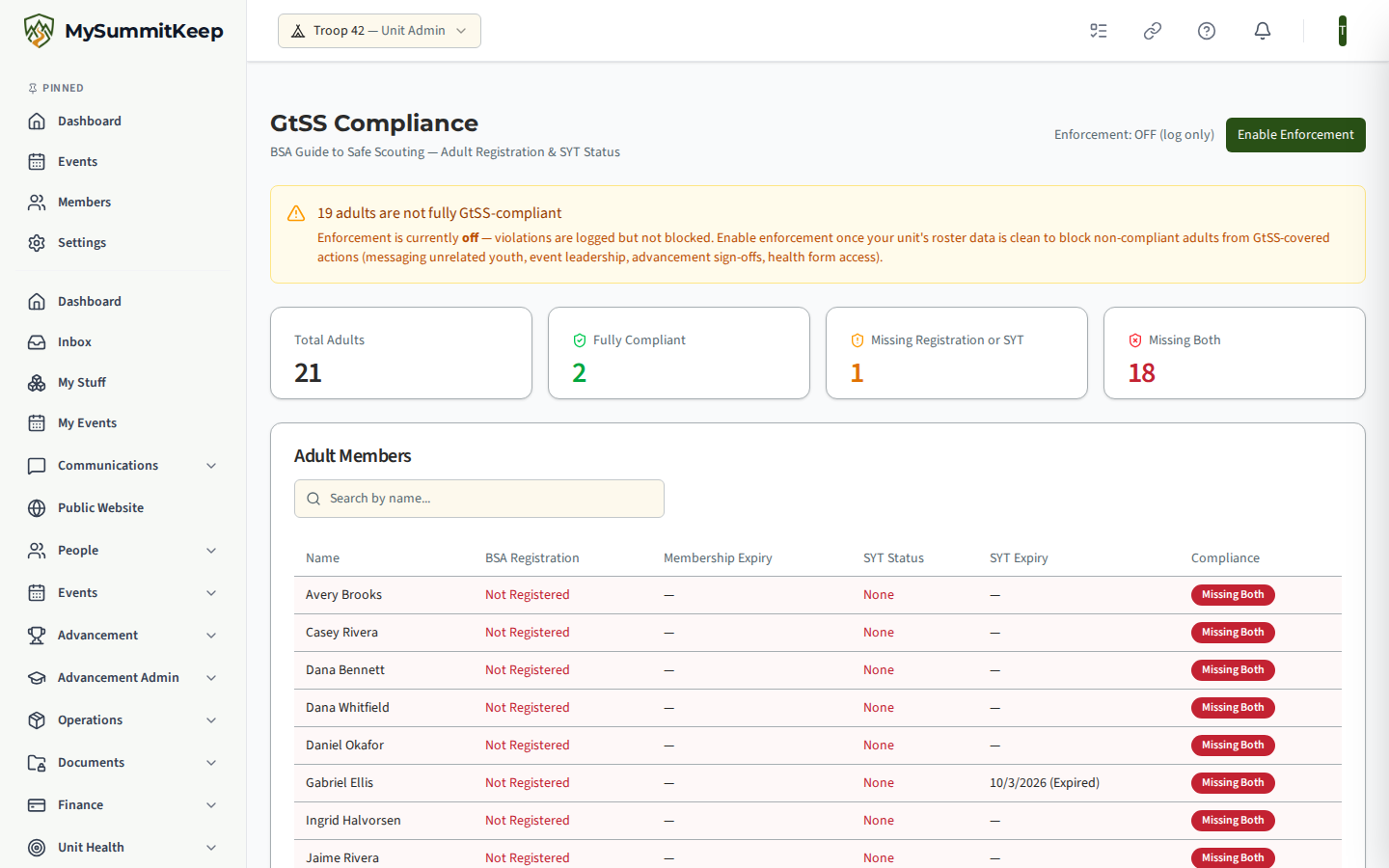
GtSS Compliance (/admin/gtss-compliance; find it under Admin → GtSS Compliance) is headed “BSA Guide to Safe Scouting: Adult Registration & SYT Status.” It needs the Summit or Peak plan; leaders can read it and only admins can change enforcement.
- Four cards show Total Adults, Fully Compliant, Missing Registration or SYT and Missing Both.
- A Search by name box filters the Adult Members table. Its columns are Name, BSA Registration, Membership Expiry, SYT Status, SYT Expiry and Compliance. Expiry dates read “(Expired)” once past and show the days remaining inside 30 days. Compliance badges are Compliant, Missing Registration, Missing SYT or Missing Both.
- The header shows Enforcement: ON or Enforcement: OFF (log only) with a button to flip it. Turning enforcement on asks for confirmation and lists what non-compliant adults would be blocked from: messaging unrelated youth, event leadership roles, advancement sign-offs and health form access. While it is off and some adults are non-compliant, an amber banner counts them and suggests enabling enforcement once your roster data is clean.
Unit Prospects
Section titled “Unit Prospects”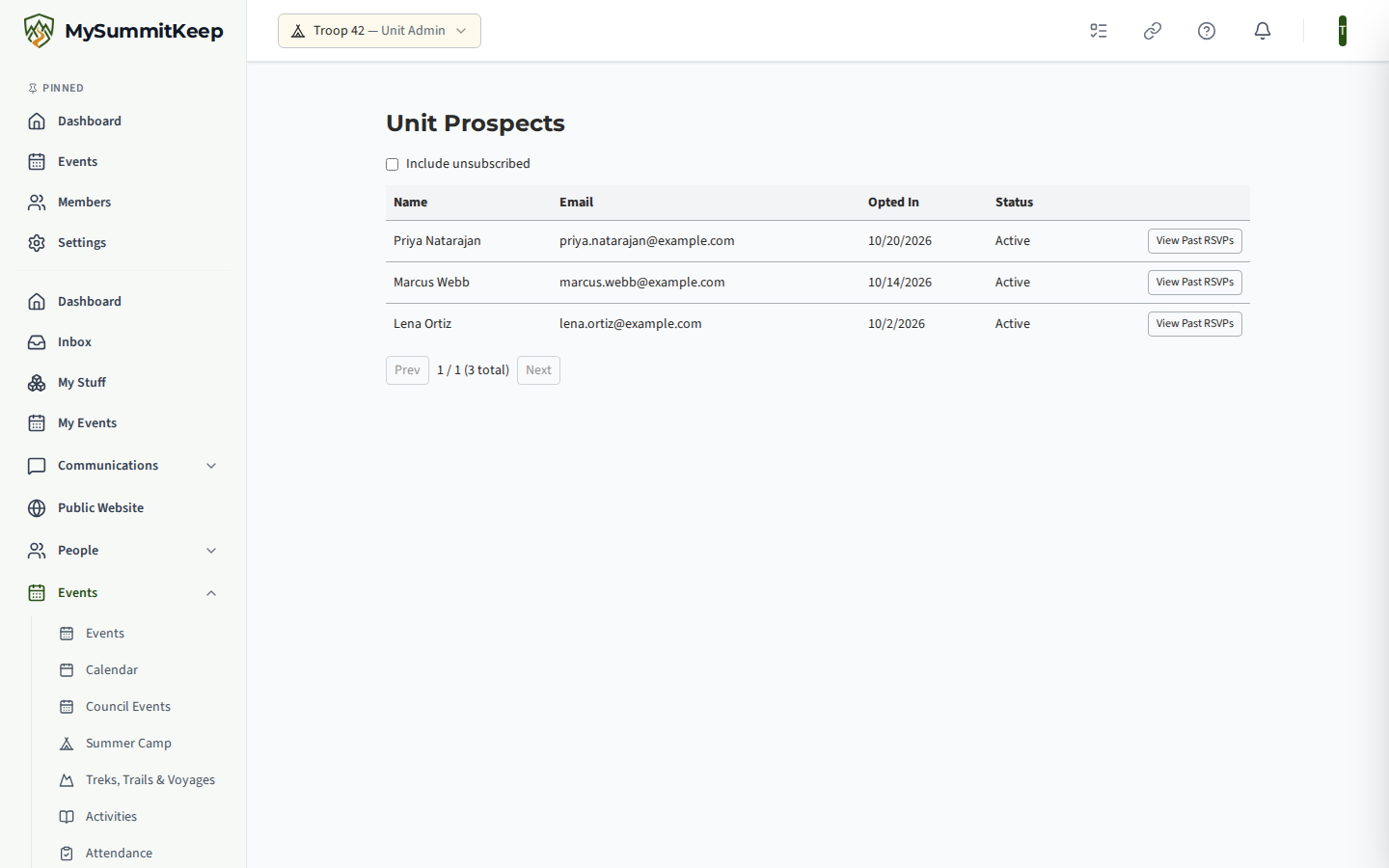
Unit Prospects (/admin/unit-prospects; find it under Events → Unit Prospects) lists the non-member guests who opted in to hear from your unit when they RSVPed to an event. Each row shows Name, Email, Opted In and Status (Active or Unsubscribed). Tick Include unsubscribed to see the people who later opted out; the list is paged 25 at a time with Prev and Next.
Choose View Past RSVPs on a row to expand the events that person attended as a guest: Event, Event Date, Party Size and RSVP Submitted. These are names and email addresses of people outside your unit, so the page requires the adult-only Event.ViewGuests permission. Anyone without it sees a notice that prospect names and email addresses are only available to adult leaders.
Message Reports
Section titled “Message Reports”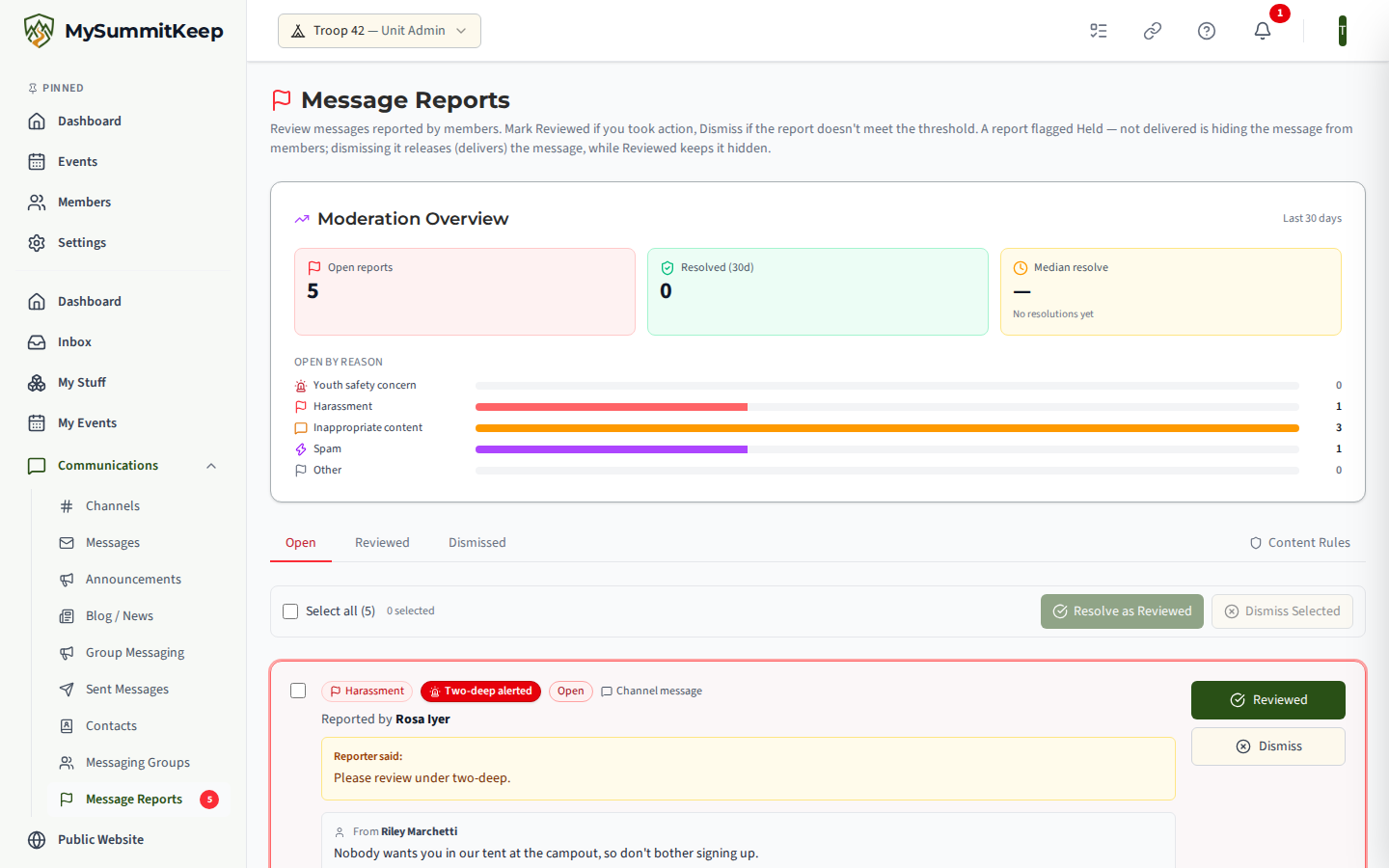
Message Reports (/admin/message-reports; find it under Communications → Message Reports) is the leader review queue for messages that members flag. It is open to leaders and admins on every plan, including Basecamp, because safety tools are never behind a paywall. The page summary explains the two outcomes: mark a report Reviewed if you took action, Dismiss it if it does not meet the threshold. A report flagged Held, not delivered is hiding the message from members; dismissing it releases the message, while Reviewed keeps it hidden.
- A moderation analytics card sits above the tabs.
- The Open, Reviewed and Dismissed tabs filter the queue. Reviewed and Dismissed are final states.
- On the Open tab, tick reports to resolve several at once from a bulk bar; you can add one Resolution note (optional) that is applied to all of them. Each report can also be resolved on its own with a note.
- The Content Rules tab holds your unit’s own scan patterns, which can be activated, deactivated, edited and deleted.
- Each report card shows the reporter’s note (“Reporter said:”) and a snapshot of the message text, or “No snapshot captured.”
For when a Youth Protection check refuses a dismissal, see Admin Dashboard and Tools. For photo and video reports, see Content Moderation.
MySummitKeep is an independent product and is not affiliated with, endorsed by, or sponsored by Scouting America (formerly the Boy Scouts of America). Scouting America, Scouts BSA, Cub Scouts, Venturing, Sea Scouts, and the Order of the Arrow are trademarks of Scouting America. Official program content shown in screenshots and examples is © Scouting America; always confirm current requirements atscouting.org. SeeTerms § 7.3.