
How We Keep a Parent on Messages to Scouts
Scouting America’s Youth Protection policy is direct about contacting a Scout one-on-one. The Guide to Safe Scouting says:
“Private online communications (texting, phone calls, chat, IM, etc.) must include another registered leader or parent.”
MySummitKeep follows that rule with one simple habit: when in doubt, copy a parent. A message that reaches a Scout also goes to that Scout’s own parent or guardian. It never goes to a different family’s parent. If no parent or guardian can be reached, a Scout aged 13–17 can still get an email or a group or event message when one other registered leader of the unit is on it instead (see When no parent can be reached). If neither can be reached on a channel, the Scout doesn’t get that message on that channel.
Nobody has to remember to do this. MySummitKeep does it automatically. This page is the one place that explains how it works, for parents, Scouts, and leaders.
Who counts as a Scout, and who counts as their parent
Section titled “Who counts as a Scout, and who counts as their parent”MySummitKeep uses the date of birth on file to decide how a member can be contacted:
- A Scout aged 13–17 can be contacted, but always together with their own parent or guardian.
- A Scout under 13, or a Scout whose account is still waiting for parental consent, is never contacted directly. Their parent or guardian gets the message instead.
- A Scout with no date of birth or age on file is treated as a Scout aged 13–17.
- A Scout who is 18 or older, going by the date of birth on file, is treated as an adult.
- Someone with no date of birth on file who serves a unit as a leader, parent or unit admin, such as a former Scout now serving as an assistant Scoutmaster, is treated as an adult, whatever age range an older record gives them. Marking a member as an adult while they keep the Scout role is not enough on its own: if their record still gives a Scout’s age range, they are treated as a Scout. Recording their date of birth settles it either way.
A parent or guardian is an adult linked to the Scout as Parent or Guardian in the Scout’s household. Someone entered as a sibling or “other” doesn’t count, and neither does a household member who is under 18. A parent a leader has removed from the unit’s roster stops counting too, even though the household link is still there. A parent who was linked to the household without being added to the roster, for example by giving consent for a Cub’s account, still counts.
An adult becomes a Scout’s parent for message copies only once a link is actually made: when they accept an invitation from a leader or from the Scout’s other parent, when a roster import lists them as the Scout’s parent, when they give consent from the link emailed for a Scout who has just joined, or when a request they made from My Family is accepted by the Scout’s parent or a unit leader. A pending invitation or a pending request never makes anyone a parent: until it’s accepted, that adult isn’t copied on the Scout’s messages, can’t message the Scout as their parent, and doesn’t count toward any rule on this page. A parent a leader removed stays off the copies after a roster import lists them again: the import does not re-create the link (see Removed links the roster lists again). See Linking Scouts to Your Household and, for leaders, Households.
Every email MySummitKeep sends is checked against the rule just before it goes out, whatever sent it: a leader’s message, an event notice, an advancement update, an invitation, anything. The one thing that depends on where the email came from is the leader copy below: it is only added to an email sent from a unit (a leader’s message or a unit notice). An email the platform sends automatically without a unit never gets a leader copy, so a Scout with no parent email is simply not emailed.
- A Scout aged 13–17 gets the email with their own parents or guardians copied on it. The copy starts with a line like this: “Pat Rivera is copied on this message to Alex, as Scouting America’s Youth Protection rules ask.” Every parent or guardian with an email address on file is copied.
- A Scout under 13, or one still waiting for parental consent, isn’t emailed. The parent or guardian gets the email instead, starting with: “This message was addressed to Alex. It comes to you, as Alex’s parent or guardian, under Scouting America’s Youth Protection rules.”
- A Scout aged 13–17 with no parent or guardian email on file gets the email with one of the unit’s leaders copied instead when it is sent from a unit, as described in When no parent can be reached. The copy starts with a line like: “Sam Lee, the unit’s Scoutmaster, is copied on this message to Alex because no parent or guardian can be reached by email, as Scouting America’s Youth Protection rules ask.” If no leader qualifies either, the Scout doesn’t get the email at all. A Scout under 13 with no parent email on file is never emailed. To fix it, link a parent or guardian who has a real email address on their own account. A leader can invite the parent from the Scout’s household on the Households page, and the parent is linked when they accept. A parent can also ask from the My Family page (Find Your Scout → Link to My Family).
- If the Scout’s parent is already on the email, it goes out as written, without an extra copy.
- Brothers and sisters with the same parents share one email, so their parents are copied once. Scouts from different families are never put on the same email. Some emails are sent to each member on their own (a platform announcement, for example). Then each of your Scouts’ emails carries you, unless you turn on One copy of my child’s automated emails. Adults can find their own copy of a platform announcement in Message History; Scouts are not sent them.
Emails written for each family
Section titled “Emails written for each family”A few automatic emails are addressed to each family from the start, instead of being copied on the way out:
- the event packet email,
- event reminder emails,
- the day-before activity plan reminder, and
- the blue card email when a merit badge is verified (where blue card emails are turned on).
Each of these goes out as one email per family. A Scout aged 13–17 is on it with their own parents. For a Scout under 13, only the parents get it. Brothers and sisters with the same parents share it, and each adult gets their own. For the event packet email, event reminders and the activity plan reminder, a Scout aged 13–17 whose parents have no email on file gets their own email with one leader of the unit on it instead (never two Scouts on one email). The blue card email does not use the leader copy: a Scout aged 13–17 with no parent email on file is not sent it, so the blue card reaches the family only through a parent. A Scout with no reachable adult doesn’t get any of these. A parent doesn’t need their own MySummitKeep account to get the blue card email: an email address on file is enough. A parent whose Scouts don’t all have the same parents on file (for example, a stepchild) gets one email for each family.
When no parent can be reached
Section titled “When no parent can be reached”MySummitKeep’s rule, following the Guide to Safe Scouting sentence above, is that a message can reach a Scout as long as another registered adult with current Safeguarding Youth Training (SYT) is in the conversation. A parent always comes first. Only when no parent or guardian of the Scout can be reached does MySummitKeep copy one leader of the Scout’s unit, trying them in this order:
- the Scoutmaster (a Pack’s Cubmaster, a Crew’s Crew Advisor, a Ship’s Skipper, a Post’s Post Advisor),
- then an Assistant Scoutmaster (Assistant Cubmaster, Associate Advisor, Mate, Associate Post Advisor),
- then the Committee Chair.
The leader has to hold that position in the unit today, be an adult, have an active membership in the unit that isn’t suspended, have current SYT (or a current Youth Protection date from a Scoutbook import), and be registered on record: a registration status of Registered, or a membership expiration date that hasn’t passed, usually from a Scoutbook roster import. A leader with no registration on file isn’t used, so a unit that has never imported its roster keeps withholding these messages until it does. The leader also has to be reachable on that channel and not have opted out of it in the unit: a real email address, with email not turned off, for email; able to sign in, with in-app messages not turned off, for in-app messages; and never someone marked do-not-contact. When two people hold the same position, the one who has held it longest is copied.
- Never the sender. The person sending the message is already one adult; the rule asks for a second. So if the Scoutmaster sends it, the Assistant Scoutmaster is copied; if there is no qualifying assistant, the Committee Chair. This is checked by the sender’s account, and by their email address too, so a leader writing from a shared or second address is still not their own copy.
- Never the person who wrote it. When a message that was held for review is released, the leader who wrote it counts as the sender too, so they are never copied on it as the second adult, even though someone else released it.
- Only the Scout’s own unit. A leader is only ever added from the unit sending the message, and only when the Scout is an active member of that unit. A Scout who has left the unit, or who registered for its event from another unit, isn’t given a leader from anywhere else: with no parent to copy, they don’t get the message. The one exception is a leader who is already on the message: a qualifying leader of any unit the Scout belongs to counts (see the next point).
- A leader already on the message counts. If a qualifying leader (other than the sender) is already on the email’s To or Cc line, or already among an in-app message’s recipients, nobody else is added, and the Scout stays on the message as it was written. On an email the sender wrote to several people at once, other recipients can then see the Scout’s address, just as they could before.
- One Scout per added copy. When a leader has to be added, the Scout always gets their own email with that leader on it, including when the message is an event announcement sent to many families. Two families never see each other’s addresses on it, and the leader isn’t put on the email the other families get, or on replies to it.
- Never an email with a link or code. An email that carries a sign-in link or code (a claim invite, a sign-up or consent link, a family-link request, a sign-off link, or a link to manage an RSVP) is never copied to a leader. A Scout with no parent or guardian who can be reached doesn’t get that email at all.
- Never the address it’s sent from. A leader whose email address is the one the message is sent from, or the reply-to address, doesn’t count as the second adult.
- Scouts under 13 are unchanged. A Scout under 13, or one still waiting for parental consent, is never contacted directly, so a leader can’t stand in for the parent. With no parent to receive it, the message isn’t sent.
- If nobody qualifies, the Scout doesn’t get the message, exactly as before, and the sender is told.
- Texts are unchanged. A text can’t copy anyone, so this does not apply to text messages (see below). A text to a Scout is sent only when a parent is copied on it. It is never sent with a leader in place of a parent. In practice, texting Scouts is a feature for parents and other adults.
This is a safety net, not a substitute for linking families: the fix is still to link the Scout’s parent or guardian on the Households page.
Adding your unit’s SYT dates
Section titled “Adding your unit’s SYT dates”A new unit has no SYT dates on file yet, so at first no leader qualifies and a Scout aged 13–17 with no parent linked can’t be messaged. Adding the dates fixes that in a few minutes:
- Open the Unit Setup checklist (Unit Setup in the sidebar) and find Add an SYT date for your unit’s leaders. It turns green, with a note such as “2 leaders current”, once at least two leaders of your unit in the positions above are registered, have an email address on file and have a current SYT date. Two, because the leader copied on a message is never the person sending it: with only one, that leader’s own messages to a Scout with no parent on file are still held back, and the step says so. Your own name is included once you add your date.
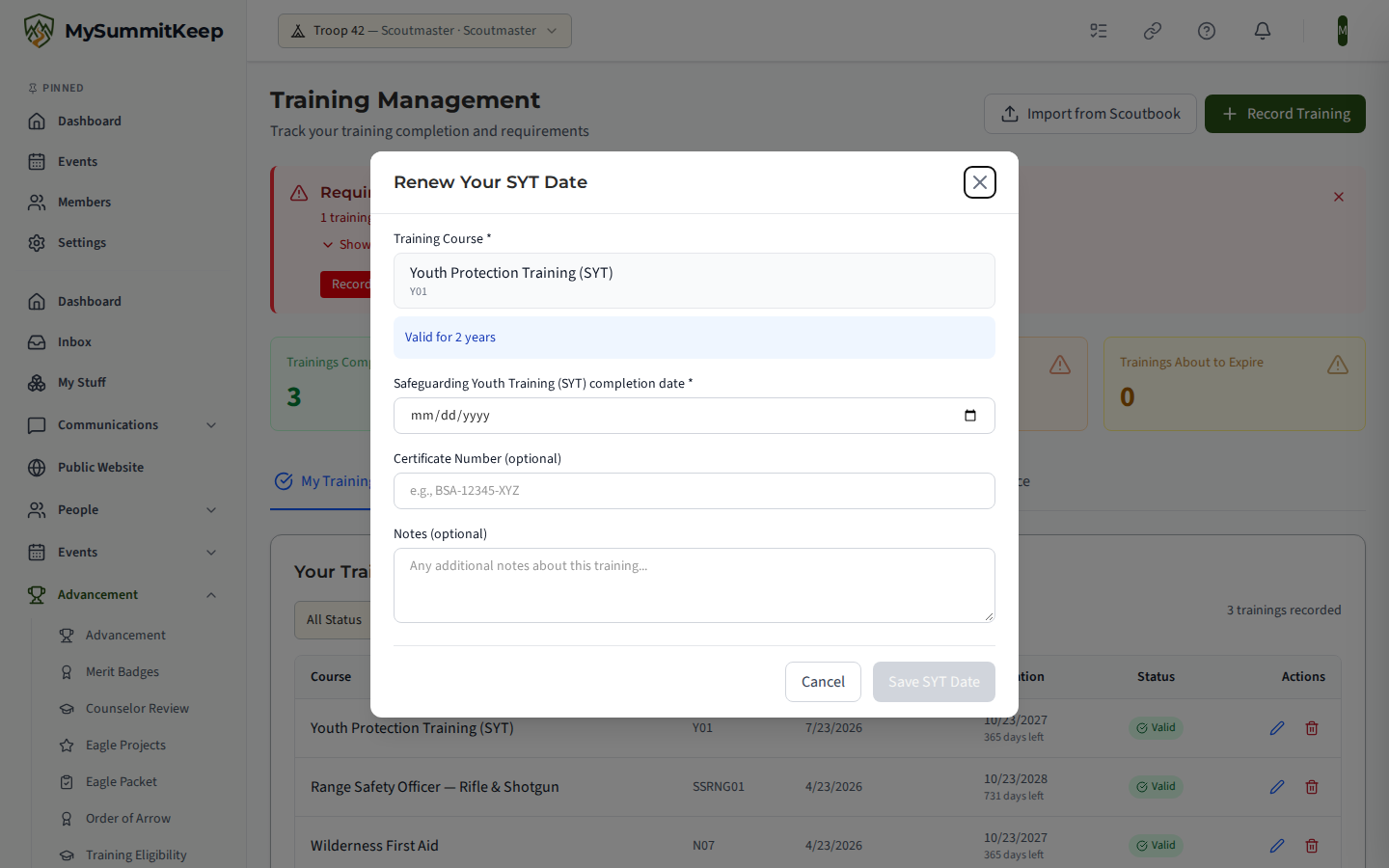
- Choose Add my SYT date. The Training page opens with Add Your SYT Date ready: pick the date on your Safeguarding Youth Training certificate in Safeguarding Youth Training (SYT) completion date, then choose Save SYT Date. You have to choose the date yourself; it doesn’t default to today. If you already have an SYT record on file, the same link opens Renew Your SYT Date on that record instead of adding a second one.
- Right after saving, you can attach a copy of your certificate. This is optional, and you can skip it with Done.
- If you can manage training for your unit (a Scoutmaster, Committee Chair or Training Coordinator, for example), choose Enter dates for other leaders on the checklist. It opens the SYT Compliance tab on the Training page, where you can record a date for each of your unit’s other leaders.
A leader still has to meet the other conditions above (a current position, registered, not suspended, reachable) before they can be copied. Adding a date only supplies the training part.
When a message is sent and a Scout is left out for want of a leader
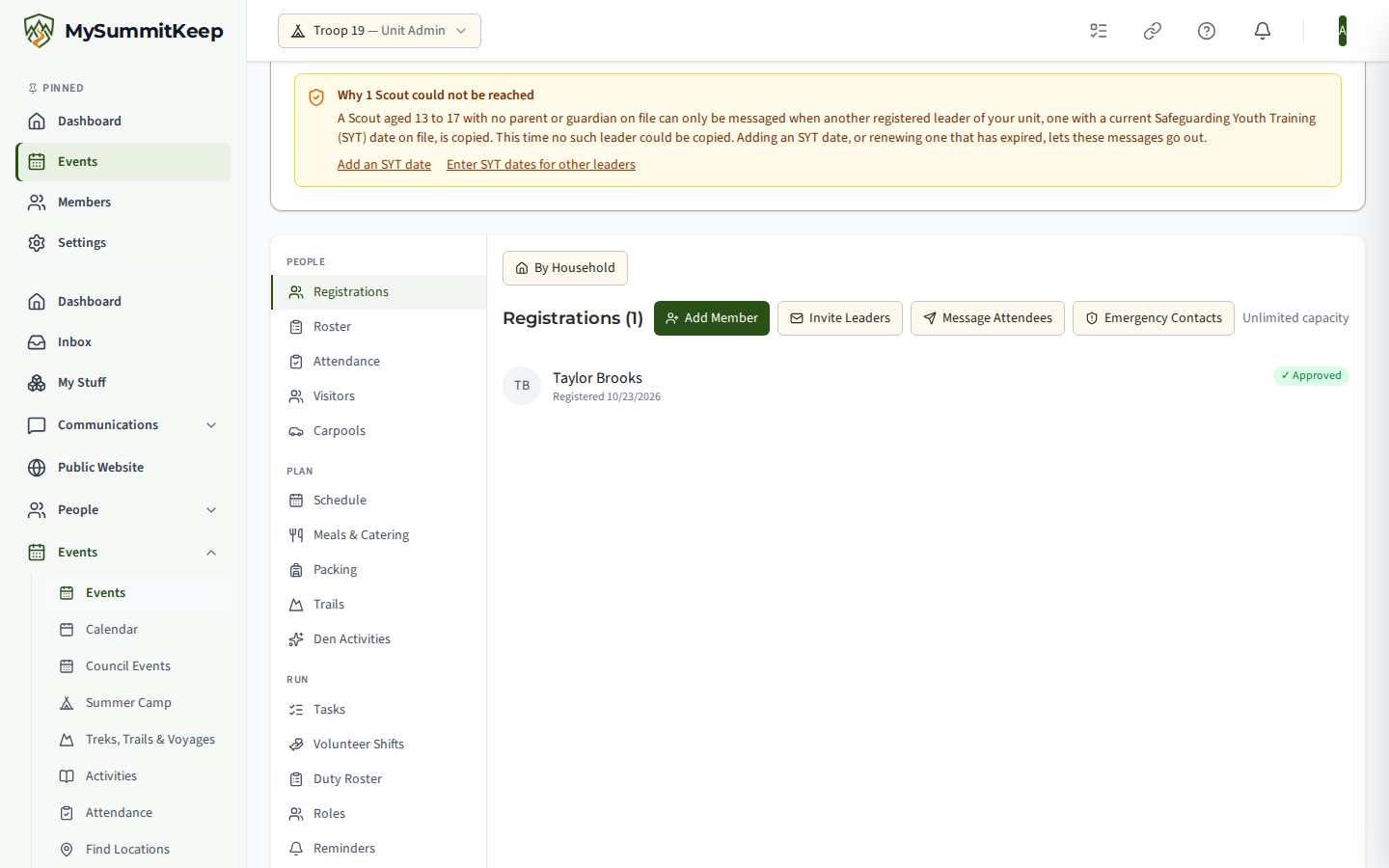
Section titled “When a message is sent and a Scout is left out for want of a leader”When you send an email, an event message, a group message or the event packet email and a Scout aged 13–17 is left out because no parent could be reached and no leader qualified, the screen tells you so in plain words: Why 1 Scout could not be reached. It offers Add an SYT date and, if you can manage training, Enter SYT dates for other leaders. It appears only for that case. A Scout under 13, a Scout with no email address of their own, and a text message don’t get it, because adding a leader’s date wouldn’t change anything for them.
Text Messages (SMS)
Section titled “Text Messages (SMS)”A text can’t copy a parent the way an email can, so texts work differently:
- A Scout’s own phone number is never signed up for texts. Anyone who tries to turn texts on for it — the Scout, a parent, or a leader — sees this message: “Texts aren’t sent to a Scout’s own phone. A parent or guardian can turn on texts for their own number.”
- A number a Scout lists never gets texts unless one of that Scout’s own parents or guardians lists it too, even if it was signed up before this rule. Another adult who lists it, such as a leader, doesn’t count. The Scout can still turn it off in Settings → Notifications.
- A shared family phone still works for the parent. If a parent or guardian who is linked to the Scout also lists that number on their own profile and turns texts on there, the parent’s texts reach it. This keeps working after the Scout leaves the unit, as long as the household link is still there.
- No other adult can turn texts on for a number a Scout lists. They see this message: “This number is also on a Scout’s profile, so only a parent or guardian linked to that Scout can turn on texts for it. If that’s you, link to your Scout on the My Family page, then try again.” A YES texted from that number gets a reply saying the same. The message names a Scout only when that Scout is in your unit; otherwise the request is simply refused with “Texts can’t be turned on for this number from this account.” Refusals like this are limited to a few different numbers in any 24 hours for each account — after that, every request from the account gets the usual “try again later” limit message until those 24 hours are up — so the texts setting can’t be used to find out whether a number belongs to a young person.
- Only certain alerts can be sent by text: the ones listed under Alerts sent by text. A message from another member is never sent as a text.
- A leader can’t stand in for a parent on a text. A text can’t carry a copy, so the leader fallback that applies to email and in-app messages never applies to texts. A text to a Scout goes out only when a parent is copied on it; otherwise it is not sent, and the leader is told it wasn’t. Texting Scouts is effectively a feature for parents and adults.
To get texts about your Scout, turn them on for your own number in Settings → Notifications. See Notifications & Communication Preferences for the steps. Scouts still see everything in the app. This only affects text messages.
In-app messages from leaders
Section titled “In-app messages from leaders”Each kind of in-app message has its own safeguard:
- Direct messages (one-to-one). A parent or guardian can always message their own Scout directly. An adult who isn’t the Scout’s parent can never send a Scout a one-to-one direct message, even with current Safeguarding Youth Training (SYT). That conversation has to happen in a group, channel, or event message instead.
- Channels. A channel that includes a Scout needs at least two SYT-current adults as members before anyone can post in it. This is the Two-Deep Leadership check. The one exception: a parent or guardian of every Scout in the channel can still post to their own children while it’s locked.
- Group and event messages. This covers a group message (for example, to “All Scouts,” a patrol, or a den), an event’s Message Attendees, a Remind unread follow-up, a reply to everyone on a group message, and a message sent from Settings → Bulk Operations. It works like this:
- An adult who sends one of these needs their own current SYT whenever a Scout is among the recipients, even if the Scout is their own child.
- Each Scout’s own parent or guardian gets a copy in their Inbox. The copy starts with a line like: “Sent to Alex — you’re copied as their parent or guardian, per Scouting America’s Youth Protection rules.” A parent of two Scouts on the same message gets one copy naming both. A parent isn’t copied if they are already a recipient. If the sender is one of the Scout’s own parents, that covers the rule, and the Scout’s other parents aren’t copied.
- A Scout under 13 doesn’t get the message directly. Their parent’s copy is how it reaches the family, and it says so: “This message was for Cub; it comes to you as their parent or guardian, per Scouting America’s Youth Protection rules.”
- For a parent’s copy to count, the parent has to be linked to the Scout in the unit, be an active adult member of the unit who can sign in (a parent added by a roster import who hasn’t set up their account yet doesn’t count), and not be marked do-not-contact there. If none of a Scout’s parents qualifies, a Scout aged 13–17 still gets the message when one other leader of the unit is on it: a qualifying leader already among the recipients, or one leader copied (see When no parent can be reached). The leader’s copy starts with: “Sent to Alex — you’re copied as the unit’s Scoutmaster, because no parent or guardian can be reached, per Scouting America’s Youth Protection rules.” Otherwise that Scout doesn’t get the message, and the sender is told how many Scouts were left out.
- If the message is held for review, releasing a Scout’s copy releases their parent’s copy with it. A Scout’s copy stays held while no parent of theirs who can sign in would get the message, and a copy addressed to a Scout under 13 is never released to them. If a bulk dismiss leaves any reports open for these reasons, the page tells you how many and why. Mark those reports Reviewed to close them.
A Scout’s messages also show up on their parent’s activity feed: direct messages, channel posts, and group and event messages. A parent who turns on Real-time updates there gets an alert as each one arrives. Otherwise, new messages come in the daily digest. The feed is available when your unit has the parent-observer feed turned on.
Automatic notices about a Scout
Section titled “Automatic notices about a Scout”Advancement
Section titled “Advancement”These notices go to a Scout’s family:
- a rank requirement signed off (one at a time), approved, or not approved,
- a board of review scheduled,
- a blue card ready when a merit badge is verified (where blue card emails are turned on), and
- a merit badge sent back by its counselor or a leader, with the reason.
A Scout aged 13–17 and the Scout’s own parents or guardians both get the notice. The parent’s version names the Scout, for example “Alex’s requirement … was approved.” For a Scout under 13, only the parents get it. If none of the Scout’s parents or guardians can receive it, the notice isn’t sent to anyone, so keep family links up to date.
A parent or guardian can receive these notices when they are linked to the Scout in the unit, are an active adult member of the unit, and have signed up for their own MySummitKeep account. A parent who was removed from the unit, or a parent record that came from a roster import and was never claimed, doesn’t count.
A parent who turned off In-App for that kind of notice in Settings → Notifications still gets their own copy, on the channels they chose. But the Scout’s in-app notice needs a parent who sees it in the app too, so if every parent has turned it off, the Scout isn’t sent it.
When a merit badge is sent back, the unit’s advancement leaders and the badge’s counselor are told too, but never the person who sent it back. Their notice doesn’t name the Scout, because it can show on a phone’s lock screen. It links to the badge, which shows whose it is.
Camp schedules and event help requests
Section titled “Camp schedules and event help requests”The same rule covers two notices that can carry a leader’s own words:
- Camp schedule re-picks. When a leader asks a Scout to pick again for a camp period, the Scout (13–17) and the Scout’s parents get the request and the leader’s reason. The parent’s version names the Scout, for example “Alex’s leader asked them to pick again for Period 2.” For a Scout under 13, only the parents get it. If no parent can receive it, nobody is notified, but the Scout’s camp planner still shows the period as open to re-pick. The leader’s reason appears on the Scout’s own planner only when a parent can see it too. A linked parent always sees it on their Scout’s planner.
- Invite leaders to help at an event. If someone you invite is a Scout (for example, a youth Historian or Quartermaster), the invitation and your personal message go to the Scout only together with the Scout’s parents, and the parent’s version names the Scout. For a Scout under 13, only the parents get it. A Scout whose parents can’t receive it isn’t invited, and isn’t counted in the “Invitation sent” total.
When a trip-library moderator rejects your unit’s trek, voyage, or trail template, the reason goes to your unit’s adults and to Scouts aged 13–17 whose parents receive it too. Scouts under 13 and Scouts with no parent who can receive it don’t get it.
Permission slips for treks and voyages
Section titled “Permission slips for treks and voyages”When a leader publishes a trek or voyage, MySummitKeep creates a permission slip for each youth crew member and sends a notice called Permission slip needed for (Scout’s name). The notice says a parent or guardian needs to sign before departure and that the unit leader will provide the slip.
- A Scout aged 13–17 and the Scout’s own parents or guardians in the unit all get the same notice.
- For a Scout under 13, only the parents get it.
- A youth crew member who is 18 or older (by the date of birth on file) gets their own notice and signs for themselves.
- For a trek, the notice links to the trek’s itinerary. For a voyage, it links to the Events page.
- If none of a Scout’s parents or guardians can receive the notice (the same test as for advancement notices above), nobody in that family is told, at any age. The adult leader who published gets a separate notice naming that Scout, so a parent with their own account can be linked on the Households page.
Registration, health-form, and training reminders
Section titled “Registration, health-form, and training reminders”Leaders set these up on the Alert Configuration page. For expiring registrations, health forms, and Safeguarding Youth Training, only the In-App channel sends. Here’s who gets an alert about a Scout:
- All Members — a Scout aged 13–17 and their own parents or guardians. For a Scout under 13, the parents only.
- Parents Only — the Scout’s parents or guardians, not the Scout.
- Leaders Only — the unit’s accountable leaders.
With any setting, a Scout is never alerted alone. If a Scout has no parent or guardian who is an active adult member of the unit, the unit’s accountable leaders get the alert instead, naming the Scout.
Account invitations and logins for Scouts
Section titled “Account invitations and logins for Scouts”A Scout can’t be invited to a unit by email. Invite Member and Bulk Invite don’t offer a Scout role. A Bulk Invite row with the role Scout is flagged as an error and isn’t sent. If anyone tries anyway, MySummitKeep answers: “Scouts are added by their parent or guardian from the parent’s own account — invite the parent instead.” A Scout invitation sent before this rule can’t be resent or accepted. Once the parent has signed in, they link their Scout from the My Family page.
The one exception: a Venturer or Sea Scout aged 18 to 20. Venturing Crews and Sea Scout Ships have adult members in the same role as their younger Venturers, so a Crew can choose Venturer (18–20) and a Ship Sea Scout (18–20) in Invite Member, or use the role Adult Venturer or Adult Sea Scout in a Bulk Invite file. The leader is telling MySummitKeep the person is 18 or older, so the invitation goes to them directly and they join as a Venturer or Sea Scout. Their record still decides: if the address already belongs to a member whose record shows they are under 18, the invitation is refused with “Their MySummitKeep record shows they are under 18, so they cannot be invited as an 18–20 Venturer or Sea Scout. If their date of birth is wrong, correct it on their member record first; otherwise their parent or guardian adds them from the parent’s own account.”, and someone under 18 on record can’t accept one either. Any other unit type gets “Only a Venturing Crew or a Sea Scout Ship can invite an 18–20 Venturer or Sea Scout by email.”
Claim invites (Send Claim Invites on the Members page, or Generate Claim Invite and Email Claim Invite on a member’s profile) follow the same rule:
- Under 13: no invite is created and nothing is sent to anyone. The Scout’s parent manages their information from the parent’s own account.
- No date of birth or age on file: no invite is created until a date of birth (or, for an adult, an adult age range) is recorded. An adult on file as an adult is not affected: adults added by roster import or sign-up already have an adult age range, so this normally affects only Scouts.
- 13–17: an invite can be sent only after a parent has given consent with Grant Login Access on the My Family page (which appears only where youth logins are turned on). The invite goes only to the email address on the Scout’s record, with the Scout’s parent copied. It is never texted to a phone that only the Scout lists. If it can’t reach the family at all (for example, no parent has an email on file), no invite is kept. A leader is never shown a Scout’s claim link to pass on, so Generate Claim Invite is refused for a Scout; use Email Claim Invite. Only the Scout’s own parent gets the link directly, for example through Grant Login Access.
When Send Claim Invites leaves someone out, its preview lists them under Skipped and its results under Not sent, each with the reason. The simplest way to give a teen their own login is for the parent to do it: Giving Your Teen Their Own Login explains how. For the consent a new young Scout’s account needs before it becomes active, see Parental Consent for Scouts Under 18.
Contact groups are for adults
Section titled “Contact groups are for adults”Contact groups are for reaching adults: committee members, other unit contacts, council staff, and vendors. A Scout’s member record can’t be linked as a contact. If a contact in a group belongs to a Scout, it’s skipped when you send. That includes a contact whose email address is a Scout’s. The delivery preview counts these contacts as unreachable. It names the reason only for a Scout in your unit. For anyone else it just says the contact could not be delivered to, so a contact list can’t be used to find out whether an address belongs to a young person. To reach Scouts, use a Send To group, a channel, or an event message, so the safeguards on this page apply.
One copy of my child’s automated emails
Section titled “One copy of my child’s automated emails”A parent or guardian of at least one Scout sees a One copy of my child’s automated emails switch in Settings → Notifications. It’s off by default. It only helps when one send would give you the very same email (same subject, same content) more than once: as yourself and as the parent copied on your Scout’s email, or as the parent copied on the email to each of your Scouts. With the switch on, you get it once, and the line at the top of each Scout’s email still names you. It never changes what your Scouts receive, and you always get the message at least once. Emails written separately for you and your Scout, like a parent’s version of a notice that names your Scout, are different emails, and you’ll get each one. See Notifications & Communication Preferences for more.
What leaders see
Section titled “What leaders see”When a Scout can’t be reached because no parent is available, MySummitKeep tells the sender instead of failing silently:
- Group messages and Message attendees: the confirmation says how many parents were copied, how many Scouts under 13 were reached through a parent, how many Scouts were messaged with another unit leader on the message in place of a parent because no parent was reachable, and how many Scouts weren’t messaged.
- Remind unread and reply to everyone: these go out as long as someone can be reached. If nobody can be reached, the send stops and tells you why.
- Bulk Operations messages: the operation’s status list shows what happened for each person.
- Event packet email: the confirmation counts Scouts reached through a parent, Scouts sent the packet with a unit leader copied, and Scouts who weren’t emailed.
- Email from the composer: a leader copied for a Scout with no parent is listed under Supervising adults were added for safety, with the reason (for example “Scoutmaster copied for Alex Rivera: no parent or guardian with an email address is linked”).
- Claim invites: the results list each person who wasn’t sent an invite, with the reason.
- Trek and voyage permission slips: the leader who published is told which Scouts have no parent linked who can receive the notice.
In every case, the fix is the same: invite the Scout’s parent or guardian from the Scout’s household on the Households page, make sure that adult has a real email address on file, and ask them to accept the invitation.
Why did I get two emails? If your Scout is 13–17, emails to them also come to you, often with a line at the top explaining why. That’s the rule on this page working as designed. You might also get the same email as yourself, or once for each of your Scouts. If it’s exactly the same email, turn on One copy of my child’s automated emails to get it once. Emails written separately for you and your Scout still come separately.
Why was a leader copied on my Scout’s email? Because no parent or guardian with an email address is linked to your Scout, so one registered, SYT-trained leader of the unit was copied instead, as described in When no parent can be reached. Link yourself to your Scout and you’ll be copied instead.
Why didn’t my Scout get the email? If your Scout is under 13, it came to you instead, so check your own inbox. Otherwise, the most likely reason is that no parent or guardian with an email address is linked to your Scout, and no other qualifying leader could be copied. Ask a unit leader to invite you to your Scout’s household and accept the invitation, or ask to be linked from the My Family page (Find Your Scout → Link to My Family). Make sure your own account has a real email address.
Can my Scout get texts? Not on their own phone. To get texts about your Scout, turn texts on for your own number in Settings → Notifications. If your family shares a phone and you list that number on your own profile and turn texts on there, your texts reach it, as long as you’re linked to your Scout on the My Family page. That still holds after your Scout leaves the unit. If turning texts on tells you “This number is also on a Scout’s profile”, get linked to your Scout first (accept an invitation, or ask from Find Your Scout → Link to My Family), then turn texts on again once the link is made. Your Scout still sees everything in the app.
Related: Communications from Leaders · Your Inbox & Notifications · Communications · Channels & Group Messaging · Notifications & Communication Preferences
Need help? Contact support — we usually respond within one business day.
MySummitKeep is an independent product and is not affiliated with, endorsed by, or sponsored by Scouting America (formerly the Boy Scouts of America). Scouting America, Scouts BSA, Cub Scouts, Venturing, Sea Scouts, and the Order of the Arrow are trademarks of Scouting America. Official program content shown in screenshots and examples is © Scouting America; always confirm current requirements atscouting.org. SeeTerms § 7.3.