
Camp Store / Point of Sale Settings
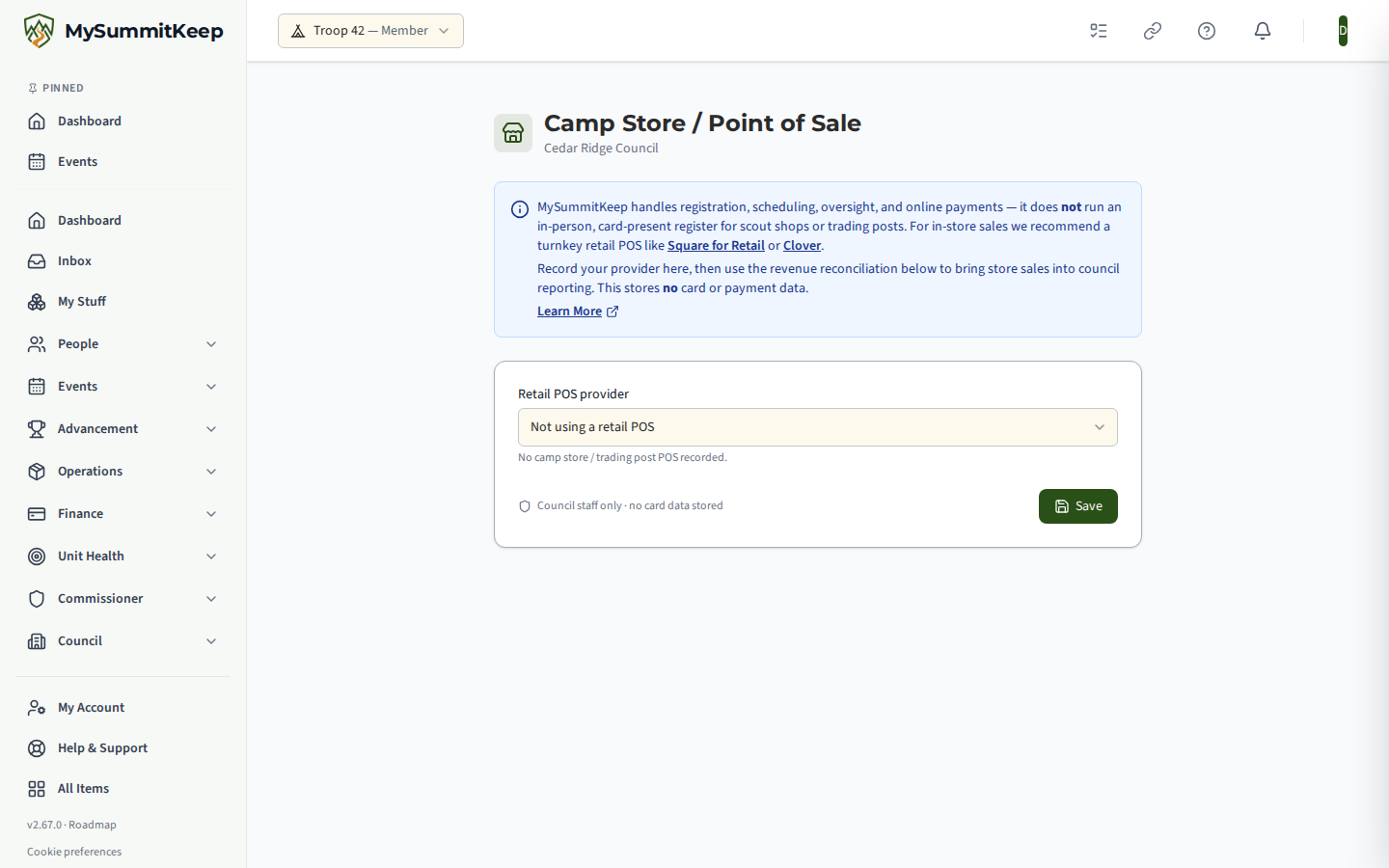
The Camp Store / Point of Sale page records which retail system your council uses for its camp store or trading post, and lets you import that system’s sales summaries so store revenue shows up in council reporting. Open it at /council/admin/pos-settings. The page title carries your council’s name beneath it.
What this page does and does not do
Section titled “What this page does and does not do”MySummitKeep handles registration, scheduling, oversight and online payments. It does not run an in-person, card-present register for scout shops or trading posts. For in-store sales the page recommends a turnkey retail point-of-sale system such as Square for Retail or Clover. This page only records your choice and imports summary figures.
Who can use it
Section titled “Who can use it”The page is for council staff. If your account has no council role, it says “This page is for council staff” and asks you to contact your council to be assigned the correct role. If you have picked a council or district scope from the Councils & Districts section of the unit-switcher menu at the top of the page, the page uses that council.
Recording your provider
Section titled “Recording your provider”Choose a Retail POS provider:
| Option | Hint shown |
|---|---|
| Not using a retail POS | No camp store / trading post POS recorded. |
| Square for Retail | Turnkey retail POS: inventory, hardware, receipts. |
| Clover | All-in-one cloud retail POS. |
| Other provider | Record the provider name in the note below. |
Unless you pick “Not using a retail POS”, two optional fields appear:
- Provider store / admin link, for example your provider’s dashboard address.
- Note, which for “Other provider” is where you record the provider’s name.
Click Save. A Saved message confirms “Camp store / POS settings updated.” Choosing “Not using a retail POS” clears the link and note when saved.
Store Revenue Reconciliation
Section titled “Store Revenue Reconciliation”Once a provider other than “Not using a retail POS” is saved, a Store Revenue Reconciliation card appears. It is read-only reporting: you export a sales summary from your POS and upload it, and MySummitKeep stores aggregate revenue only.
- Click Template to download
council-store-revenue.csv. Its columns arePeriodStart,PeriodEnd,Gross,Fees,NetandDescription. - Paste your CSV into Paste CSV.
- Click Import Revenue. A message reports how many rows were imported and the net total.
After an import you see “Imported N of M rows,” with a count of skipped rows. Each skipped row is listed with its line number and the reason, so you can correct the file and import again. Skipped rows do not block the others.
Once there is data, Gross, Fees and Net totals appear at the top of the card, followed by a table of recent lines (period, gross, net, note). Imports are grouped into batches, so an upload made by mistake can be removed as a batch.
Related: Council Dashboard (Scout Executive), Council Documents.
MySummitKeep is an independent product and is not affiliated with, endorsed by, or sponsored by Scouting America (formerly the Boy Scouts of America). Scouting America, Scouts BSA, Cub Scouts, Venturing, Sea Scouts, and the Order of the Arrow are trademarks of Scouting America. Official program content shown in screenshots and examples is © Scouting America; always confirm current requirements atscouting.org. SeeTerms § 7.3.