
Council Documents
Council Documents lets council staff publish a form, calendar or policy once and have it appear for every unit in the council. Find it under Council → Council Documents in the left menu (/council/documents).
Who can use it
Section titled “Who can use it”You need a council-scope role: Scout Executive, Council Commissioner, Council President or District Executive. Without one, the page tells you that you need a council-scope role to manage council documents.
If you have chosen a council or district scope from the Councils & Districts section of the unit-switcher menu at the top of the page, the page uses the council for that scope.
The document list
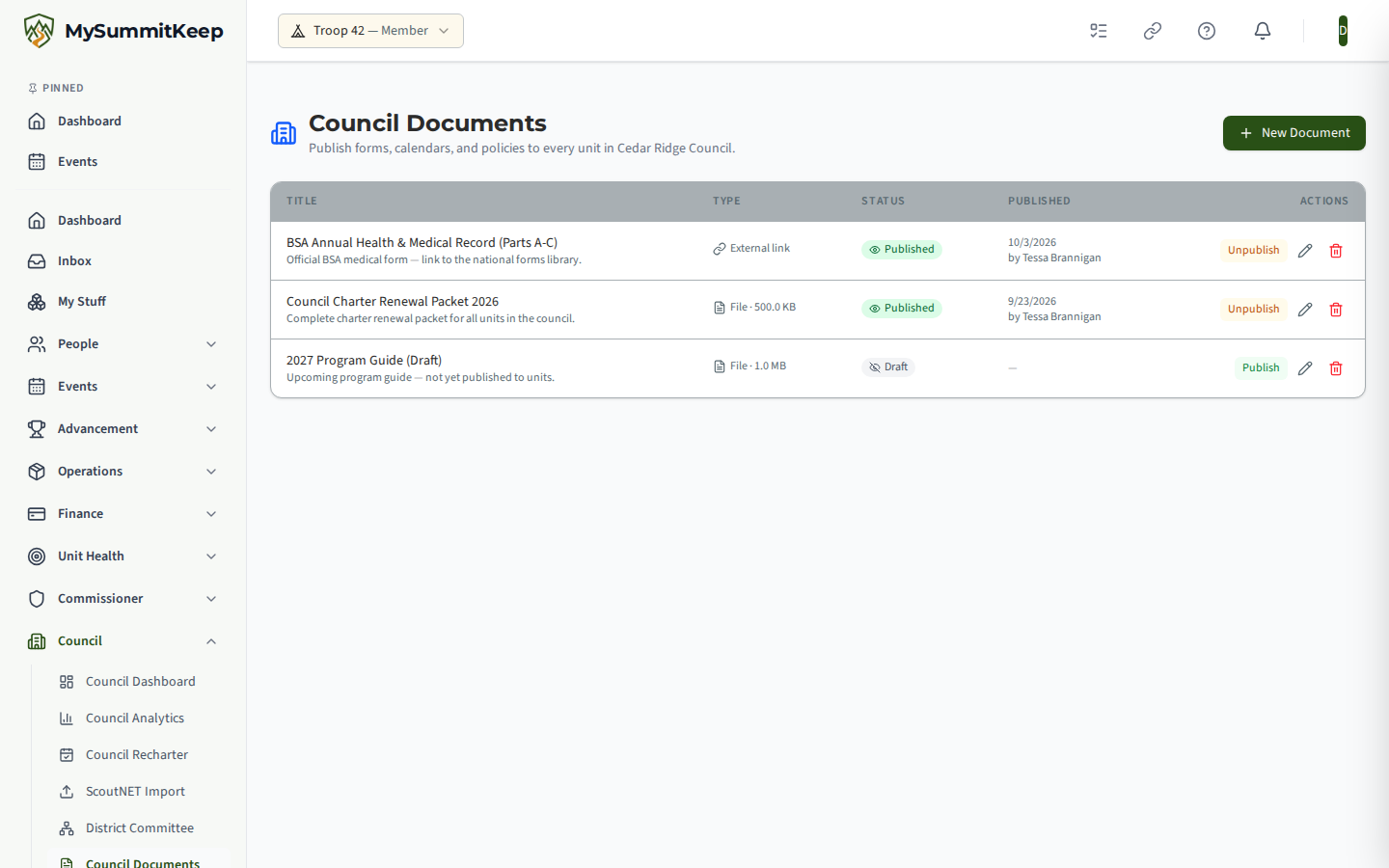
Section titled “The document list”The header reads Council Documents: “Publish forms, calendars, and policies to every unit in” your council. The table has these columns:
- Title, with the description underneath
- the type, either External link or File (with its size)
- Status, either Published or Draft
- Published, showing the date and who published it
- Actions
An empty list reads No council documents yet.
Adding a document
Section titled “Adding a document”Click New Document. The New Council Document form asks for:
- Title, for example “2026 Summer Camp Registration Form”
- Description (optional), notes for unit leaders
- External link or Uploaded file. Choose one, not both. An external link takes a URL. An uploaded file takes the stored file’s Blob name, Content type and Size (bytes)
Click Create as Draft. A new document starts as a draft and is not visible to units yet.
Publishing and unpublishing
Section titled “Publishing and unpublishing”Use Publish on a draft to release it to every unit in the council. Use Unpublish to pull a published document back to draft. Units see published council documents as a read-only Council Documents entry in their Document Vault; unit leaders can open them but not edit or delete them.
Editing and deleting
Section titled “Editing and deleting”The pencil (Edit) opens Edit Council Document, where you can change the title and description in place. The trash can (Delete) asks you to confirm in a Delete Council Document dialog before removing the document.
Related: Council Dashboard, District Committee Org Chart & Messaging.
MySummitKeep is an independent product and is not affiliated with, endorsed by, or sponsored by Scouting America (formerly the Boy Scouts of America). Scouting America, Scouts BSA, Cub Scouts, Venturing, Sea Scouts, and the Order of the Arrow are trademarks of Scouting America. Official program content shown in screenshots and examples is © Scouting America; always confirm current requirements atscouting.org. SeeTerms § 7.3.