
RSVP from an Email Link
When your unit asks for RSVPs, you can get an email with an Answer RSVP button. It opens a short page where you say who is coming, for you and your own Scouts, without signing in. It is meant for the quick “are you coming?” answer; anything bigger still happens in the app.
Answering from the link
Section titled “Answering from the link”- Open the email and press Answer RSVP. The page opens in your browser. The link is for you only: do not forward it.
- You see the event (title, date, place) and a row for each person you can answer for: you and your own linked Scouts, shown by First name and last initial only.
- Choose Going or Not Going for each person, then press Confirm RSVP. Nothing is saved until you press that button; just opening the page changes nothing.
- You see a result for each person. A confirmation email arrives too. It has no link in it.
Events with a fee
Section titled “Events with a fee”You can answer Going for an event that has a fee. The page shows each person’s fee beside their name and, before you confirm, the total your family will owe. Confirming records the RSVP and adds the fee to what you owe, exactly as an RSVP made in the app does. The link never takes a payment and has no card step: after you confirm, the result says how much is owed and you sign in to pay it from the app. Nothing is charged on this page. If the fee changes while the page is open, your answer is not saved and the page asks you to reload so you can see the new amount.
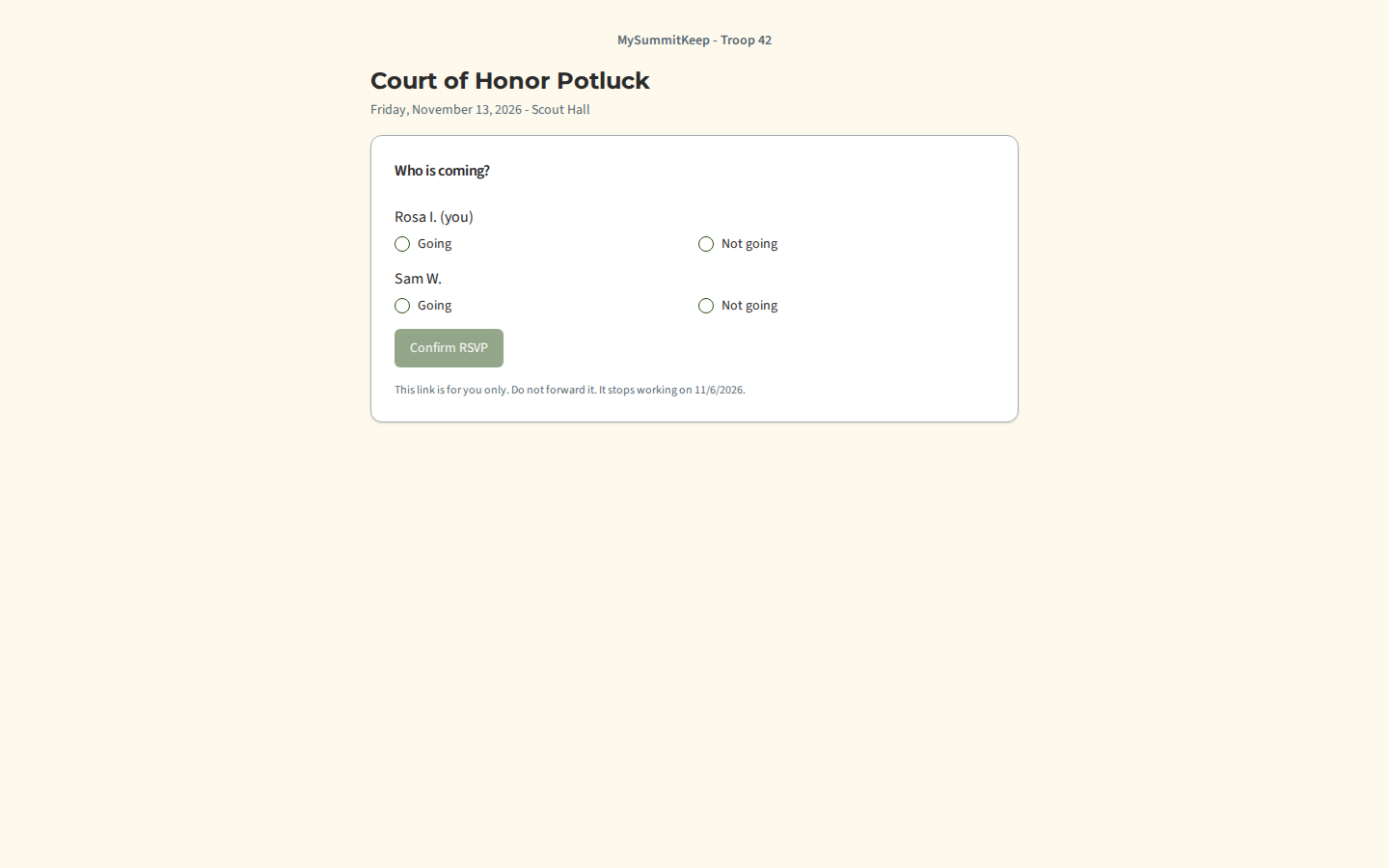
You can use the same link again to change an answer until it stops working. A link expires after seven days, and never later than the registration deadline or the start of the event. A leader can also replace or revoke it.
What the link will not do
Section titled “What the link will not do”Some answers need more than a link, so those rows say Sign in to answer with the reason instead of Going and Not going:
- A Scout under 13 whose parental consent is not recorded yet. Record consent from your family page first.
- Changing a registration that already carries a fee, paid or not. Cancelling one leaves its payment behind, so it is done in the app.
- A closed or invite-only event. The page says why. (On a full event your answer puts you on the waitlist, as it would in the app.)
The page asks for nothing else. It has no dietary, health, medical or contact fields, shows no one outside your own household, and never shows a birth date, an address or a phone number. Forms, payments and permission slips stay behind sign-in.
If the page says “This link is not available”
Section titled “If the page says “This link is not available””It always says the same thing, whatever the reason, so that a link cannot be used to find out anything. The usual causes are that the link expired, that you were sent a newer link (the old one is replaced), that a leader revoked it, that the event was cancelled, or that the email address on your member record changed. Another cause is that email RSVP links were switched off for your unit: that ends every link already sent, and switching it back on does not revive them, so a leader has to send a new one. A link is also checked against the unit’s switch on every use, so one that was sent from another server just after the switch-off does not come back either. The read-only period only pauses links, and they work again when the unit recovers. Sign in to MySummitKeep, or ask your leader for a new link.
If a page says Please try again in a minute, too many attempts were made from your connection or on that link. Wait a minute and try again.
For leaders: requesting RSVPs by email
Section titled “For leaders: requesting RSVPs by email”Open the event, choose the Reminders tab and use the RSVP by Email Link panel.
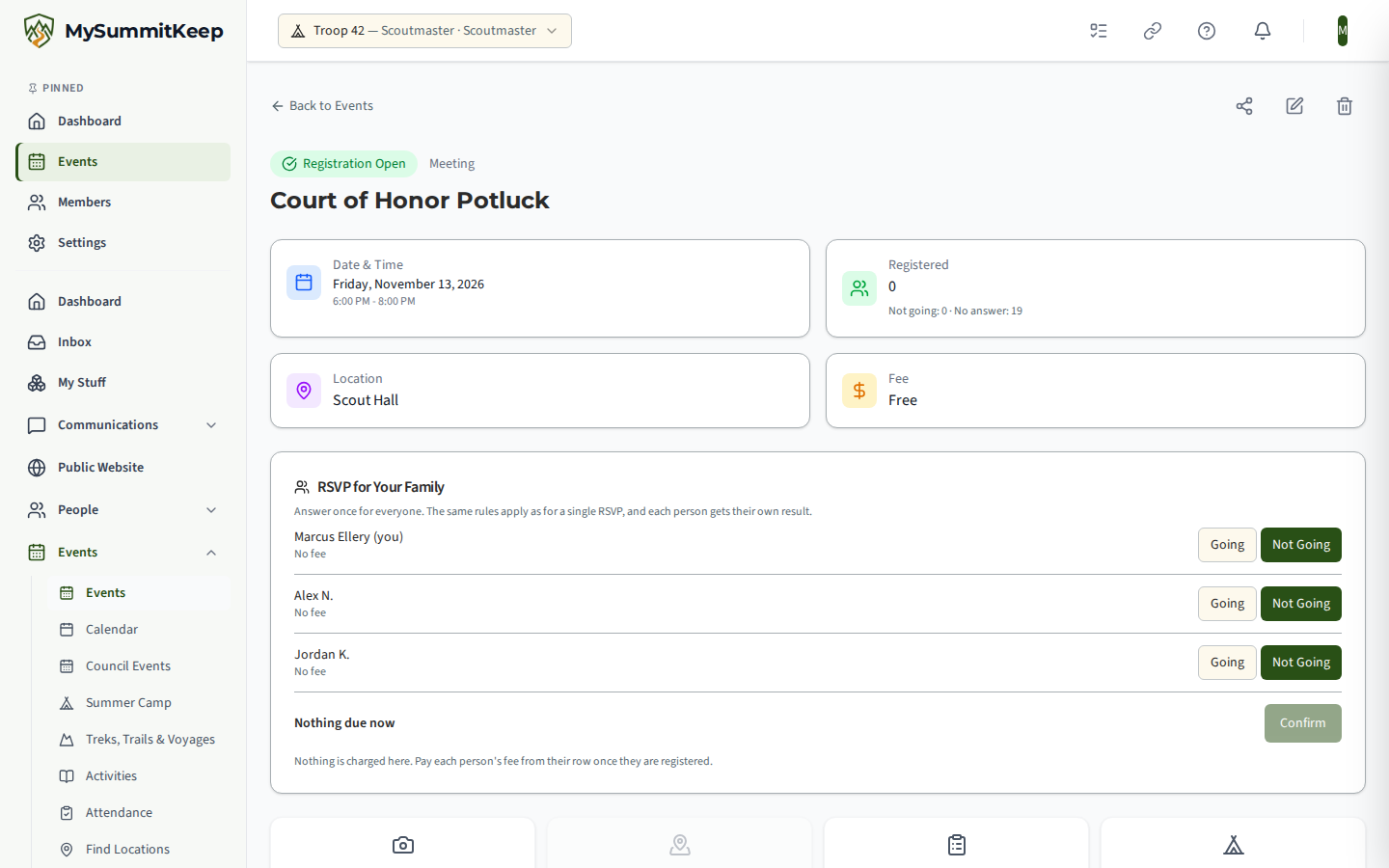
- Who can send: an adult leader who holds both Event.Manage and Event.AdultOutreach (the same adult-only permission as messaging attendees). Youth leaders cannot. This is available on every plan, including Basecamp, and an administrator must have the no-login-rsvp-links feature switched on.
- Request RSVPs sends one email to each parent who still owes an answer: a parent of an active Scout in your unit who has not yet answered for themselves and all their Scouts. You never see the link or the address it goes to. It goes to the email already on the parent’s record.
- Who is skipped, and why: the panel counts each reason. A parent is skipped when they have no usable email, asked not to be contacted, turned event emails off, share an email address with a Scout (a family mailbox the Scout also reads), already answered for everyone, were sent a link in the last 24 hours, or the event is too close to its deadline. The email carries no Scout names.
- The table lists each parent, when the link was sent, when it expires and its status (Active, Answered, Expired, Revoked). Revoke stops one parent’s link and Revoke All stops every link for the event.
- Links end on their own when the event is cancelled or deleted, when the parent’s seat is removed, or when the email on the parent’s record changes.
- Your sending is counted against the same per-leader limit as other event broadcasts.
Every link action is written to the unit’s activity log with the link’s id (never the link itself).
MySummitKeep is an independent product and is not affiliated with, endorsed by, or sponsored by Scouting America (formerly the Boy Scouts of America). Scouting America, Scouts BSA, Cub Scouts, Venturing, Sea Scouts, and the Order of the Arrow are trademarks of Scouting America. Official program content shown in screenshots and examples is © Scouting America; always confirm current requirements atscouting.org. SeeTerms § 7.3.