
Troop Resources
Troop Resources is your unit’s shelf of shared links and handbooks: the BSA advancement guide, a packing list, the permission-slip form, the camp’s website. Leaders publish them once and members find them in one place. Open it from Operations → Resources in the left menu (/resources).
What members see
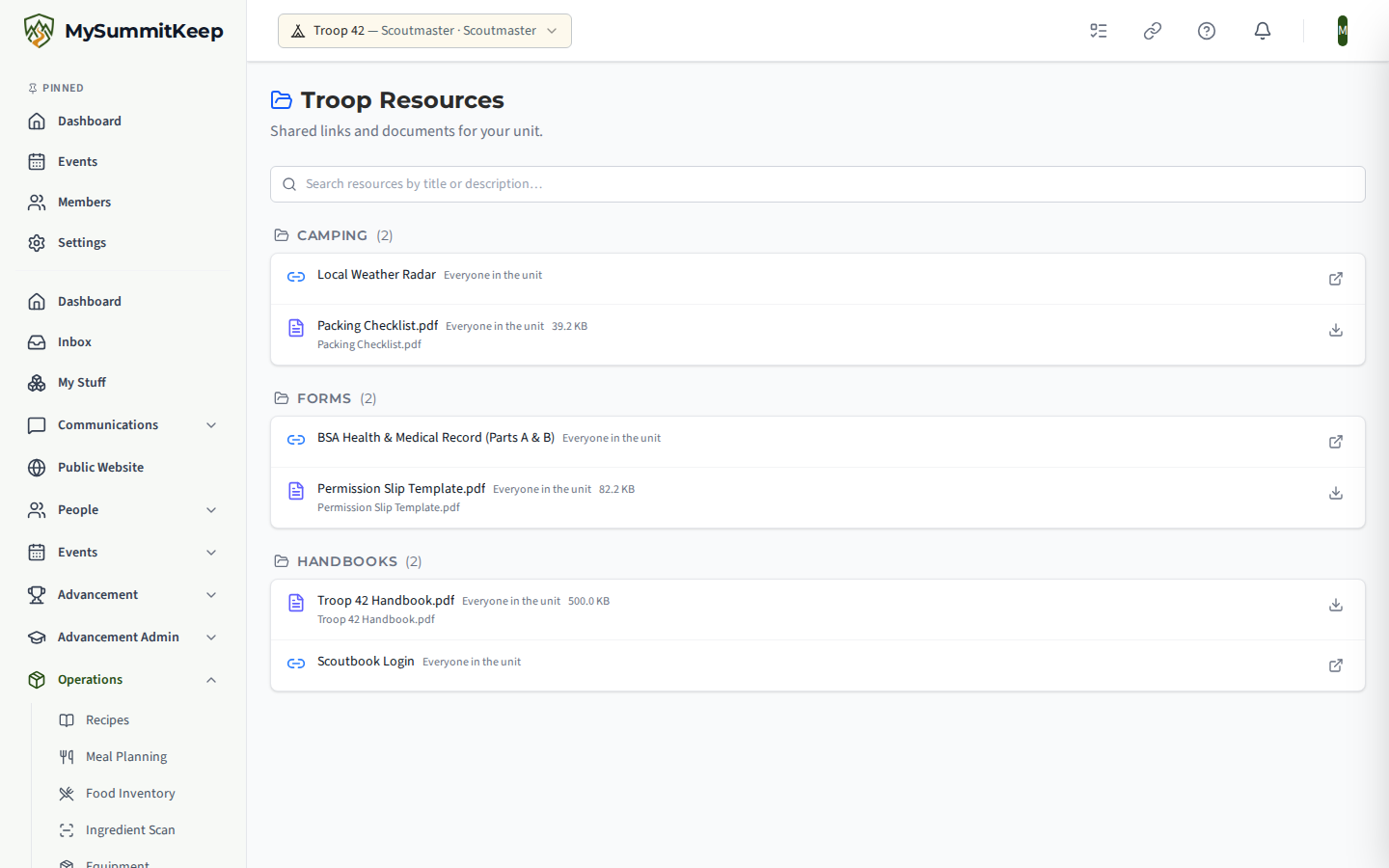
Section titled “What members see”The page header reads Troop Resources with the line “Shared links and documents for your unit.” Resources are grouped under category headings, with a General heading last for anything that has no category. Inside a category they follow the order leaders have set, then alphabetically.
Each row shows the title, who it is visible to, an optional description, and, for uploaded documents, the file name and size. Links have an Open link action; uploaded documents have a Download action. A Search resources by title or description box filters the list as you type, and a message tells you when nothing matches.
Members only ever see resources whose audience includes them. This is enforced on the server, so a leaders-only resource is never sent to a parent’s browser.
Adding a link
Section titled “Adding a link”Leaders see two buttons in the page header. Add Link opens an Add Shared Link form with:
- Title (required), for example “BSA Advancement Guide”.
- URL (required).
- Category, for example “Camping” or “Advancement”. Leave it empty to file the resource under General.
- Visibility, the audience (see below).
- Description, optional.
Uploading a document
Section titled “Uploading a document”Upload Document opens a similar form with a file picker, Title (required), Category, the Visibility audience and a description. Files can be up to 50 MB; a larger file is rejected with an error before anything is sent, and the form shows the chosen file name and size.
Choosing who can see it
Section titled “Choosing who can see it”Every resource has an audience. New resources default to the most private choice:
| Option | Who sees it |
|---|---|
| Leaders only | Leaders and admins |
| Leaders + parents | Leaders and parents |
| Leaders + youth | Leaders and youth members |
| Everyone in the unit | All members |
Changes to a resource’s audience are recorded in the document audit log.
Editing, reordering and deleting
Section titled “Editing, reordering and deleting”On each row, leaders also get:
- Move up to nudge a resource higher within its category (it is hidden on the first row).
- Edit to change the title, category, audience or description in an Edit Resource dialog.
- Delete, which asks Delete resource? first. Confirming permanently removes the resource from the list, and a toast confirms it.
Related: Document Vault, Communications.
MySummitKeep is an independent product and is not affiliated with, endorsed by, or sponsored by Scouting America (formerly the Boy Scouts of America). Scouting America, Scouts BSA, Cub Scouts, Venturing, Sea Scouts, and the Order of the Arrow are trademarks of Scouting America. Official program content shown in screenshots and examples is © Scouting America; always confirm current requirements atscouting.org. SeeTerms § 7.3.