
Activities Catalog
The Activities Catalog is a library of activities your unit can run: den meeting plans, troop meetings, service projects, campouts, ceremonies, recruiting events and short readings such as graces and a Scout’s Own outline. Each entry says what to buy, what to do and in what order, how long it takes, and which advancement requirements it helps a Scout complete. When you find one you like, you put it on an event’s schedule in one step.
The catalog is free on every plan. Creating, editing, sharing and attaching photos to an activity, and putting an activity on a schedule, never need a paid tier.
Find an activity
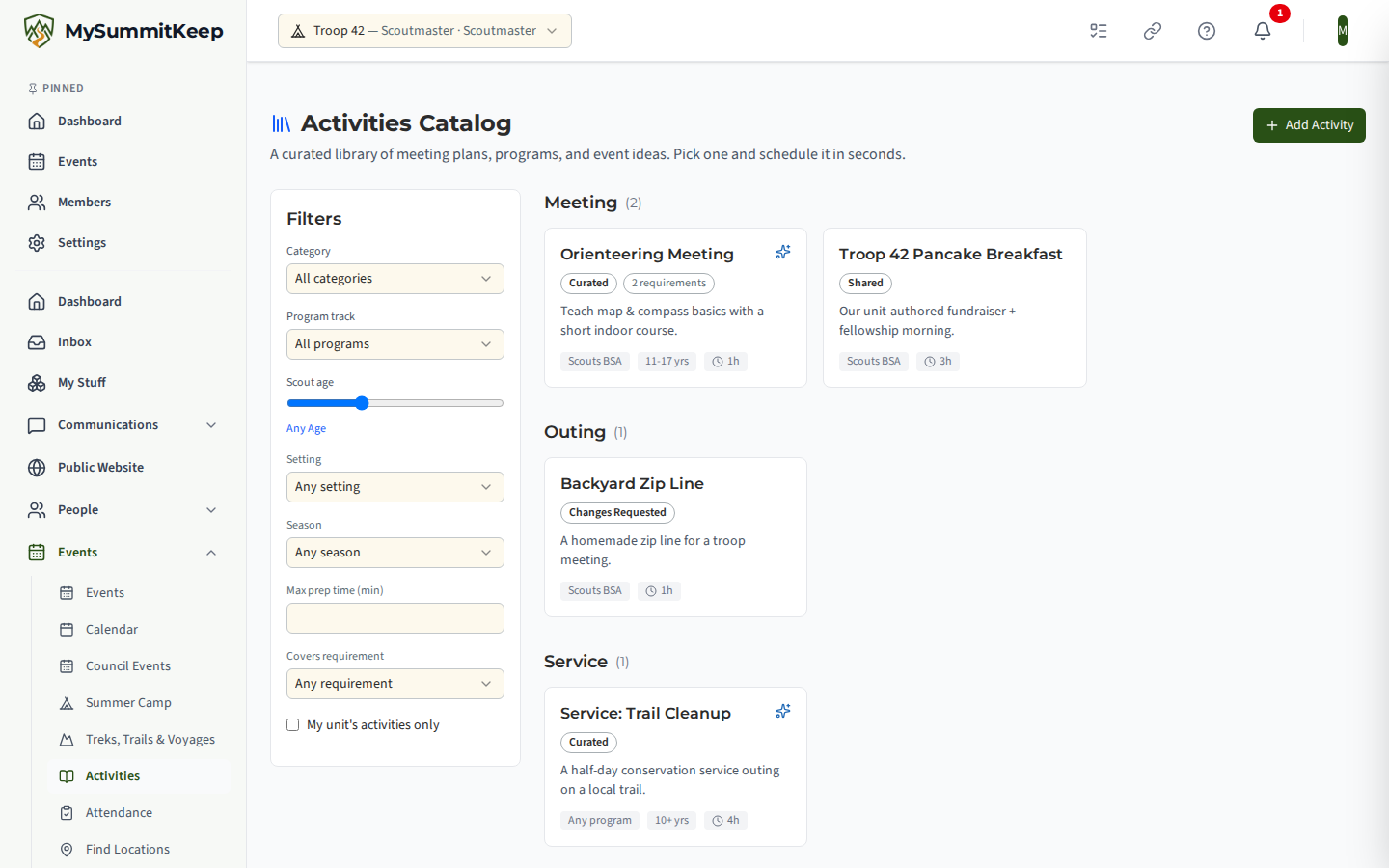
Section titled “Find an activity”Open Events → Activities in the left menu. The cards on the right carry a badge that tells you where each one came from:
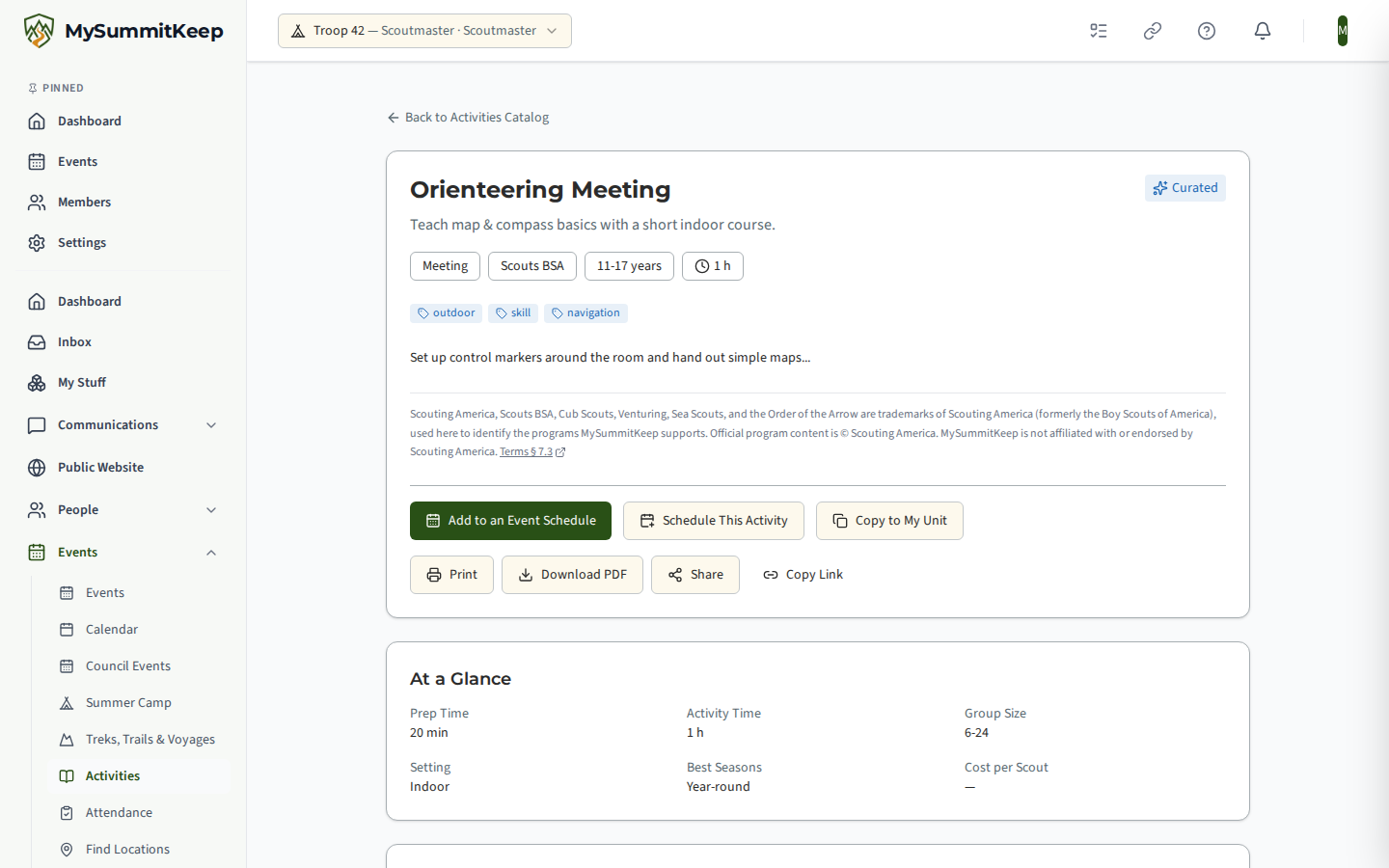
- Curated entries are written by the MySummitKeep team. They include den meeting plans for each Cub rank, Scouts BSA troop meetings, service projects, ceremonies, recruiting events and the activities named in the Cub Pack Program Guide.
- Draft, In Review, Changes Requested and Shared mark your own unit’s entries (see Share an activity with other units).
Use the Filters panel to narrow the list:
| Filter | What it does |
|---|---|
| Category and Program | Meeting, outing, service, camping, skill, ceremony, recruiting or religious entries, for Cub Scouts, Scouts BSA and the other programs. |
| Age | Shows activities that suit a Scout of that age. |
| Setting | Indoor, outdoor or either. |
| Season | Activities that suit a season. Activities with no season set show up for every season. |
| Max prep time | Hides anything that takes a leader longer to prepare than you can spare. |
| Covers requirement | Shows only activities linked to a rank, merit badge, adventure or award requirement. |
| My unit’s only | Shows just the activities your unit wrote. |
Read an activity
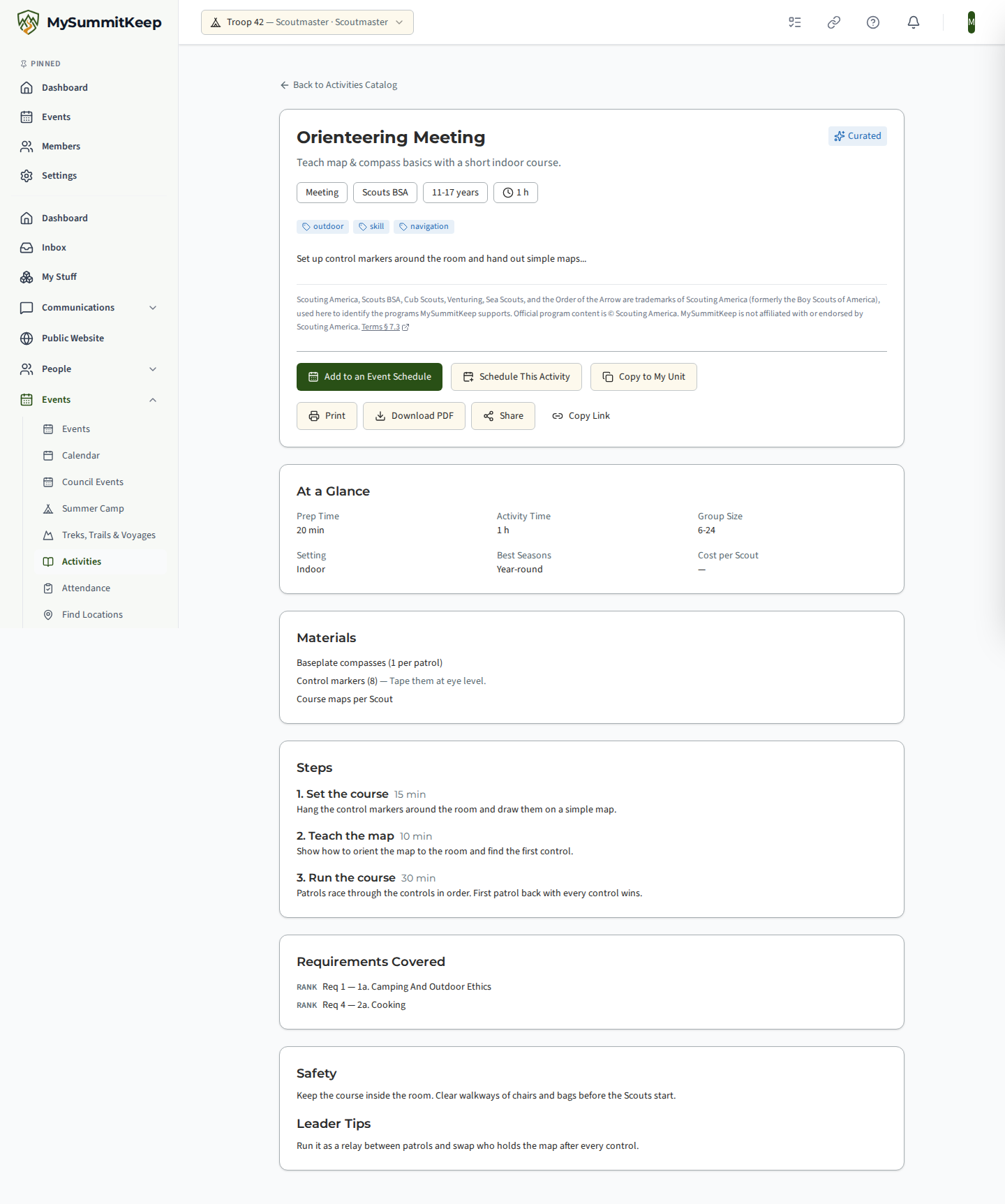
Section titled “Read an activity”Click a card to open it. A complete entry has these parts:
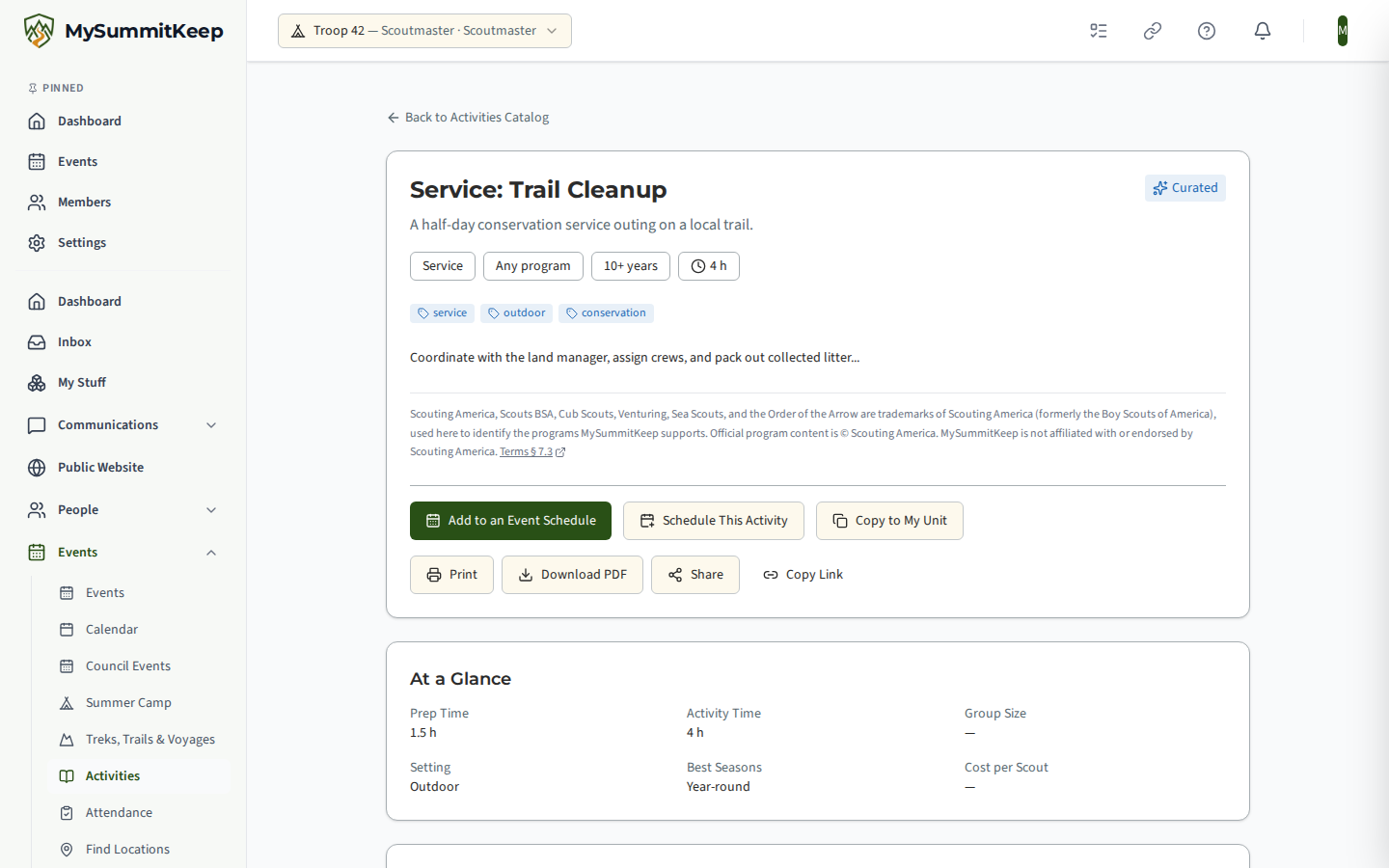
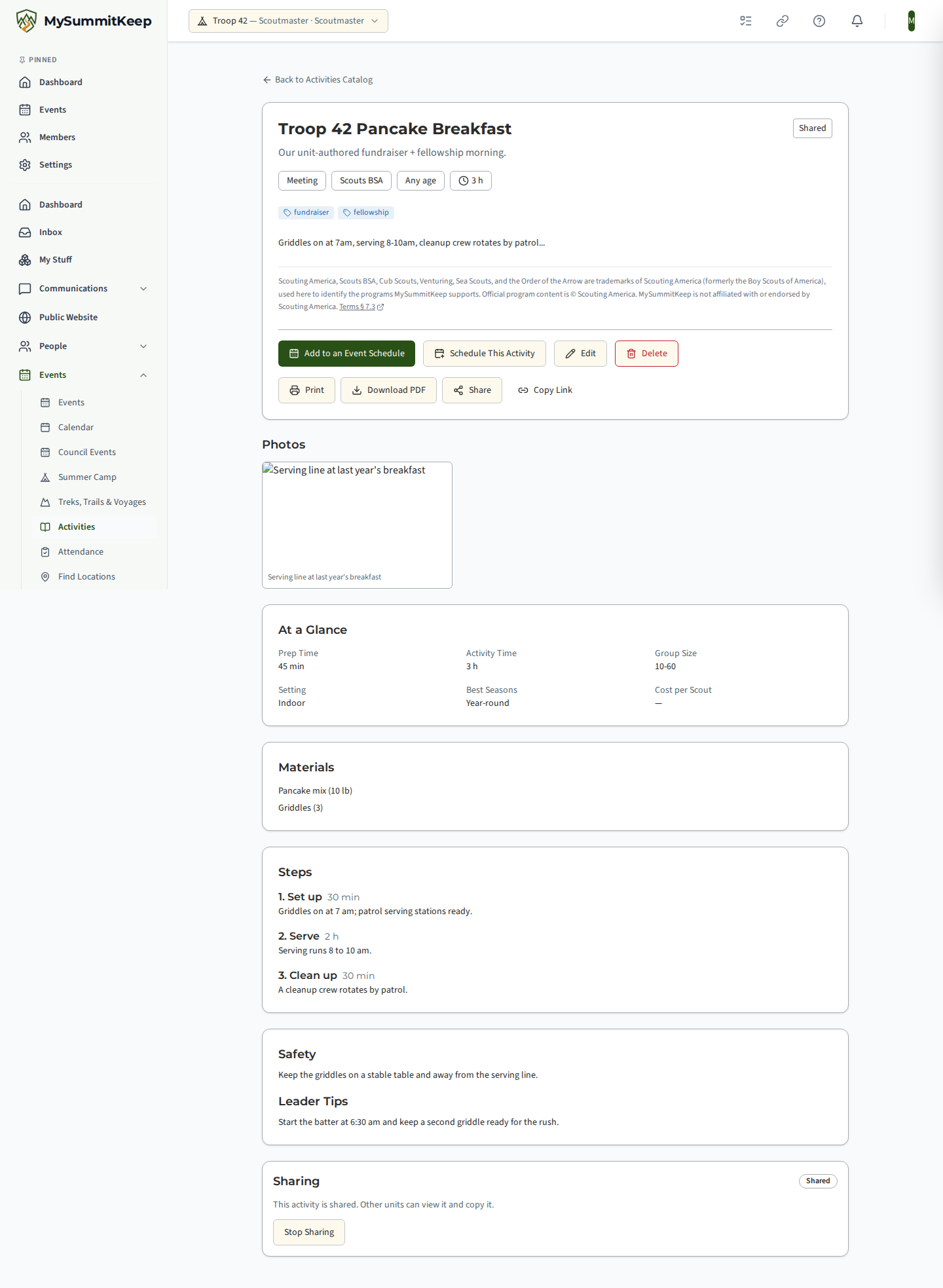
- At a Glance: prep time, activity time, group size, setting, best seasons and cost per Scout. A blank value means nobody has set it, not zero.
- Materials: each supply with a quantity, marked when you need one per Scout rather than one for the group.
- Steps: numbered, in order, each with a planned length when there is one.
- Requirements Covered: the advancement requirements the activity helps with. Each is a real requirement from the rank, adventure, merit badge or award, with its number and wording.
- Safety and Leader Tips.
Activities that need a safety plan
Section titled “Activities that need a safety plan”Some activities, such as swimming or climbing, need a BSA activity safety plan before you run them. When an entry needs one, its Safety section says Needs a safety plan and names the type of plan. You do not have to start the plan yourself: adding the activity to an event creates a draft plan for you to finish and send for review. See Activity Plans.
Add an activity to an event
Section titled “Add an activity to an event”Open the activity and click Add to an Event Schedule. Choose an upcoming event, the day and the start time, then click Add to Schedule.
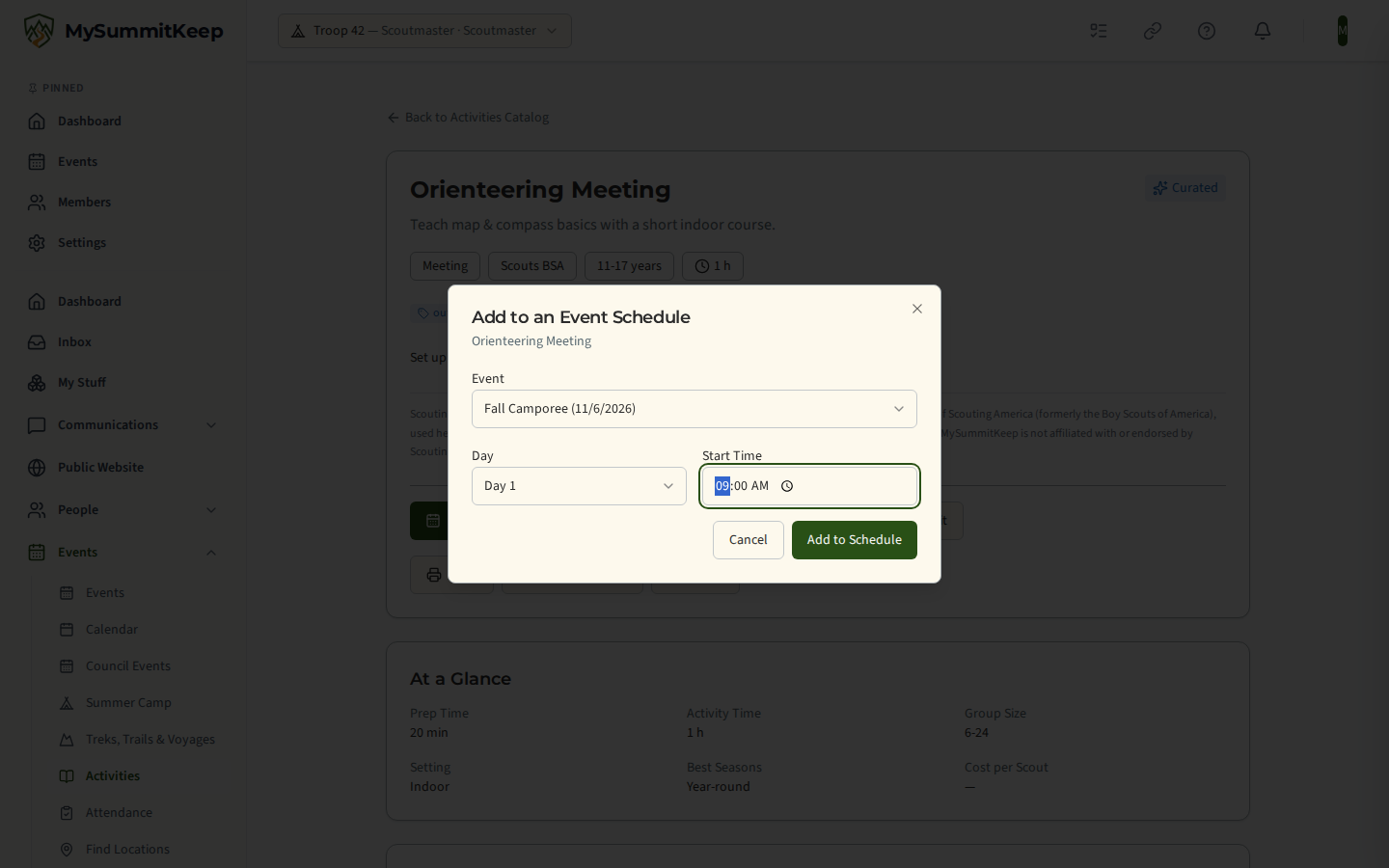
Adding an activity always does these things:
- It puts a block on the event’s schedule, using the activity’s title and its activity time.
- It copies the activity’s Requirements Covered onto that block, so you can see at a glance which requirements the event supports. The block shows a requirements count.
It also starts a draft safety plan only when the activity is marked as needing one. If it is not, no plan is created.
You can also add a catalog activity from the places where you already build schedules:
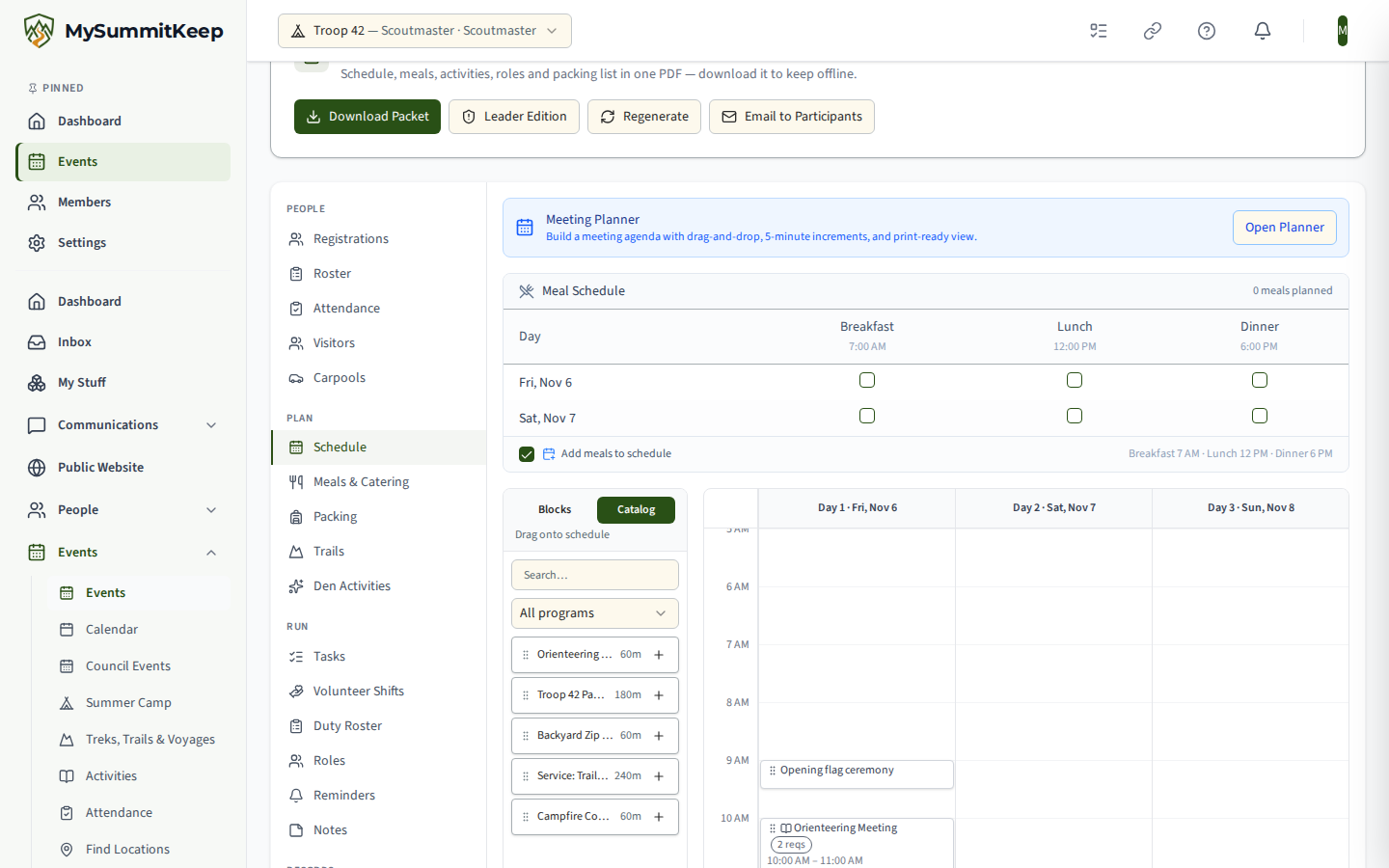
- Event Schedule tab and Meeting Planner: in the library on the left, switch from Blocks to Catalog. Drag an activity onto the grid, or click the + button beside it, which works from the keyboard too.
- Annual Planning Wizard: the optional Add Activities step lets you attach up to ten catalog activities to each planned event. They are put on each event’s schedule when the wizard creates it. See Annual Planning and Meeting Planner.
Write your own activity
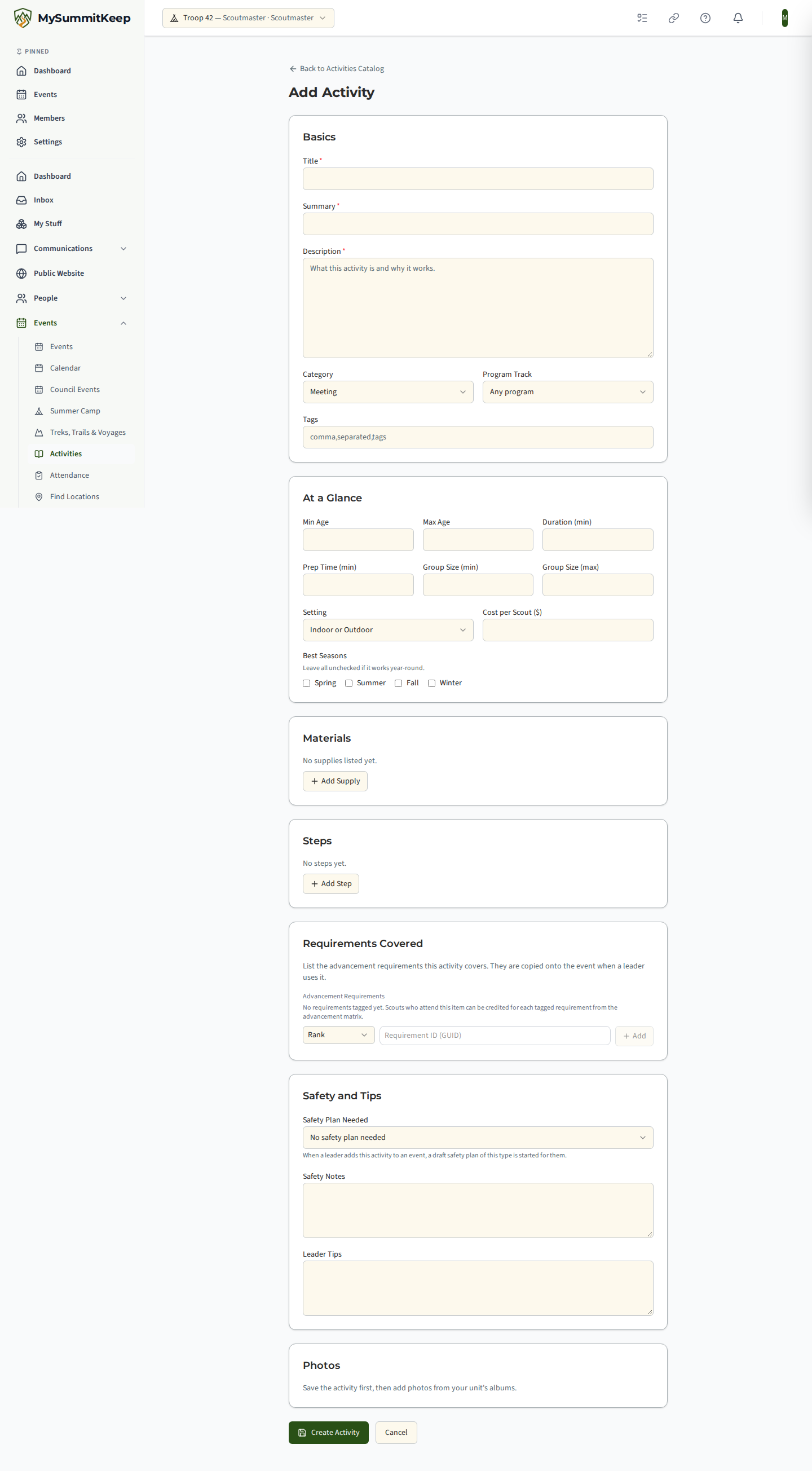
Section titled “Write your own activity”Click Add Activity on the catalog page. The form has these sections:
- Basics: title, a short summary, the full description, the category and the program.
- At a Glance: prep time, activity time, group size, setting, seasons and cost per Scout. Fill in only what you know.
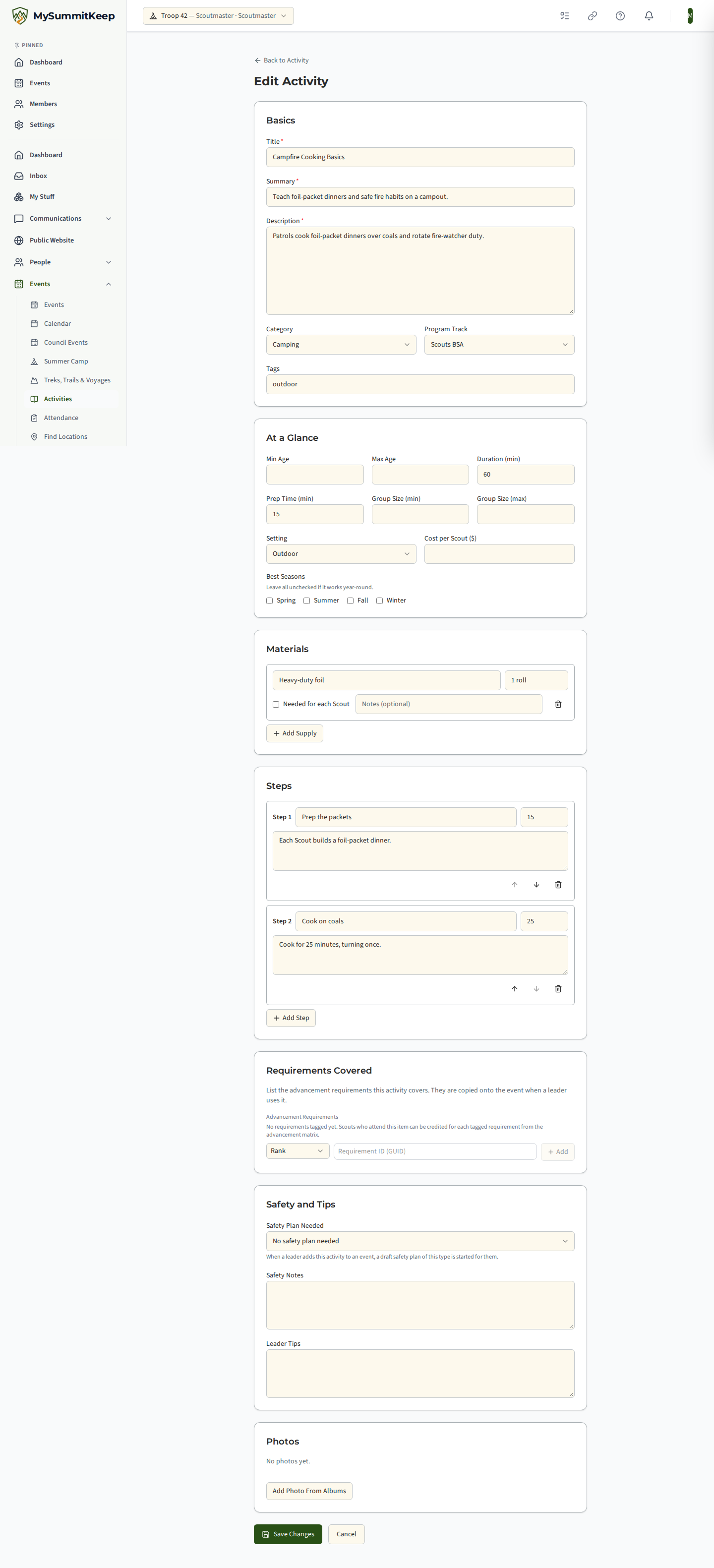
- Materials and Steps: add as many lines as you need. Steps can have a planned length in minutes.
- Requirements Covered: pick the requirements the activity helps with.
- Safety and Tips: safety notes, leader tips, and the safety plan type if the activity needs one.
- Photos: save the activity first, then add photos.
Your own entries are private to your unit until you share them. You can edit or delete them whenever you like. To adapt a curated entry, open it and click Copy to My Unit. The copy is yours to change, and the original stays as it was.
Photos
Section titled “Photos”Click Add Photo From Albums, choose one of your unit’s photo albums and pick a photo. You cannot upload a new picture here: a photo has to be one that is already in your unit’s albums, where it has been through the unit’s usual photo review.
Your own unit sees every photo you attach. Other units see a photo only after it has been cleared for public display and every Scout tagged in it has consent on file. A photo that does not meet that rule shows Hidden from other units in the edit form, with the reason, and it blocks sharing until you fix or remove it.
Share an activity with other units
Section titled “Share an activity with other units”Sharing is how a good idea from one unit helps another.
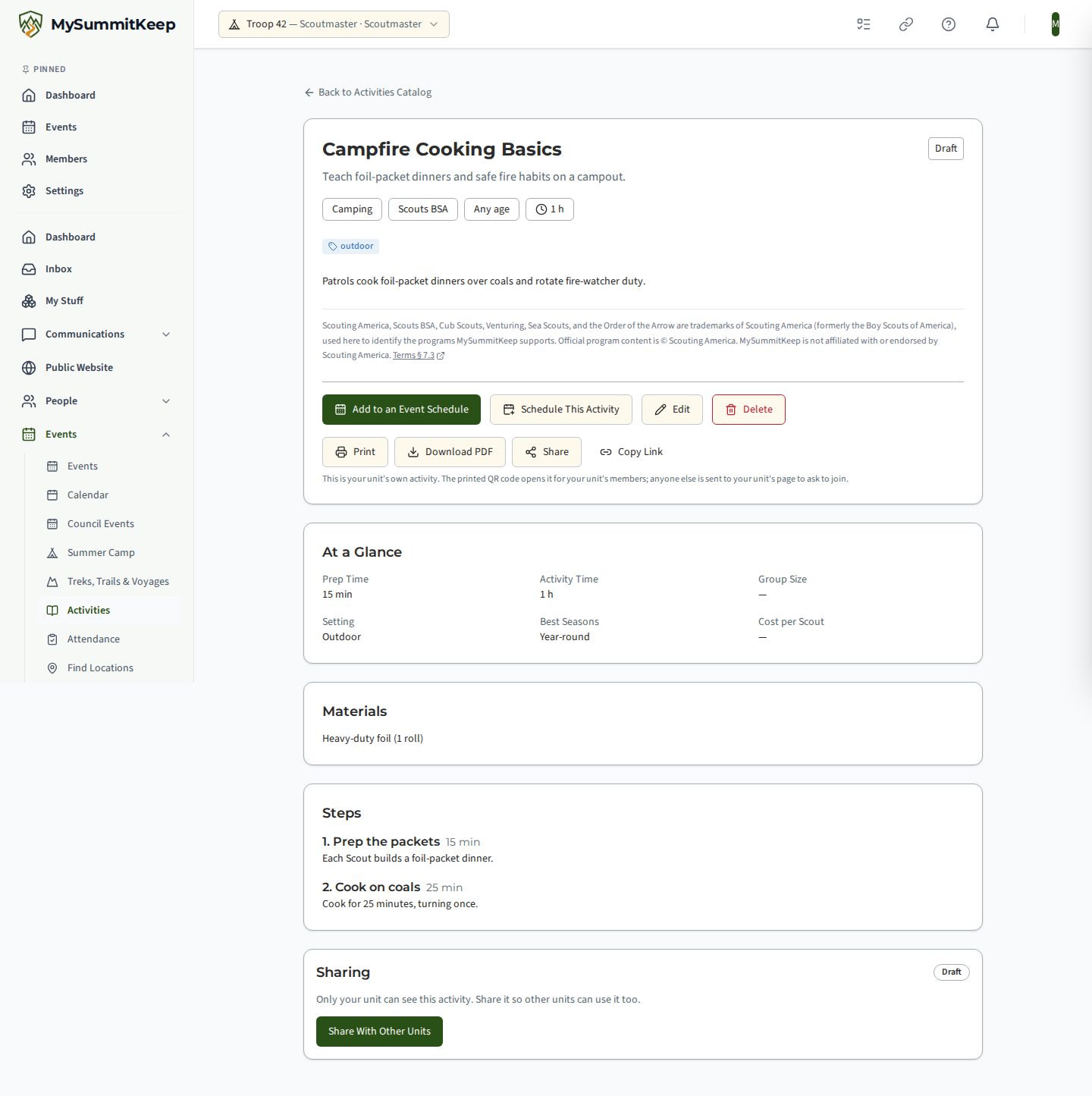
- Open one of your own activities. The Sharing card shows its state.
- Click Share With Other Units. The state becomes In Review.
- A reviewer on the MySummitKeep team checks the activity. It is the same kind of review other shared library items go through before another unit can see them.
- If it is approved, the state becomes Shared. Other units can see the activity and copy it to their own unit. If the reviewer asks for changes, the state becomes Changes Requested and the reviewer’s note appears on the card. Update the activity and share it again.
- To take it back, click Stop Sharing (or Withdraw From Review while it is still being reviewed). It goes back to Draft.
Print, download or share an activity
Section titled “Print, download or share an activity”Every activity page has Print, Download PDF, Share and Copy Link buttons. They work the same way on the Activities Catalog, on Den Activities and on the activities in a Scurry’s Theme Planner, and they are free on every plan.
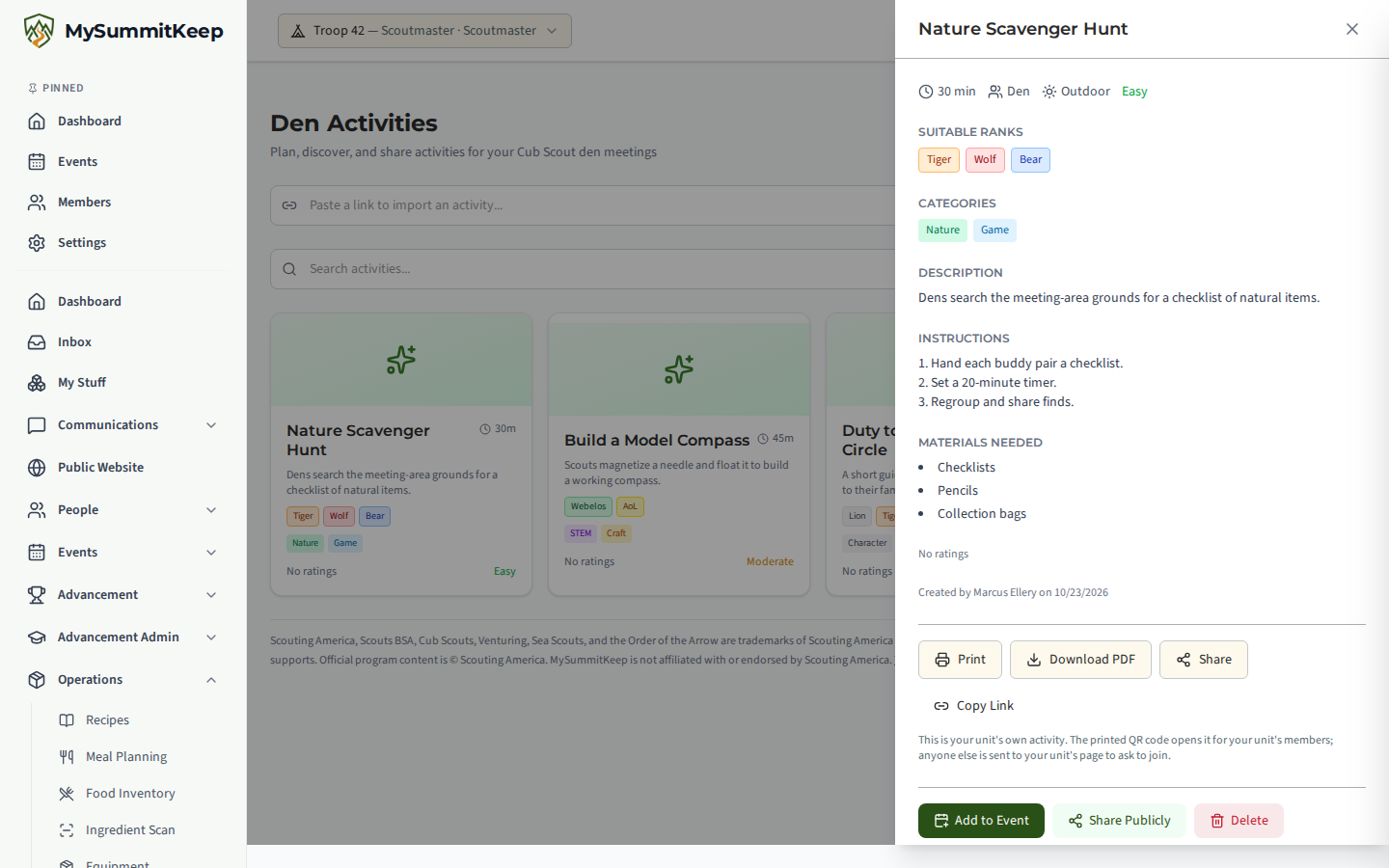
- Print opens your browser’s print window with a US Letter sheet. Download PDF saves the same sheet as a file.
- The sheet carries the MySummitKeep logo and your unit’s name, number and council at the top. Below that are the title, program, ages, time, supplies, steps, requirements covered, safety notes and leader tips. It is black and white friendly, and it never shows a Scout’s or a family’s name.
- The bottom of every page has a QR code that opens the activity’s own page in MySummitKeep. Scanning it needs a free MySummitKeep sign-up, so a flyer you hand out invites people into the app. Anyone who is signed in can open a curated or shared activity straight away.
- Official Scouting America program content keeps its attribution at the foot of the sheet.
- Share opens your phone’s share sheet. On a computer it copies the link instead. Copy Link always copies it.
An activity that belongs to your unit
Section titled “An activity that belongs to your unit”An activity your unit wrote and has not shared with other units stays private to your unit. You can print it, and the QR code on it opens the activity for your unit’s members. Anyone else who scans it, once signed in, lands on your unit’s public page with a Request to join form. They never see the activity itself.
Questions
Section titled “Questions”Does an activity mark any requirement as done? No. The links tell you which requirements an activity supports. A Scout’s requirement is still signed off by a leader in the usual way.
Why can I not edit a curated activity? Curated entries belong to the platform so every unit sees the same thing. Copy one to your unit to change it.
Does the printout show my Scouts’ names? No. A printout holds the activity and your unit’s name, number and council. It does not hold any member’s name, photo or contact details.
Do I need to be signed in to scan the QR code? Yes. A free MySummitKeep sign-up is needed to open any activity from a printout. That is on purpose: it is how a unit introduces new families to the app.
Can other units see my photos? Only photos that pass the rule above, and only on activities you have chosen to share.
MySummitKeep is an independent product and is not affiliated with, endorsed by, or sponsored by Scouting America (formerly the Boy Scouts of America). Scouting America, Scouts BSA, Cub Scouts, Venturing, Sea Scouts, and the Order of the Arrow are trademarks of Scouting America. Official program content shown in screenshots and examples is © Scouting America; always confirm current requirements atscouting.org. SeeTerms § 7.3.