
Court of Honor Wizard
A court of honor is where the unit recognises what Scouts have earned. The Court of Honor Wizard does the gathering: you give it the date of your last court, it finds every rank, merit badge and award earned since, you decide what to present, and it prints what you need for the evening. When the ceremony is over you mark it presented, and the next court starts from there.
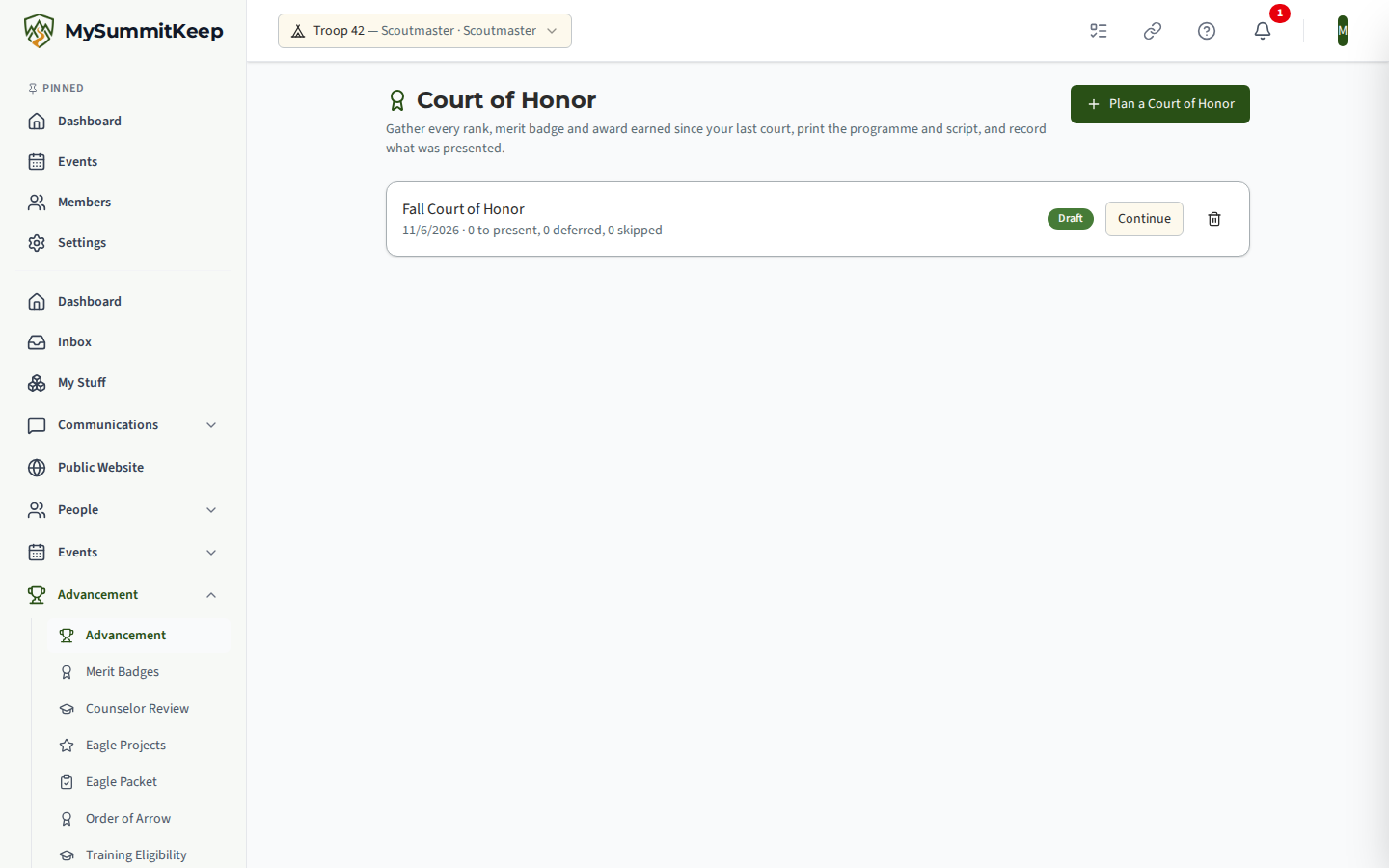
Find it under Advancement Admin → Court of Honor (/advancement/court-of-honor). It is part of the Summit and Peak plans, and it is available to every unit type, because packs present awards too.
The to present number on the list counts only the awards that still qualify. An award you saved earlier that a change to the last-court date has pushed out of range is left out of that number, the same as in the wizard, and stays saved until you confirm its removal.
Who can use it
Section titled “Who can use it”The wizard writes presentation dates onto Scouts’ advancement records, so it is for adults who hold the advancement approval permission, the one that approves advancement in the approval queue. Youth leaders, parents and Scouts cannot open it, even when they can record advancement for their patrol. An adult whose access in the unit is suspended cannot use it until a Key 3 leader restores their access.
The Court of Honor menu entry follows the same rule: it shows for the unit administrator and for an adult who holds that approval permission, and it is hidden from a leader who does not, rather than showing and then refusing them. If you cannot see it and should be able to, ask your Key 3 leader to check your position’s permissions.
The four steps
Section titled “The four steps”1. Details
Section titled “1. Details”Give the court a title, the ceremony date, and the date of your last court of honor. MySummitKeep suggests the last court for you: the date of the last court you marked presented here, otherwise the date of your most recent past Court of Honor event on the calendar, otherwise nothing and you pick. You can also link a Court of Honor calendar event. That only records the link; the wizard never creates or changes events.
2. Awards
Section titled “2. Awards”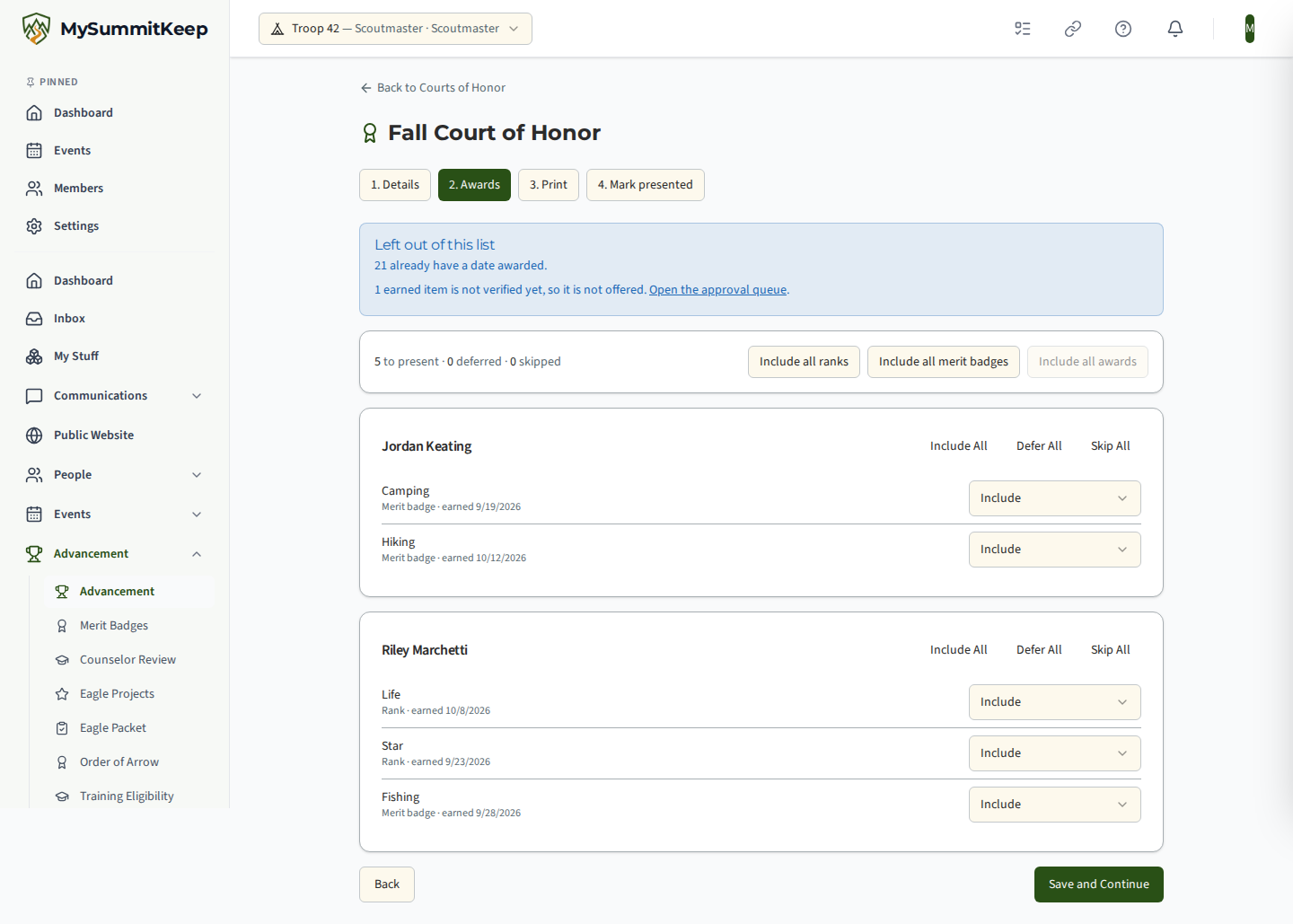
You see every verified rank, merit badge and award earned on or after the last-court date, grouped by Scout. For each one choose:
- Include — present it at this court.
- Defer to next court — hold it back. It comes back automatically at your next court, whatever its date.
- Skip — never offer it again, for example an award you handed out informally.
There are bulk buttons to include every rank, merit badge or award, and to include, defer or skip everything for one Scout. A rank that exists only because a Scout was enrolled in a program starts as Skip, since it is a placeholder, not an achievement.
A note above the list explains what was left out: awards already presented at another court, awards that already have a date awarded, awards skipped at an earlier court, awards for members no longer active in the unit, and earned items that are not verified yet. Unverified badges and awards are never offered; the note links to the approval queue where you can verify them.
Your choices are saved when you continue.
3. Print
Section titled “3. Print”Choose how names print on the audience programme and add your own opening and closing notes, then download:
- Programme — the handout for the audience: title, unit and date, then awards grouped as Ranks, Merit Badges and Awards, with the Scouts receiving each. Names print as First name and last initial unless you choose full names for this ceremony.
- Leader Script — your copy: the same grouping with full names and earned dates, a tick box for each presentation, and your own opening and closing notes. MySummitKeep adds no ceremony wording of its own.
- Awards Shopping List — one row per award with a count, a subtotal for each kind and a grand total, and no Scout names. It counts the awards in this ceremony; check what the unit already has in stock.
If you are allowed to record merit badges and a badge is included, there is also a Blue-Card Packet button. It is the existing blue-card Court of Honor packet, prefilled with this ceremony’s included badges, title and date.
All of these print only the Included items. Nothing is published online and nothing is emailed or texted to anyone.
What changed since you chose. Before anything is printed, MySummitKeep checks each saved choice again against the same rules the Awards step uses. If an award you included is no longer eligible, for example because a badge is no longer verified, it was presented at another court, a date awarded has been recorded for it since, or the Scout is no longer active in the unit, you are shown who and why and nothing is printed yet. Print Without These carries on and leaves those awards off the document; Go Back prints nothing. The same list appears before you mark the court presented. Save and Continue (and the blue-card packet, which saves first) does the same: if saving would take an award off this court, you are shown who and why, nothing is saved yet, and Save Without These carries on. A confirmed save only takes those awards off this court, so they can be offered again later; they are not marked skipped. Only a confirmed Mark presented marks an award as Skipped (and only when it was presented elsewhere, is no longer verified, or its record was removed). Changing the date of your last court of honor on the Details step is different: saving the details never asks you to confirm and never removes anything. If the new date means some saved awards no longer qualify, the Awards step lists them with the reason under Saved awards that no longer qualify, and they stay on your list until you save your choices, print or mark presented, which is where you are asked to confirm before they come off.
4. Mark presented
Section titled “4. Mark presented”After the ceremony, Mark as Presented. You are asked to confirm, with the number of awards and the date. Then:
- each included award is recorded as presented on the ceremony date;
- where a rank, badge or award has no date awarded yet, that date is filled in with the ceremony date. A date that is already there is never changed;
- deferred items stay available for your next court; skipped items stay out.
The date awarded is the date that appears in the IA2 export, so marking a court presented changes what that export reports for those records.
If something changed while you were planning, such as a badge no longer verified, an award presented at another court, an award that has since been given a date awarded, or a Scout who is no longer active, you are first shown who and why and nothing is stamped. Choose Mark Presented Without These to carry on: those awards are left out and no date is written on them. An award that was presented elsewhere, is no longer verified, or whose record was removed is also marked skipped for future courts; the others (a Scout who left the unit, a date entered since) are simply taken off this court and can be offered again at a later one if they become eligible. Go Back changes nothing.
An award can be presented only once. If two leaders mark overlapping courts at the same time, the second is asked to refresh and review.
The page is then read only. Undo (Reopen) takes the court back to a draft and removes exactly the dates this court filled in; a date that was already there, or that someone has changed since, is left alone. A presented court keeps the Scout’s name as it was presented.
Related pages
Section titled “Related pages”- Advancement Workflow — recording and verifying what gets presented
- Merit Badge Counselors & the Badge Workflow — how badges get verified before a court
- Advancement Reports & BSA Exports — the IA2 export that reads the date awarded
- The Eagle Packet — for a Scout heading for Eagle
Need help? Contact support — we usually respond within one business day.
MySummitKeep is an independent product and is not affiliated with, endorsed by, or sponsored by Scouting America (formerly the Boy Scouts of America). Scouting America, Scouts BSA, Cub Scouts, Venturing, Sea Scouts, and the Order of the Arrow are trademarks of Scouting America. Official program content shown in screenshots and examples is © Scouting America; always confirm current requirements atscouting.org. SeeTerms § 7.3.