
Photo Gallery
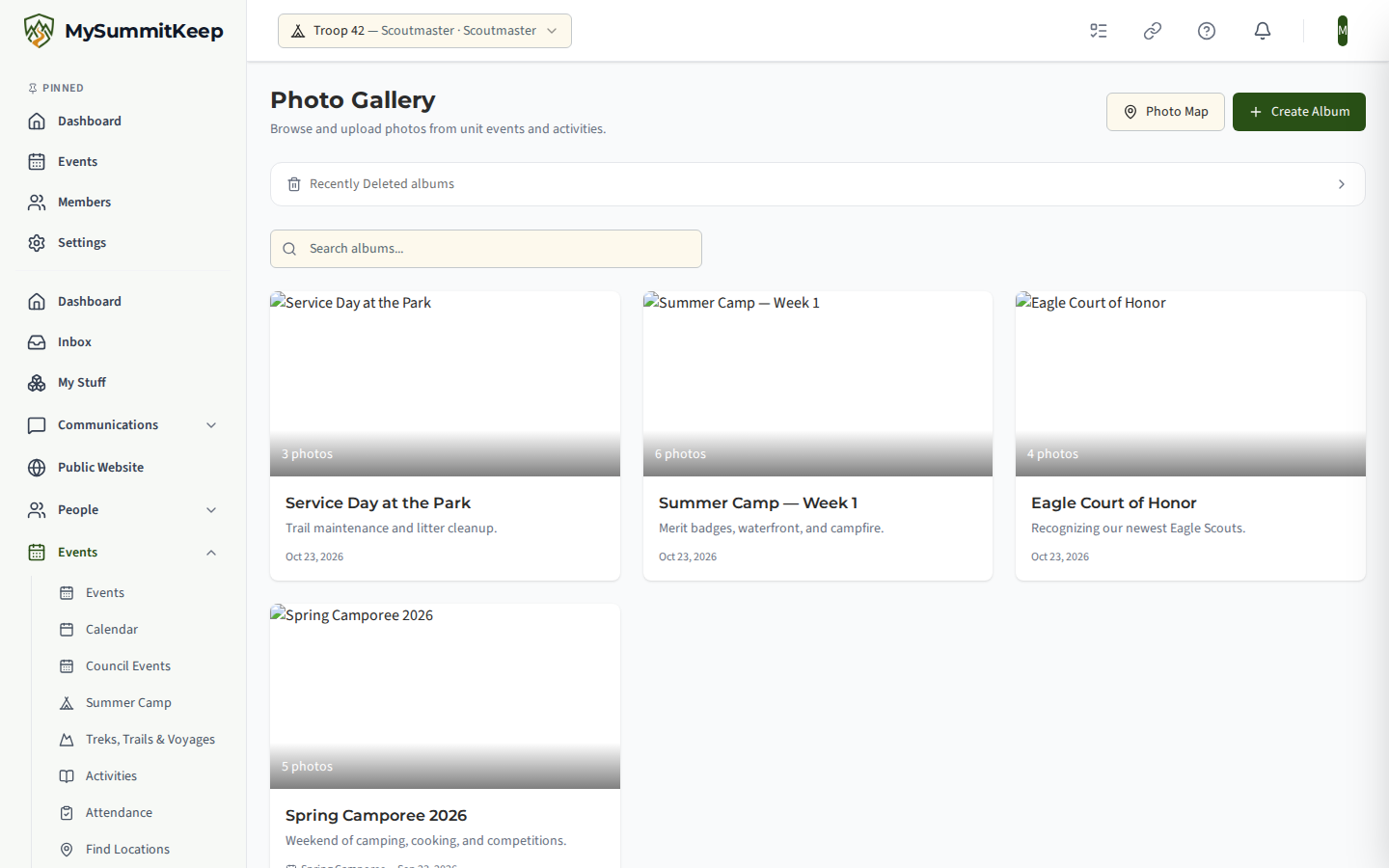
The Photo Gallery keeps your unit’s event and activity photos together in albums, so a campout’s pictures live in one place instead of scattered across phones and group chats. Open it from Events → Photos in the left menu (/photos).
Finding an album
Section titled “Finding an album”Each album is a card with a cover photo (or a camera icon if no photo has been added yet), the number of photos, the album name, an optional description, the linked event if there is one, and a date. Albums are sorted newest first, using the event date when the album is tied to an event and the date it was created otherwise.
Once your unit has at least one album, a Search albums… box appears. It filters as you type and matches the album name, its description and the linked event name. If nothing matches, the page says No albums found and suggests adjusting your search.
Click any card to open the album and see its photos.
Creating an album
Section titled “Creating an album”If you have permission to create albums, a Create Album button sits in the top-right corner (and again in the empty state when your unit has no albums yet). It opens a Create New Album dialog with a name field (the placeholder suggests something like “Summer Camp 2026”) and an optional description.
Inside an album, an Add Photos button reveals the upload queue, and Delete Album removes the whole album. Individual photo delete controls and photo tagging appear only for members who hold the matching photo permissions; if you do not see a control, your role does not include it.
Photo Map
Section titled “Photo Map”The Photo Map button beside Create Album opens /photos/map, a map view of your unit’s photos.
Recently deleted albums
Section titled “Recently deleted albums”Leaders who can create albums also see a Recently Deleted panel on the gallery. Deleted albums, together with their photos, can be restored from it.
Plans and read-only albums
Section titled “Plans and read-only albums”Creating albums, uploading photos and restoring deleted albums are included with the Summit and Peak plans. On Basecamp (the free plan) the gallery stays visible but is read-only, and an amber banner explains why. Basecamp’s 1 GB of storage covers documents, forms and attachments, not photos. Photos uploaded while your unit was on a paid plan stay viewable after a downgrade:
- Those photos still count toward your storage allowance (1 GB on Basecamp, 25 GB on Summit, 100 GB on Peak).
- You can still view and download them, and you can delete ones you no longer need to free up space.
- The Create Album button and the Recently Deleted panel are hidden. Use the banner’s links to review your storage or to see the plans.
Related: Event Planning for the events your albums come from, and the Document Vault for files that are not photos.
MySummitKeep is an independent product and is not affiliated with, endorsed by, or sponsored by Scouting America (formerly the Boy Scouts of America). Scouting America, Scouts BSA, Cub Scouts, Venturing, Sea Scouts, and the Order of the Arrow are trademarks of Scouting America. Official program content shown in screenshots and examples is © Scouting America; always confirm current requirements atscouting.org. SeeTerms § 7.3.