
Locations Map
The Locations page is a searchable map of places your unit might go: campgrounds, parks, council camps, high-adventure bases, lakes, trails, service sites and meeting places. Open it from Events → Find Locations in the left menu (/locations).
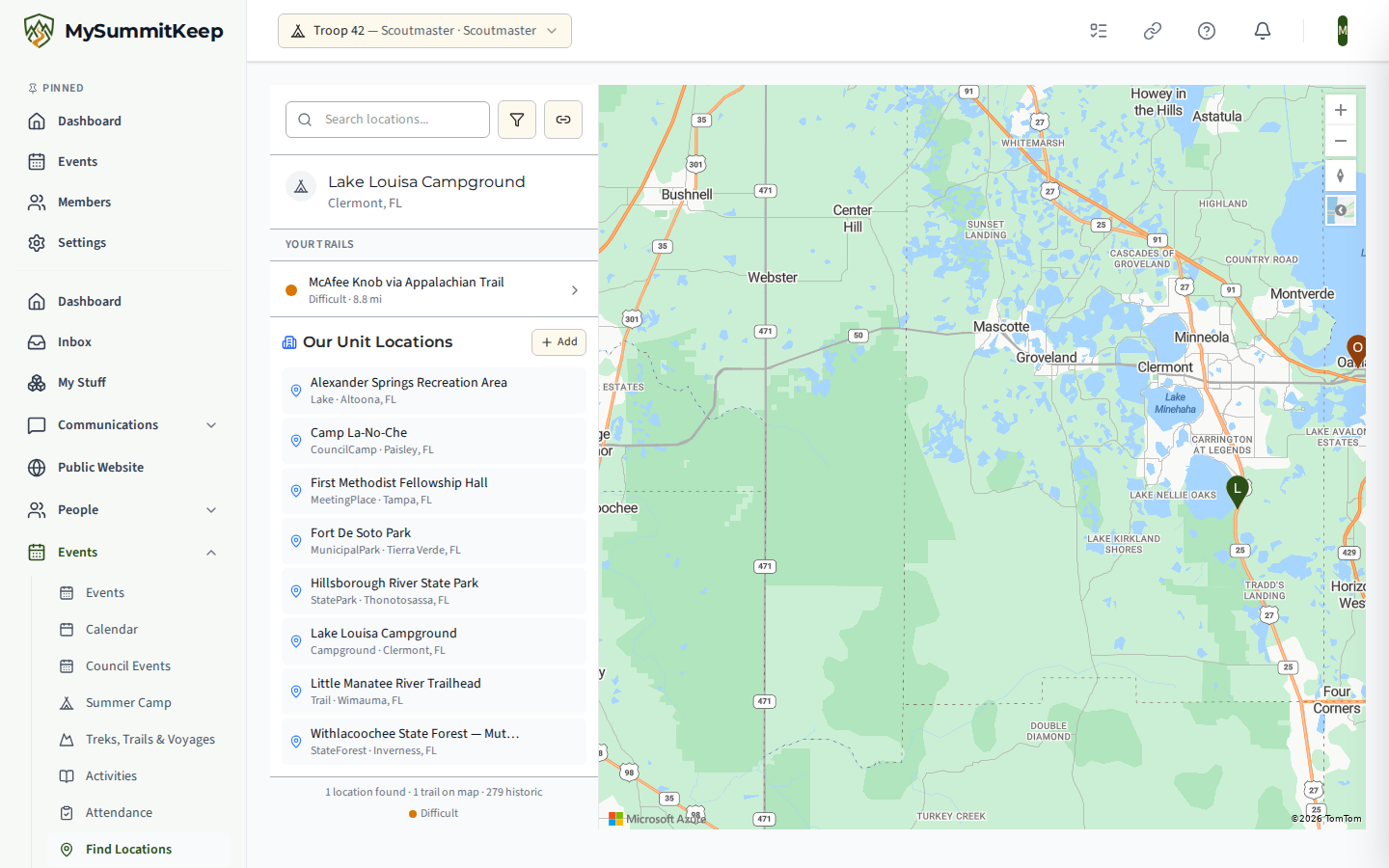
How the page is laid out
Section titled “How the page is laid out”On a wide screen the page is split in two. The left sidebar holds a Search locations… box, a filter button, a link-import button, and a scrollable list of location cards. Each card shows the place’s name, an icon for its type (tent, trees, water, mountain and so on) and a green shield when the site is Cub Scout Approved. On a phone the sidebar stacks above the map.
The list follows the map. Pan or zoom the map and the sidebar updates to the places in view; the footer of the sidebar reports how many locations and trails are currently found. If nothing is in view it says No locations found in this area.
Filtering
Section titled “Filtering”Click the funnel button to open the filter panel:
- Location Type, for example campground, council camp or lake.
- Activity, to find places that support a particular activity.
- Merit Badge, to find places relevant to a badge.
- Cub Scout Approved only, a toggle that keeps just the approved sites.
- Show historic trails, which turns on a national layer of historic trails on the map.
When any filter or search is active, a Clear Filters button appears at the bottom of the panel.
Trails your unit has saved in the Library appear in the list under Your Trails, and historic trails in view appear under Historic Trails. Click one to open its detail view. See Treks, Trails & Voyages Library for building those.
Location details
Section titled “Location details”Click a pin or a card to open the Location Details panel. It shows the description, the Activities available and the Merit Badges the site supports (Eagle-required badges are highlighted). The panel’s buttons are:
- Full Details opens the location’s own page.
- Create Event Here (shown to members who can create events) opens the new-event form pre-filled with the location’s name and address. See Event Planning.
- Suggest an Event Here lets any member propose an outing at this place for leaders to consider.
- Reserve / Book appears only when the location has a reservation link; it opens that link in a new tab.
Importing a location from a web link
Section titled “Importing a location from a web link”Click the link button beside the filter button to open the importer and paste a page address. The importer lists the sites it supports: AllTrails, Recreation.gov, Google Maps, NPS.gov, ReserveAmerica, Hipcamp and The Dyrt. MySummitKeep reads the page and creates the location for you; if it cannot, you see an Import failed or Import issue message instead.
For leaders: your unit’s own places and scout suggestions
Section titled “For leaders: your unit’s own places and scout suggestions”Leaders and admins see two extra panels at the bottom of the sidebar:
- Our Unit Locations lists places that belong only to your unit, such as your meeting hall. Use it to add a location (name, street address, state, latitude and longitude, phone and notes), edit one, or delete one.
- Scout Suggestions collects event ideas that members sent from a location’s detail panel. Pick a date and an event type and choose Schedule to turn a suggestion into an event, or choose Decline to dismiss it.
MySummitKeep is an independent product and is not affiliated with, endorsed by, or sponsored by Scouting America (formerly the Boy Scouts of America). Scouting America, Scouts BSA, Cub Scouts, Venturing, Sea Scouts, and the Order of the Arrow are trademarks of Scouting America. Official program content shown in screenshots and examples is © Scouting America; always confirm current requirements atscouting.org. SeeTerms § 7.3.