
Finding Your Way Around
MySummitKeep has a lot of pages, so no one sees all of them at once. This page explains how the menu is laid out, why yours may look different from a friend’s, and the three ways to reach a page quickly: the left menu, All Items, and on a phone the bottom bar.
Throughout these guides a menu path such as Events → Photos means: open the Events group in the left menu, then click Photos.
The left menu
Section titled “The left menu”On a computer the menu runs down the left side of every page. On a phone, tap the menu button at the top of the screen to open it.
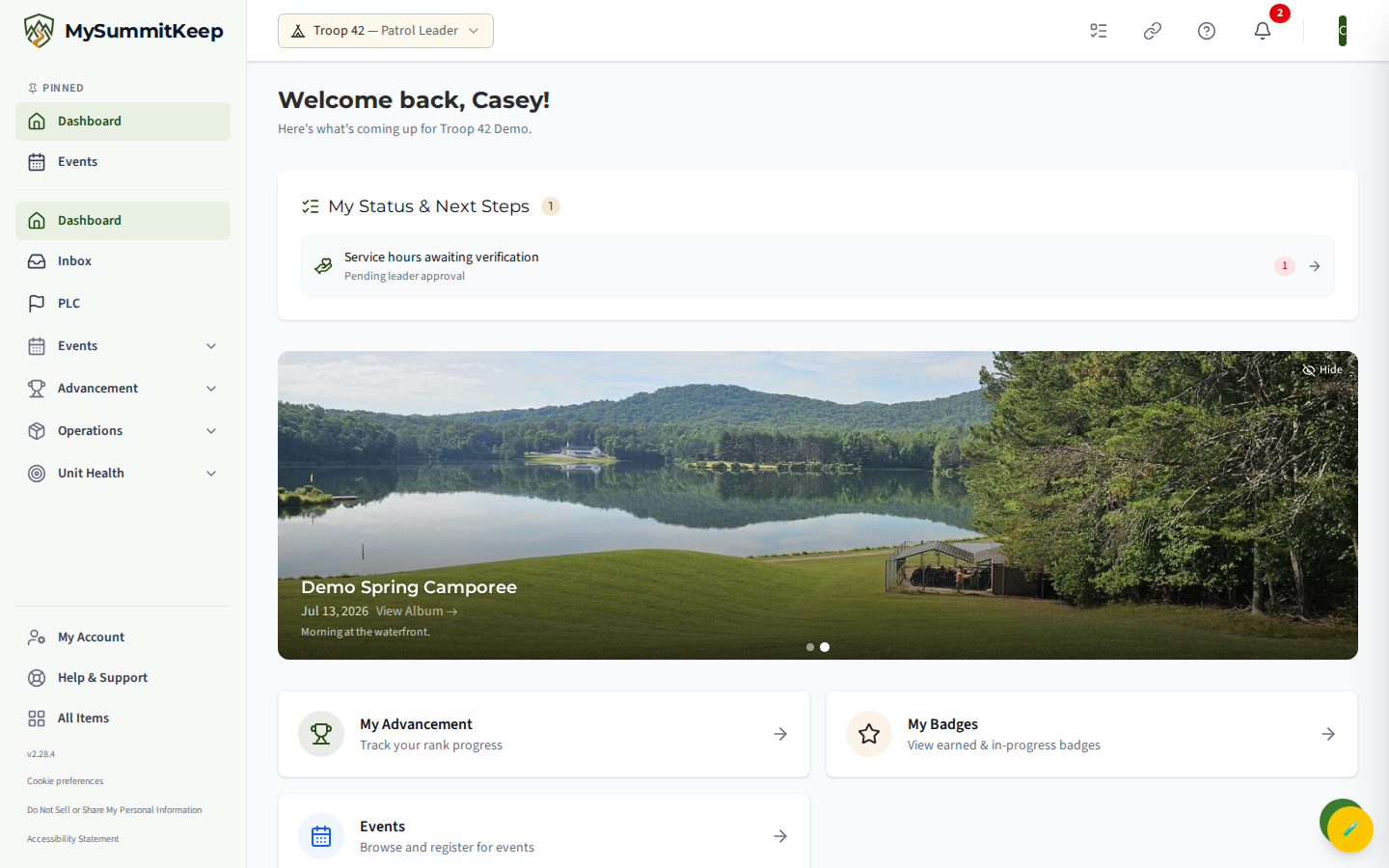
The menu is divided into groups. Click a group’s name to open it and see its pages; click the name again to fold it away. The group that holds the page you are on opens by itself.
| Group | What you find there |
|---|---|
| Home | Dashboard, Inbox, My Stuff and My Events |
| Communications | Channels, Messages, Announcements, Blog / News, Group Messaging, Sent Messages, Contacts, Messaging Groups, Message Reports |
| Public Website | Your unit’s public address and QR code. A single link, shown to leaders who can change unit settings |
| People | Renew Registration, My Family, Families, Members, Alumni, Unit Leadership, Member Transfers, Activity Log, Recycle Bin, Patrols, Leadership Council and more |
| Events | Events, Calendar, Council Events, Summer Camp, Treks, Trails & Voyages, Activities, Attendance, Find Locations, Photos, Permission Slips, Unit Prospects |
| Chipmunks | Sticker Book and Move Up to Lions. Only in a Chipmunks Scurry |
| Advancement | Advancement, My Badges, Merit Badges, Counselor Review, Eagle Projects, Eagle Packet, Adventures, Order of Arrow, Training, External Service Hours, Awards, Quick Entry |
| Advancement Admin | For leaders: Boards & Conferences, Approval Queue, Badge Review, Court of Honor, Service Verification, IA2 Export, Progress Report, Analytics, Reports, Email Analytics |
| Operations | Recipes, Meal Planning, Food Inventory, Equipment, Gear Lists, Patrol Boxes, Checklists, Activity Plans, Elections, Surveys, Resources |
| Documents | Document Vault, Document Templates, Document Reporting, Document Audit Log |
| Finance | Dashboard, Ledger, Who Owes What, Reconciliation, Annual Budget, Scout Accounts, Invoices, Unit Payments, Bank Accounts, Reimbursements and the other treasurer pages |
| Unit Health | Success Plan and Self-Assessment |
| Commissioner and Council | For commissioners and council staff only |
| Admin and Settings | For unit admins: Health & Safety, Recharter, Settings, Unit Setup, Import / Export, Bulk Operations, User Management |
| AI Assistant | A single link at the very bottom, for leaders |
The labels change a little with your unit type. A Pack calls its sub-groups Dens, a Troop calls them Patrols and a Ship calls them Divisions; a Crew or Post has none, so the page is left out. The youth leadership page is PLC in a Troop, Officers in a Crew or Post, and Quarterdeck on a Ship.
Under the groups, at the bottom of the menu, are four more links:
- My Account: your own balance, payment requests and invoices.
- Help & Support: the help centre and support tickets.
- All Items: the full list of pages you can open (see below).
- Upgrade: shown only to leaders who manage the unit’s payments, and only while a higher plan is available. It opens the plans page.
Your account menu, behind your picture or initials at the top right, holds Profile Settings, Contact Support, Sign Out and, for unit admins, Admin Center.
Pinned pages
Section titled “Pinned pages”Any page can be pinned. Pinned pages appear in a Pinned list at the very top of your left menu, above the groups, so your favourites are always one click away. You pin and unpin from All Items.
Why your menu is different from someone else’s
Section titled “Why your menu is different from someone else’s”The menu only lists pages you can actually use, so two people in the same unit often see different menus. Four things decide what you see:
- Your role. A Scout sees a short menu. A parent sees the family pages. Leaders add the leader groups such as Advancement Admin, and unit admins add Admin and Settings. Some pages also depend on a specific permission, not just a role: Finance pages need the permission to manage the unit’s finances, for example.
- Your unit’s plan. A page that is not part of your plan is left out of the menu instead of being shown greyed out. A leader who manages payments sees Upgrade at the bottom of the menu. See Billing and subscription for what each plan includes.
- Your unit type. A Pack sees Den Activities and no Boards & Conferences tab; a Troop sees Eagle Packet and Patrols; Chipmunks appears only in a Scurry.
- What your unit has switched off. A unit admin can hide whole sections the unit does not use, such as Meal Planning or Surveys, from Settings → Menu Sections. See Menu Sections.
All Items
Section titled “All Items”All Items is the complete, searchable list of every page you can open, and it is where you pin favourites. Click All Items at the bottom of the left menu, or go to /all-items.
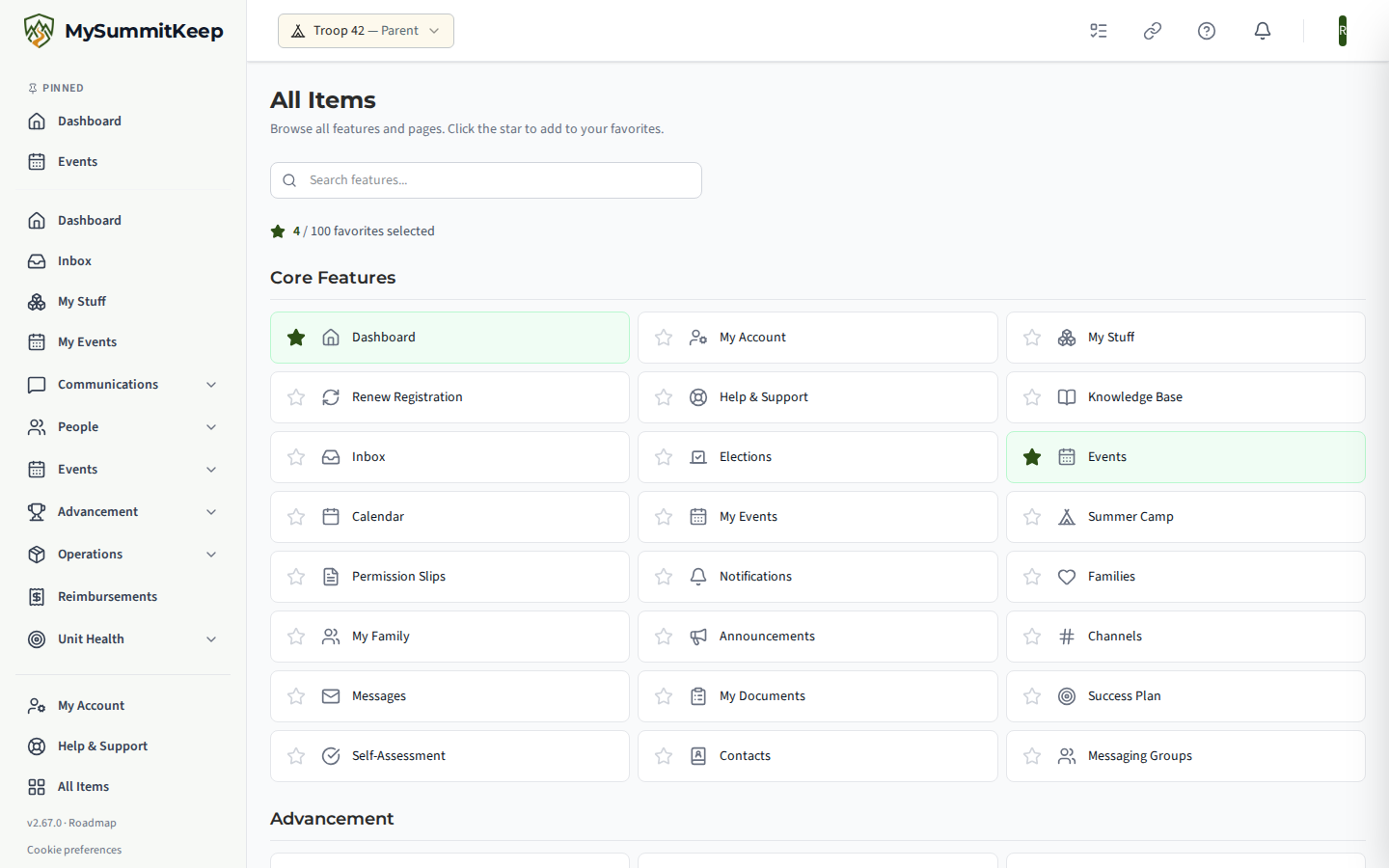
- Pages are grouped under four headings: Core Features, Advancement, Planning & Operations and Admin & Settings. A heading with nothing in it for you is left out.
- Type in the Search features… box to narrow the list by name.
- Click the star beside a page to pin it, and click it again to unpin. The counter above the list shows how many you have pinned out of 100.
- Click the page’s name to open it.
All Items follows exactly the same rules as the left menu, so it never lists a page you cannot use. The screenshot above is what a parent sees; a leader’s list is longer.
On a phone: the bottom bar and More
Section titled “On a phone: the bottom bar and More”On a phone a bar along the bottom of the screen puts the most-used pages under your thumb. It has up to five buttons:
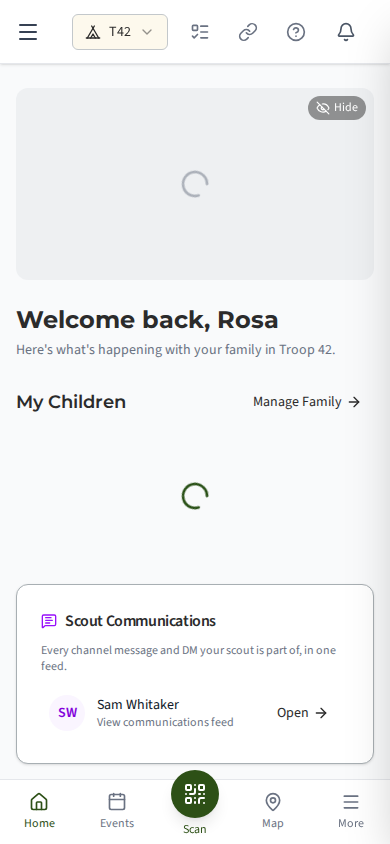
- Home: your dashboard.
- Events: the events list.
- Scan: appears in the middle, as a raised round button, when your unit’s plan includes equipment scanning. It opens the equipment scanner.
- Map: Find Locations, the map of places your unit can go.
- More: opens a small panel of extra pages.
Tap More and a panel slides up over the page:
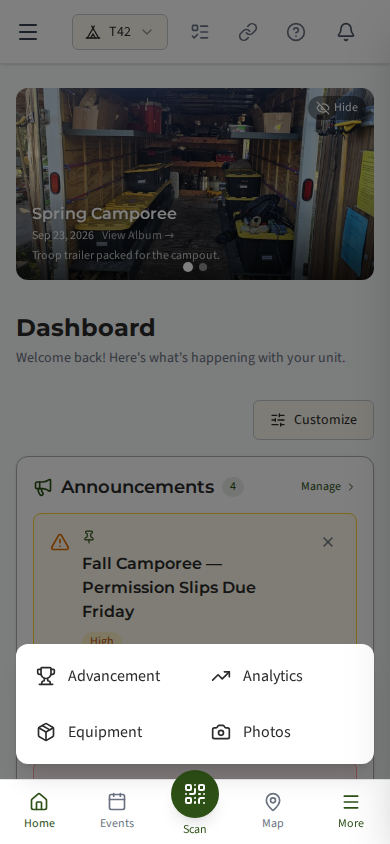
The panel holds Advancement, Analytics (leaders, on plans that include advanced reporting), Equipment and Photos. Tap anywhere outside the panel, or choose a page, and it closes. A page your plan does not include, or that your unit admin has switched off, does not appear.
For everything else, tap the menu button at the top of the screen to open the full left menu, which includes All Items.
Where to look when you cannot find a page
Section titled “Where to look when you cannot find a page”- Look in the group you expect, then try the search box in All Items.
- Ask the AI Assistant which menu a feature lives under.
- Search the Knowledge Base, or contact support.
If the page is not in All Items either, it is not available to your role, plan or unit right now.
MySummitKeep is an independent product and is not affiliated with, endorsed by, or sponsored by Scouting America (formerly the Boy Scouts of America). Scouting America, Scouts BSA, Cub Scouts, Venturing, Sea Scouts, and the Order of the Arrow are trademarks of Scouting America. Official program content shown in screenshots and examples is © Scouting America; always confirm current requirements atscouting.org. SeeTerms § 7.3.